
Fortinet white logo
Fortinet white logo

User Guide

Getting started

Getting started

After you acquire a FortiRecon license or entitlement, you can subscribe and start the service. For more information on licensing, see Licensing

To subscribe to FortiRecon:
  1. After registering your standard license (see Standard FortiRecon Licensing) or obtaining your FortiFlex serial number (see FortiRecon FortiFlex Licensing), go to FortiRecon at https://fortirecon.forticloud.com.
  2. Click Login. The FortiCloud login page is displayed. Enter your FortiCloud credentials.
  3. After you log in to FortiRecon for the first time, the FortiRecon Provisioning Form page is displayed.

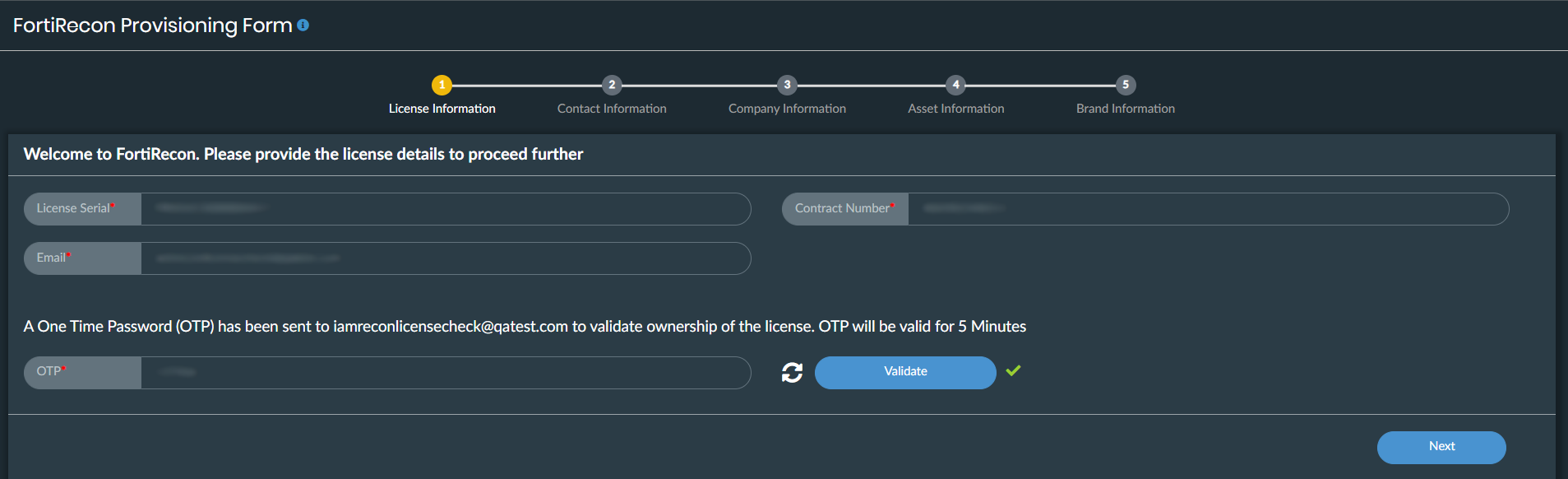
  4. License Information.

    1. Enter the following information.

      • License Serial: Enter your FortiRecon license serial number (for standard licenses) or the serial number obtained from your FortiFlex entitlement.

      • Contract Number: If you are using a standard FortiRecon license, enter the contract number. This field is not required for FortiFlex subscriptions.

      • Email: Enter the email address used to register the contract or associated with your FortiCloud account for FortiFlex.

    2. Click Verify.

    3. A One Time password (OTP) will be sent to your email and is valid for five minutes. Enter the OTP and click Validate. Click regenerate icon to generate a new OTP if needed. Once verified, click Next.
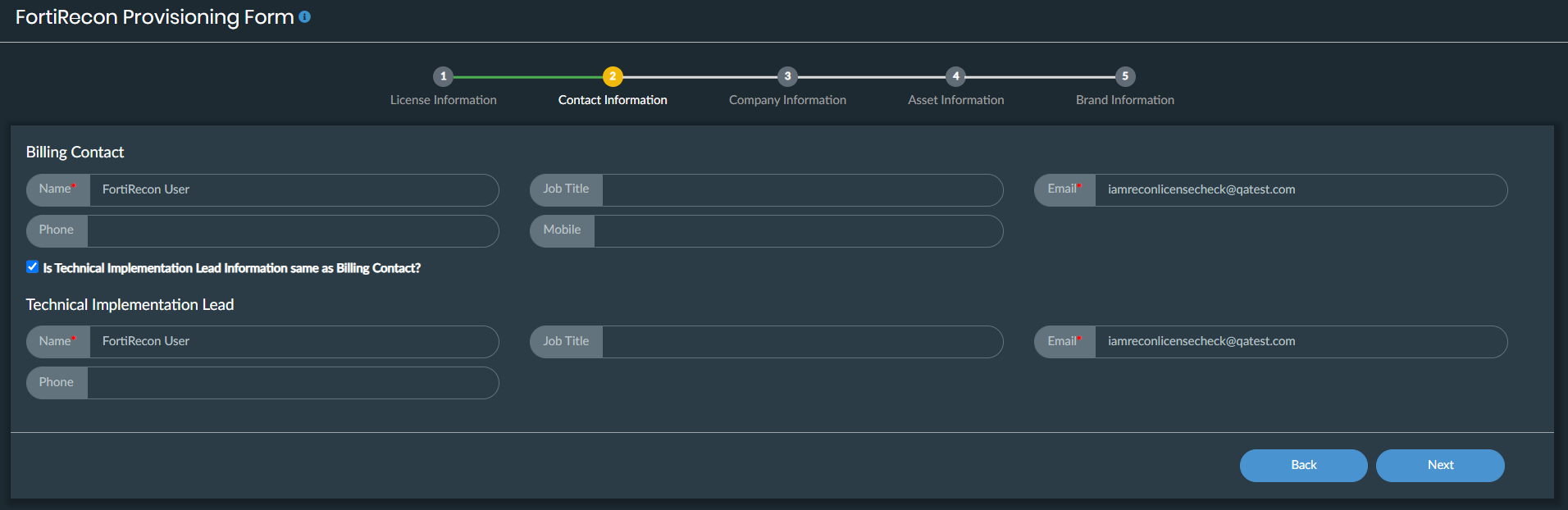
  5. Contact Information.

    1. Enter the contact information of the billing contact in the Billing Contact fields.
    2. Enter your contact information in the Technical Implementation Lead fields. Select Is Technical Implementation Lead Information same as Billing Contact checkbox if applicable.

      Note

      Fields marked with a red asterisks are required information. Other fields are considered optional although it is suggested that you complete all of the fields provided to receive the most accurate service.
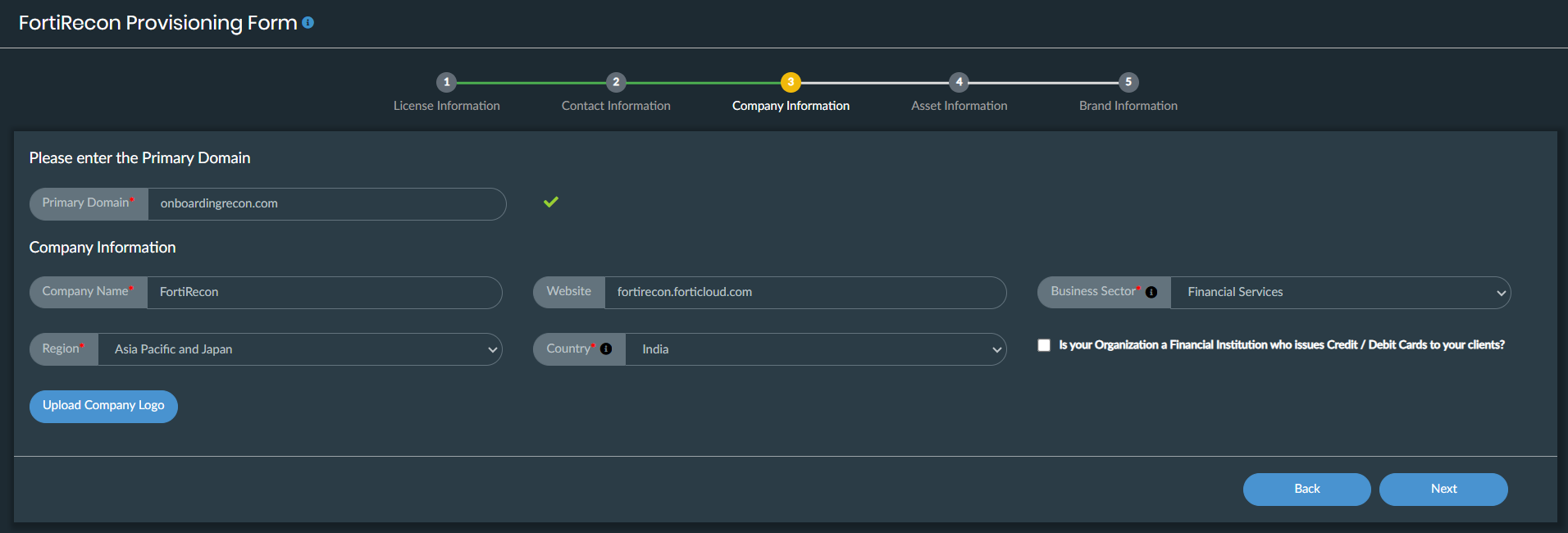
  6. Company Information .
    1. Enter the primary domain. If the domain already exists, a confirmation prompt appears.

      • Use existing account: Click to continue with existing data. The license will be added to the existing organization.

      • Create new account: Click to create a new account. Note: Creating a new account will delete all previous data.

        If you create a new account, an authorization code valid for 24 hours is generated. Contact Fortinet support to obtain the authorization code and delete the existing information.

    2. Once primary domain validated, enter your organization's information in the Company Information fields. Click Upload Company Logo to browse and upload your organization's logo.
    3. If your organization is a Financial Institution issuing credit or debit cards, select the checkbox. This will enable the Card Information step.
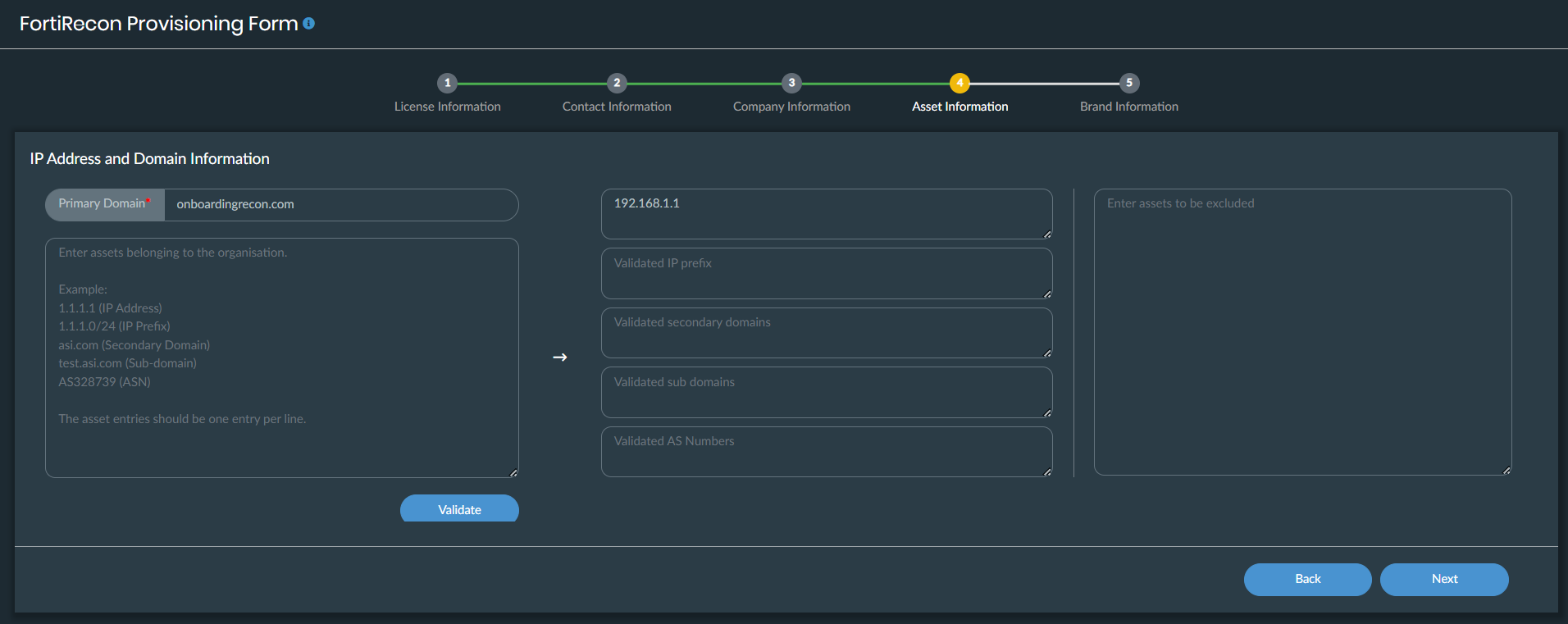
  7. Asset Information. Enter your organization's assets information including primary, secondary and sub domains, IP addresses, IP range, ASN, assets to be excluded from monitoring.
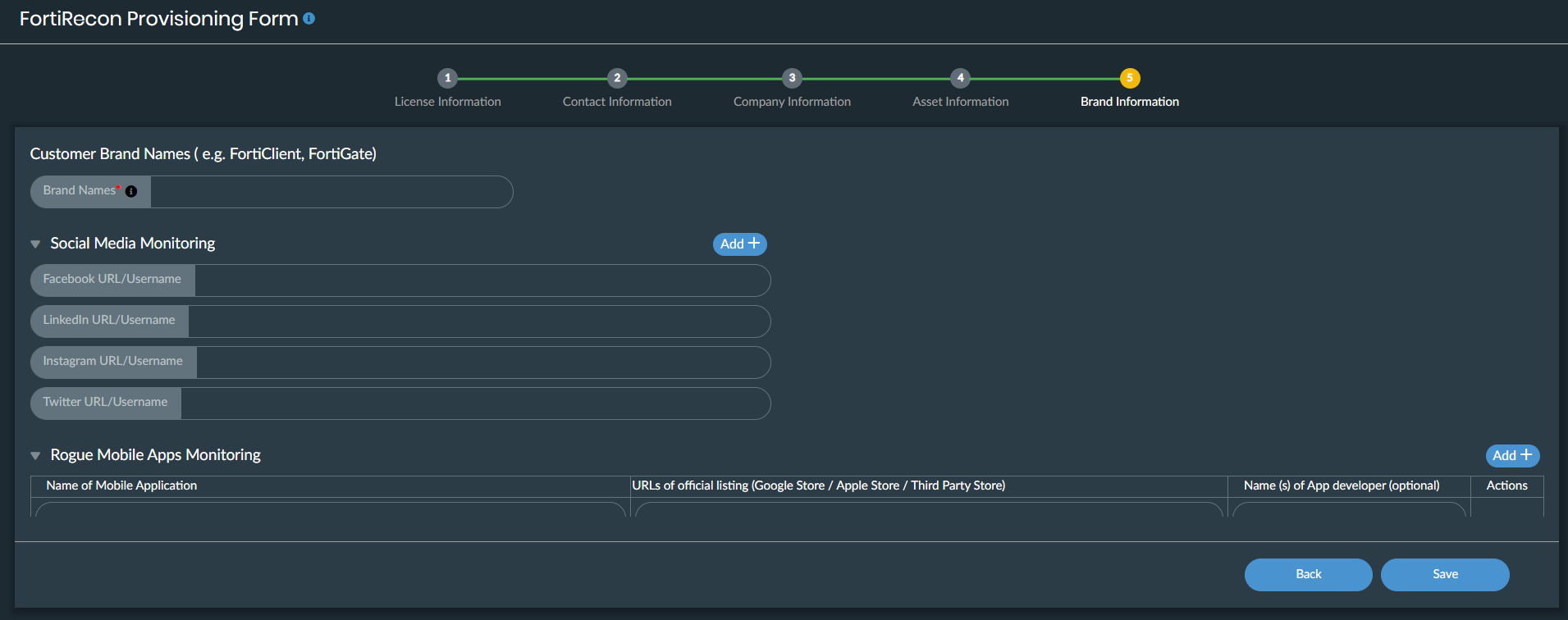
  8. Brand Information. Enter your brand names, social media profile and mobile applications to be monitored. Click Save.
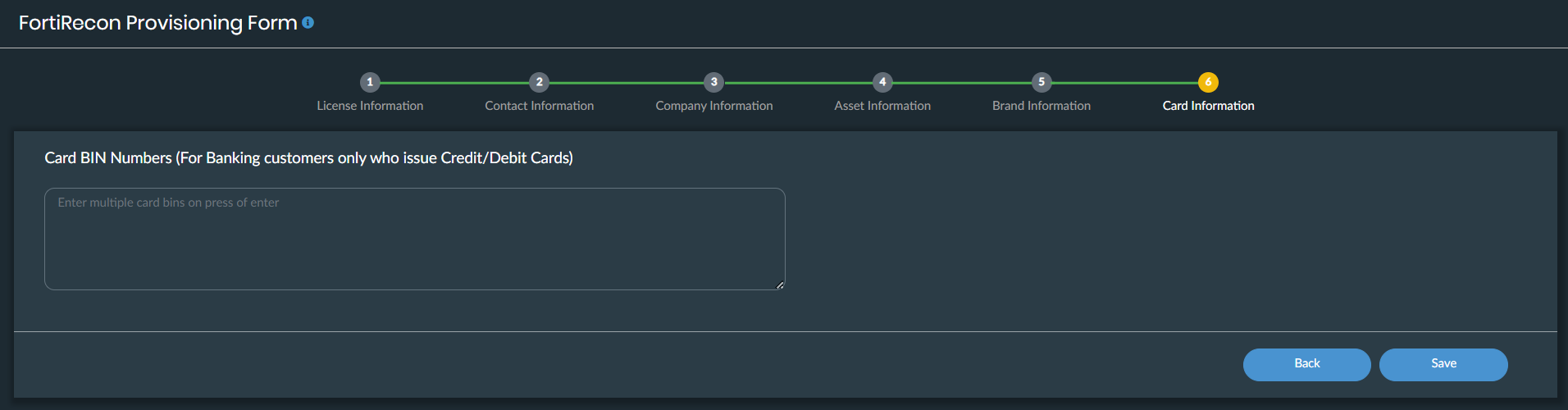
  9. Card Information. Enter Card BIN numbers. This is only for financial institutions who issue credit or debit cards.
  10. Click Save. Your information will be sent to the FortiRecon team for review and provisioning. You will be redirected to FortiRecon portal.

  11. Wait for the FortiRecon team to analyze your assets and populate the FortiRecon portal for you.
  12. When you receive an email from the FortiRecon team, you can access the FortiRecon portal and review the analysis.

Getting started

Getting started

After you acquire a FortiRecon license or entitlement, you can subscribe and start the service. For more information on licensing, see Licensing

To subscribe to FortiRecon:
  1. After registering your standard license (see Standard FortiRecon Licensing) or obtaining your FortiFlex serial number (see FortiRecon FortiFlex Licensing), go to FortiRecon at https://fortirecon.forticloud.com.
  2. Click Login. The FortiCloud login page is displayed. Enter your FortiCloud credentials.
  3. After you log in to FortiRecon for the first time, the FortiRecon Provisioning Form page is displayed.

  4. License Information.

    1. Enter the following information.

      • License Serial: Enter your FortiRecon license serial number (for standard licenses) or the serial number obtained from your FortiFlex entitlement.

      • Contract Number: If you are using a standard FortiRecon license, enter the contract number. This field is not required for FortiFlex subscriptions.

      • Email: Enter the email address used to register the contract or associated with your FortiCloud account for FortiFlex.

    2. Click Verify.

    3. A One Time password (OTP) will be sent to your email and is valid for five minutes. Enter the OTP and click Validate. Click regenerate icon to generate a new OTP if needed. Once verified, click Next.

  5. Contact Information.

    1. Enter the contact information of the billing contact in the Billing Contact fields.
    2. Enter your contact information in the Technical Implementation Lead fields. Select Is Technical Implementation Lead Information same as Billing Contact checkbox if applicable.
      Note

      Fields marked with a red asterisks are required information. Other fields are considered optional although it is suggested that you complete all of the fields provided to receive the most accurate service.

  6. Company Information .
    1. Enter the primary domain. If the domain already exists, a confirmation prompt appears.

      • Use existing account: Click to continue with existing data. The license will be added to the existing organization.

      • Create new account: Click to create a new account. Note: Creating a new account will delete all previous data.

        If you create a new account, an authorization code valid for 24 hours is generated. Contact Fortinet support to obtain the authorization code and delete the existing information.

    2. Once primary domain validated, enter your organization's information in the Company Information fields. Click Upload Company Logo to browse and upload your organization's logo.
    3. If your organization is a Financial Institution issuing credit or debit cards, select the checkbox. This will enable the Card Information step.

  7. Asset Information. Enter your organization's assets information including primary, secondary and sub domains, IP addresses, IP range, ASN, assets to be excluded from monitoring.

  8. Brand Information. Enter your brand names, social media profile and mobile applications to be monitored. Click Save.

  9. Card Information. Enter Card BIN numbers. This is only for financial institutions who issue credit or debit cards.

  10. Click Save. Your information will be sent to the FortiRecon team for review and provisioning. You will be redirected to FortiRecon portal.

  11. Wait for the FortiRecon team to analyze your assets and populate the FortiRecon portal for you.
  12. When you receive an email from the FortiRecon team, you can access the FortiRecon portal and review the analysis.