Configuring and Running a Standalone Playbook
Follow these steps to configure and run a standalone playbook:
-
Navigate to Security Orchestration > Home tab. You can also run predefined playbooks or create and run new playbooks from Security Orchestration > Playbooks. See Playbooks.
-
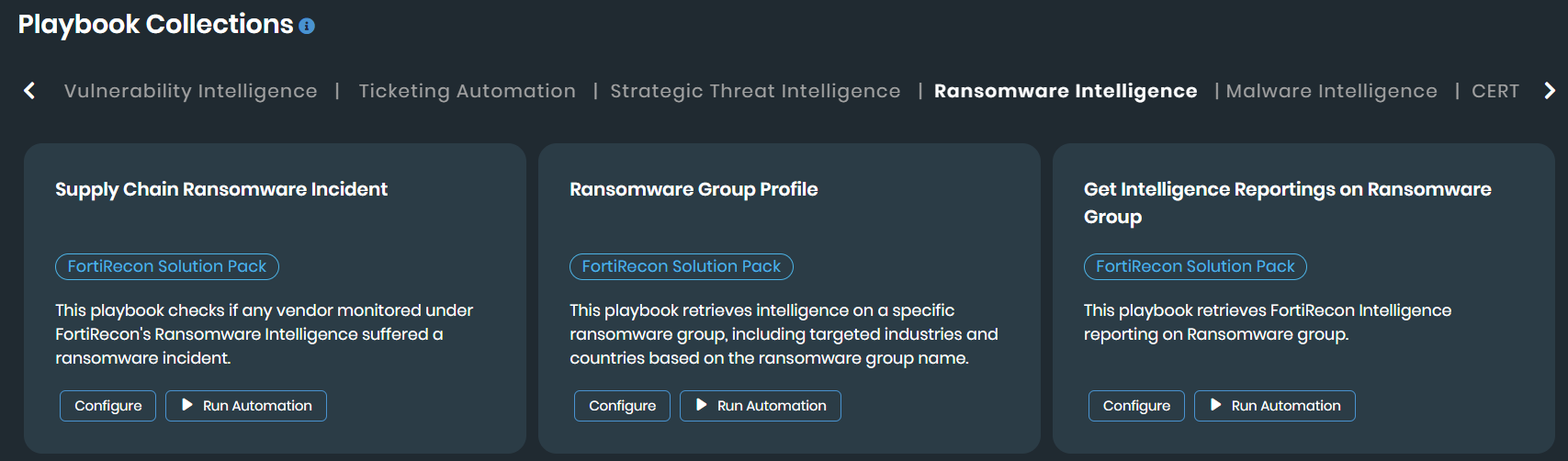
Select a desired collection in the Playbook Collections section.
For example, select the Ransomware Group Profile playbook under the Ransomware Intelligence collection.
-
Click Configure.
-
In the Configure Playbook window, perform the following steps.
-
Click Start.
-
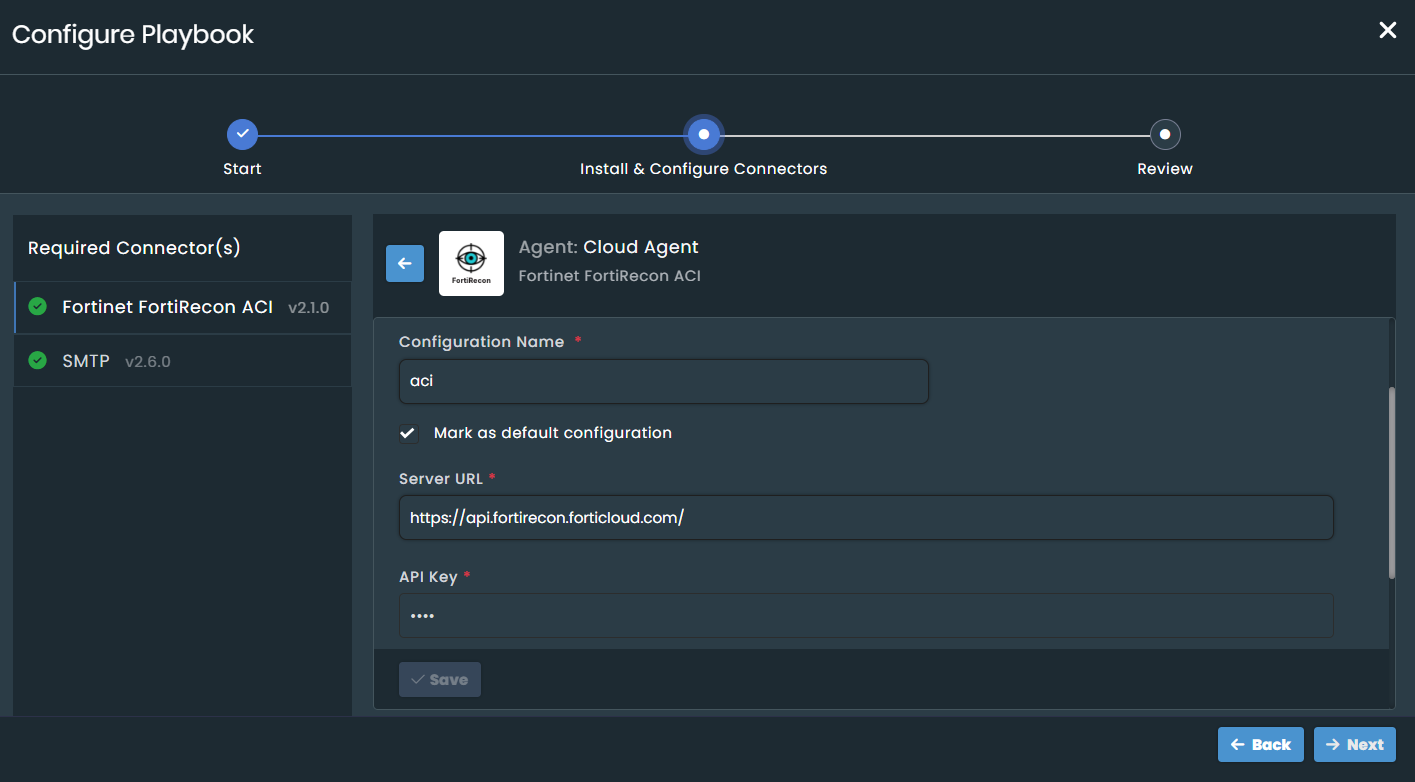
Configure the required connectors. For example, the Ransomware Group Profile playbook requires Fortinet FortiRecon ACI and SMTP connectors.
-
The SMTP connector comes preconfigured. If you require a different server, update its configuration.
-
For the Fortinet FortiRecon ACI connector, provide the following details:
-
Configuration Name: Enter a descriptive name.
-
Server URL: The URL
https://api.fortirecon.forticloud.com/. -
API Key and Organization ID: Fetch both details from Profile Settings > Profile page.
-
Verify SSL: Enable this toggle if required.
-
Tags: Add tags if required.
-
-
Click Save.
-
For detailed information on configuring connectors, see Connectors.
-
-
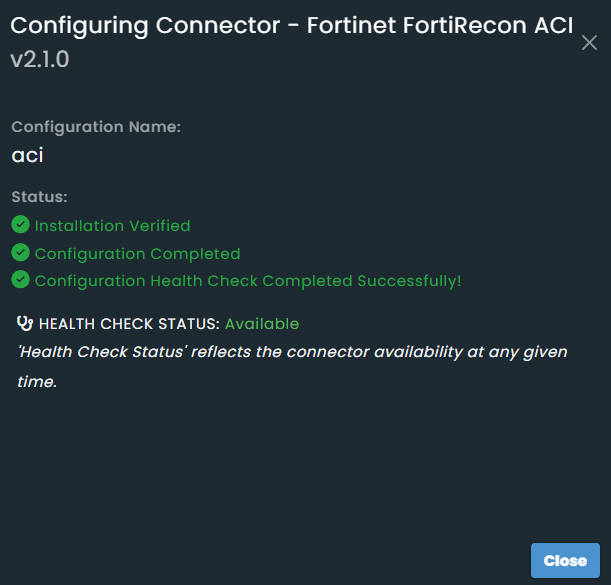
The Configuring Connector status dialog displays information about the configuration process. Ensure the Health Check Status is Available to confirm the connector is configured properly. If the status shows Disconnected, reconfigure the connector.
-
Click Close.
-
Click Next and then Close.

If you configure a connector in one playbook, its configuration becomes available in all other playbooks that use the same connector. You can also configure connectors directly from Security Orchestration > Content Hub > Installed tab.
-
Once successfully configured, you can run the automation. Click Run Automation.
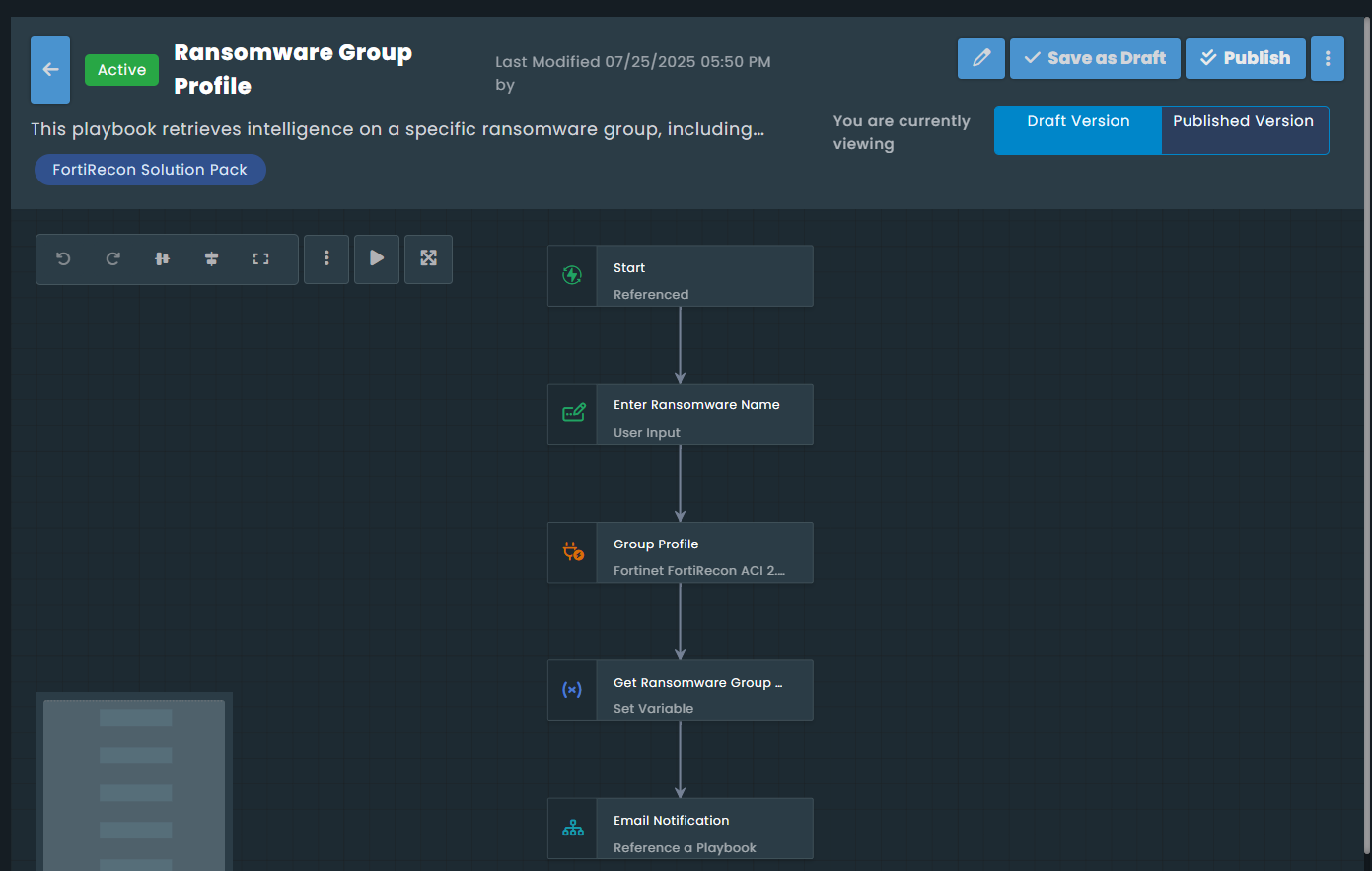
The playbook designer window opens, displaying the configured steps. For this example, the playbook begins by prompting you to enter a ransomware group name, then uses the Fortinet FortiRecon ACI connector to fetch relevant data. It then sets a variable with this data and proceeds to send an email notification.
The Email Notification is a referenced playbook. This referenced playbook starts by using a Utilities connector to convert JSON data to CSV format, then prompts you to enter an email ID, and finally uses an SMTP connector to send the email.
-
Click Run.
-
Select Provide sample input, leave it blank, and click Trigger Playbook. See Playbook Designer.
You can also execute standalone playbooks from the Action menu in supported FortiRecon pages. Remove any applied filters to view all available playbooks.
-
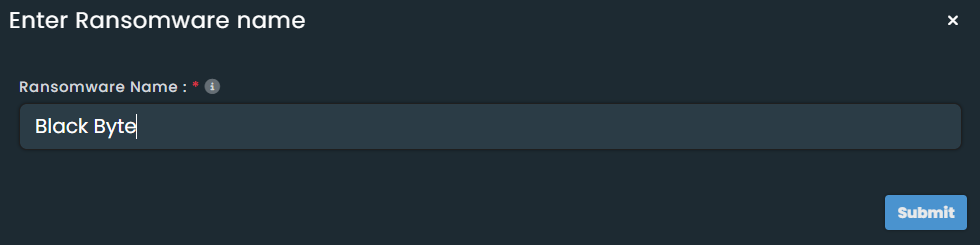
For the example, after you click Trigger Playbook, an Enter Ransomware Name dialog opens. This is a step in the playbook. Enter a ransomware group name (e.g., "Black Byte").
-
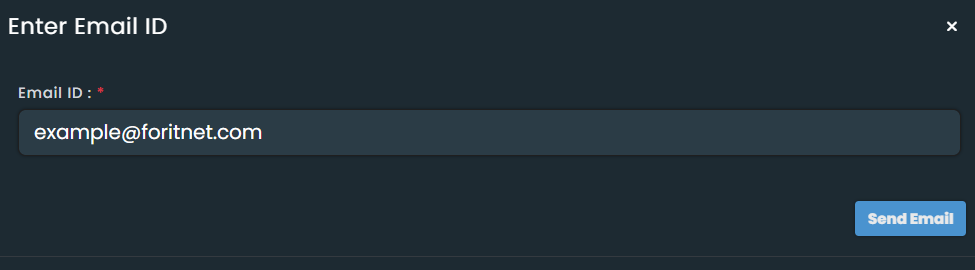
A success message displays if the step executes completely. Next, provide an email address in the subsequent step, which is part of the referenced playbook. This step takes your email ID as input, converts the output JSON to CSV, and then sends an email with the CSV attachment to the provided email ID.
-
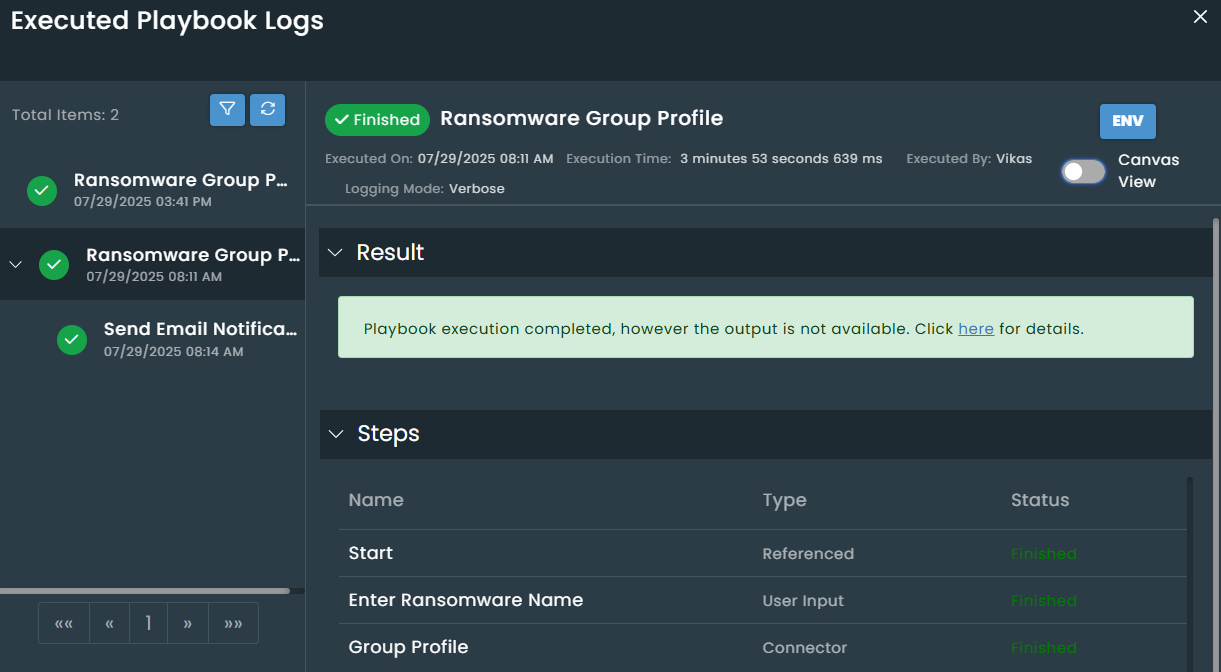
You can view the details of each step in the execution history, including environment data in the INPUT and OUTPUT sections. Toggle to the canvas view for a visual representation. See Execution Logs.