
Fortinet white logo
Fortinet white logo

User Guide

Adding integrations

Adding integrations

The EASM > Integrations page displays all existing AWS, Azure, Google Cloud Platform, and FortiDAST integrations. You can manually add new integrations as needed.

To add a new AWS integration:
  1. Go to EASM > Integrations.

  2. Click the + icon.

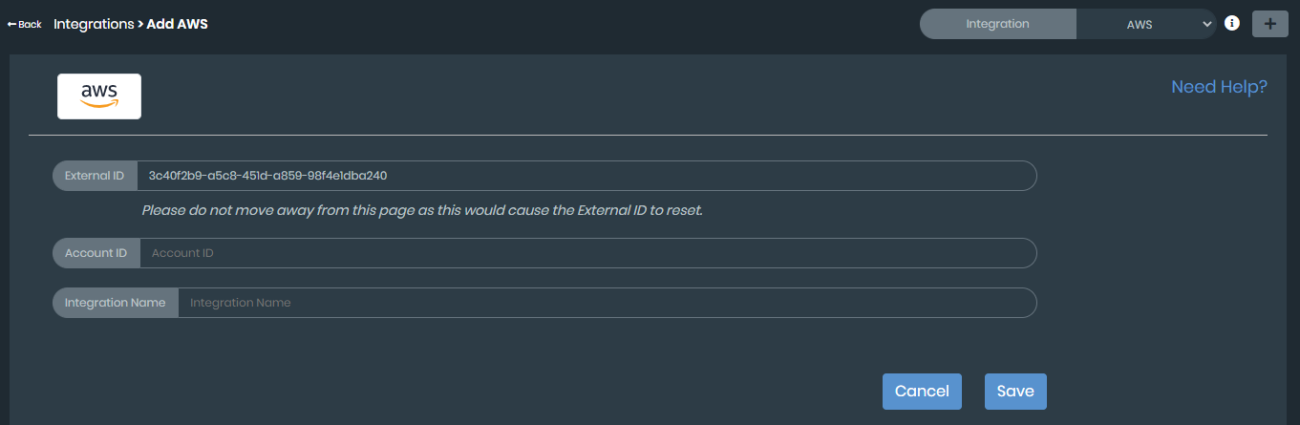
  3. Select AWS. The Add AWS page is displayed.
    Note

    For more information on creating an AWS IAM policy and role, click Need Help?.

  4. Enter the account ID number in the Account ID field.

  5. Enter a descriptive name in the Integration Name field.

  6. Click Save.

To add a new Azure integration:
  1. Go to EASM > Integrations.

  2. Click the + icon.

  3. Select Azure. The Add Azure page is displayed.

  4. Enter the relevant values in the Subscription ID, Client ID, Tenant ID, and Client Secret fields.

    Note

    These four values are necessary to create read-only access for your Azure cloud account. For information on generating these values, click Need Help?.

  5. Enter a descriptive name in the Integration Name field.

  6. Click Save.

To add a new Google Cloud Platform integration:
  1. Go to EASM > Integrations.

  2. Click the + icon.

  3. Select GCP. The Add GCP page is displayed.

  4. Enter a descriptive name in the Integration Name field.

  5. Enter the JSON information from the GCP configuration file.

    Note

    For information on generating the GCP key file and downloading JSON, click Need Help?.

  6. Click Validate.

To add a new FortiDAST integration:
  1. Go to EASM > Integrations.

  2. Click the + icon.

  3. Select FortiDAST. The Add FortiDAST page is displayed.

  4. Enter the master email address in the Email field.

  5. Enter the API Key from FortiDAST.

  6. Click Save to verify the key.

    Note

    Once the FortiDAST integration is verified, you can scan assets in the EASM > Asset Discovery page. See .

Adding integrations

Adding integrations

The EASM > Integrations page displays all existing AWS, Azure, Google Cloud Platform, and FortiDAST integrations. You can manually add new integrations as needed.

To add a new AWS integration:
  1. Go to EASM > Integrations.

  2. Click the + icon.

  3. Select AWS. The Add AWS page is displayed.

    Note

    For more information on creating an AWS IAM policy and role, click Need Help?.

  4. Enter the account ID number in the Account ID field.

  5. Enter a descriptive name in the Integration Name field.

  6. Click Save.

To add a new Azure integration:
  1. Go to EASM > Integrations.

  2. Click the + icon.

  3. Select Azure. The Add Azure page is displayed.
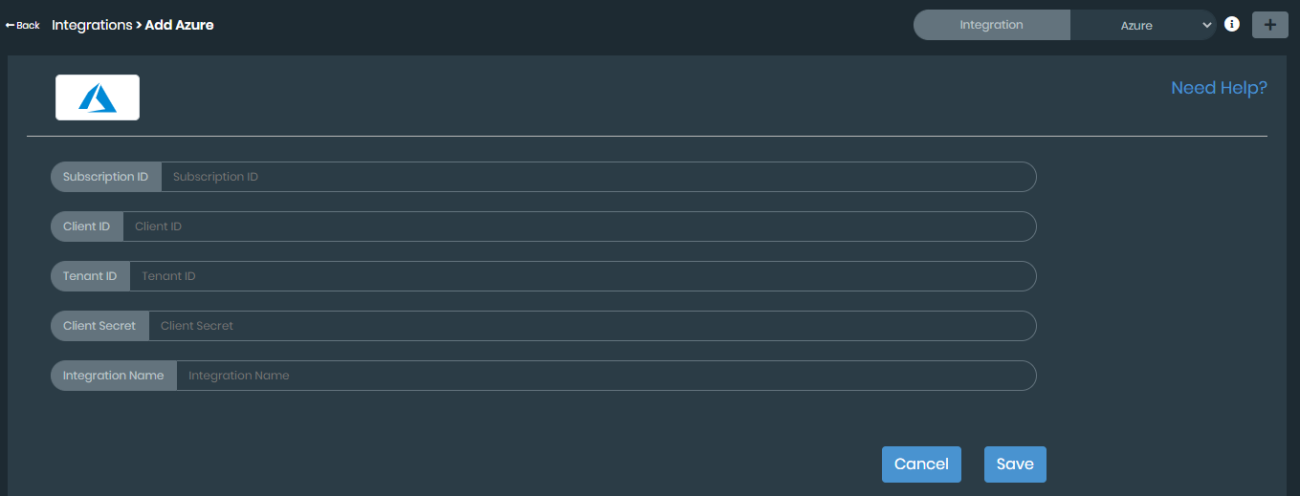
  4. Enter the relevant values in the Subscription ID, Client ID, Tenant ID, and Client Secret fields.

    Note

    These four values are necessary to create read-only access for your Azure cloud account. For information on generating these values, click Need Help?.

  5. Enter a descriptive name in the Integration Name field.

  6. Click Save.

To add a new Google Cloud Platform integration:
  1. Go to EASM > Integrations.

  2. Click the + icon.

  3. Select GCP. The Add GCP page is displayed.
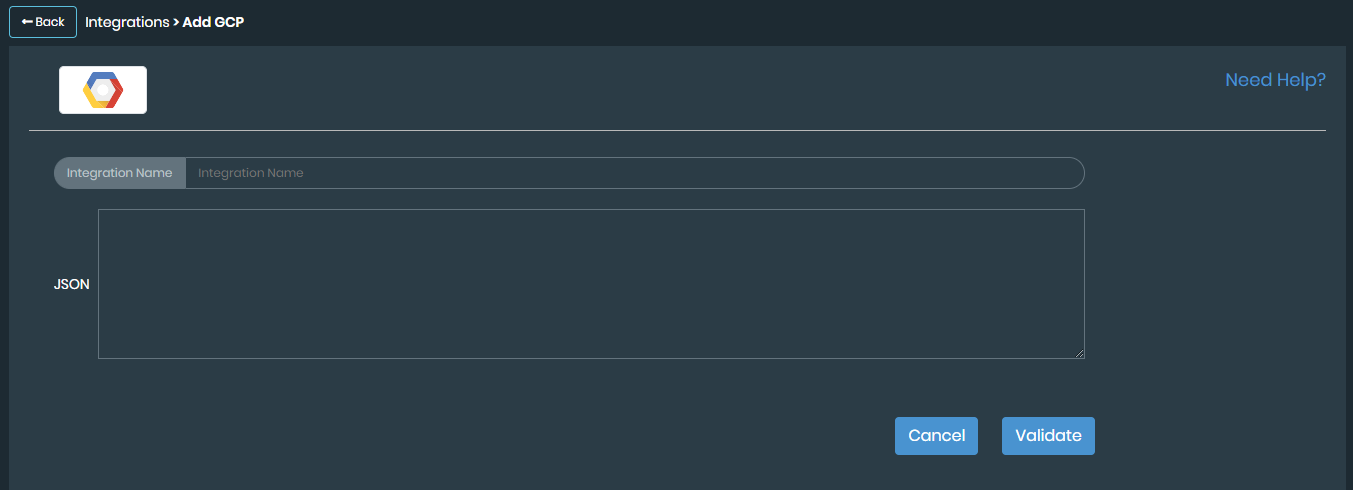
  4. Enter a descriptive name in the Integration Name field.

  5. Enter the JSON information from the GCP configuration file.

    Note

    For information on generating the GCP key file and downloading JSON, click Need Help?.

  6. Click Validate.

To add a new FortiDAST integration:
  1. Go to EASM > Integrations.

  2. Click the + icon.

  3. Select FortiDAST. The Add FortiDAST page is displayed.
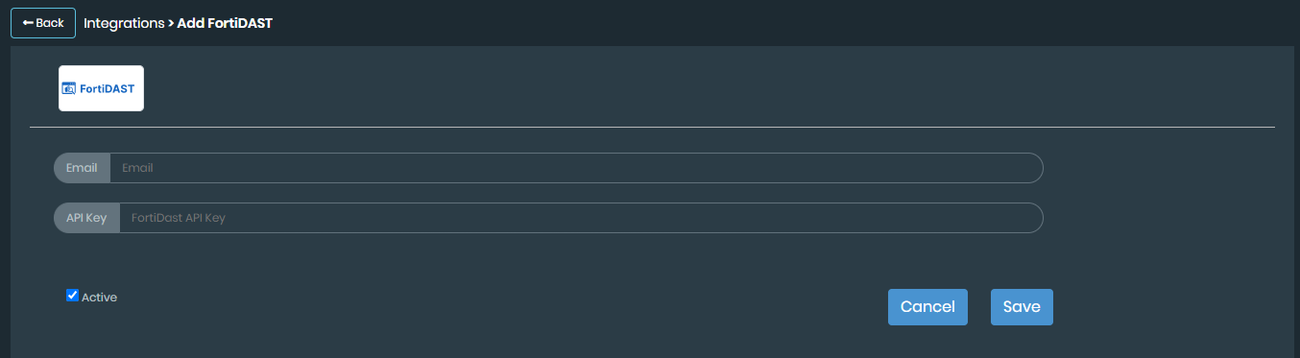
  4. Enter the master email address in the Email field.

  5. Enter the API Key from FortiDAST.

  6. Click Save to verify the key.

    Note

    Once the FortiDAST integration is verified, you can scan assets in the EASM > Asset Discovery page. See .