

Policy action
Select a policy, then click Action to enable, disable, move, or copy and paste policies.
For proxy policies, you may also select Set as Policy Template. The selected policy is used as the base for any new proxy policies.

|
A disabled policy is marked with a red x icon in the # column.
|

Moving a policy
To change the order of the policies:
- Select the policy in the list and then select Move from the Action dropdown.
The system opens a dialog box, showing the sequence number of the selected policy.
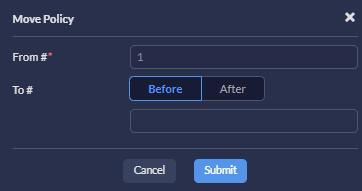
- Select the option of Before or After.
- Enter the sequence number of the target policy.
-
Click Submit
The selected policy moves to its new position before or after the target policy.
Copying and pasting a policy
-
Select a policy in the list.
-
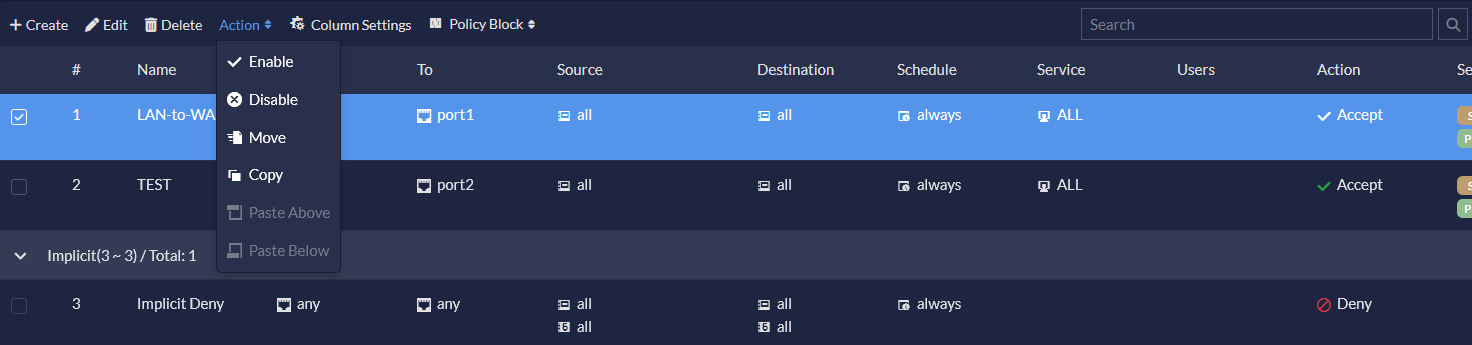
In the Action menu, select Copy.
-
Select a target policy.
-
In the Action menu, select Paste Above or Paste Below.
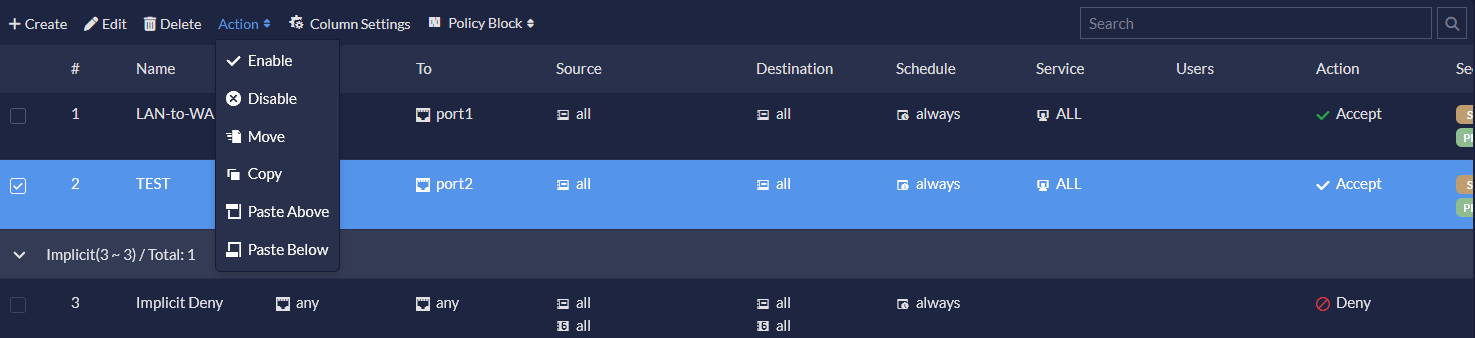
The policy is pasted above or below the selected target policy with a blank Name. All other settings are the same as the copied policy.