
Fortinet white logo
Fortinet white logo

Administration Guide

Dashboard

Dashboard

The dashboard displays information about the FortiPortal and is organized as a set of widgets.
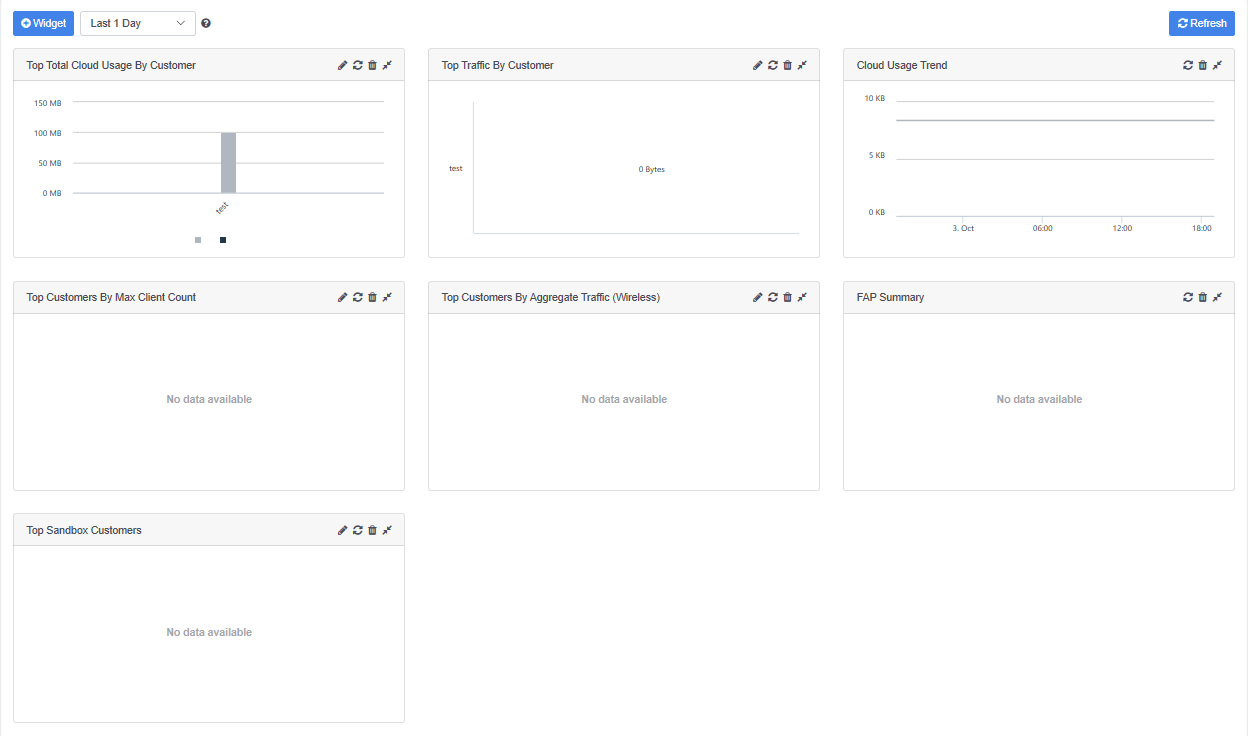
Actions available (at the top of the Dashboard page):

  • Widget—add a widget to the dashboard
  • Filter—filter the data based on time (last 5 minutes, last 30 minutes, last 60 minutes, last 4 hours, last 12 hours, last 1 day, last 7 days, or specify a custom filter)
  • Refresh—refresh the display for all of the widgets on the page

The dashboard includes the following default widgets:

  • Top Total Cloud Usage By Customer
    • Hover your cursor over each customer to view the detailed usage numbers
  • Top Traffic By Customer
  • Cloud Usage Trend
    • Hover your cursor over each customer to view the detailed numbers over the selected usage period
  • Top Customers By Max Client Count
  • Top Customers By Aggregate Traffic (Wireless)
    • Hover your cursor over each customer to view the detailed traffic numbers
  • Fortinet Access Point (FAP) Summary
    • Select the pie chart to view a list of the FAPs that are up (select the left side) or FAPs that are down (select the right side of the pie chart)
  • Top Sandbox Customers

The title bar on each widget provides the following controls:

  • Edit Settings—opens a new page with a form to edit the widget details
  • Refresh—refresh the widget display
  • Delete—delete the widget
  • Collapse/Expand—collapses the widget to display only the title bar
  • Drag and drop—select and hold the title bar of the widget to change its position on the page

Dashboard

Dashboard

The dashboard displays information about the FortiPortal and is organized as a set of widgets.

Actions available (at the top of the Dashboard page):

  • Widget—add a widget to the dashboard
  • Filter—filter the data based on time (last 5 minutes, last 30 minutes, last 60 minutes, last 4 hours, last 12 hours, last 1 day, last 7 days, or specify a custom filter)
  • Refresh—refresh the display for all of the widgets on the page

The dashboard includes the following default widgets:

  • Top Total Cloud Usage By Customer
    • Hover your cursor over each customer to view the detailed usage numbers
  • Top Traffic By Customer
  • Cloud Usage Trend
    • Hover your cursor over each customer to view the detailed numbers over the selected usage period
  • Top Customers By Max Client Count
  • Top Customers By Aggregate Traffic (Wireless)
    • Hover your cursor over each customer to view the detailed traffic numbers
  • Fortinet Access Point (FAP) Summary
    • Select the pie chart to view a list of the FAPs that are up (select the left side) or FAPs that are down (select the right side of the pie chart)
  • Top Sandbox Customers

The title bar on each widget provides the following controls:

  • Edit Settings—opens a new page with a form to edit the widget details
  • Refresh—refresh the widget display
  • Delete—delete the widget
  • Collapse/Expand—collapses the widget to display only the title bar
  • Drag and drop—select and hold the title bar of the widget to change its position on the page