Fortinet white logo
Fortinet white logo

Examples

Creating a secret for the target that uses the FortiPAM reverse gateway

Creating a secret for the target that uses the FortiPAM reverse gateway

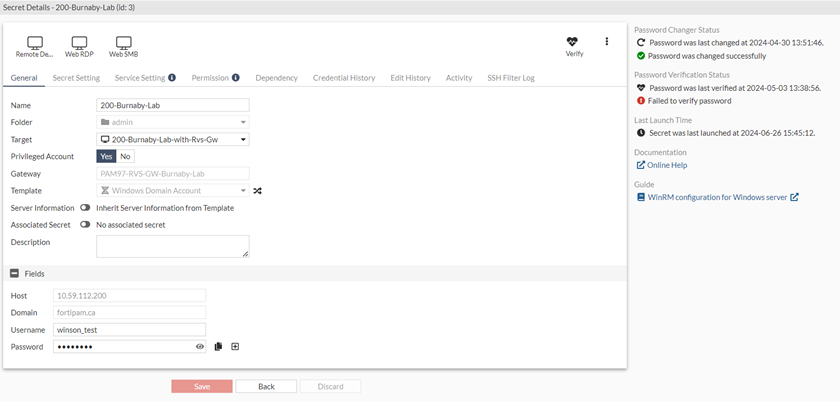
We create a secret for the target that uses FortiPAM reverse gateway and launch the secret from the FortiPAM server.

To create a secret for target:
  1. Go to Secrets > Secrets.
  2. In the Secrets List, select Create.

    The Create New Secret in: dialog appears.

  3. Select the folder where you intend to add the secret.
  4. Select Create.

    The New Secret window opens.

  5. Enter a name for the secret.
  6. From the Target dropdown, select the target that uses FortiPAM gateway created in Configuring a target using reverse gateway on the FortiPAM server.
  7. Enable Privileged Account.
  8. In Fields:
    1. In Host, enter the host IP address.
    2. In Domain, enter the server domain.
    3. Enter the user name.
    4. Enter the password.
    5. Reenter the password to confirm.
    6. Click Submit.

Creating a secret for the target that uses the FortiPAM reverse gateway

Creating a secret for the target that uses the FortiPAM reverse gateway

We create a secret for the target that uses FortiPAM reverse gateway and launch the secret from the FortiPAM server.

To create a secret for target:
  1. Go to Secrets > Secrets.
  2. In the Secrets List, select Create.

    The Create New Secret in: dialog appears.

  3. Select the folder where you intend to add the secret.
  4. Select Create.

    The New Secret window opens.

  5. Enter a name for the secret.
  6. From the Target dropdown, select the target that uses FortiPAM gateway created in Configuring a target using reverse gateway on the FortiPAM server.
  7. Enable Privileged Account.
  8. In Fields:
    1. In Host, enter the host IP address.
    2. In Domain, enter the server domain.
    3. Enter the user name.
    4. Enter the password.
    5. Reenter the password to confirm.
    6. Click Submit.