Integrating FortiPAM and Jenkins- CLI
Before you begin
- Install the Jenkins OIDC provider plugin.
- Manage Jenkins > System configuration > Plugins.
- Search OpenID Connect Provider in Available Plugins.
OR
- Download the hpi file in https://plugins.jenkins.io/oidc-provider/releases/.
- Go to Advanced setting > Deploy Plugin > Choose file.
jq- On the Jenkins host Unix machine , use:
sudo apt install jq
- On the Jenkins host Unix machine , use:
curl- On the Jenkins host Unix machine, use:
sudo apt install curl
- On the Jenkins host Unix machine, use:
Setting up Jenkins URL
- Go to Manage Jenkins -> System configuration -> System -> Jenkins URL, and enter the URL.
Setting up Jenkins OIDC provider
- Go to Manage Jenkins > Security > Credentials.
- To open the System page, go to the Stores scoped to Jenkins field and click System.
- To open the Global Credentials, click Global credentials.
- Click Add credentials and choose OpenID Connect id token.
- Optionally, edit Issuer, Audience, and ID.
- Click Create.
- Click Update to update the new credential.
If the issuer is changed, you need to manually host the OIDC files. Otherwise, the OIDC link is
https://<Jenkins_URL>/oidc/.well-known/openid-configuration.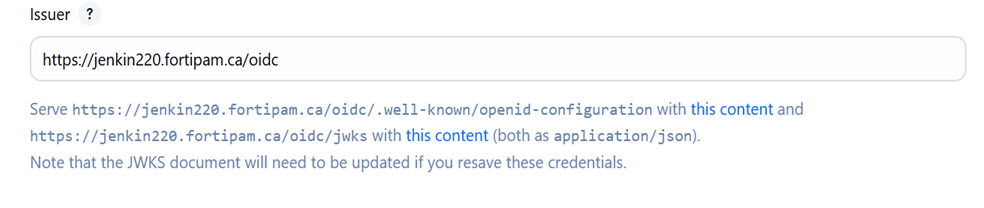
- If the ID is not set, the credential ID is generated.

Setting up FortiPAM JWT authentication
- In the FortiPAM CLI console, enter the following commands:
config secret jwt-key edit "jenkins" set type jwks set url <url> #The JWT URL next end - Check that the key has been retrieved.
- Set up the JWT api user.
config system api-user edit "jenkins_jwt_test" set type jwt set accprofile "pam_standard_user" set vdom "root" config claims edit "iss" set value <value> #This is same as the Jenkins settings, e.g., https://jenkin220.fortipam.ca/oidc next edit "sub" set value "<by default the URL of a Jenkins job>" #e.g., https://jenkin220.fortipam.ca/job/jwt-test/ next end next end - In the FortiPAM GUI, grant API user secret and folder permission.
Jenkins job example script
 pipeline {
  agent any
  stages {
   stage ('JWT-TEST') {
   steps {
      withCredentials([string(credentialsId: ‘<This will be the Jenkins credential id>', variable: 'JWT')])
       script{
        def PAM_ADDR = https://[PAM_Addr]:443
        sh 'echo $JWT | base64'
			def TOKEN_INFO = sh (
			script: "curl -k $PAM_ADDR/auth/jwt/login -H 'Content-Type:application/json' -d '{\"jwt\":\"$JWT\"}'",
			returnStdout: true
			).trim()
	sh "echo $TOKEN_INFO"
        def TOKEN = sh (
          script: "echo '$TOKEN_INFO' | jq -r '.[\"access-token\"]'",
	   returnStdout: true
	  ).trim()
	sh "echo $TOKEN"
	def FIELD_NAME = "<FPAM secret field name>"
	def SEC_CRED = sh (
           script "curl -k $PAM_ADDR/api/v2/cmdb/secret/database/<secret_id>?fieldname=$FIELD_NAME –H \"Authorization:Bearer $TOKEN\"",
           returnStdout: true
           ).trim()
         sh"echo $SEC_CRED"
	  pwd = sh (
       script: "echo '$SEC_CRED' | jq -r '.results[0].$FIELD_NAME'",
       returnStdout: true
       ).trim()
       println pwd
      }
     }
    }
   }
  }
 }
Jenkins freestyle setup
- Go to Job > Configure.
- In Environment, select Use secret text(s) or file(s).
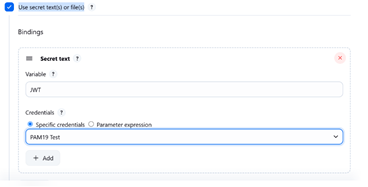
- Enter the environment variable name and select the OIDC provider credential.
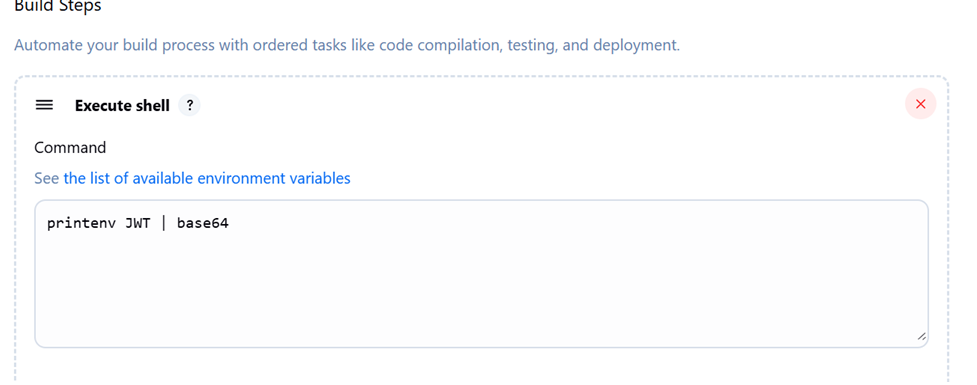
- In the build setup, proceed with the script used in Jenkins job example script, e.g., environment variable referencing.