Fortinet white logo
Fortinet white logo

Examples

Integrating FortiPAM and GitLab- GUI

Integrating FortiPAM and GitLab- GUI

In the GitLab design, there are 3 methods to connect FortiPAM to JWT.

  • ID Token Mode (GitLab recommended)

  • Legacy $CI_JOB_JWT

  • Terraform Mode

Integrating FortiPAM and GitLab
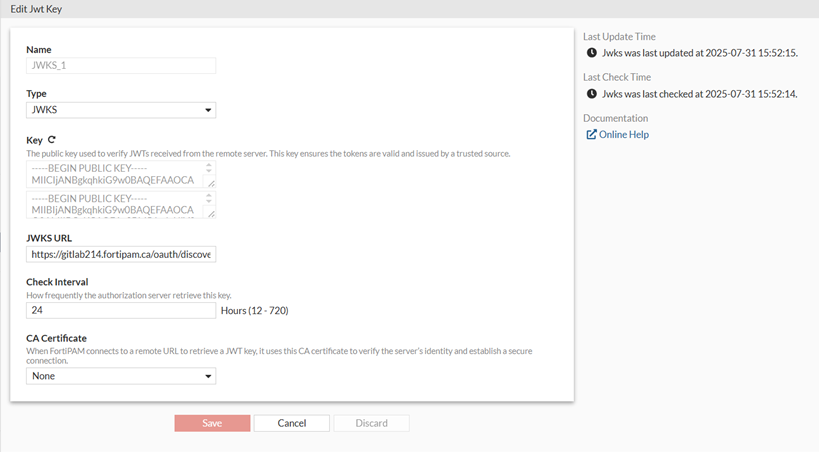
To create a JWT key:
  1. In the FortiPAM GUI, go to User Management > JWT Key Management, and select Create.

    The New JWT Key window opens.

  2. Enter a name for the JWT key.
  3. In Type, select JWKS.
  4. In Key, enter the public key used to verify JWTs received from the remote server.

    Select + to add additional keys.

    Note: The key ensures the tokens are valid and issued by a trusted source.

  5. In JWKS URL, enter the JWKS URL.
  6. In Check Interval, keep the default value 24.

    The Check Interval is the frequency at which the authorization server retrieves the key, in hours.

  7. Click Save.

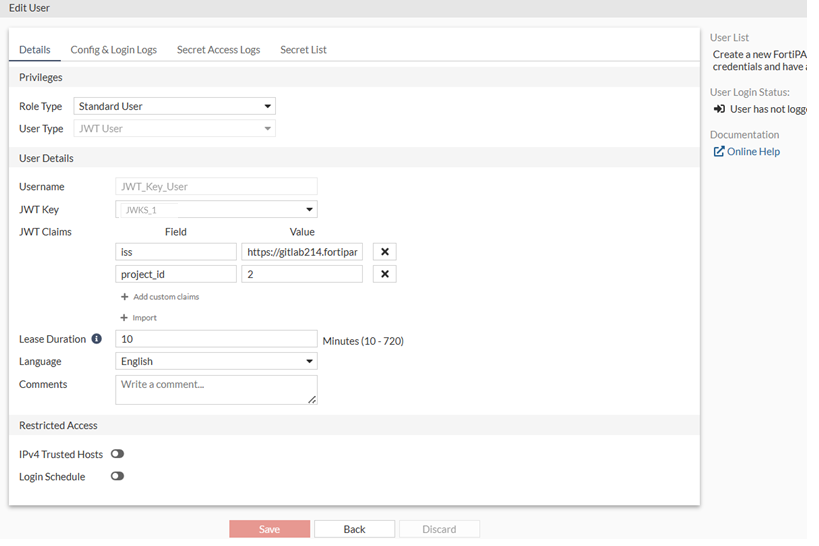
To create a JWT user:
  1. Go to User Management > User List, and select Create.

    The New User List wizard is launched.

  2. In User Privilege, select Standard User, and click Next.
  3. In User Type, select JWT User, and click Next.
  4. In User Details:
    1. In Username, enter a username.
    2. In JWT key, select the JWT key earlier created.
    3. In JWT Claims, select Add custom claims to add JWT claims Field and Value.
    4. Ensure that the Lease Duration is set to 10 minutes.

      The Lease Duration is the validity period of the token obtained through JWT authentication, in minutes.

    5. Select the language for the user.
    6. Click Next.
  5. Review the changes and click Submit.

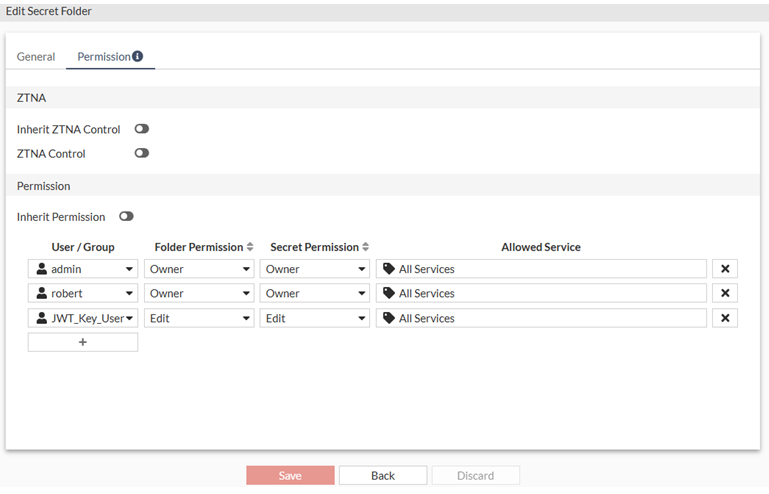
To grant secret permission to the JWT user:
  1. In Secrets, go to the secret folder.
  2. Double-click the folder to open it.
  3. Select Edit Current Folder.
  4. Go to the Permission tab, add users, and adjust the level of access they get into the folder.
  5. Click Save.

Integrating FortiPAM and GitLab- GUI

Integrating FortiPAM and GitLab- GUI

In the GitLab design, there are 3 methods to connect FortiPAM to JWT.

  • ID Token Mode (GitLab recommended)

  • Legacy $CI_JOB_JWT

  • Terraform Mode

Integrating FortiPAM and GitLab
To create a JWT key:
  1. In the FortiPAM GUI, go to User Management > JWT Key Management, and select Create.

    The New JWT Key window opens.

  2. Enter a name for the JWT key.
  3. In Type, select JWKS.
  4. In Key, enter the public key used to verify JWTs received from the remote server.

    Select + to add additional keys.

    Note: The key ensures the tokens are valid and issued by a trusted source.

  5. In JWKS URL, enter the JWKS URL.
  6. In Check Interval, keep the default value 24.

    The Check Interval is the frequency at which the authorization server retrieves the key, in hours.

  7. Click Save.

To create a JWT user:
  1. Go to User Management > User List, and select Create.

    The New User List wizard is launched.

  2. In User Privilege, select Standard User, and click Next.
  3. In User Type, select JWT User, and click Next.
  4. In User Details:
    1. In Username, enter a username.
    2. In JWT key, select the JWT key earlier created.
    3. In JWT Claims, select Add custom claims to add JWT claims Field and Value.
    4. Ensure that the Lease Duration is set to 10 minutes.

      The Lease Duration is the validity period of the token obtained through JWT authentication, in minutes.

    5. Select the language for the user.
    6. Click Next.
  5. Review the changes and click Submit.

To grant secret permission to the JWT user:
  1. In Secrets, go to the secret folder.
  2. Double-click the folder to open it.
  3. Select Edit Current Folder.
  4. Go to the Permission tab, add users, and adjust the level of access they get into the folder.
  5. Click Save.