
Fortinet white logo
Fortinet white logo

Examples

Launching the secret

Launching the secret

We launch the secret created in Creating a secret to connect to FortiAuthenticator.

To launch the secret:
  1. Go to Secrets > Secrets.
  2. From the list double-click to open the secret created in Creating a secret to connect to FortiAuthenticator.
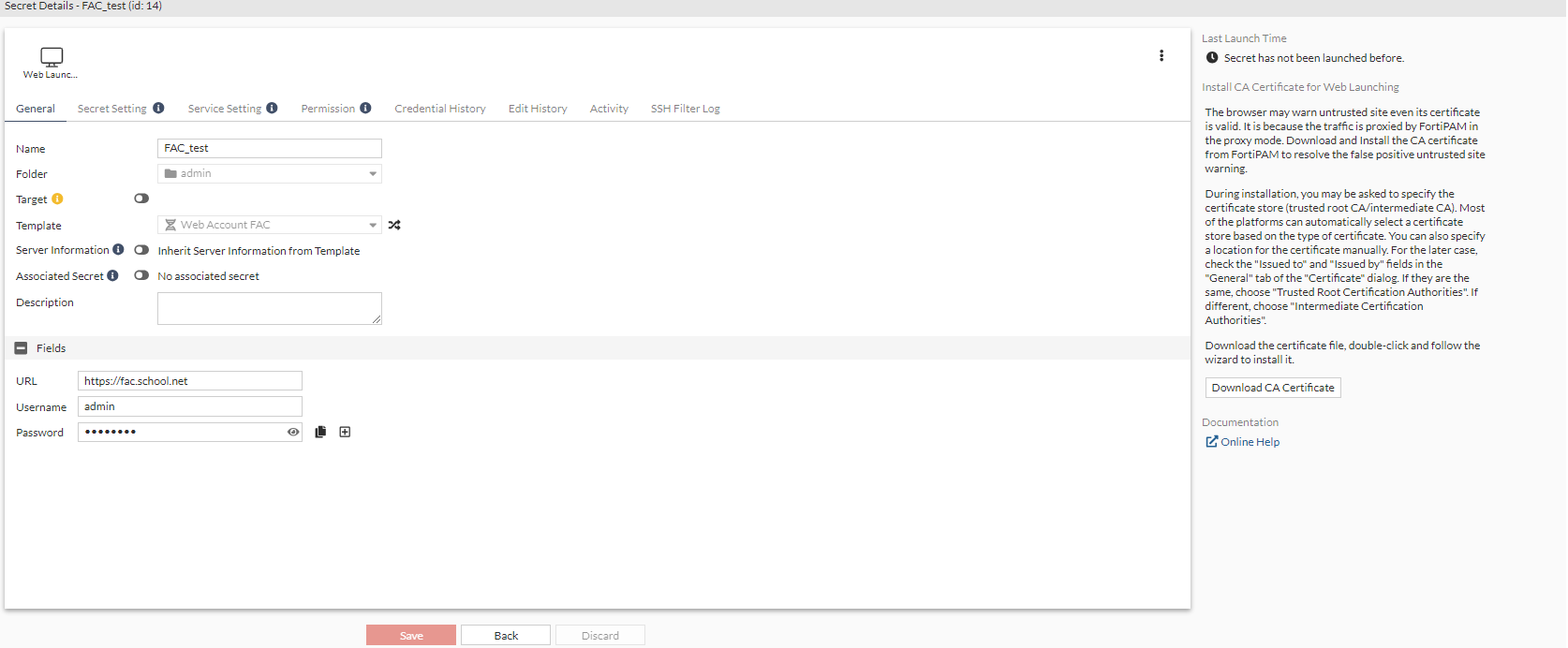
  3. From the top, select Web Launcher to launch the secret.

    A new browser tab opens.

  4. In the FortiAuthenticator login page, click Username/Password fields, click Use FortiPAM session credentials to fill in the credentials, and click Login.

    You are now logged in to FortiAuthenticator.

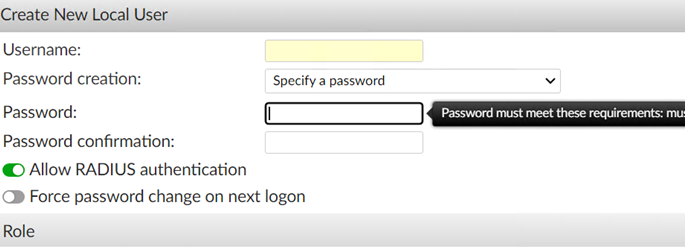
    On FortiAuthenticator, when you create a user and try to enter user name/password, the FortiPAM extension does not auto fill in the user name/password.
Launching the secret

Launching the secret

We launch the secret created in Creating a secret to connect to FortiAuthenticator.

To launch the secret:
  1. Go to Secrets > Secrets.
  2. From the list double-click to open the secret created in Creating a secret to connect to FortiAuthenticator.

  3. From the top, select Web Launcher to launch the secret.

    A new browser tab opens.

  4. In the FortiAuthenticator login page, click Username/Password fields, click Use FortiPAM session credentials to fill in the credentials, and click Login.

    You are now logged in to FortiAuthenticator.

    On FortiAuthenticator, when you create a user and try to enter user name/password, the FortiPAM extension does not auto fill in the user name/password.