Fortinet white logo
Fortinet white logo

Examples

Sharing secrets to a contractor

Sharing secrets to a contractor

To share secrets to a contractor:
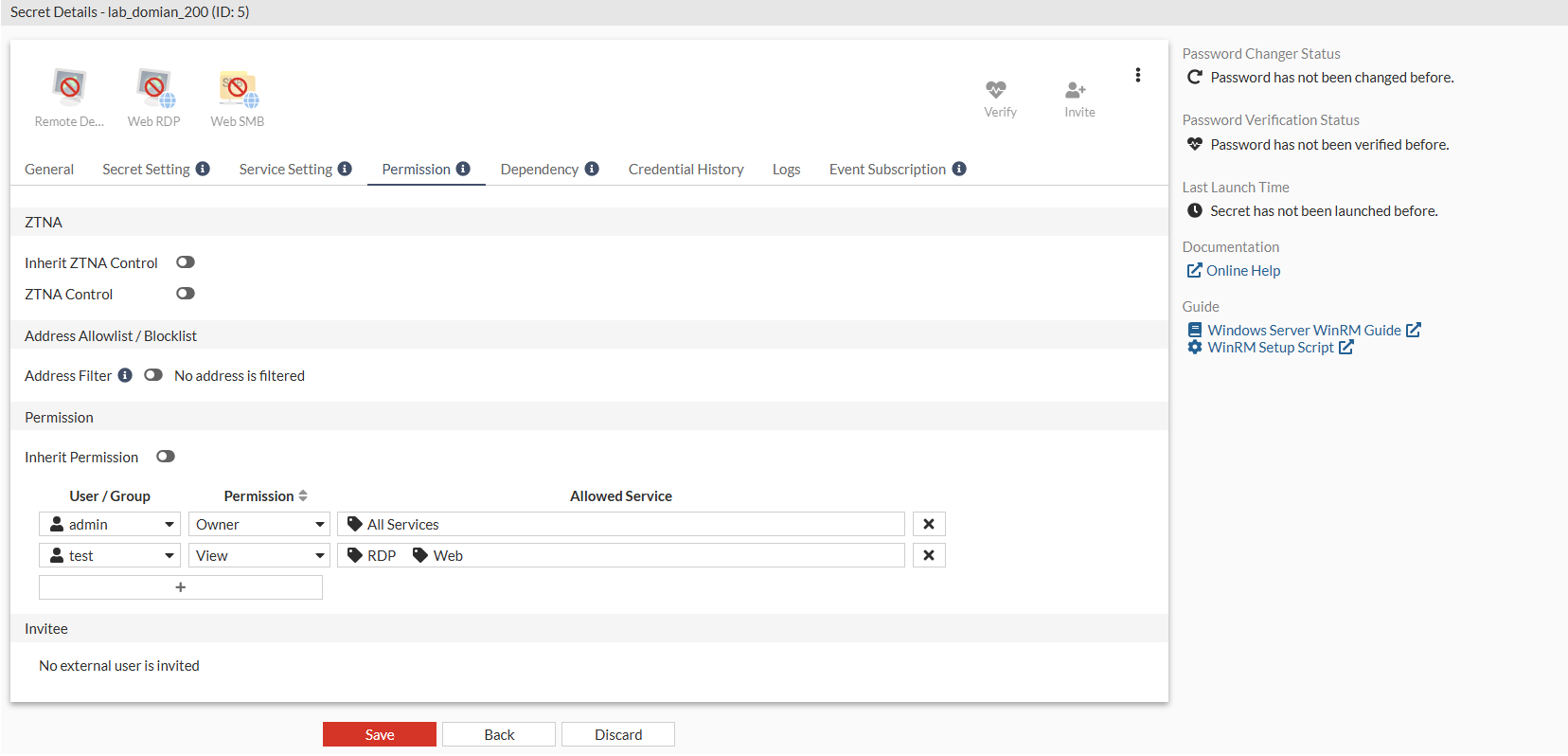
  1. For the secrets created in Creating a secret for the domain user and Creating a secret for the Windows PC- 10.59.112.201 and Windows PC- 10.59.112.208, double-click secret in Secrets > Secrets to open.
  2. Go to the Permission tab.
  3. In the Permission pane, disable Inherit Permission.
  4. Select +:
    1. In User/Group, from the dropdown, select the contractor user, e.g., test.
    2. In Permission, ensure that it is set to View.
    3. In Allowed Services, select RDP and Web.
  5. Click Save.

    Similarly, share the other two secrets created in Creating a secret for the Windows PC- 10.59.112.201 and Windows PC- 10.59.112.208.
Sharing secrets to a contractor

Sharing secrets to a contractor

To share secrets to a contractor:
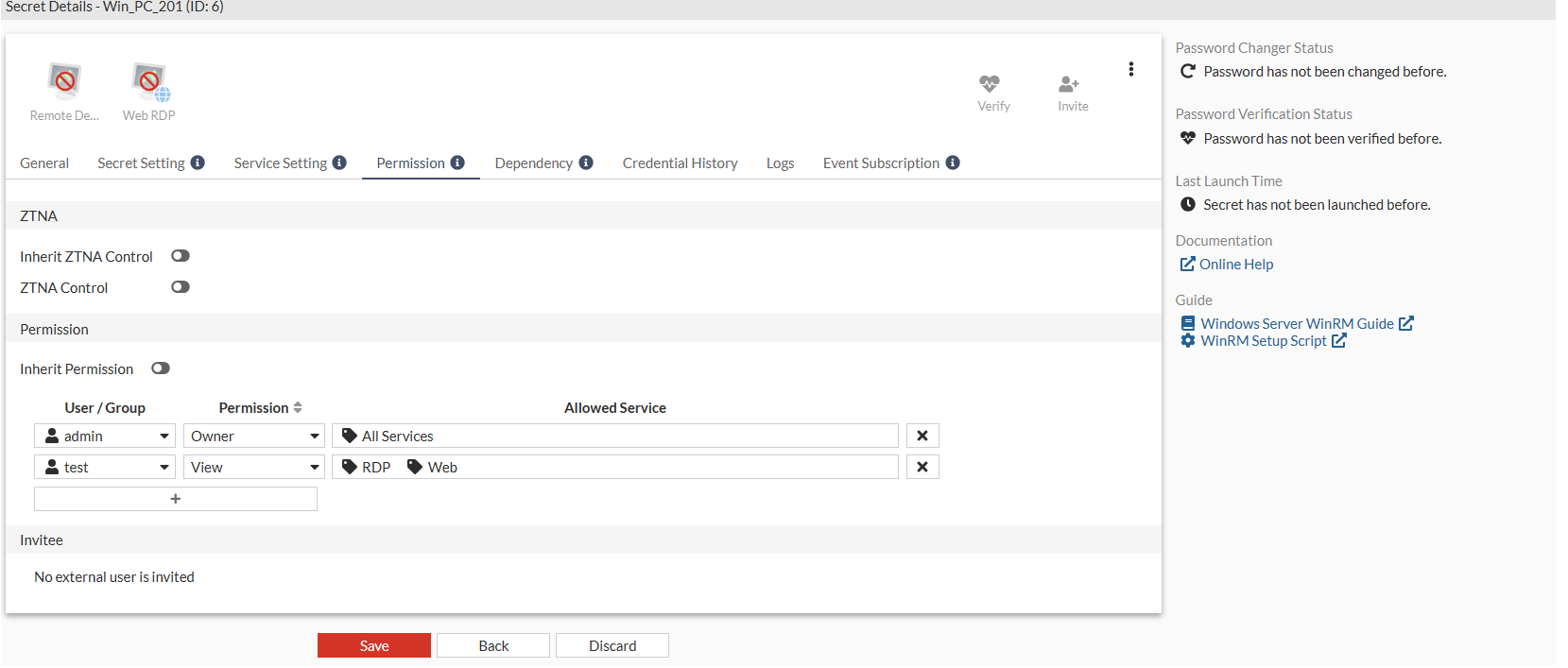
  1. For the secrets created in Creating a secret for the domain user and Creating a secret for the Windows PC- 10.59.112.201 and Windows PC- 10.59.112.208, double-click secret in Secrets > Secrets to open.
  2. Go to the Permission tab.
  3. In the Permission pane, disable Inherit Permission.
  4. Select +:
    1. In User/Group, from the dropdown, select the contractor user, e.g., test.
    2. In Permission, ensure that it is set to View.
    3. In Allowed Services, select RDP and Web.
  5. Click Save.

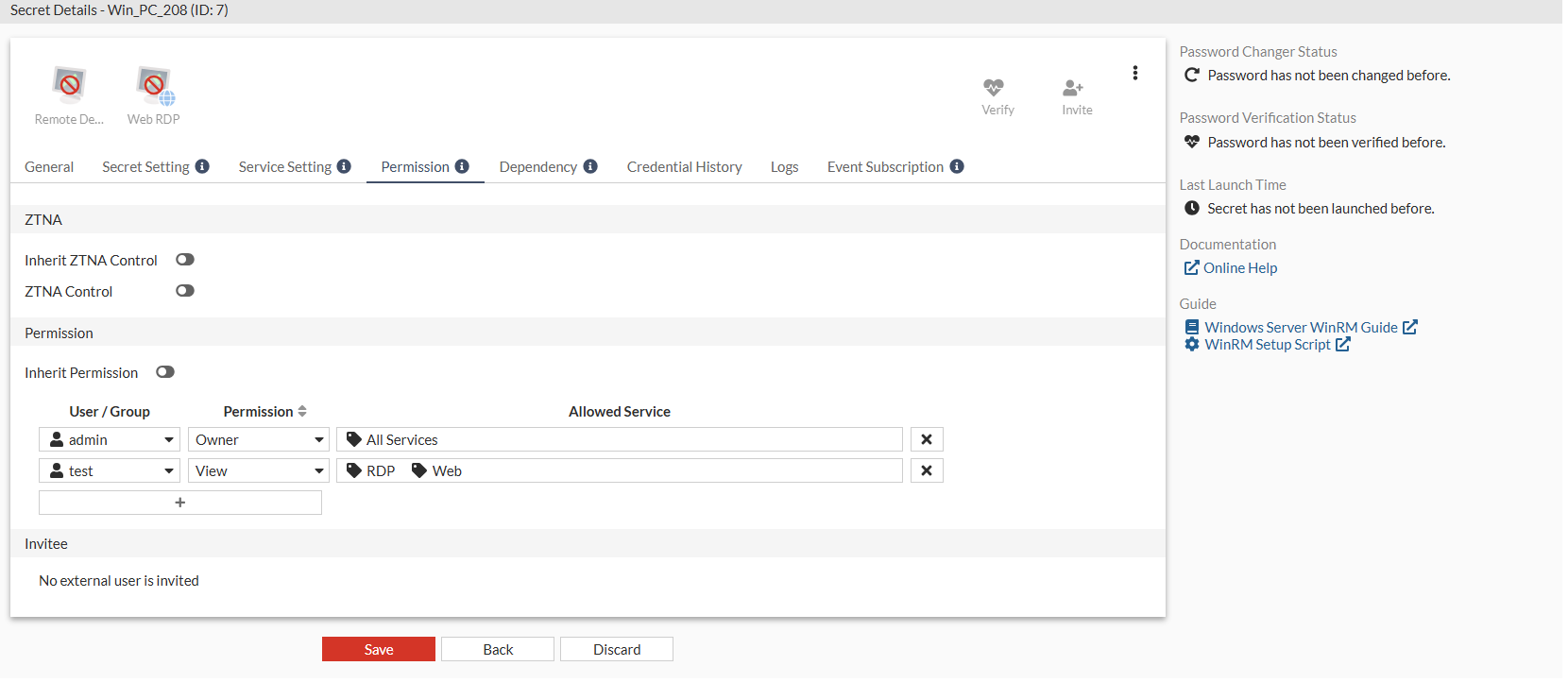
    Similarly, share the other two secrets created in Creating a secret for the Windows PC- 10.59.112.201 and Windows PC- 10.59.112.208.