Example SSH filter profiles example
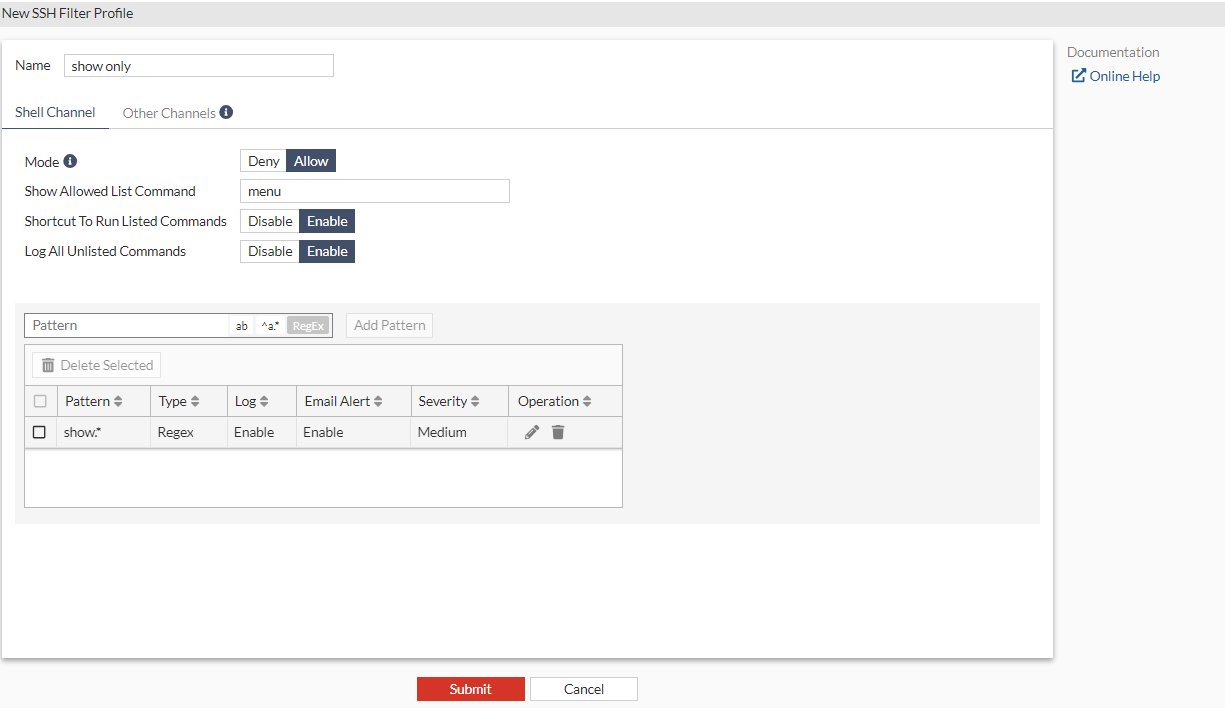
To configure an SSH filter profile that only allows show command on the target server (FortiGate or Cisco routers):
- Go to Secret Settings > SSH Filter Profiles.
- In SSH Filter Profiles, select Create.
The New SSH Filter Profile window opens.
- Enter a name for the SSH filter profile. In this example, the SSH filter profile is named
show only. - In Mode, select Allow.
- Leave Show Allowed List Command in the default state, i.e.,
menu. - Enable Shortcut To Run Listed Commands.
- Enable Log All Unlisted Commands.
- Add a pattern:
- In the Pattern field, select RegEx, and enter
show.*. - Select Add Pattern.
- Click the pen icon to edit the pattern, and:
- Enable Log.
- Enable Email Alert.
- Set Severity to Medium.
- Select the green check mark.
- In the Pattern field, select RegEx, and enter
- Click Submit.
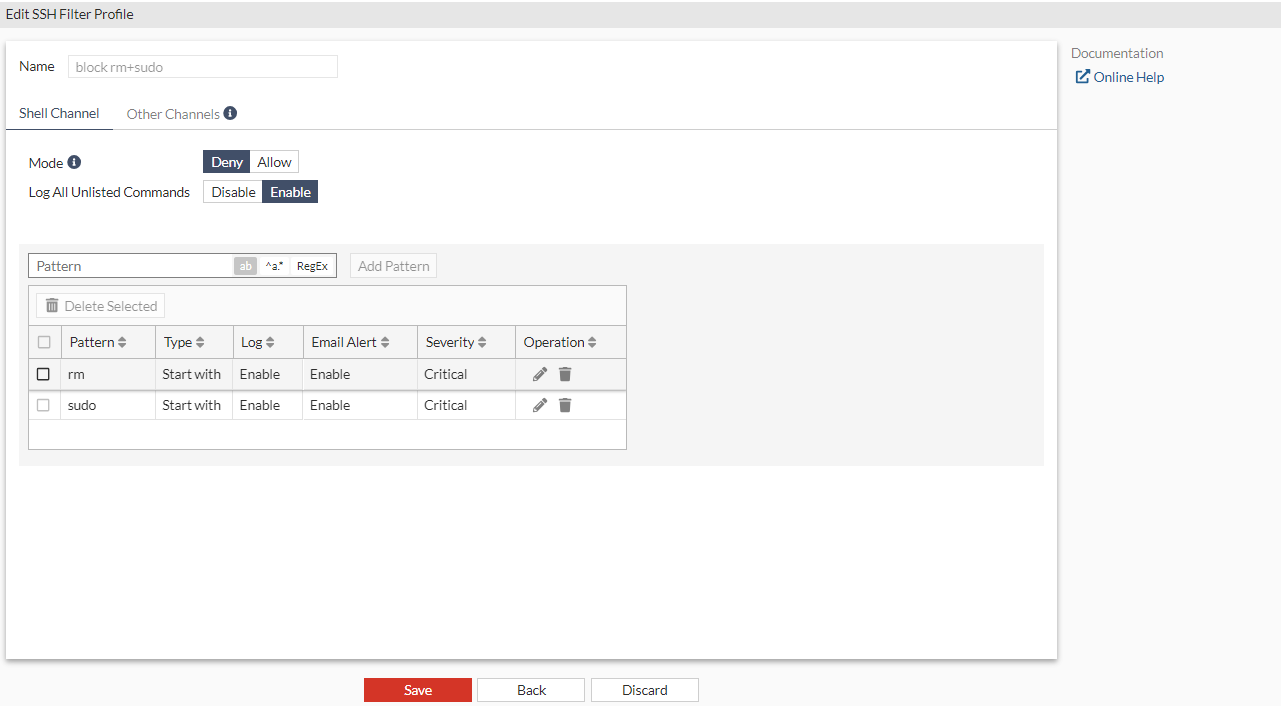
To configure an SSH filter profile that blocks rm and sudo commands on the target Linux server:
- Go to Secret Settings > SSH Filter Profiles.
- In SSH Filter Profiles, select Create.
The New SSH Filter Profile window opens.
- Enter a name for the SSH filter profile. In this example, the SSH filter profile is named
block rm+sudo. - Enable Log All Unlisted Commands.
- Add a pattern:
- In the Pattern field, select Start with single word, and enter
rm. - Select Add Pattern.
- In the Pattern field, select Start with single word, and enter
- Add another pattern:
- In the Pattern field, select select Start with single word, and enter
sudo. - Select Add Pattern.
- In the Pattern field, select select Start with single word, and enter
- Click the pen icon to edit the patterns, and:
- Enable Log.
- Enable Email Alert.
- Set Severity to Critical.
- Select the green check mark.
- Follow step 7 to edit the other pattern.
- Click Submit.