

Deploying FortiPAM CA using EMS
To deploy FortiPAM CA using EMS:
- Connect FortiPAM to the EMS:
- Log in to FortiPAM.
- Go to Network > Fabric Connectors.
- In the Core Network Security pane, select FortiClient EMS and then select Edit.
The New Fabric Connector pane opens.
- In Name, enter the name of the FortiClient EMS connector.
- In IP/Domain name, the IP address of the FortiClient EMS.
- In HTTPS port, enter the HTTPS port number for the FortiClient EMS.
- Ensure that EMS Threat Feed and Synchronize firewall addresses are enabled.
- Click OK.
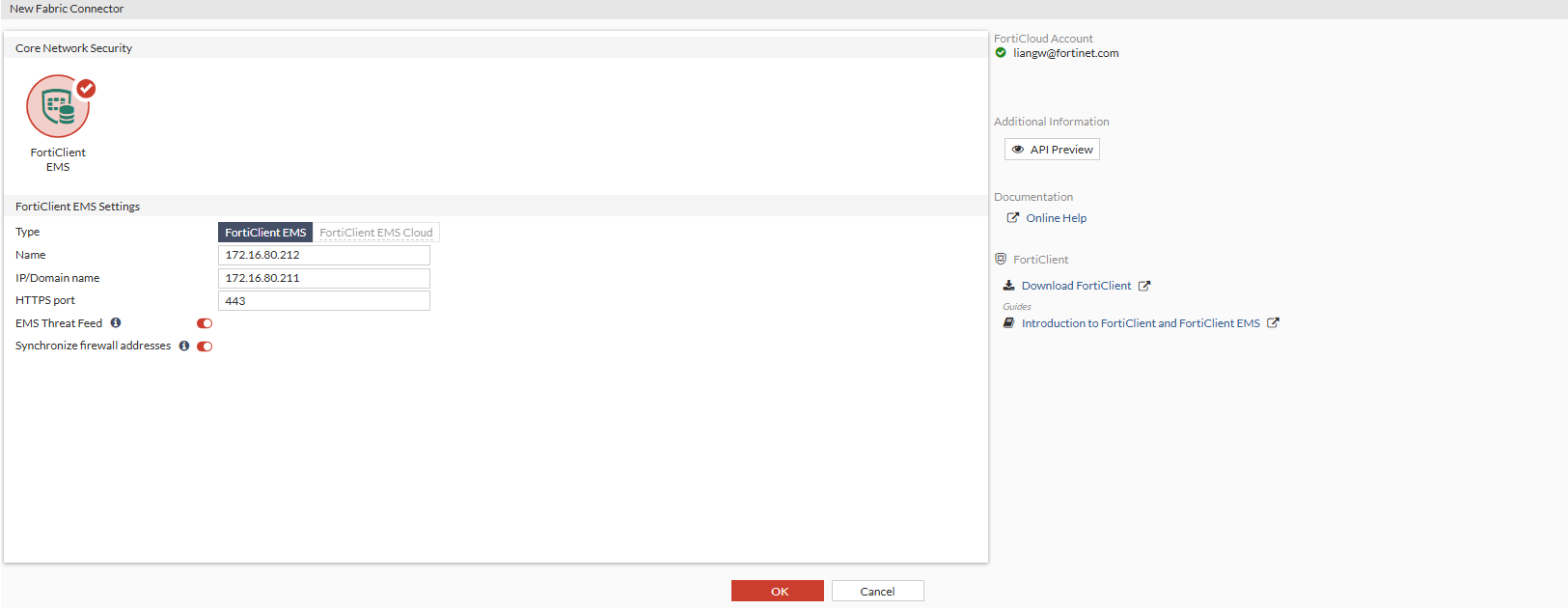
FortiPAM verifies the EMS server certificate.
- On the EMS GUI, deploy the FortiPAM default CA to FortiClient.
- Log in to the EMS GUI.
- Go Endpoint Policy & Components > CA Certificates.
- In the list, locate FortiPAM from step 1 using the serial number, e.g., FortiPAM serial number:
FPAVULTM24001033.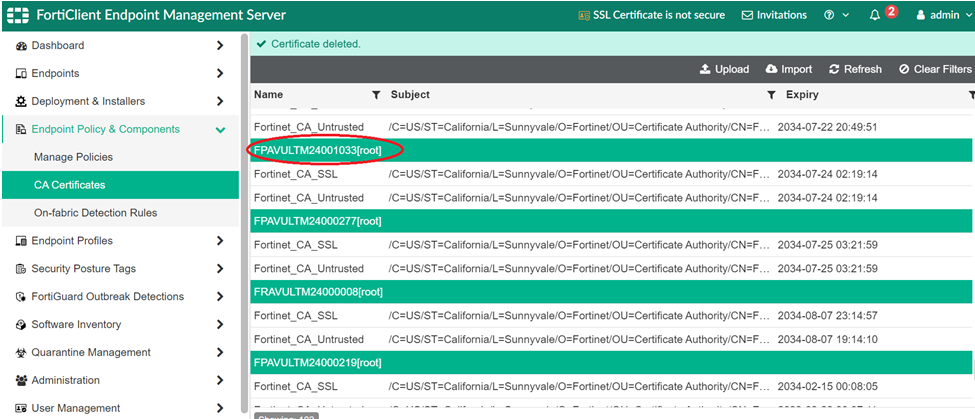
- Go to Endpoint Profiles > System Setting.
- Select the corresponding profile and edit it.
- Go to the Others pane.
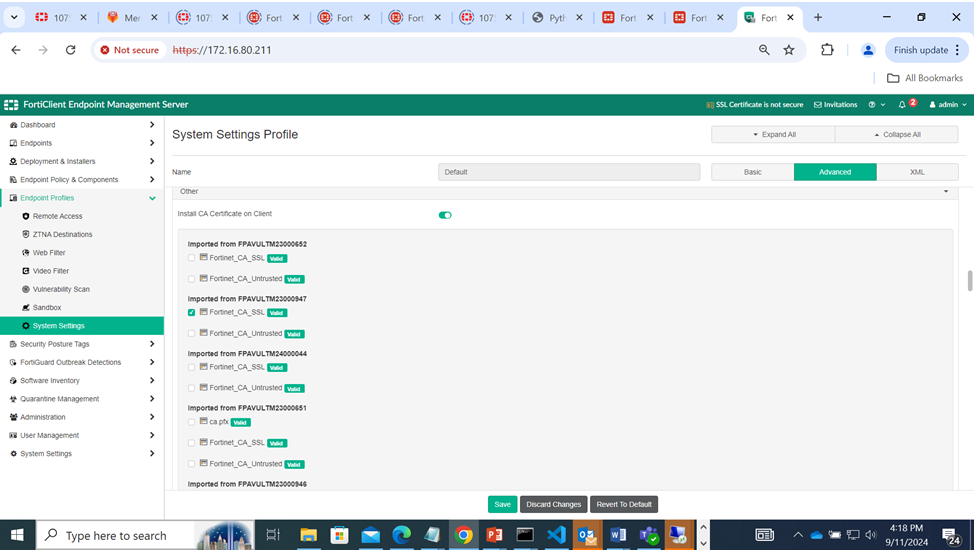
- Look for your FortiPAM serial number and enable Fortinet_CA_SSL.
- Click Save.
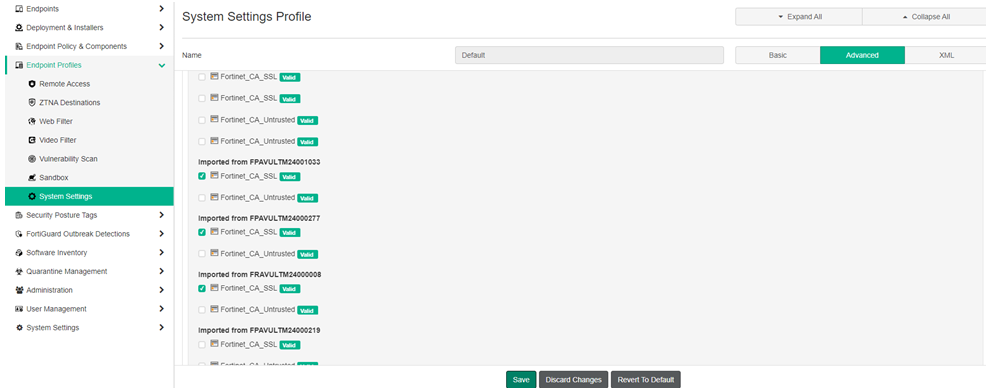
- Wait for a few minutes. All the Windows host with FortiClient belonging to Endpoint Profiles in step 2 are pushed and installed above the default FortiPAM CA certificate.
If needed, run manage user certificate on Windows to check whether the CA certificate has been installed.
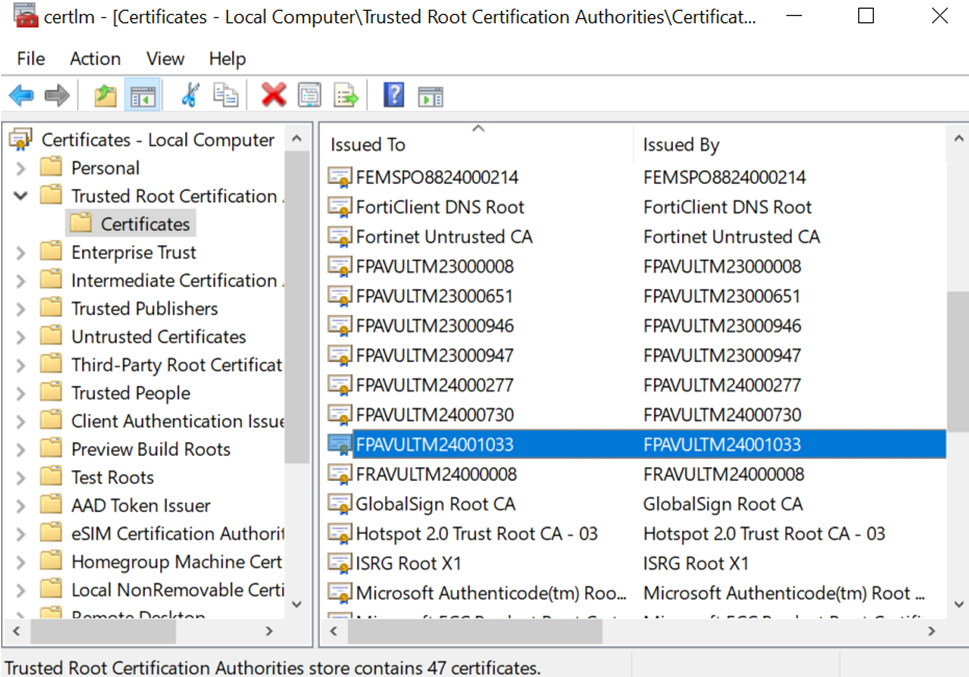
- After the FortiPAM CA certificate has been installed, you can launch the Web Account secret with Web Proxy enabled.