
Fortinet white logo
Fortinet white logo

Administration Guide

FortiGuard Distribution Network

FortiGuard Distribution Network

The FortiGuard Distribution Network page provides information and configuration settings for FortiGuard subscription services. For more information about FortiGuard services, see FortiGuard Labs.

To view and configure FortiGuard connections:
  1. Go to Dashboard > Status.
  2. In the License widget, click any option except FortiToken, and select View details in System > FortiGuard.

    The FortiGuard Distribution Network window opens.
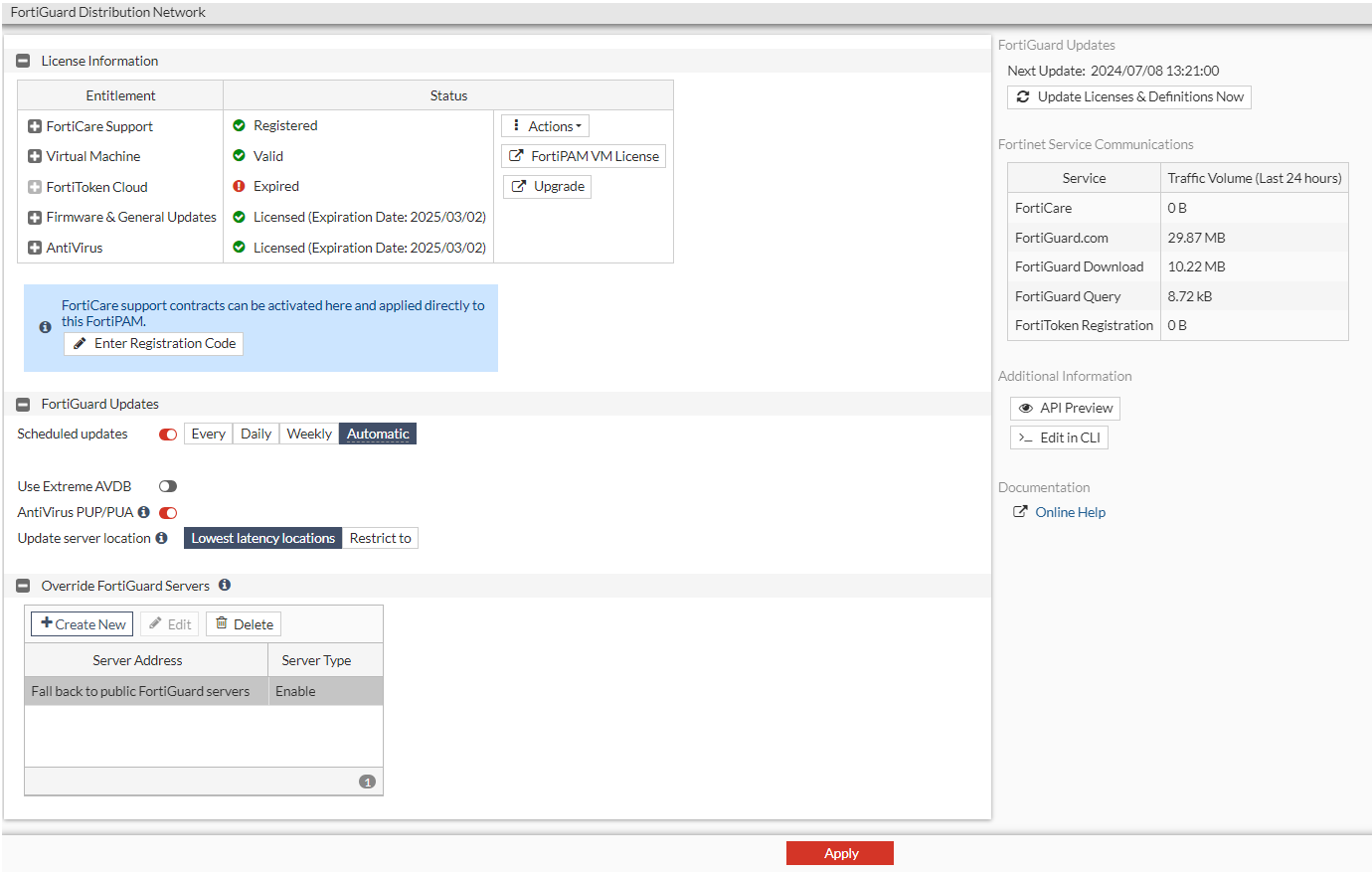
  3. The following settings are available in the window:

    License Information

    FortiCare Support

    The availability or status of your unit’s support contract.

    You can update your registration status by selecting Enter Registration Code and loading the license file from a location on your computer.

    From the Actions dropdown:

    • Select Login to My Account to log in to FortiCloud.

    • Select Transfer FortiPAM to Another Account to transfer this FortiPAM device to another FortiCloud account. Fill in the verification details and then review and transfer the device.

    Virtual Machine

    To upload or check your virtual machine license, select FortiPAM VM License.

    See Uploading a license file.

    FortiToken Cloud

    Select Activate free trial to activate the free trial with 5 FortiToken Cloud tokens.

    The trial license is available for 30 days only.

    When in trial or when the license has expired, select Upgrade to see instructions on how to add a valid license.

    You can see the FortiToken Cloud license status.

    When the license has expired, you cannot use FortiToken Cloud and FortiToken Cloud entitlement is marked Expired when the license has expired.

    Firmware & General Updates

    Displays the status of Application Control Signatures, Device & OS Identification, and Internet Service Database Definitions.

    To upgrade the database:
    1. From the Actions dropdown, select Upgrade Database.
    2. Select Upload and locate the application control signatures file from your computer.
    3. Select OK.

    From the Actions dropdown, select View List to see a list of application control signatures.

    To purchase upgrades, select Enter Registration Code from the Purchase dropdown, enter the Registration Code in the new window, and click OK.

    Antivirus

    The FortiGuard AntiVirus Service provides fully automated updates to ensure protection against the latest content level threats. It employs advanced virus, spyware, and heuristic detection engines to prevent both new and evolving threats from gaining access to your network and protects against vulnerabilities.

    To renew the AntiVirus service, select Enter Registration Code from the Renew dropdown, enter the Registration Code in the new window, and click OK.

    FortiCloud Logs

    To activate FortiCloud logs:

    1. Select Activate.
    2. Confirm the password of your FortiCloud account.
    3. Select from the following domains:
      • Europe

      • US

      • Global

    4. Ensure that Send logs to FortiCloud Logs is enabled.
    5. Click OK.

    FortiGuard Updates

    Scheduled updates

    Enable to receive scheduled updates and then select when the updates occur: Every 1-23 hours, Daily at a specific hour, or Weekly on a specific day at a specific hour, or automatically within every one hour period.

    Note: The option is enabled by default.

    Use Extreme AVDB

    Note: The option is disabled by default.

    AntiVirus PUP/PUA

    Enable antivirus grayware checks for potentially unwanted applications.

    Note: The option is enabled by default.

    Update server location

    Update the FortiGuard server location to:

    • Lowest latency locations

      or

    • Restrict to:

      • US only

      • EU only

    Changing the server location overrides all FortiGuard/FortiCloud/FortiCare servers.

    Override FortiGuard Servers

    By default, the FortiPAM unit updates signature packages and queries rating servers using public FortiGuard servers. You can override this list of servers. You can also disable communication with public FortiGuard servers.

    See Override FortiGuard Servers.

  4. Click Apply.

Override FortiGuard Servers

To override FortiGuard servers
  1. In step 2 when configuring FortiGuard connections, select Create New in the Override FortiGuard Servers pane.

    The Create New Override FortiGuard Server window opens.

  2. Enter the following information:

    Address Type

    Select from the following three options:

    • IPv4

    • IPv6

    • FQDN

    Address

    Depending on your selection in Address Type, enter an IPv4/IPv6 address, or an FQDN.

    Type

    Select the type of update to receive:

    • Antivirus & IPS updates

    • Filtering

    • Both

  3. Click OK.

    Select a server in the list and select Edit to edit the server.

    Select servers in the list and select Delete to delete the servers.

    To remove multiple servers quickly, select multiple rows in the list by holding down the Ctrl or Shift keys and then select Delete.

To update the licenses and definition immediately, select Update Licenses & Definitions Now.

FortiGuard Distribution Network

FortiGuard Distribution Network

The FortiGuard Distribution Network page provides information and configuration settings for FortiGuard subscription services. For more information about FortiGuard services, see FortiGuard Labs.

To view and configure FortiGuard connections:
  1. Go to Dashboard > Status.
  2. In the License widget, click any option except FortiToken, and select View details in System > FortiGuard.

    The FortiGuard Distribution Network window opens.

  3. The following settings are available in the window:

    License Information

    FortiCare Support

    The availability or status of your unit’s support contract.

    You can update your registration status by selecting Enter Registration Code and loading the license file from a location on your computer.

    From the Actions dropdown:

    • Select Login to My Account to log in to FortiCloud.

    • Select Transfer FortiPAM to Another Account to transfer this FortiPAM device to another FortiCloud account. Fill in the verification details and then review and transfer the device.

    Virtual Machine

    To upload or check your virtual machine license, select FortiPAM VM License.

    See Uploading a license file.

    FortiToken Cloud

    Select Activate free trial to activate the free trial with 5 FortiToken Cloud tokens.

    The trial license is available for 30 days only.

    When in trial or when the license has expired, select Upgrade to see instructions on how to add a valid license.

    You can see the FortiToken Cloud license status.

    When the license has expired, you cannot use FortiToken Cloud and FortiToken Cloud entitlement is marked Expired when the license has expired.

    Firmware & General Updates

    Displays the status of Application Control Signatures, Device & OS Identification, and Internet Service Database Definitions.

    To upgrade the database:
    1. From the Actions dropdown, select Upgrade Database.
    2. Select Upload and locate the application control signatures file from your computer.
    3. Select OK.

    From the Actions dropdown, select View List to see a list of application control signatures.

    To purchase upgrades, select Enter Registration Code from the Purchase dropdown, enter the Registration Code in the new window, and click OK.

    Antivirus

    The FortiGuard AntiVirus Service provides fully automated updates to ensure protection against the latest content level threats. It employs advanced virus, spyware, and heuristic detection engines to prevent both new and evolving threats from gaining access to your network and protects against vulnerabilities.

    To renew the AntiVirus service, select Enter Registration Code from the Renew dropdown, enter the Registration Code in the new window, and click OK.

    FortiCloud Logs

    To activate FortiCloud logs:

    1. Select Activate.
    2. Confirm the password of your FortiCloud account.
    3. Select from the following domains:
      • Europe

      • US

      • Global

    4. Ensure that Send logs to FortiCloud Logs is enabled.
    5. Click OK.

    FortiGuard Updates

    Scheduled updates

    Enable to receive scheduled updates and then select when the updates occur: Every 1-23 hours, Daily at a specific hour, or Weekly on a specific day at a specific hour, or automatically within every one hour period.

    Note: The option is enabled by default.

    Use Extreme AVDB

    Note: The option is disabled by default.

    AntiVirus PUP/PUA

    Enable antivirus grayware checks for potentially unwanted applications.

    Note: The option is enabled by default.

    Update server location

    Update the FortiGuard server location to:

    • Lowest latency locations

      or

    • Restrict to:

      • US only

      • EU only

    Changing the server location overrides all FortiGuard/FortiCloud/FortiCare servers.

    Override FortiGuard Servers

    By default, the FortiPAM unit updates signature packages and queries rating servers using public FortiGuard servers. You can override this list of servers. You can also disable communication with public FortiGuard servers.

    See Override FortiGuard Servers.

  4. Click Apply.

Override FortiGuard Servers

To override FortiGuard servers
  1. In step 2 when configuring FortiGuard connections, select Create New in the Override FortiGuard Servers pane.

    The Create New Override FortiGuard Server window opens.

  2. Enter the following information:

    Address Type

    Select from the following three options:

    • IPv4

    • IPv6

    • FQDN

    Address

    Depending on your selection in Address Type, enter an IPv4/IPv6 address, or an FQDN.

    Type

    Select the type of update to receive:

    • Antivirus & IPS updates

    • Filtering

    • Both

  3. Click OK.

    Select a server in the list and select Edit to edit the server.

    Select servers in the list and select Delete to delete the servers.

    To remove multiple servers quickly, select multiple rows in the list by holding down the Ctrl or Shift keys and then select Delete.

To update the licenses and definition immediately, select Update Licenses & Definitions Now.