Setting up FortiToken Mobile
To set up FortiToken Mobile:
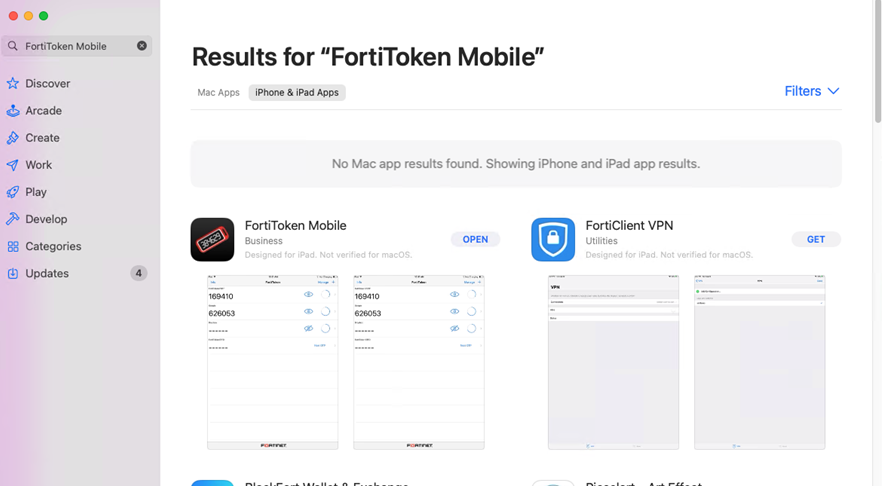
- In the App Store, look for FortiToken Mobile and install the application.
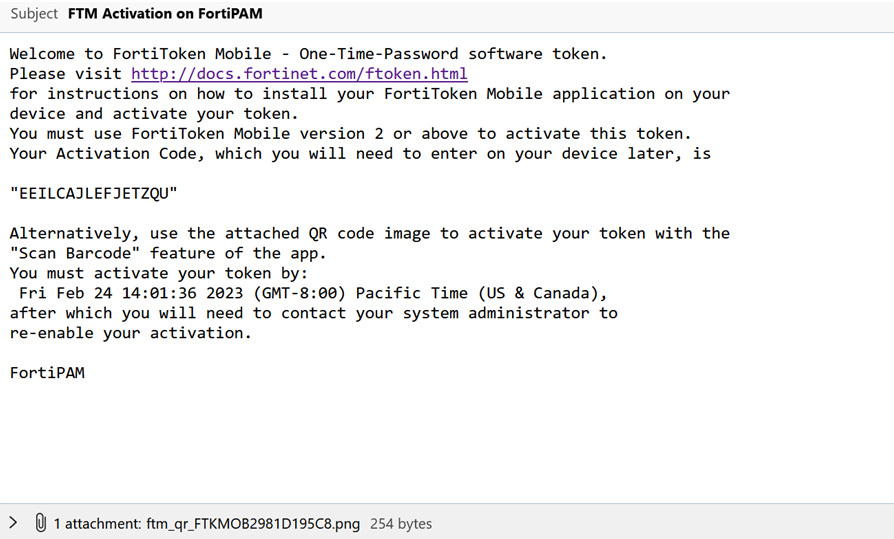
- After your system administrator assigns a token to you, you will receive a notification with an activation code and an activation expiration date by which you must activate your token. For more information on Token Activation, FortiToken Mobile User Guide.
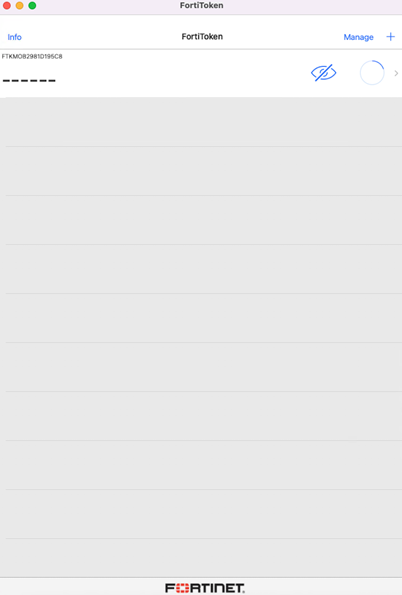
- Open the FortiToken Mobile application and click + icon on the top-right to add a token.
- There are two ways to add a token to the FortiToken Mobile application:
- Scan QR code: If your device supports QR code recognition, select + in the FortiToken Mobile home screen and point your device camera at the QR code attached to the activation email.
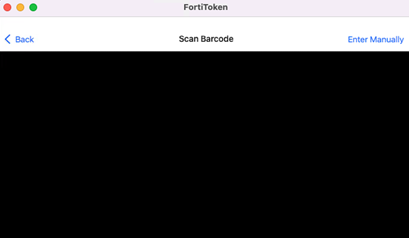
- Enter Manually:
- Select + and then select Enter Manually from the bottom.
- Select Fortinet and enter Name and Key.

Key is the activation key from your activation email notification and must be entered exactly as it appears in the activation message, either by typing or copying and pasting.
- Click Done.
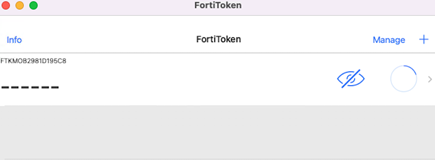
FortiToken Mobile communicates with the secure provisioning server to activate your token. The token is now displayed in the token list view.
- Scan QR code: If your device supports QR code recognition, select + in the FortiToken Mobile home screen and point your device camera at the QR code attached to the activation email.
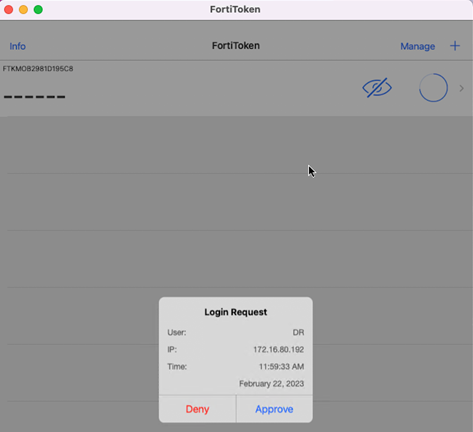
- Click the eye icon to retrieve the token to be used in step 3 in Results.
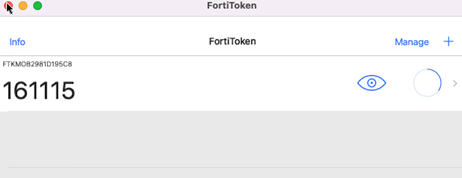
Alternatively, if approving the push login request in step 3 in Results, click Approve in Login Request.