

Upgrade information
The latest FortiNDR firmware versions are available for download from FortiCloud. You should always backup your system configuration before upgrading the firmware on your device. Be aware that some configuration settings are not saved to the backup configuration file and will need to be manually restored after upgrade.
Firmware
FortiNDR 7.6.4 supports the following upgrade path:
|
Upgrade from |
Upgrade to |
|---|---|
|
7.6.3 |
7.6.4 |
|
7.6.2 |
7.6.3 |
|
7.6.0 (and later) |
7.6.2 |
|
7.4.x |
7.4.10 > 7.6.3 > 7.6.4 |
Data Migration from 7.6.3 to 7.6.4
After upgrading to 7.6.4, users can manually migrate the NDR Log and Malware Log data (up to seven days per execution) if older data needs to be preserved.
Use the following CLI command: exec db migrate
Important: Retrain ML baseline after upgrading to 7.6.4
After upgrading to version 7.6.4, the ML baseline, including the NetFlow ML baseline, must be retrained in both Standalone mode and Center mode to ensure proper ML anomaly‑detection functionality.
Although ML features may appear to operate normally immediately after the upgrade, detection accuracy will degrade or stop entirely until retraining is completed. To clean up existing data and trigger the retraining process, run the following CLI command:
execute cleanup ml/netflow_ml
For details on post‑upgrade metadata issues in version 7.6.3, refer to Important: Metadata issue post‑upgrade.
FNR-1000F, FNR-3500F (gen3 and above) and FNR-3600G
-
7.6.0 firmware is designed to run on VM and hardware appliances such as FNR-1000F, FNR-3600G,FNDR-3500F (center gen3 and above) and is not compatible with older FAI-3500F hardware (gen1/2). For more information, see Supported models.
VM Devices
If your current version FortiNDR does not have a password, you will be prompted to create a password after upgrading, otherwise you cannot login.
Downloading the latest firmware version
To download the latest version of FortiNDR:
- Log into FortiCloud.
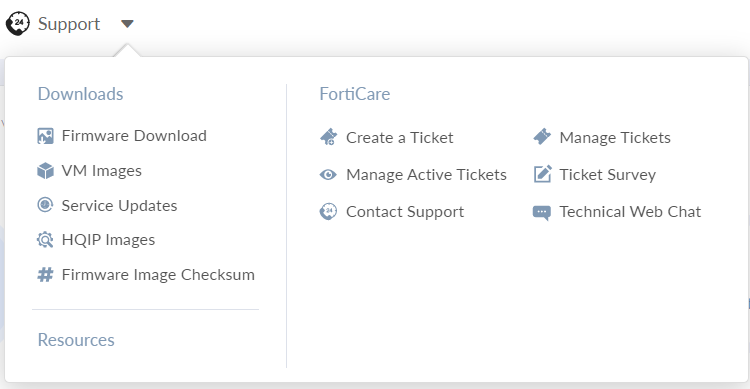
- In the banner, click Support > Firmware Download.
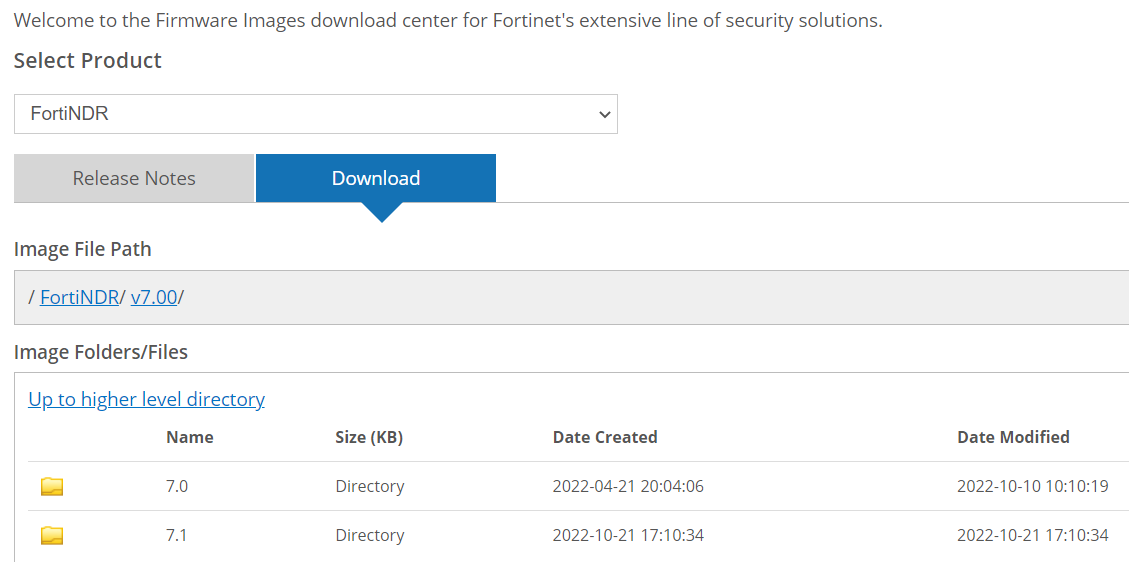
- From the Select Product dropdown, select FortiNDR.
- Click the Download tab.
- Use the folders in the directory to locate and download the latest firmware version.
Upgrading the firmware version
Before you begin:
You should always backup your system configuration before upgrading the firmware on your device.
Be aware the following settings are not backed up to the configuration file:
- Network Share
- Network Share Quarantine
- File size limit
- Email Alert Recipients
Record these settings so you can manually restore them after upgrade.
The File size limit can be found by pressing the Tab key in the following CLI:
execute file-size-threshold {ICAP|OFTP|inline-blocking|manual-upload|network-share|sniffer} <size_limit_1-10240MB>

Please make a note for each file input value.
These settings cannot be recovered after they are removed.
To upgrade the FortiNDR firmware version:
- Back up the configuration file:
- Click the Account menu at the top-right of the page.
- Go to Configuration > Backup. The configuration file is saved to your computer.
- Upgrade the firmware:
- Go to System > Firmware.
- Click Upload and navigate to the location of the file you downloaded from FortiCloud.
- Click OK. After the firmware is upgraded the system reboots.
- After the upgrade is complete, the new version of firmware should be ready. In the case where the firmware upgrade does not follow the upgrade path. or there is a VM hosting hardware failure, or a power outage during upgrade, please consider to use following CLI to restore the database.
execute db restore
This command will format the database and remove all the logs and the following settings: Device input, Network Share, Network Share Quarantine, File size limit and Email Alert Recipients.
- Use the configuration settings you recorded earlier to manually restore the settings. For Device Input, you just need to re-authorize the device again.