
Fortinet white logo
Fortinet white logo

Administration Guide

GUI overview

GUI overview

When you log into the FortiManager GUI, the Dashboard pane is displayed. The Dashboard contains widgets that provide performance and status information. For more information about the Dashboard, see Dashboard
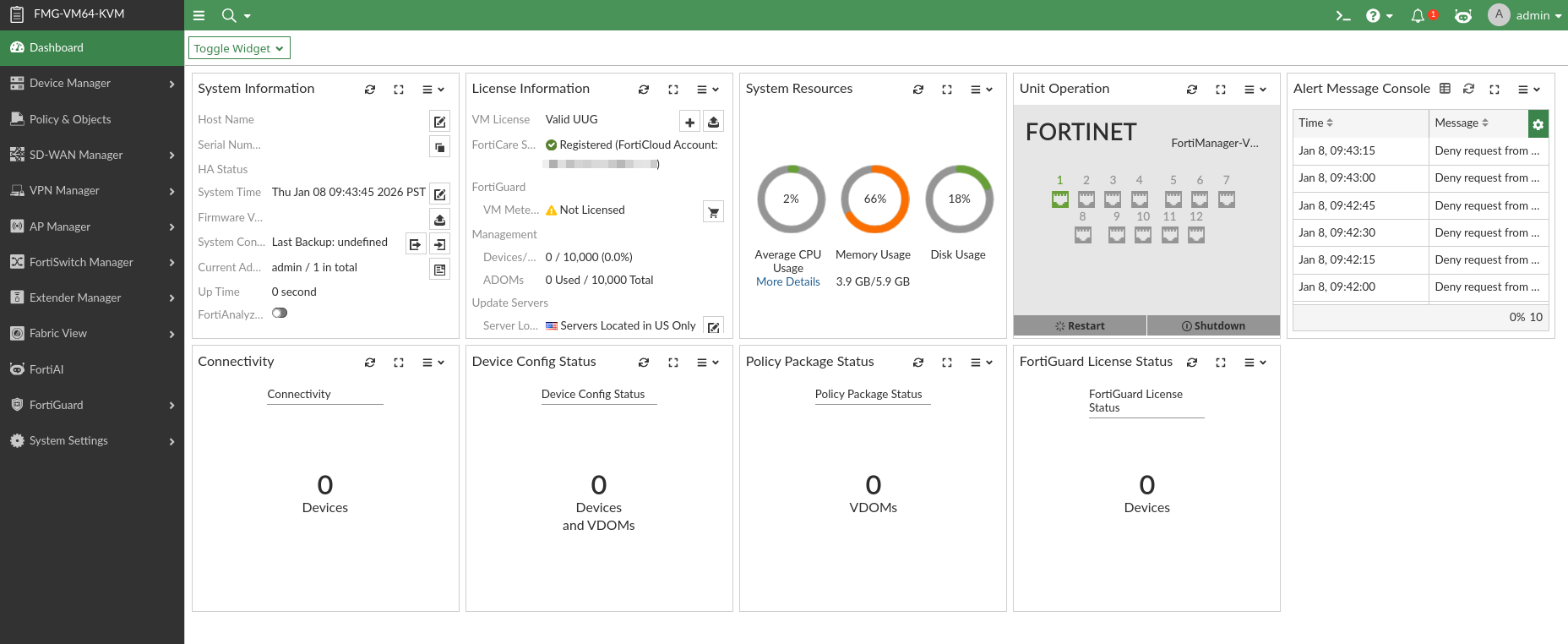
Use the navigation menu on the left to open another pane. The available panes vary depending on the privileges of the current user.

Device Manager

Add and manage devices and VDOMs. Create and assign scripts and provisioning templates. You can also access the SD-WAN monitor and VPN monitor. See Device Manager.

Policy & Objects

Configure policy packages and objects. See Policy & Objects.

SD-WAN Manager

Manage SD-WAN configurations. The SD-WAN Manager centralizes the management and monitoring of SD-WAN devices and templates used in SD-WAN configurations. See SD-WAN Manager.

VPN Manager

Configure and manage VPN connections. You can create VPN topologies and managed/external gateways. See VPN Manager.

AP Manager

Configure and manage FortiAP access points. For more information, see AP Manager.

FortiSwitch Manager

Configure and manage FortiSwitch devices. See FortiSwitch Manager.

Extender Manager

Configure and manage FortiExtenders. See Extender Manager.

Log View

View logs for managed devices. You can display, download, import, and delete logs on this page. You can also define custom views and create log groups.

This pane is only available when FortiAnalyzer features are enabled.

Fabric View

Configure fabric connectors and view Security Fabric Ratings. See Fabric View.

Incidents & Alerts

Configure and view alerts for logging devices.

This pane is only available when FortiAnalyzer features are enabled.

FortiAI

Use the FortiAI assistant. See FortiAI.

Reports

Generate reports. You can also configure report templates, schedules, and output profiles, and manage charts and datasets.

This pane is only available when FortiAnalyzer features are enabled.

FortiGuard

Manage communication between devices and the FortiManager using the FortiGuard protocol. See FortiGuard.

System Settings

Configure system settings such as network interfaces, administrators, system time, server settings, and others. You can also perform maintenance and firmware operations. See System Settings.

The banner at the top of the screen is available in every pane.

The following options are available in the banner:

Menu

Click to collapse or expand the navigation menu on the left.

When collapsed, you can mouse over the icons to view the available panes.

Diagnostic and page search

Select to access the following search options:

  • Jump to page: Search for and navigate directly to pages in the FortiManager GUI.

  • CLI diagnostics: Search for and run common diagnostic commands.

HA status

If HA is enabled, the status is shown.

ADOM

If ADOMs are enabled, the required ADOM can be selected from the dropdown list.

If enabled, ADOMs can also be locked or unlocked.

The ADOMs available from the ADOM menu will vary depending on the privileges of the current user.

CLI Console

Open the CLI console to configure the FortiManager unit using CLI commands directly from the GUI, without making a separate SSH, or local console connection to access the CLI.

For more information, see Using the CLI console.

Note: The CLI Console requires that your web browser support JavaScript.

Online Help

Click to open the FortiManager online help dropdown which contains the following options:

Relevant Documentation

Opens related online help topics on the Fortinet Document Library.

This option is context-sensitive, so it will open to the relevant documentation for the pane you are in.
Video Tutorials Opens the Fortinet Video Library.
Release Notes

Opens the FortiManager's Release Notes for the current version.

FortiAnswers

Opens the Fortinet Community.

FortiCare Debug Report

Runs the execute tac report CLI command and downloads a local copy of the report.

Notifications

Click to display a list of notifications. Select a notification from the list to take action on the issue.

FortiAI assistant

Open the FortiAI Assistant pane. This feature requires a license.

For more information, see FortiAI.

admin

From this dropdown, you can access the following:

View firmware version

View the current firmware build of your FortiManager device.

Upgrade Firmware

Upgrade your FortiManager firmware. See Updating the system firmware.

Legal Third Party

View information about the third party software used by FortiManager, including the software name, version, and licensing information.

The Included Third Party Software menu includes options for searching and exporting the list.

Process Monitor

Open the process monitor. See Using the Process Monitor

Change Password

Change your password.

Change Profile

Update your profile information, including avatar and theme.

Log Out

Log out of the GUI.

GUI overview

GUI overview

When you log into the FortiManager GUI, the Dashboard pane is displayed. The Dashboard contains widgets that provide performance and status information. For more information about the Dashboard, see Dashboard

Use the navigation menu on the left to open another pane. The available panes vary depending on the privileges of the current user.

Device Manager

Add and manage devices and VDOMs. Create and assign scripts and provisioning templates. You can also access the SD-WAN monitor and VPN monitor. See Device Manager.

Policy & Objects

Configure policy packages and objects. See Policy & Objects.

SD-WAN Manager

Manage SD-WAN configurations. The SD-WAN Manager centralizes the management and monitoring of SD-WAN devices and templates used in SD-WAN configurations. See SD-WAN Manager.

VPN Manager

Configure and manage VPN connections. You can create VPN topologies and managed/external gateways. See VPN Manager.

AP Manager

Configure and manage FortiAP access points. For more information, see AP Manager.

FortiSwitch Manager

Configure and manage FortiSwitch devices. See FortiSwitch Manager.

Extender Manager

Configure and manage FortiExtenders. See Extender Manager.

Log View

View logs for managed devices. You can display, download, import, and delete logs on this page. You can also define custom views and create log groups.

This pane is only available when FortiAnalyzer features are enabled.

Fabric View

Configure fabric connectors and view Security Fabric Ratings. See Fabric View.

Incidents & Alerts

Configure and view alerts for logging devices.

This pane is only available when FortiAnalyzer features are enabled.

FortiAI

Use the FortiAI assistant. See FortiAI.

Reports

Generate reports. You can also configure report templates, schedules, and output profiles, and manage charts and datasets.

This pane is only available when FortiAnalyzer features are enabled.

FortiGuard

Manage communication between devices and the FortiManager using the FortiGuard protocol. See FortiGuard.

System Settings

Configure system settings such as network interfaces, administrators, system time, server settings, and others. You can also perform maintenance and firmware operations. See System Settings.

The banner at the top of the screen is available in every pane.

The following options are available in the banner:

Menu

Click to collapse or expand the navigation menu on the left.

When collapsed, you can mouse over the icons to view the available panes.

Diagnostic and page search

Select to access the following search options:

  • Jump to page: Search for and navigate directly to pages in the FortiManager GUI.

  • CLI diagnostics: Search for and run common diagnostic commands.

HA status

If HA is enabled, the status is shown.

ADOM

If ADOMs are enabled, the required ADOM can be selected from the dropdown list.

If enabled, ADOMs can also be locked or unlocked.

The ADOMs available from the ADOM menu will vary depending on the privileges of the current user.

CLI Console

Open the CLI console to configure the FortiManager unit using CLI commands directly from the GUI, without making a separate SSH, or local console connection to access the CLI.

For more information, see Using the CLI console.

Note: The CLI Console requires that your web browser support JavaScript.

Online Help

Click to open the FortiManager online help dropdown which contains the following options:

Relevant Documentation

Opens related online help topics on the Fortinet Document Library.

This option is context-sensitive, so it will open to the relevant documentation for the pane you are in.
Video Tutorials Opens the Fortinet Video Library.
Release Notes

Opens the FortiManager's Release Notes for the current version.

FortiAnswers

Opens the Fortinet Community.

FortiCare Debug Report

Runs the execute tac report CLI command and downloads a local copy of the report.

Notifications

Click to display a list of notifications. Select a notification from the list to take action on the issue.

FortiAI assistant

Open the FortiAI Assistant pane. This feature requires a license.

For more information, see FortiAI.

admin

From this dropdown, you can access the following:

View firmware version

View the current firmware build of your FortiManager device.

Upgrade Firmware

Upgrade your FortiManager firmware. See Updating the system firmware.

Legal Third Party

View information about the third party software used by FortiManager, including the software name, version, and licensing information.

The Included Third Party Software menu includes options for searching and exporting the list.

Process Monitor

Open the process monitor. See Using the Process Monitor

Change Password

Change your password.

Change Profile

Update your profile information, including avatar and theme.

Log Out

Log out of the GUI.