

Privacy and notification preferences
You can configure privacy and notification preferences from within the FortiManager Cloud instance.
To access your privacy and notification preferences, click your user account dropdown from the FortiManager Cloud toolbar and click Privacy & Notification. 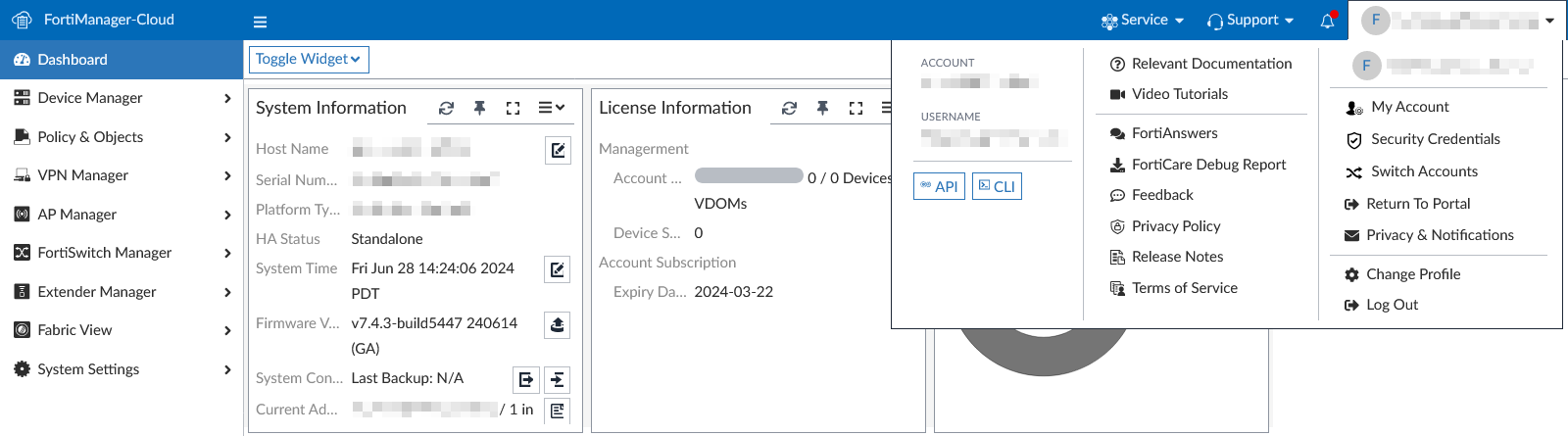
In Privacy & Notifications, you can configure the following:
Access Settings
Access settings determine what level of access Fortinet's cloud operation team has in order to diagnose and perform maintenance on your cloud instance. The following access levels are available: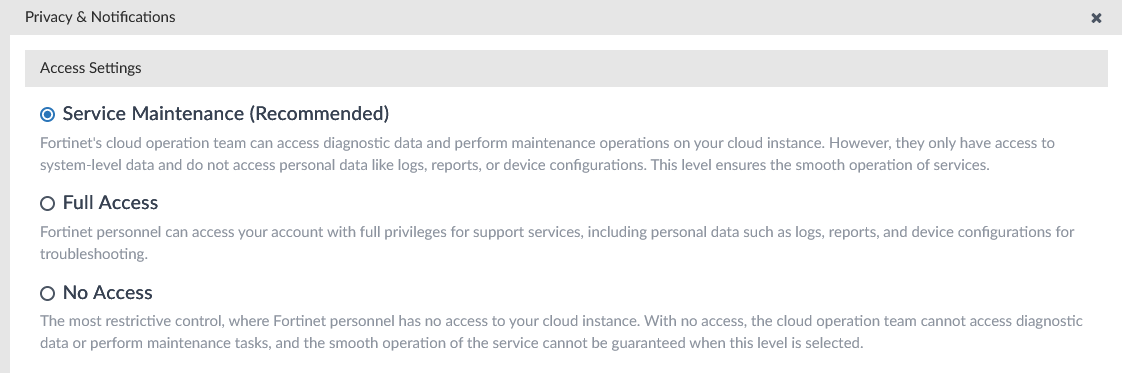
| Service Maintenance (Recommended) |
Fortinet's cloud operation team can access diagnostic data and perform maintenance operations on your cloud instance. However, they only have access to system-level data and do not access personal data like logs, reports, or device configurations. This level ensures the smooth operation of services. This is the default level of access. |
| Full Access | Fortinet personnel can access your account with full privileges for support services, including personal data such as logs, reports, and device configurations for troubleshooting. |
| No Access |
The most restrictive control, where Fortinet personnel has no access to your cloud instance. With no access, the cloud operation team cannot access diagnostic data or perform maintenance tasks, and the smooth operation of the service cannot be guaranteed when this level is selected. |
Select your preferred access level and click OK.
FortiManager Cloud records changes to access settings in the Event Log.
Email Notifications
Email notification preferences can be configured through your FortiManager instance.
To configure email notification preference:
-
Select your account dropdown from the FortiManager Cloud toolbar.
-
Select Privacy & Notifications.
-
Enable the Receive Email Notifications toggle to enable email notifications for the account owner or disable it to stop email notifications.
-
Optionally, you can enable the Other Recipients toggle to configure email notifications for other users:
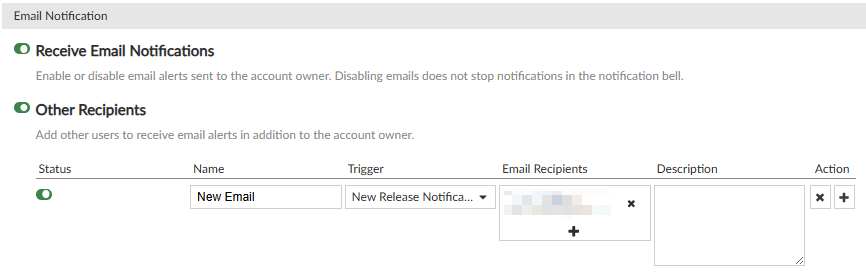
Status Toggle the notification preference on or off. Notifications are only sent when the status of the notification preference is enabled. Name Enter a name for the notification preference. Trigger Select a trigger condition from the dropdown menu from one of the following:
-
New Release Notification
-
Storage Over Usage
-
Service Renewal Notification
Email Recipients Click to add at least one email recipient. You can select IAM/Sub users from the populated list or click the Email Address tab to add additional emails.
You can also click the x icon next to each email recipient to remove them from the email notification.
Description Add an optional description. Action
You can use the action field to delete an email notification preference or create additional notifications preferences.
-
-
Click OK. FortiManager Cloud records changes to email notification preferences in the Event Log.
Unsubscribing from email notifications
An unsubscribe link is included in notification emails. Clicking the unsubscribe option will unsubscribe the account owner from all cloud email notifications. If you are not logged in when you click the unsubscribe option you will be prompted to log in before the action is completed.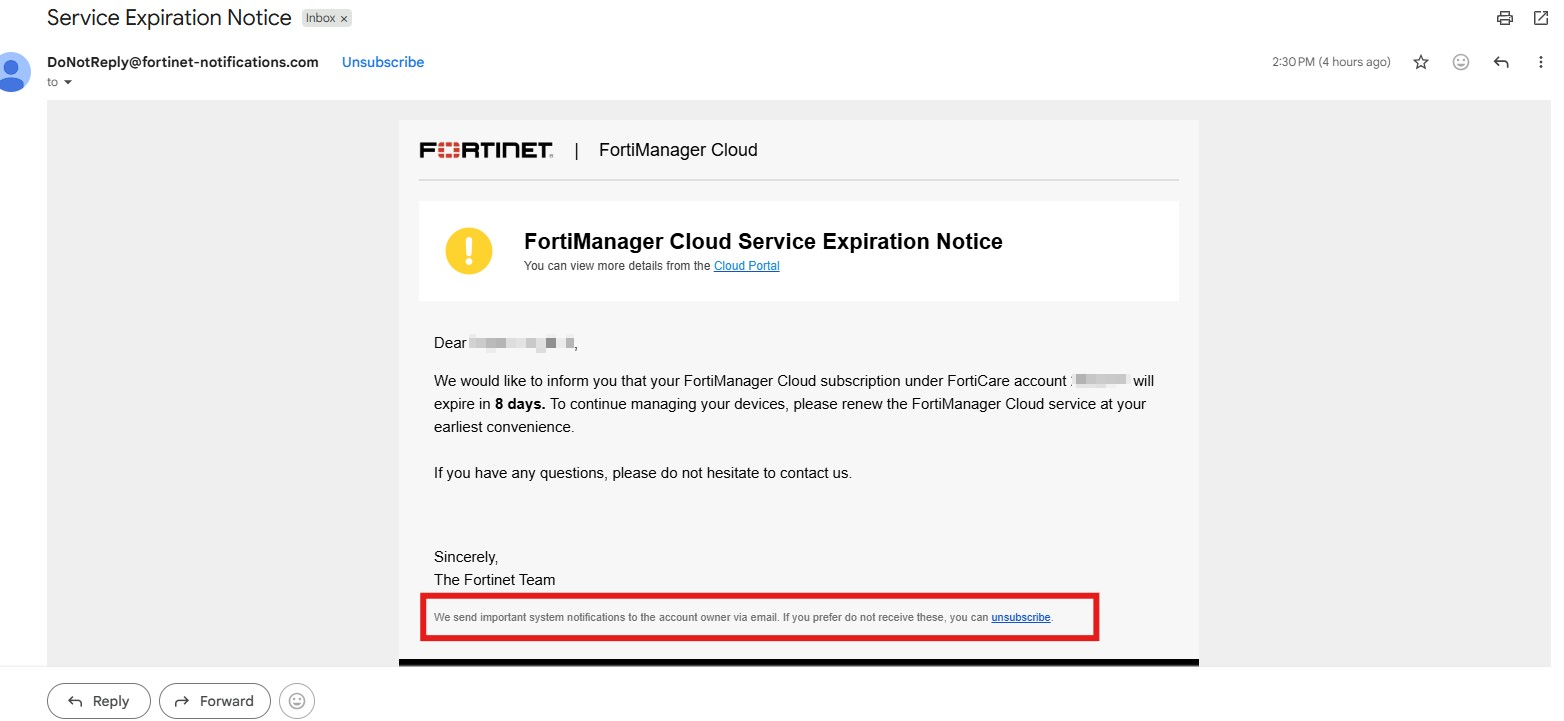
When the account is unsubscribed using this link, the Receive Email Notifications toggle under Privacy & Notifications > Email Notification settings will be set to disabled. Account owners can also disable the Receive Email Notifications toggle directly from Privacy & Notifications.
To unsubscribe non-account owner user from email notifications, you can remove their email account from the Other Recipients notification preference in Privacy & Notifications.