

Viewing the FortiManager Cloud portal
After accessing your FortiManager Cloud instance, you can navigate to the FortiManager Cloud portal by opening the toolbar and choosing Return to Portal. See Using the FortiManager Cloud toolbar.
In the FortiManager Cloud portal, you can expand each account and view information about the account and any deployed instances.
To view information about instances:
- Access the portal. See Accessing your FortiManager Cloud instance.
The FortiManager Cloud & Service portal is displayed.
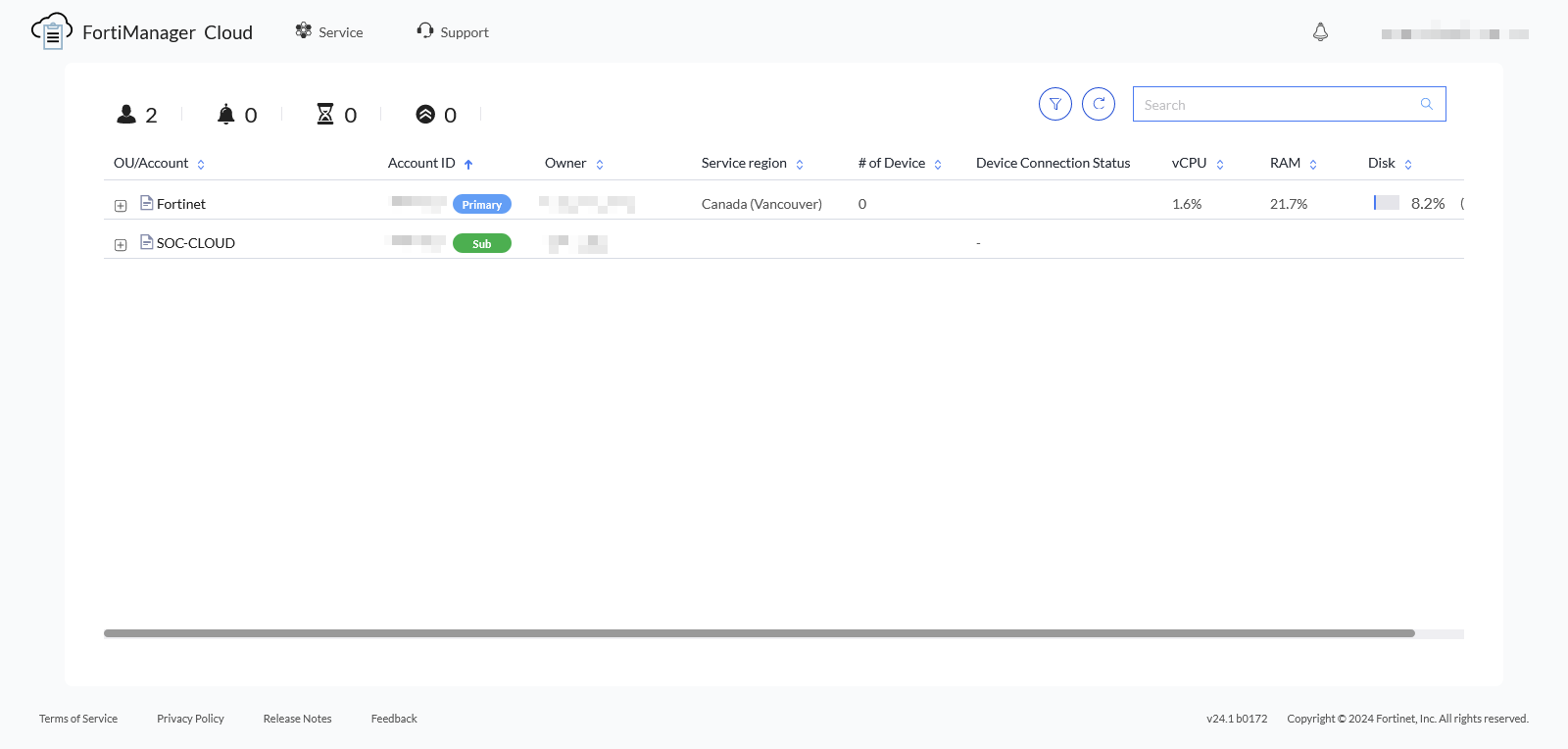
- Expand an account with no instances deployed.
The account details are displayed. If it is a primary account, you can provision a new instance. See Deploying a FortiManager Cloud instance.
- Expand an account with deployed instances.
Information about the VM resources and the instance is displayed.
When a firmware upgrade is available, you can click the upgrade icon to view additional information about the upgrade, choose upgrade immediately, or schedule an upgrade for later. You can also click Enter to access the instance.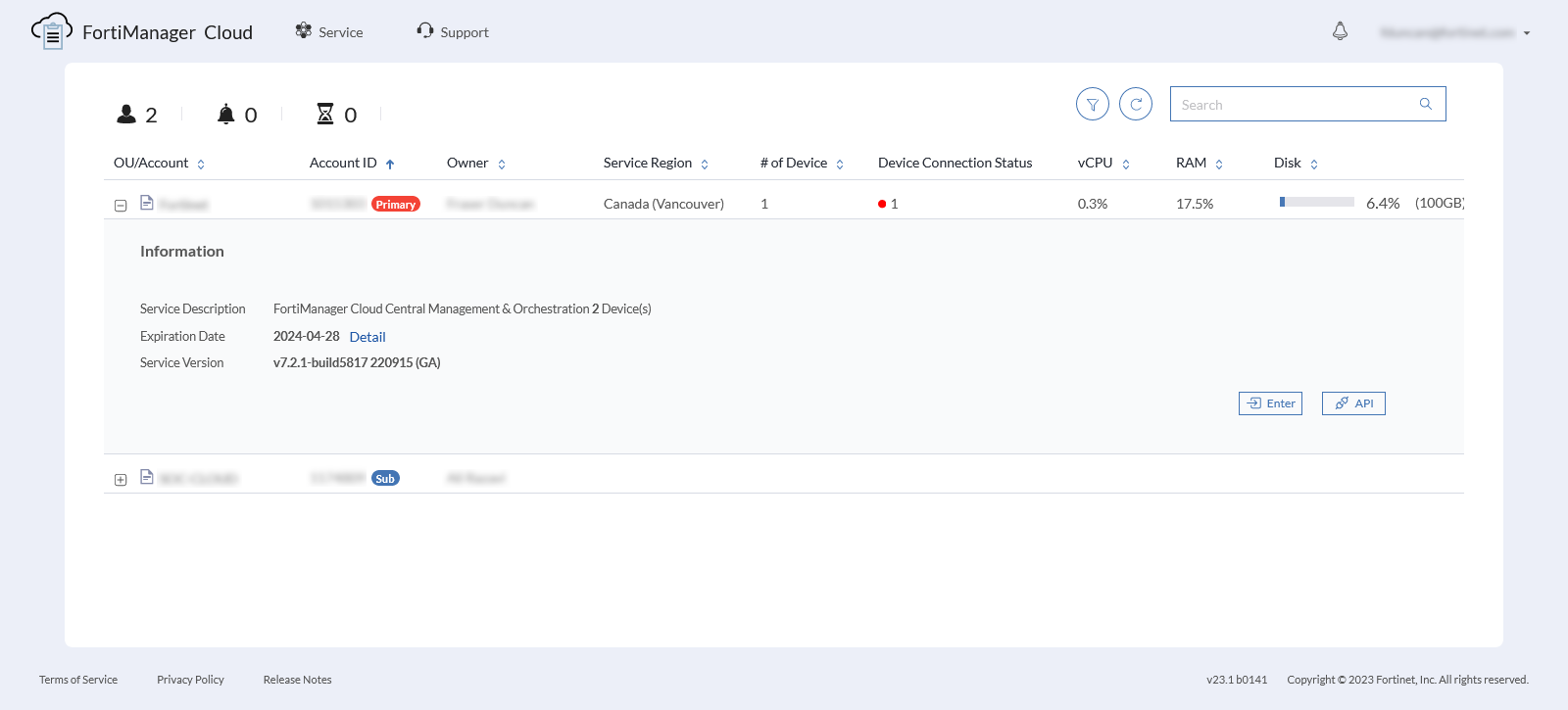
The following options are displayed:
Dashboard
The top-left includes a dashboard summary of the accounts displayed on the pane:
- Accounts: Displays the number of accounts you can access.
- Alarms: Displays the number of notifications or alarms that need your attention. Notifications and alarms display in the banner. For alarms, you can also scroll down through the accounts to find an alarm icon on affected accounts.
- Expiring: Displays the number of licenses that will expire soon.
Filter
Click to view options to filter by license status and quota/storage alarm.
Refresh
Click to manually retrieve the latest license information from FortiCare and refresh the pane.
Information from FortiCare is also automatically retrieved on a regular interval.
Account Search
Use to search for accounts. In the Search box, type search criteria, and press Enter.
Delete the search criteria, and press Enter to display all accounts again.
Accounts summary in table view
Each account displays as a row with the following columns:
- OU/Account: The OU/Account this instance is configured for.
- Account ID: The account ID.
- Owner: The name of the owner.
- Service Region: The region where the instance is deployed.
- # of Device: The number of devices connected to the instance.
- Device Connection Status: The status of connected devices.
- vCPU
- RAM
- Disk
Expand the pane to view additional information:
- Service Description: A short description of the FortiManager Cloud service.
- Expiration Date: The license expiration date.
- Service Version: The FortiManager Cloud version.
- Enter: Enter the FortiManager Cloud instance.
- API: Open the User API Helper pane with information about API usage for FortiManager Cloud.
See also Viewing the FortiManager Cloud portal.