

Controlling risky conditions
Adaptive Authentication
You can bypass OTP verification of MFA under certain “safer” conditions and deny such attempts under some otherwise “risky” conditions. You can pre-configure OTP verification of MFA based on trusted subnet/geo-location and time of day/day of week. For more details about how to configure it, go to Adaptive authentication.
Creating adaptive authentication policy
-
Click Settings>Adaptive Auth>Policies.
-
Click Add Policy.
-
Make the desired entries and/or selections.
-
Click Apply.
Creating adaptive authentication profile
-
Click Settings>Adaptive Auth > Profiles.
-
Click Add Profile.
-
Make the desired entries and/or selections.
-
Click Apply.
Applying adaptive authentication profile to an application
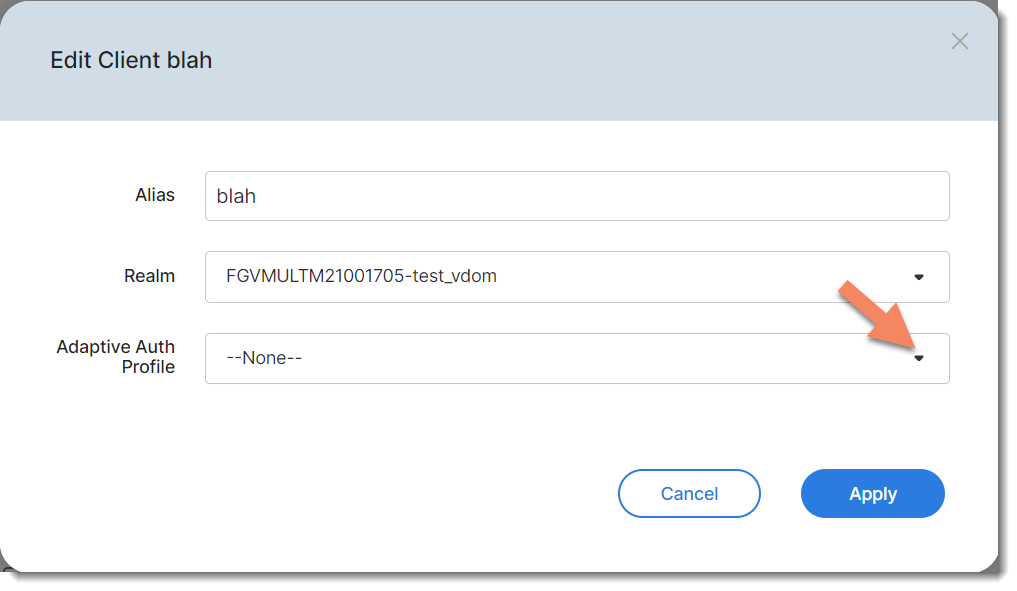
-
Click Applications > FortiProducts.
-
Locate the application of interest, and click Edit in the pop-up tool menu.
-
Select an adaptive auth profile.
-
Click Apply.
Applying adaptive authentication profile to a realm
-
Click Settings > Realm > General.
-
Scroll down to Adaptive Auth Profile, and select a profile.
-
Click Apply Changes.
Last login
The Last Login feature enables you to let end-users use trusted IPs or subnets to log in by bypassing the MFA requirement within a specified time period.
Enabling the Last Login feature in Adaptive Auth Policy
-
Click Settings > Adaptive Auth > Policies.
-
Specify a unique name.
-
For Action, select Bypass MFA
-
For Filters, select Subnet Filter.
-
In the Subnets field, enter the IP address or subnet, and click the + sign. (Note: The IP or Subnet must be supported by the FortiProduct).
-
Click Last Login and specify a reasonable MFA Interval time period. (Note: The range of this period is from 1 to 72 hours.)
-
Select a schedule configuration set in the Schedule section.
-
Click Apply.
-
Add the newly created policy to a profile and select the same action, i.e., Bypass MFA.
-
Apply the newly created profile to any applications (including FortiProducts and Web Apps) and any realms whose users are going to use those trusted IPs or Subnets.
Impossible travel
The Impossible Travel feature enables FIC to detect and block suspicious login attempts. Upon detecting a login request coming far away from the normal geographical location, for example, a login request from Russia for a device used by an employee who is based in the United States, FIC will block it. Using this feature, FIC can effectively identify suspicious sign-in attempts based on the distance and time elapsed between two subsequent user sign-in attempts. The feature works with IP addresses in the format that FortiProducts support.
Enabling the Impossible Travel feature in Adaptive Authentication policy:
-
Click Adaptive Auth > Policy > Add Policy.
-
Enter a unique policy name.
-
For Actions, select Enforce MFA/Block.
-
Select Location Filter.
-
Select the country or countries.
-
Click Impossible Travel.
-
Select a schedule configuration in the Schedule section.
-
Click Apply.
-
Add the policy to any profile. Be sure to select the same action, i.e., Enforce MFA/Block.
-
Apply the profile to any applications (including FortiProducts and Web Apps) and any Realms whose users are going to log in from those locations.