
Fortinet white logo
Fortinet white logo

Admin Guide

26.1.a

FortiIdentity Cloud as OIDC provider

FortiIdentity Cloud as OIDC provider

FortiIdentity Cloud (FIC) can be configured as an OpenID Provider (OP) for authenticating users and issuing tokens to a Relying Party (RP). When configured in tandem with its local IdP, FIC can be the authentication source as well and provide end-to-end OP functionality.

You may also configure other third-party IdP providers as authentication user sources based on your environment. For configurations supported by FIC as OIDC OP, refer to the "./well-known/opened-configuration" generated by FIC when the configuration is completed.

Caution

While Implicit grant type is supported, we do not recommend using it unless there is no other alternative for your application.

Configuring FIC as an OIDC provider

In the following example, we demonstrate the steps to configure FIC as an OIDC OP and a test on-prem grafana setup as RP. We also use FIC Local IdP as the user source for the first factor authentication.

  1. Navigate to Applications > SSO.

  2. Click Add SSO Application.

  3. For Interface, select OIDC, and provide the other necessary details as in the following sample.
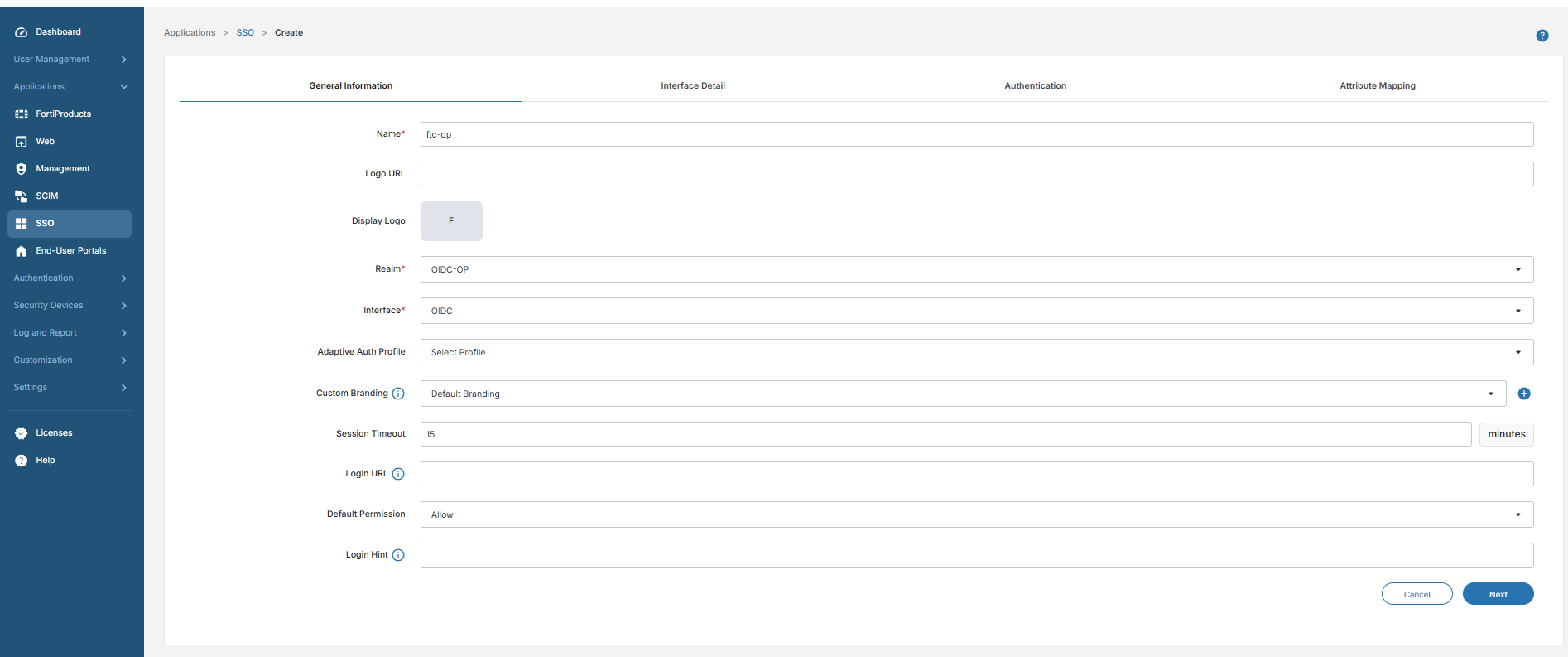
  4. Click Next.

    Under Interface Detail, the IdP metadata will be generated by FIC and will be displayed as in the following screenshot.

    Tooltip

    For the Redirect URI, ensure to provide a valid Redirect URI as documented by your RP. In this sample, we use an on-prem grafana setup. The Redirect URI provided by grafana is https://<grafana ip>:<grafana port>/login/generic_oauth. Make sure to click the ‘+’ button to have the Redirect URI added.

  5. Click Next.

  6. Under the Authentication tab, select a user source.

    In this example, we use a Local IdP source to demonstrate the capability of FIC acting as an OIDC provider along with a local user source.
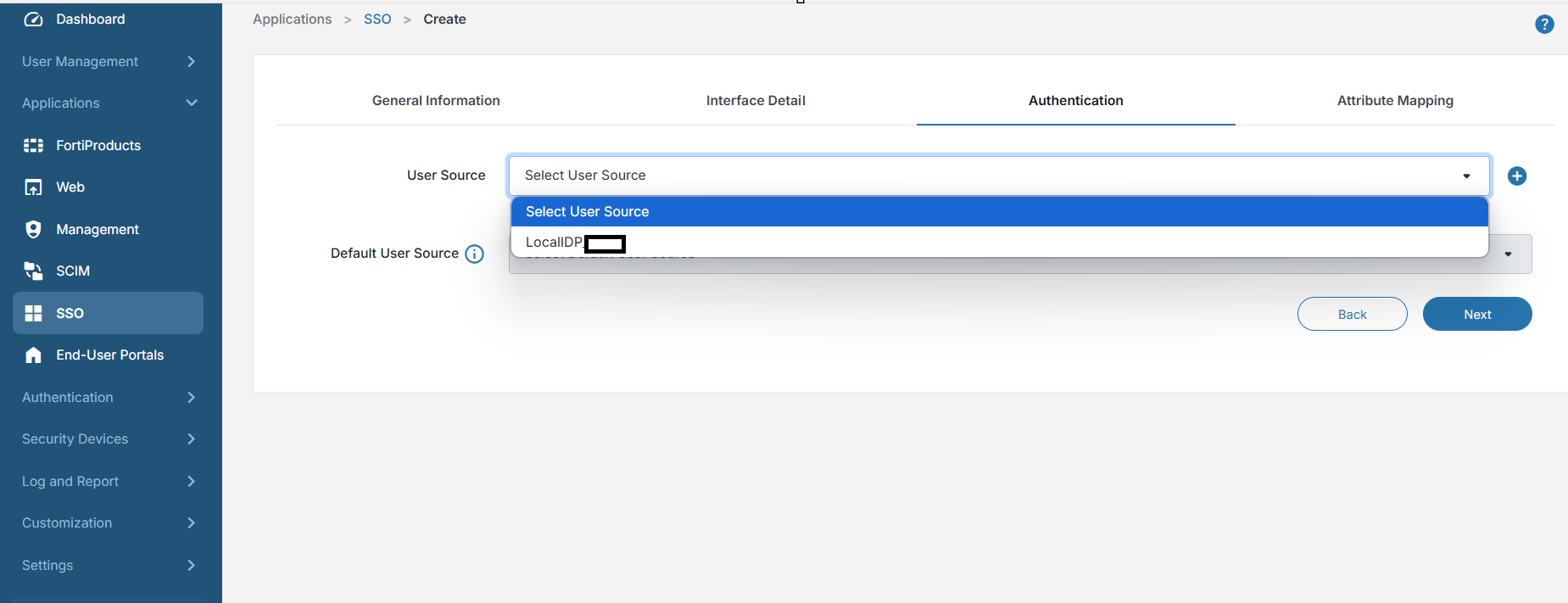
  7. Click Next.

  8. Under the Attribute Mapping tab, enter any attribute mapping that might be needed by the RP, and click Save.
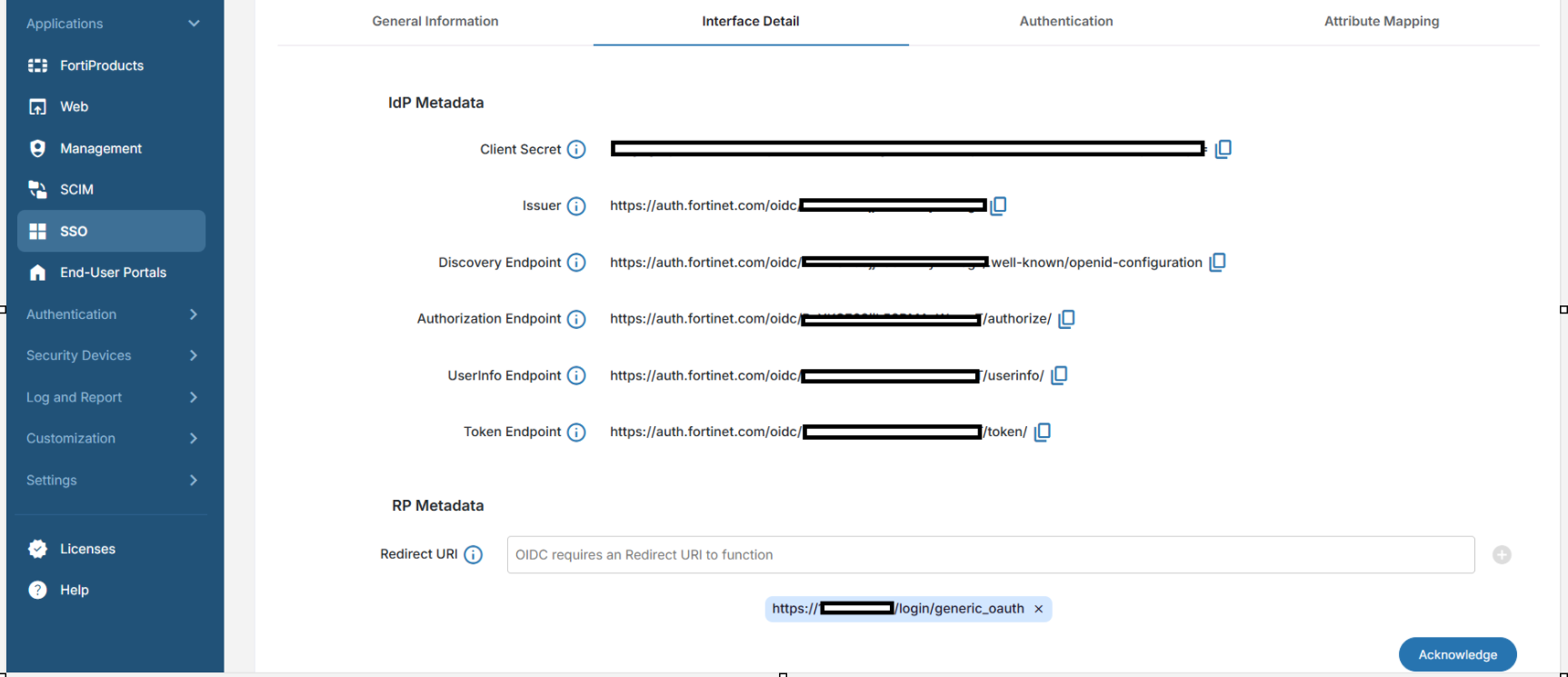
  9. Copy the Client Secret as it will be visible only once, and click Acknowledge.

  10. Once the configuration is completed, click the tools pop-up menu (the three vertical dots), and click Details to view all the required IdP metadata.
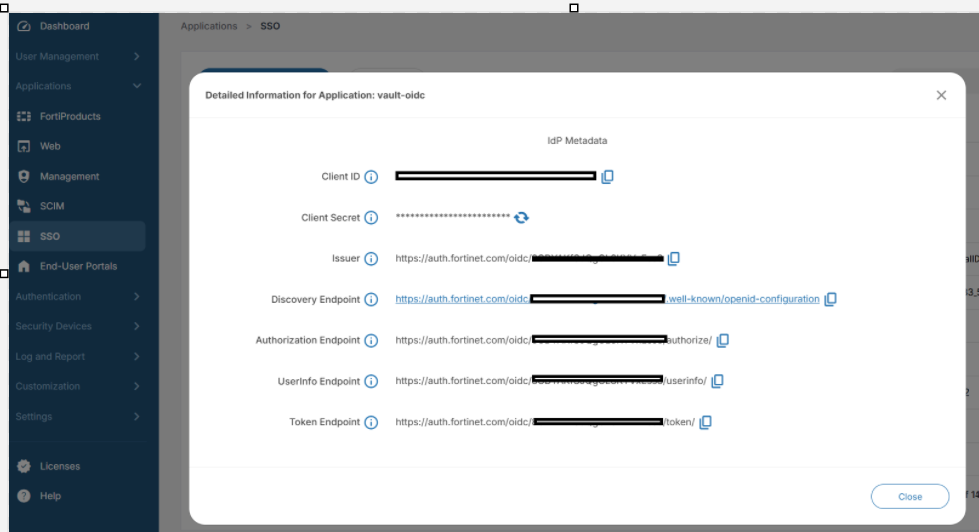
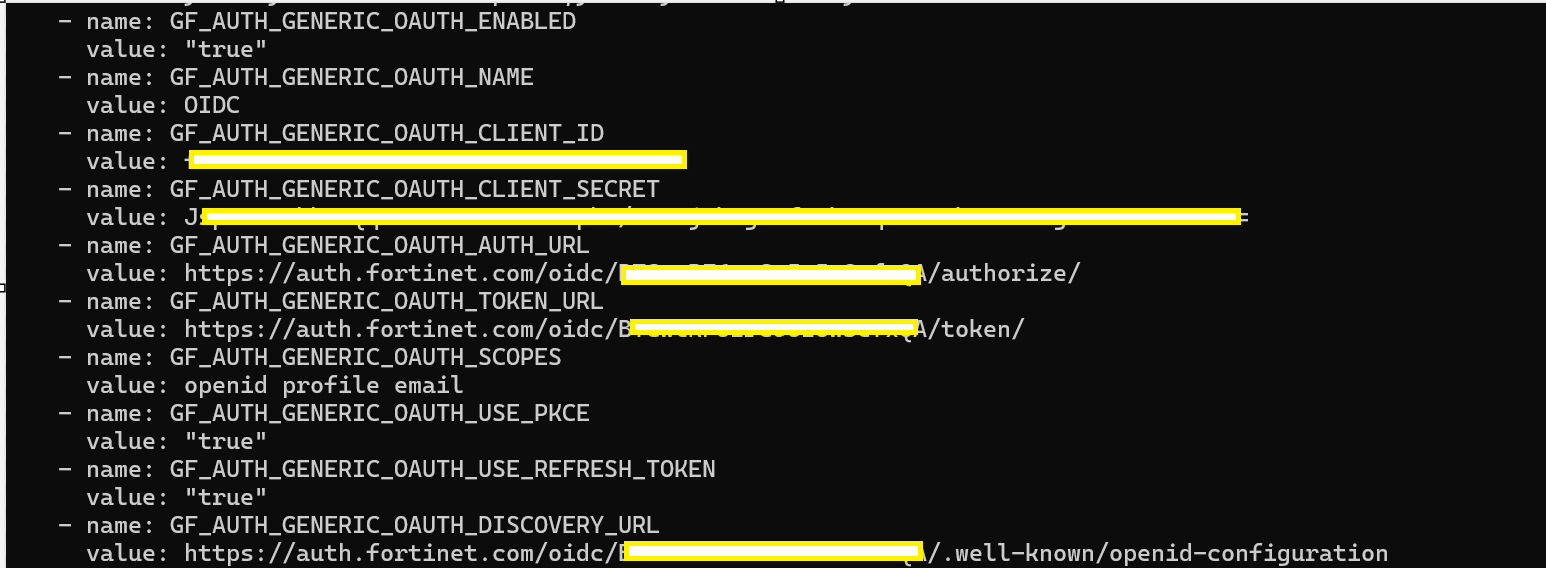
  11. On your RP, furnish the IdP metadata from FIC as shown in the above screenshot.

    The following sample shows the configuration the on-prem grafana setup acting as the RP.
  12. Click User Management>Users, and create users in your realm to facilitate login.

  13. Make sure that the user type is Local User for the first factor authentication to be performed by FIC.

End-user experience

  1. In the RP (the on-prem grafana in this case), select Sign in with OIDC.

    With Local IdP enabled for this account and Local IdP configured as the user source, FIC will perform the first factor authentication.

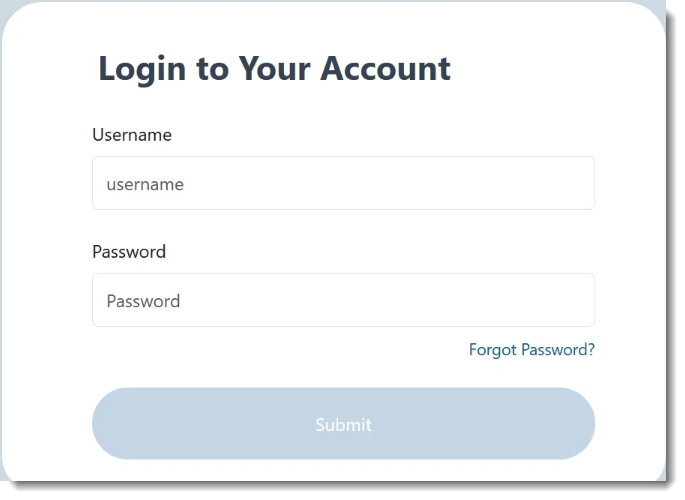
  2. When navigating to FIC’s auth.fortinet.com page, the user enters their username and password configured on the FIC.
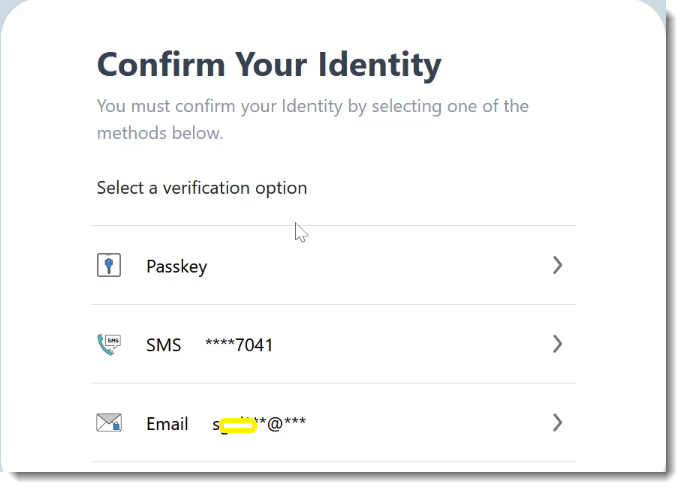
    After successful first factor authentication, the user is prompted for MFA by FIC based on their MFA method. In this example, the user has Passkey configured, so passkey will be prompted by default.
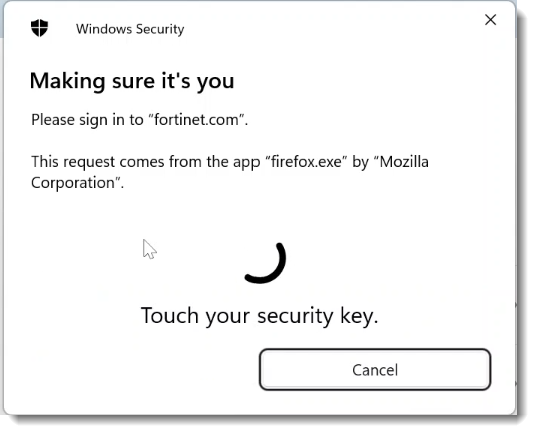
    After successful second-factor authentication, the user can successfully log into grafana.
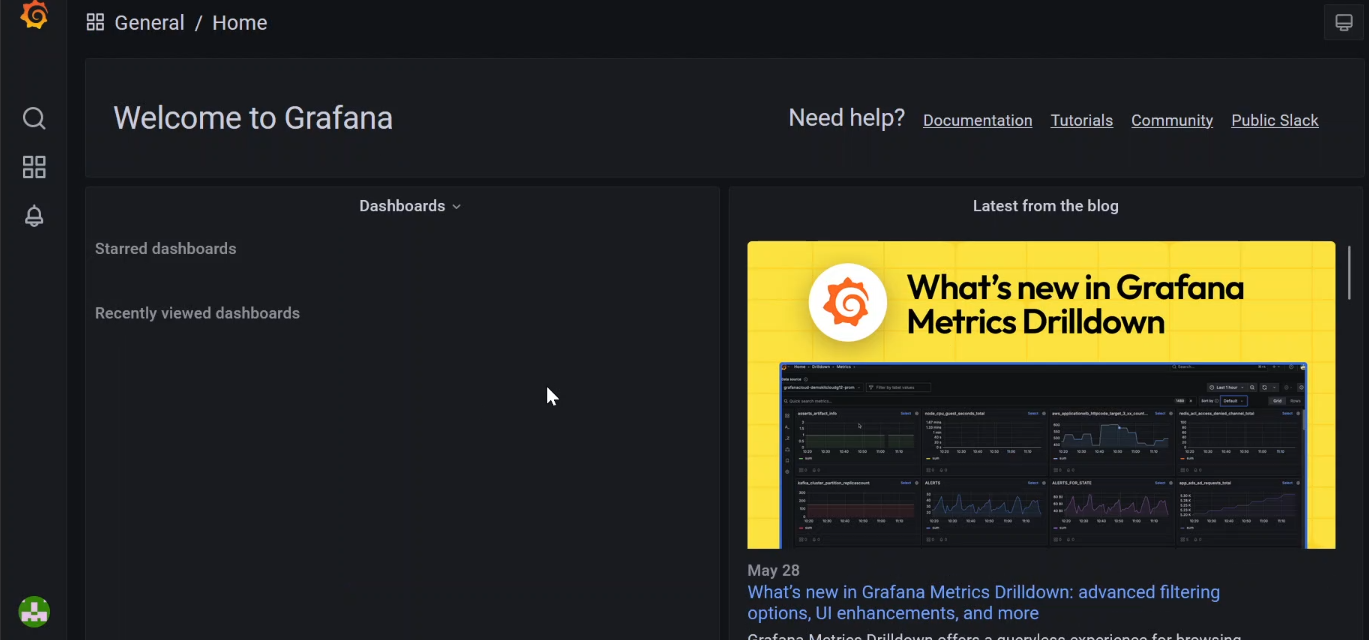
    This sample demonstrates that, with FIC Local IdP for the first factor and a variety of MFA methods to choose from, administrators can secure their applications by configuring FIC as the OIDC provider.

FortiIdentity Cloud as OIDC provider

FortiIdentity Cloud as OIDC provider

FortiIdentity Cloud (FIC) can be configured as an OpenID Provider (OP) for authenticating users and issuing tokens to a Relying Party (RP). When configured in tandem with its local IdP, FIC can be the authentication source as well and provide end-to-end OP functionality.

You may also configure other third-party IdP providers as authentication user sources based on your environment. For configurations supported by FIC as OIDC OP, refer to the "./well-known/opened-configuration" generated by FIC when the configuration is completed.

Caution

While Implicit grant type is supported, we do not recommend using it unless there is no other alternative for your application.

Configuring FIC as an OIDC provider

In the following example, we demonstrate the steps to configure FIC as an OIDC OP and a test on-prem grafana setup as RP. We also use FIC Local IdP as the user source for the first factor authentication.

  1. Navigate to Applications > SSO.

  2. Click Add SSO Application.

  3. For Interface, select OIDC, and provide the other necessary details as in the following sample.

  4. Click Next.

    Under Interface Detail, the IdP metadata will be generated by FIC and will be displayed as in the following screenshot.

    Tooltip

    For the Redirect URI, ensure to provide a valid Redirect URI as documented by your RP. In this sample, we use an on-prem grafana setup. The Redirect URI provided by grafana is https://<grafana ip>:<grafana port>/login/generic_oauth. Make sure to click the ‘+’ button to have the Redirect URI added.

  5. Click Next.

  6. Under the Authentication tab, select a user source.

    In this example, we use a Local IdP source to demonstrate the capability of FIC acting as an OIDC provider along with a local user source.

  7. Click Next.

  8. Under the Attribute Mapping tab, enter any attribute mapping that might be needed by the RP, and click Save.

  9. Copy the Client Secret as it will be visible only once, and click Acknowledge.

  10. Once the configuration is completed, click the tools pop-up menu (the three vertical dots), and click Details to view all the required IdP metadata.

  11. On your RP, furnish the IdP metadata from FIC as shown in the above screenshot.

    The following sample shows the configuration the on-prem grafana setup acting as the RP.

  12. Click User Management>Users, and create users in your realm to facilitate login.

  13. Make sure that the user type is Local User for the first factor authentication to be performed by FIC.

End-user experience

  1. In the RP (the on-prem grafana in this case), select Sign in with OIDC.

    With Local IdP enabled for this account and Local IdP configured as the user source, FIC will perform the first factor authentication.

  2. When navigating to FIC’s auth.fortinet.com page, the user enters their username and password configured on the FIC.

    After successful first factor authentication, the user is prompted for MFA by FIC based on their MFA method. In this example, the user has Passkey configured, so passkey will be prompted by default.

    After successful second-factor authentication, the user can successfully log into grafana.

    This sample demonstrates that, with FIC Local IdP for the first factor and a variety of MFA methods to choose from, administrators can secure their applications by configuring FIC as the OIDC provider.