
Fortinet white logo
Fortinet white logo

New Features

GUI support for preferred outbound route map options

GUI support for preferred outbound route map options

Enhanced the routing configuration by adding GUI support for route-map-out-preferable and route-map-out6-preferable, which were previously only configurable using the CLI.

To configure a preferred outbound route in the GUI:
  1. Configure a route map. See Route maps.

  2. Go to Network > BGP and click Create New in the Neighbors or Neighbor Groups tables.

  3. Enable Active IPv4 to configure IPv4 Filtering.

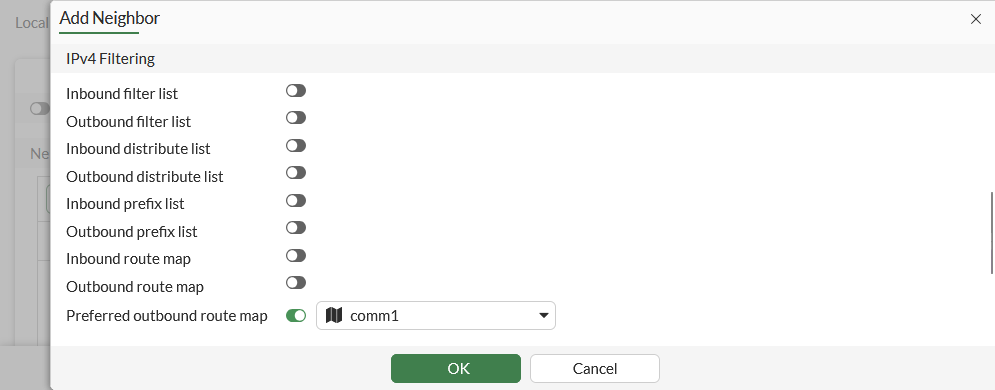
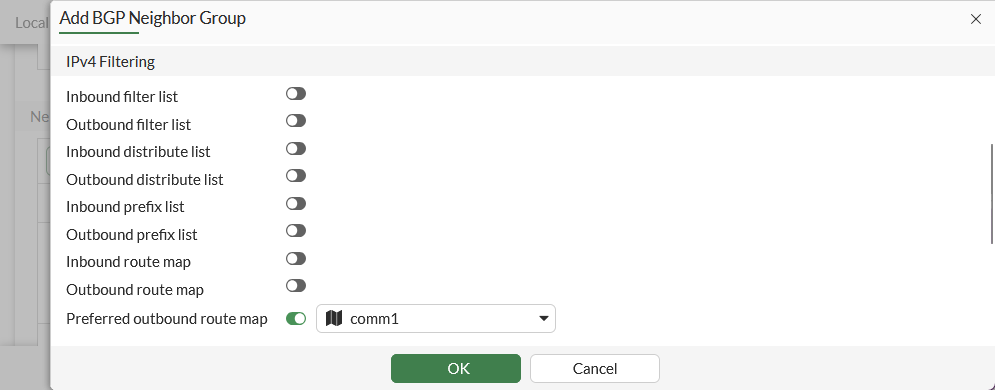
  4. Enable Preferred outbound route map, then select a route map from the drop-down list.

    IPv4 neighbor:
    IPv4 neighbor group:
  5. Enable Active IPv6 to configure IPv6 Filtering.

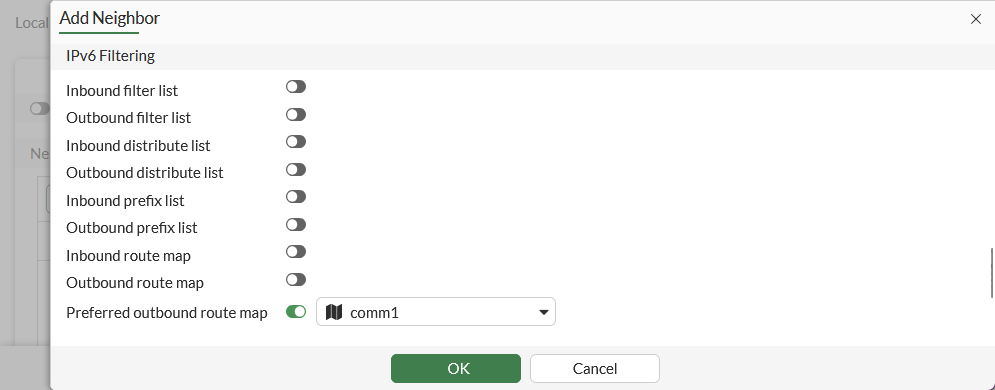
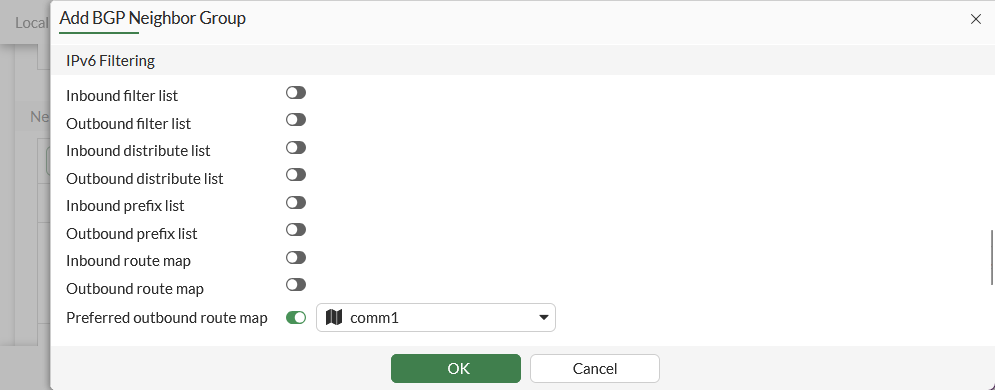
  6. Enable Preferred outbound route map, then select a route map from the drop-down list.

    IPv6 neighbor:
    IPv6 neighbor group:
  7. Configure the remaining settings as needed, then click OK.

GUI support for preferred outbound route map options

GUI support for preferred outbound route map options

Enhanced the routing configuration by adding GUI support for route-map-out-preferable and route-map-out6-preferable, which were previously only configurable using the CLI.

To configure a preferred outbound route in the GUI:
  1. Configure a route map. See Route maps.

  2. Go to Network > BGP and click Create New in the Neighbors or Neighbor Groups tables.

  3. Enable Active IPv4 to configure IPv4 Filtering.

  4. Enable Preferred outbound route map, then select a route map from the drop-down list.

    IPv4 neighbor:

    IPv4 neighbor group:

  5. Enable Active IPv6 to configure IPv6 Filtering.

  6. Enable Preferred outbound route map, then select a route map from the drop-down list.

    IPv6 neighbor:

    IPv6 neighbor group:

  7. Configure the remaining settings as needed, then click OK.