
Fortinet white logo
Fortinet white logo

New Features

Simultaneous FortiSandbox Cloud and on-premise integration

Simultaneous FortiSandbox Cloud and on-premise integration

FortiGate now support simultaneous use of FortiSandbox Cloud and on-premise, enabling antivirus profiles to route files based on policy or auto-selection. This hybrid approach offers flexible sandboxing, data privacy, and compliance. Signature and URL databases are combined.

To enable FortiSandbox Cloud and on-premise integration in the GUI:
  1. Go to Security Fabric > Fabric Connectors and double-click the Sandbox card.

  2. In the FortiSandbox section, set Status to Enable and configure the settings as required. See FortiSandbox appliance.

  3. In the FortiSandbox Cloud section, setStatus to Enable and configure the settings as required. See FortiSandbox Cloud (FortiSandbox PaaS).

  4. Set Preferred FortiSandbox device to FortiSandbox or FortiSandbox Cloud.

  5. Click OK.

To enable FortiSandbox Cloud and on-premise integration in the CLI:

Only one can be set as the default.

config system fortisandbox
    edit "sandbox"
        set status enable
        set default enable               
    next
    edit "sandbox-cloud"
        set status enable
        set default enable
    next
end
To configure an antivirus profile:
  1. Go to Security Profiles > AntiVirus and click Create New.

  2. Set Feature set to Flow-based or Proxy-based.

  3. Enable the protocols to inspect.

  4. Enable Send files to FortiSandbox for inspection.

  5. Set FortiSandbox destination to Auto, FortiSandbox, or FortiSandbox Cloud.

  6. Configure the remaining settings as required, then click OK.

    See Antivirus for more information.

To add the antivirus profile to a policy:
  1. Go to Policy & Objects > Firewall Policy, and click Create New or edit an existing policy.

  2. Set Inspection mode to Flow-based or Proxy-based.

  3. In the Security Profiles section, enable AntiVirus and select the antivirus profile from the drop-down list.

  4. Configure the remaining settings as needed, then click OK.

Use cases
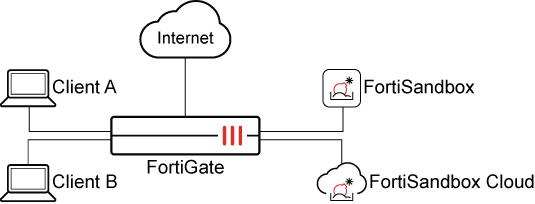
Use case 1: Default on-premise, post transfer, proxy mode

In this use case, the system is set to default to an on-premise FortiSandbox appliance. All file submissions are routed to the on-premise FortiSandbox for post transfer analysis.

Configure the following:

Option

Settings

Sandbox Settings

FortiSandbox

  • Inline scan: enabled

FortiSandbox Cloud

  • Inline scan: enabled

Default FortiSandbox Device

  • Preferred FortiSandbox device: FortiSandbox

Antivirus profile:

fsa_dual_auto_post_transfer_proxy

  • Feature set: Proxy-based

  • Scan strategy: Post Transfer

  • FortiSandbox destination: Auto

Policy

  • Inspection mode: Proxy-based

  • Security Profiles: fsa_dual_auto_post_transfer_proxy

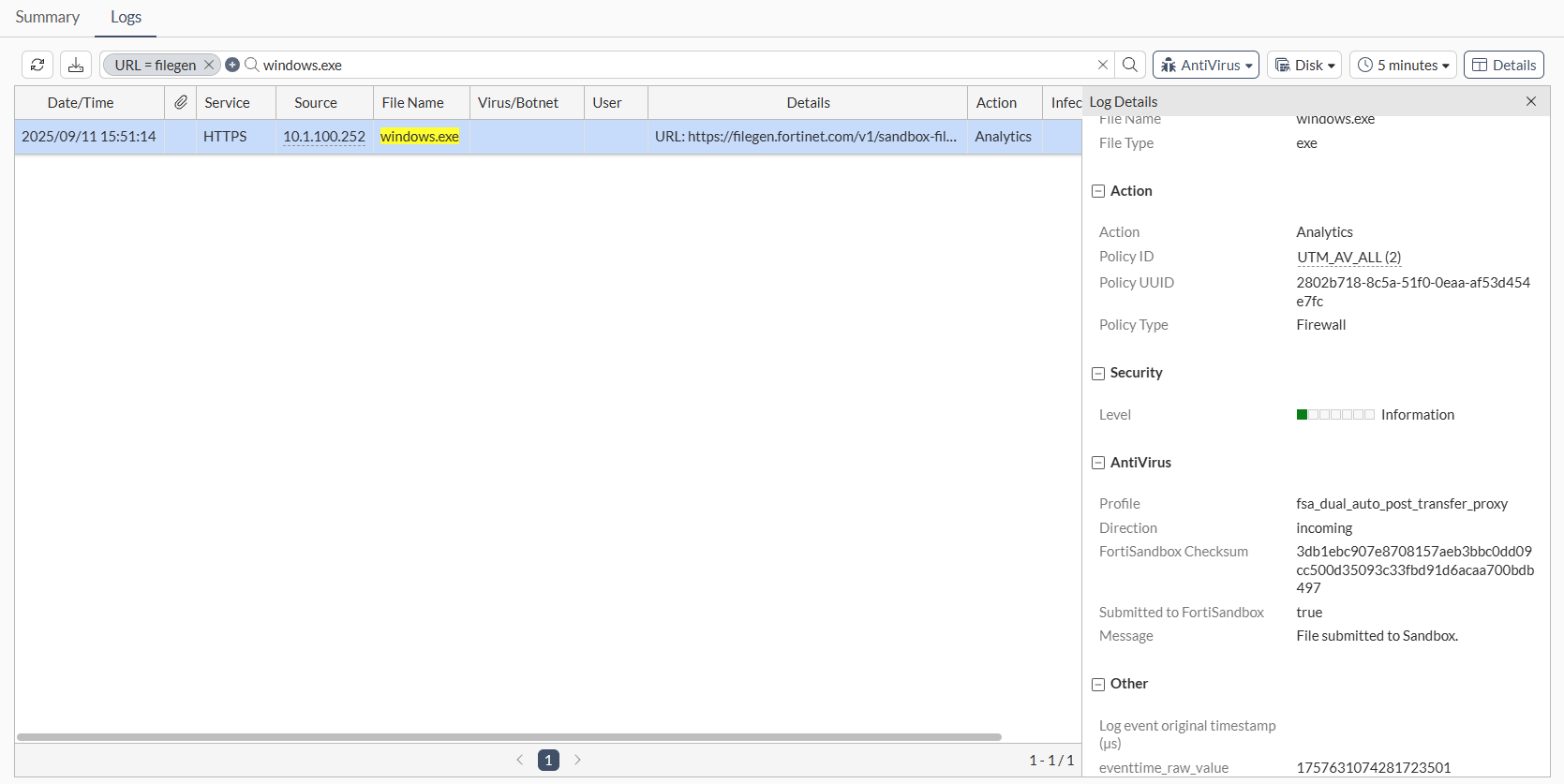
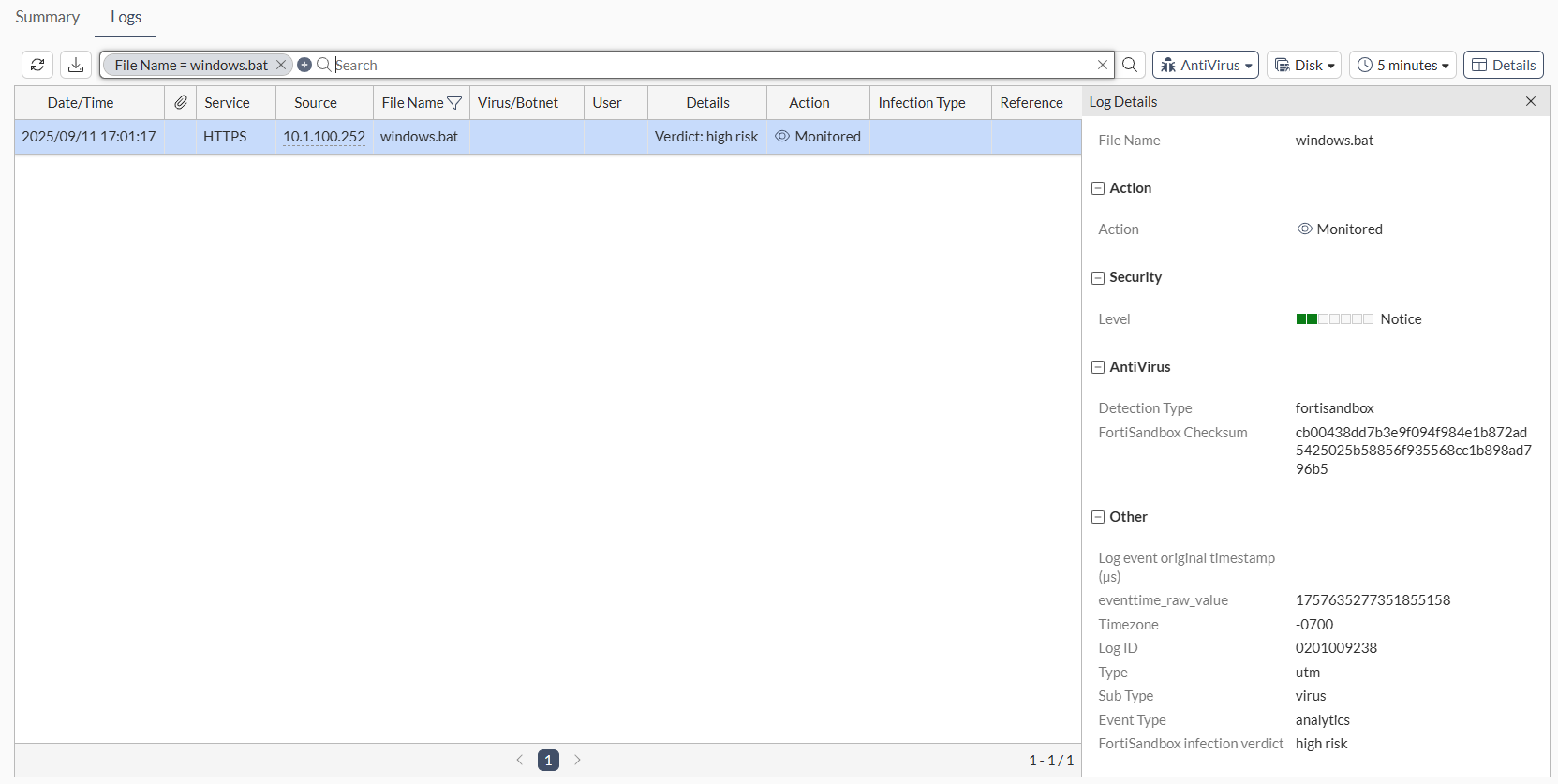
Download a file from https://www.fortiguard.com/sample-files and check the logs on FortiGate to see the analytics submission log showing that the antivirus profile was applied, and the verdict returned from the FortiSandbox showing that the detection type was FortiSandbox.
Use case 2: Default cloud, post transfer, flow mode

In this use case, the system is set to default to FortiSandbox Cloud. All file submissions are routed to FortiSandbox Cloud for post transfer analysis.

Configure the following:

Option

Settings

Sandbox Settings

FortiSandbox

  • Inline scan: enabled

FortiSandbox Cloud

  • Inline scan: enabled

Default FortiSandbox Device

  • Preferred FortiSandbox device: FortiSandbox Cloud

Antivirus profile:

fsa_dual_auto_post_transfer_flow

  • Feature set: Flow-based

  • Scan strategy: Post Transfer

  • FortiSandbox destination: Auto

Policy

  • Inspection mode: Flow-based

  • Security Profiles: fsa_dual_auto_post_transfer_flow

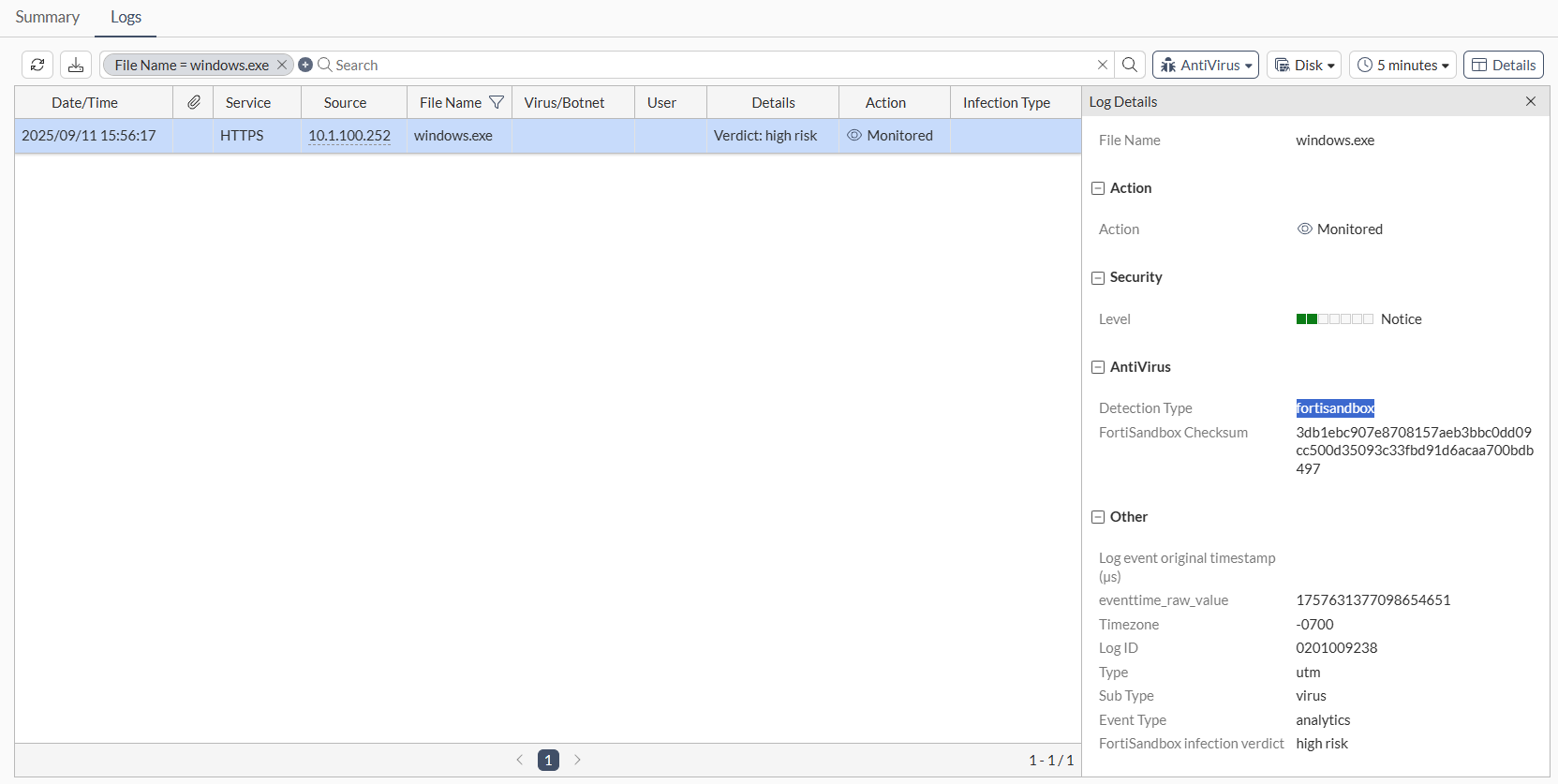
Download a file from https://www.fortiguard.com/sample-files and check the logs on FortiGate to see the analytics submission log showing that the antivirus profile was applied, and the verdict returned from FortiSandbox Cloud showing that the detection type was FortiSandbox.
Use case 3: On-premise override, inline scan

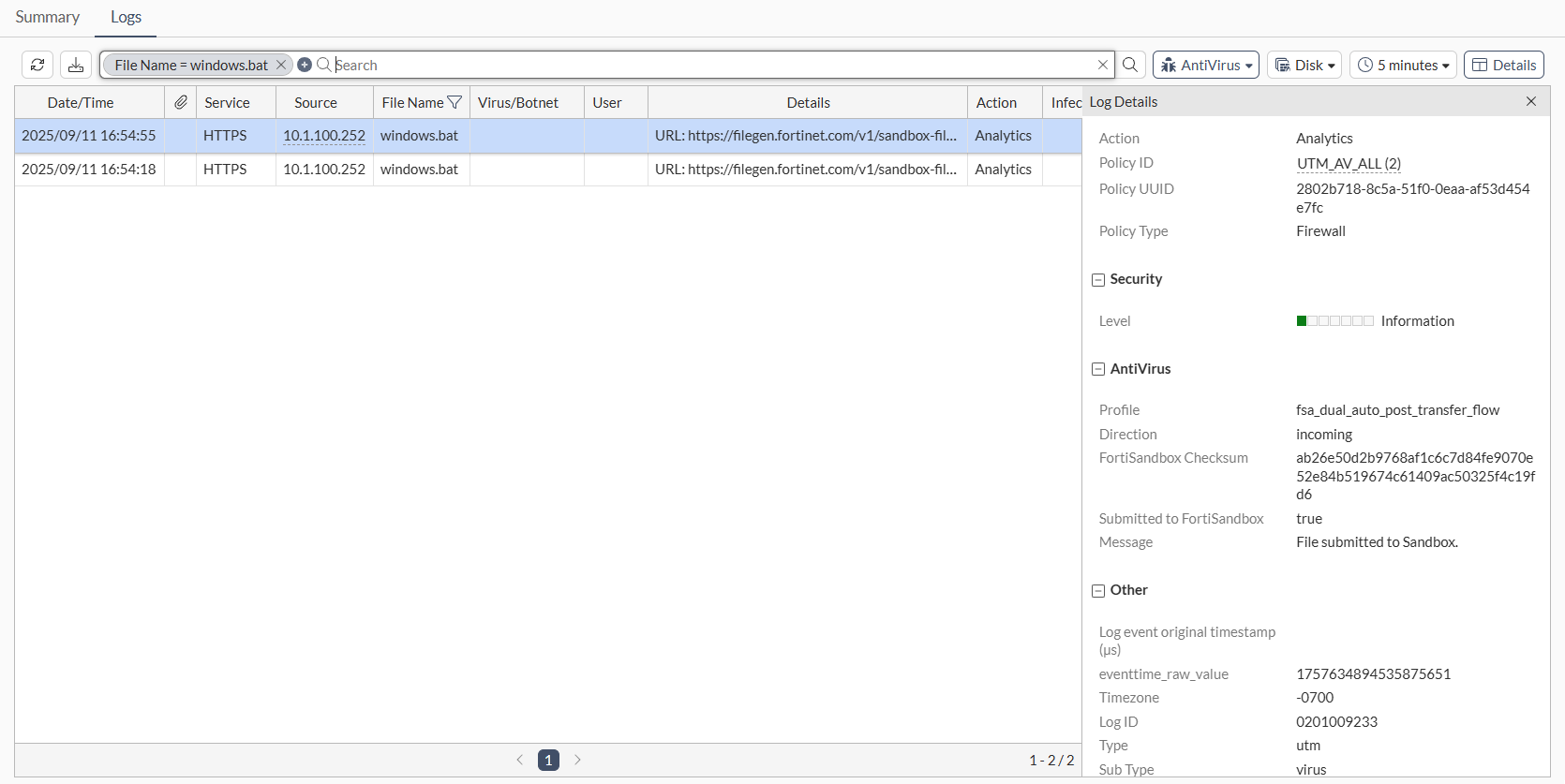
In this use case, FortiSandbox cloud is set as the default, but the user explicitly assigns an antivirus profile that forces traffic to the on-premise FortiSandbox. All file submissions are routed to the on-premise FortiSandbox for real-time analysis.

Configure the following:

Option

Settings

Sandbox Settings

FortiSandbox

  • Inline scan: enabled

FortiSandbox Cloud

  • Inline scan: enabled

Default FortiSandbox Device

  • Preferred FortiSandbox device: FortiSandbox Cloud

Antivirus profile:

fsa_dual_inline_override_fortisandbox

  • Feature set: Proxy-based

  • Scan strategy: Inline

  • FortiSandbox destination: FortiSandbox

Policy

  • Inspection mode: Proxy-based

  • Security Profiles: fsa_dual_inline_override_fortisandbox

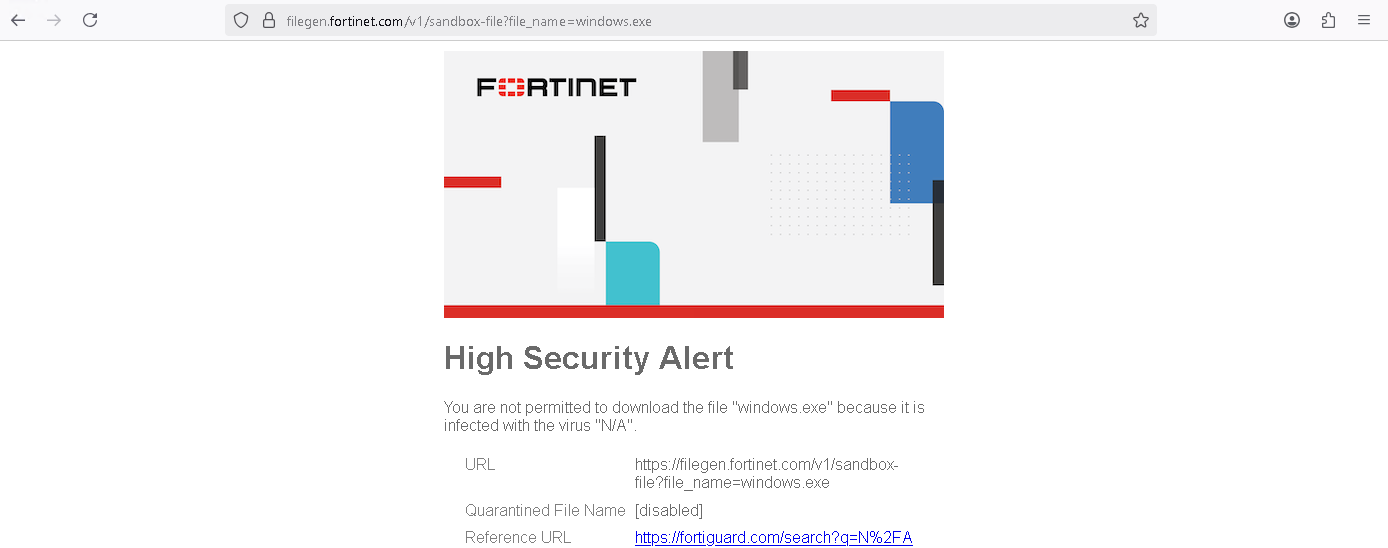
Attempt to download a file from https://www.fortiguard.com/sample-files. The file should be blocked.
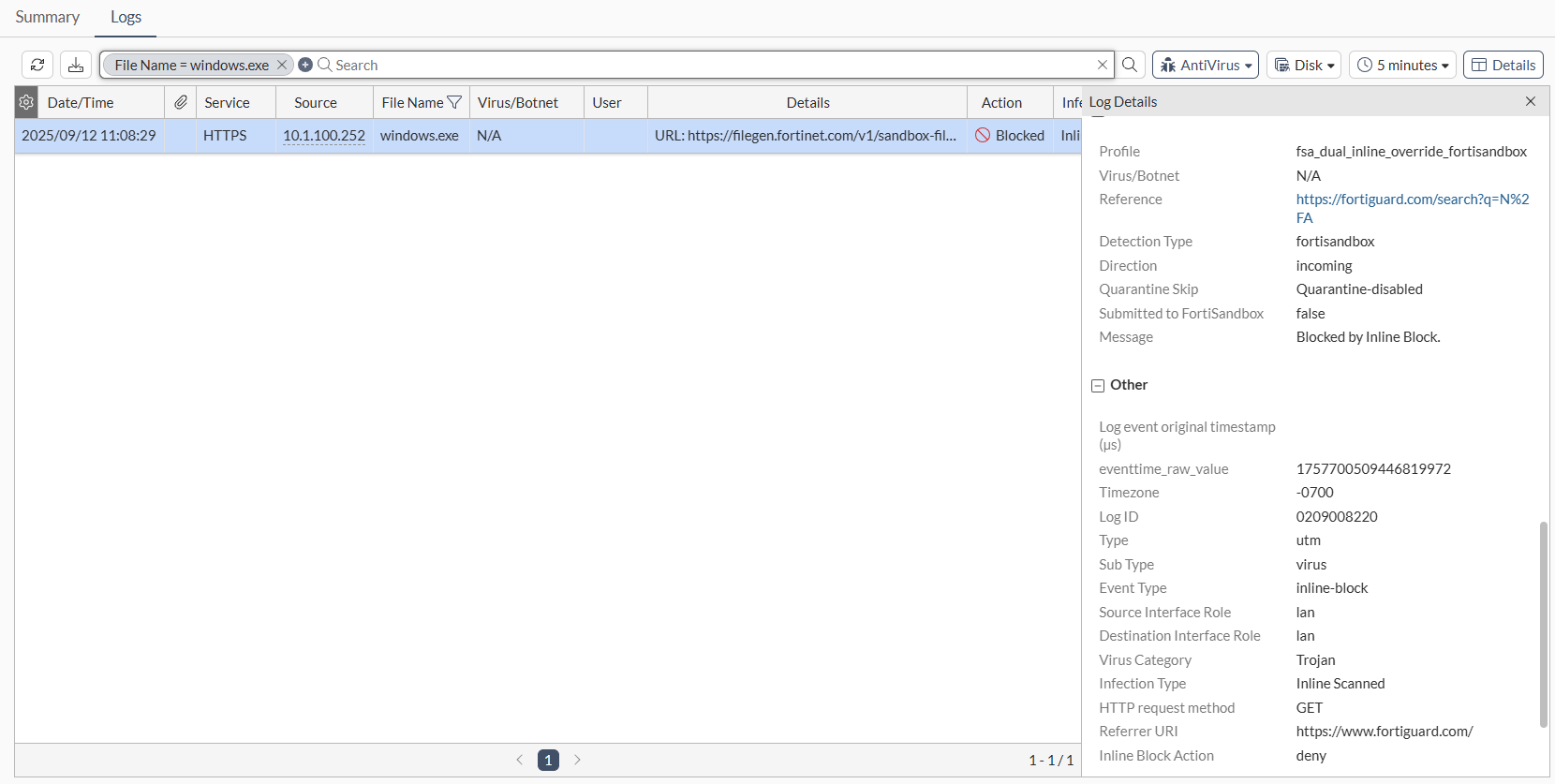
Check the log on the FortiGate to see that the file was blocked.
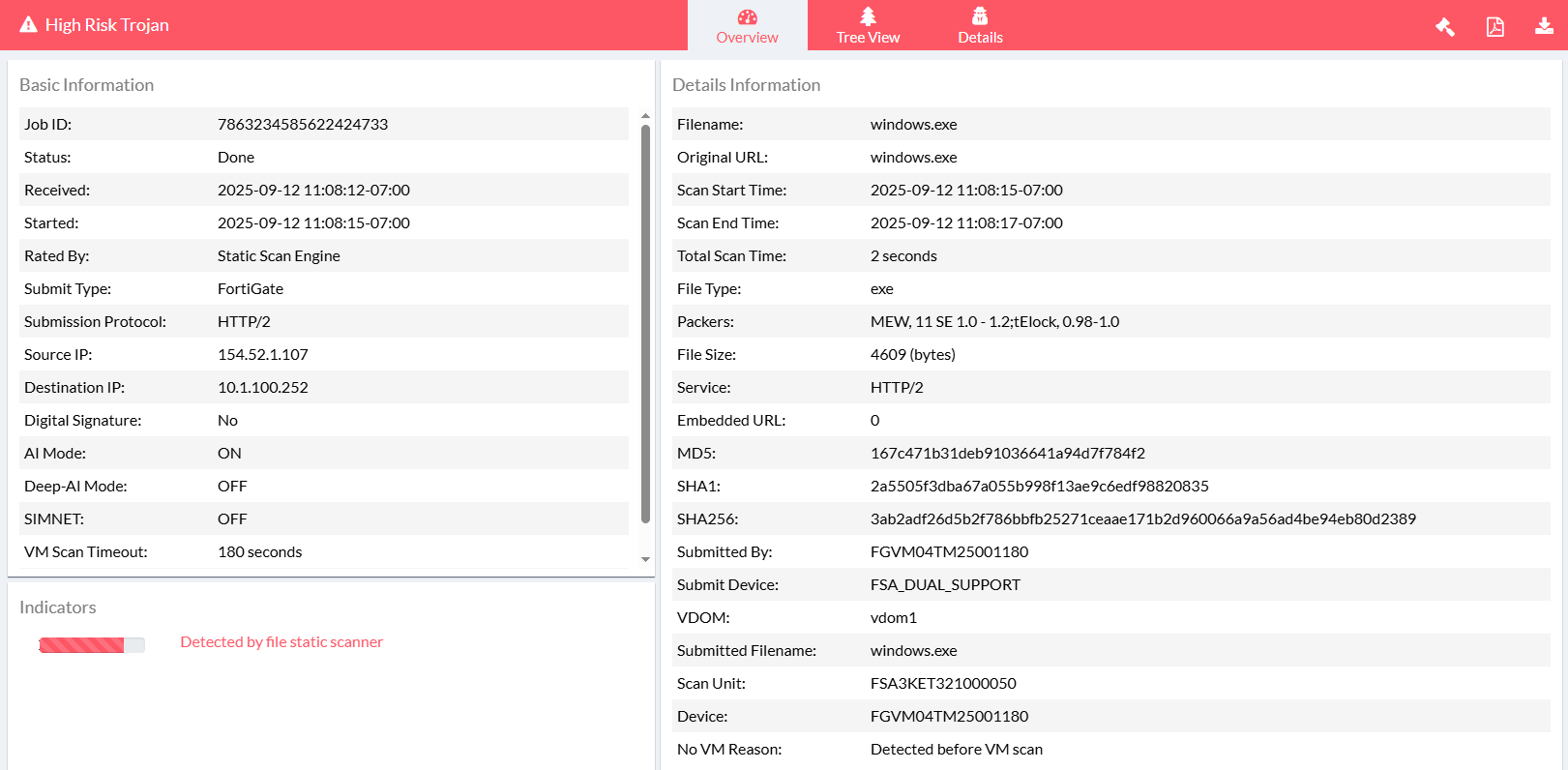
Check the on-premise FortiSandbox to confirm the override selection.
Use case 4: Cloud override, inline scan

In this use case, on-premise FortiSandbox is set as the default, but the user explicitly assigns an antivirus profile that forces traffic to the FortiSandbox cloud. All file submissions are routed to FortiSandbox Cloud for real-time analysis.

Configure the following:

Option

Settings

Sandbox Settings

FortiSandbox

  • Inline scan: enabled

FortiSandbox Cloud

  • Inline scan: enabled

Default FortiSandbox Device

  • Preferred FortiSandbox device: FortiSandbox

Antivirus profile:

fsa_dual_inline_override_fortisandboxcloud

  • Feature set: Proxy-based

  • Scan strategy: Inline

  • FortiSandbox destination: FortiSandbox Cloud

Policy

  • Inspection mode: Proxy-based

  • Security Profiles: fsa_dual_inline_override_fortisandboxcloud

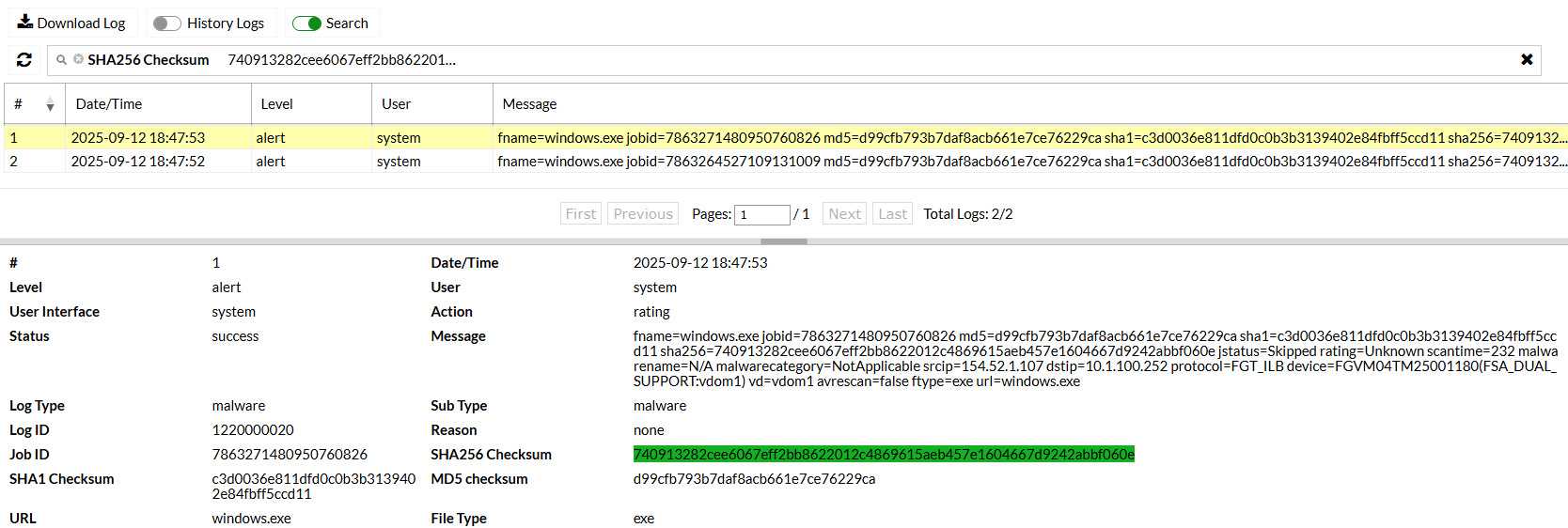
Download a file from https://www.fortiguard.com/sample-files and check the logs on FortiGate to see that the file was detected.
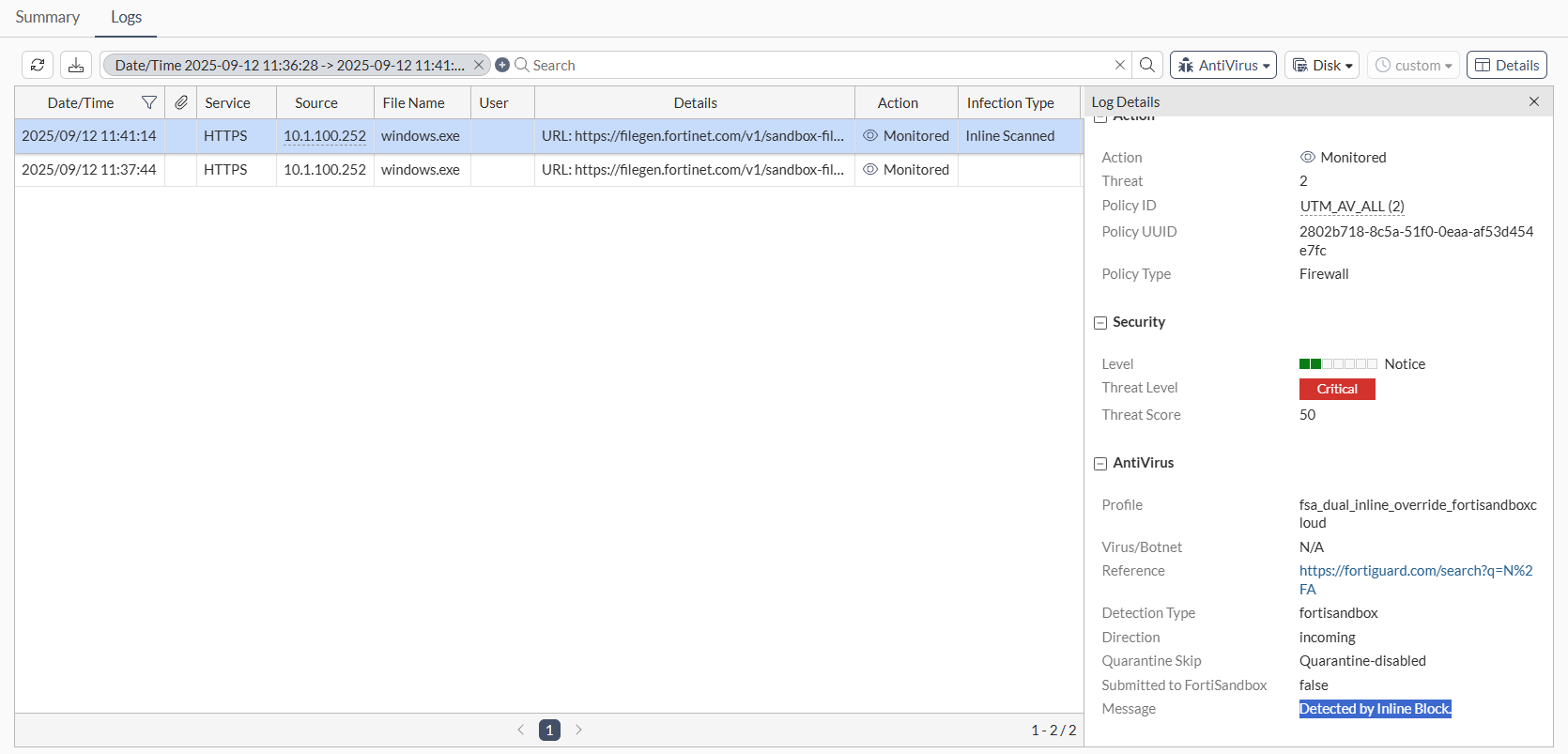
Check the FortiSandbox Cloud Job Events to confirm.
Use case 5: Split by policy, post transfer

In this use case, the system is set to default to an on-premise FortiSandbox appliance. Two firewall policies are configured with different antivirus profiles, one targeting the on-premise FortiSandbox (proxy-based) and the other targeting the FortiSandbox cloud (flow-based).

Routine traffic is routed to FortiSandbox Cloud and sensitive traffic is directed to the on-premise FortiSandbox for post transfer analysis.

Configure the following:

Option

Settings

Sandbox Settings

FortiSandbox

  • Inline scan: disabled

FortiSandbox Cloud

  • Inline scan: disabled

Default FortiSandbox Device

  • Preferred FortiSandbox device: FortiSandbox

Antivirus profile 1:

fsa_dual_post_override_fortisandbox

  • Feature set: Proxy-based

  • Scan strategy: Post Transfer

  • FortiSandbox destination: FortiSandbox

Antivirus profile 2:

fsa_dual_post_override_fortisandboxcloud

  • Feature set: Flow-based

  • Scan strategy: Post Transfer

  • FortiSandbox destination: FortiSandbox Cloud

Policy 1

  • Inspection mode: Proxy-based

  • Security Profiles: fsa_dual_post_override_fortisandbox

Policy 1

  • Inspection mode: Flow-based

  • Security Profiles: fsa_dual_post_override_fortisandboxcloud

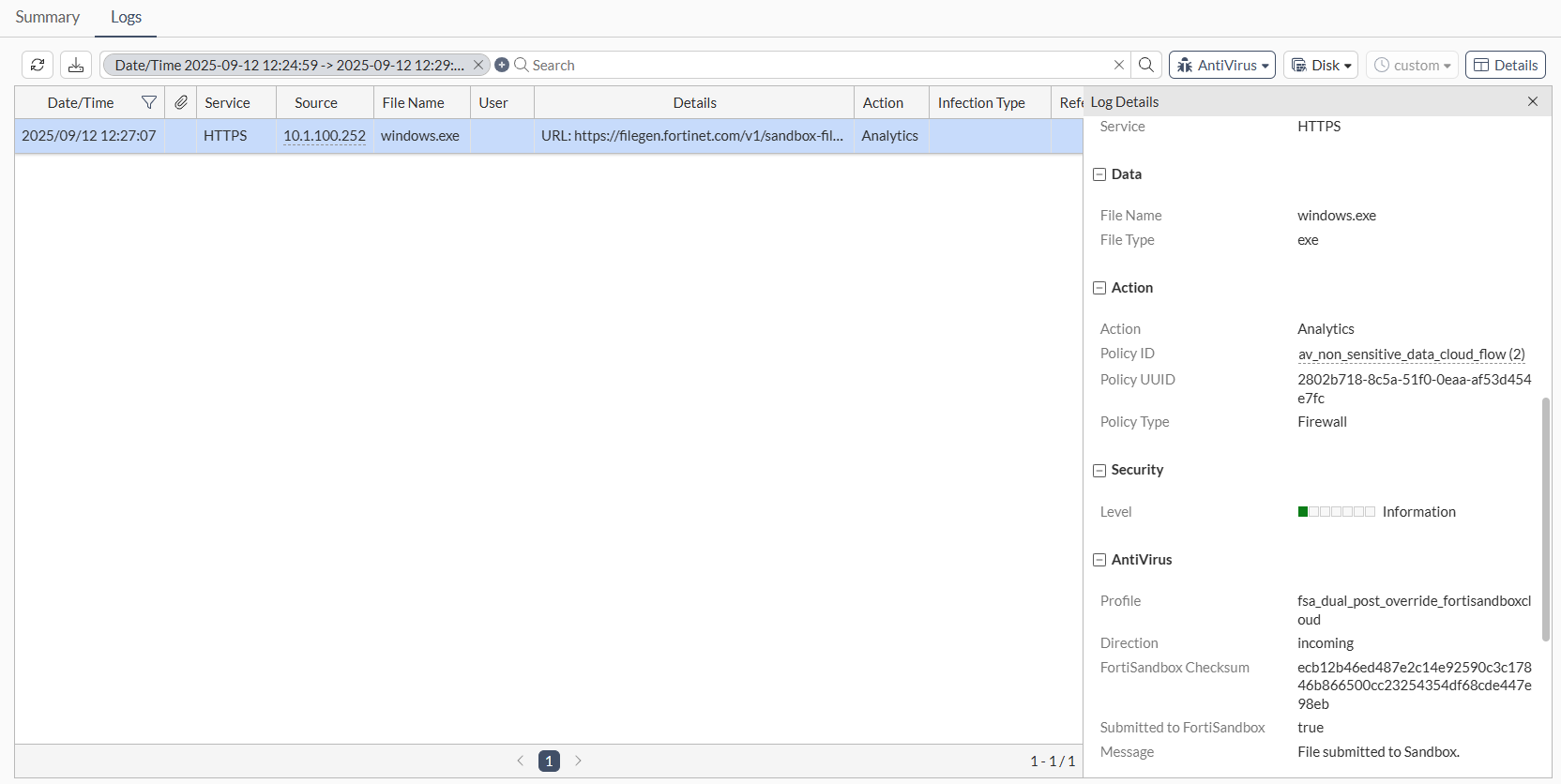
Download a file from a client that is routed to the non-sensitive policy and check the logs on FortiGate.
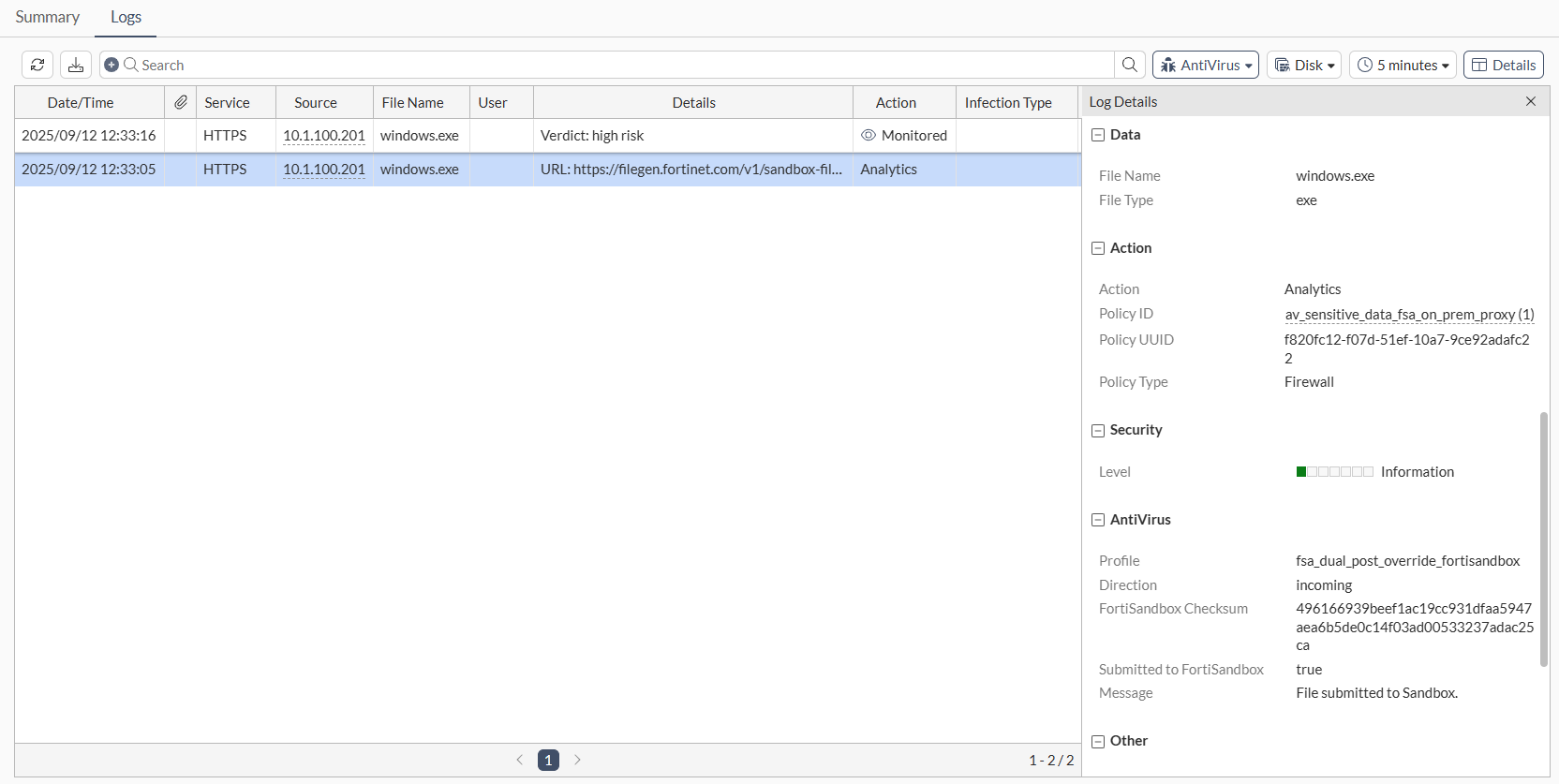
Download a file from a client that is routed to the sensitive policy and check the logs on FortiGate.
Add the FortiSandbox Files widget to a dashboard and then expand it to see that both submissions have verdicts returned from separate FortiSandboxes.
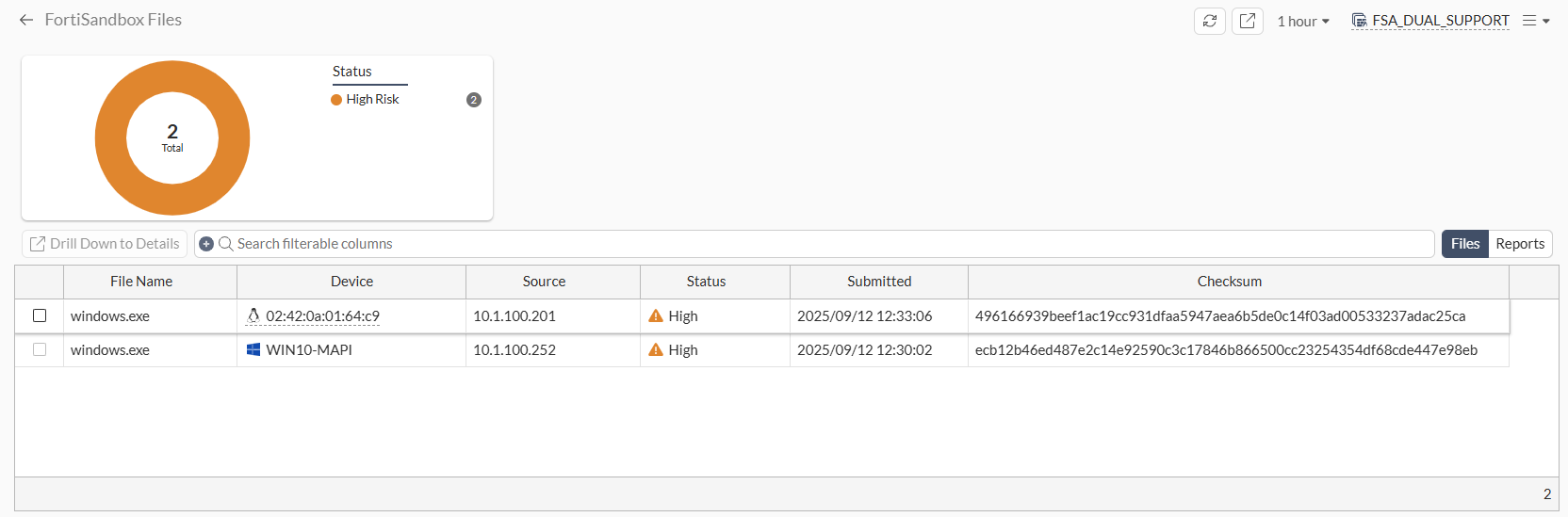
Check the FortiSandbox Cloud Job Events for the non-sensitive file log.
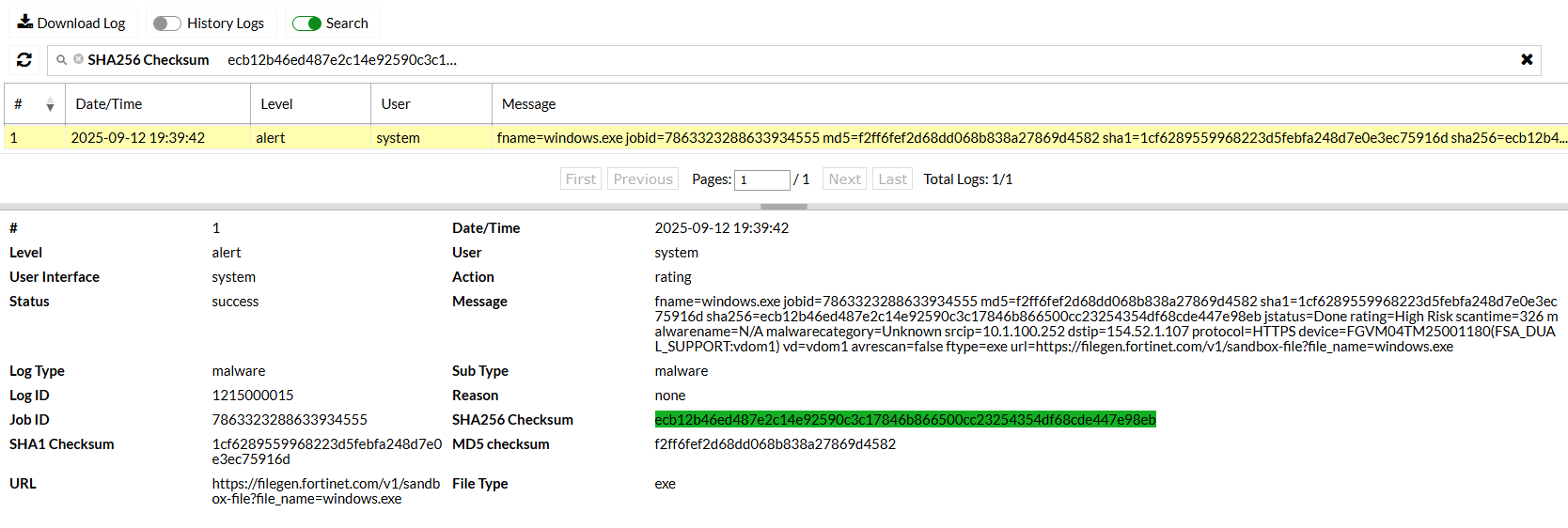
Check the on-premise FortiSandbox for the sensitive file log.
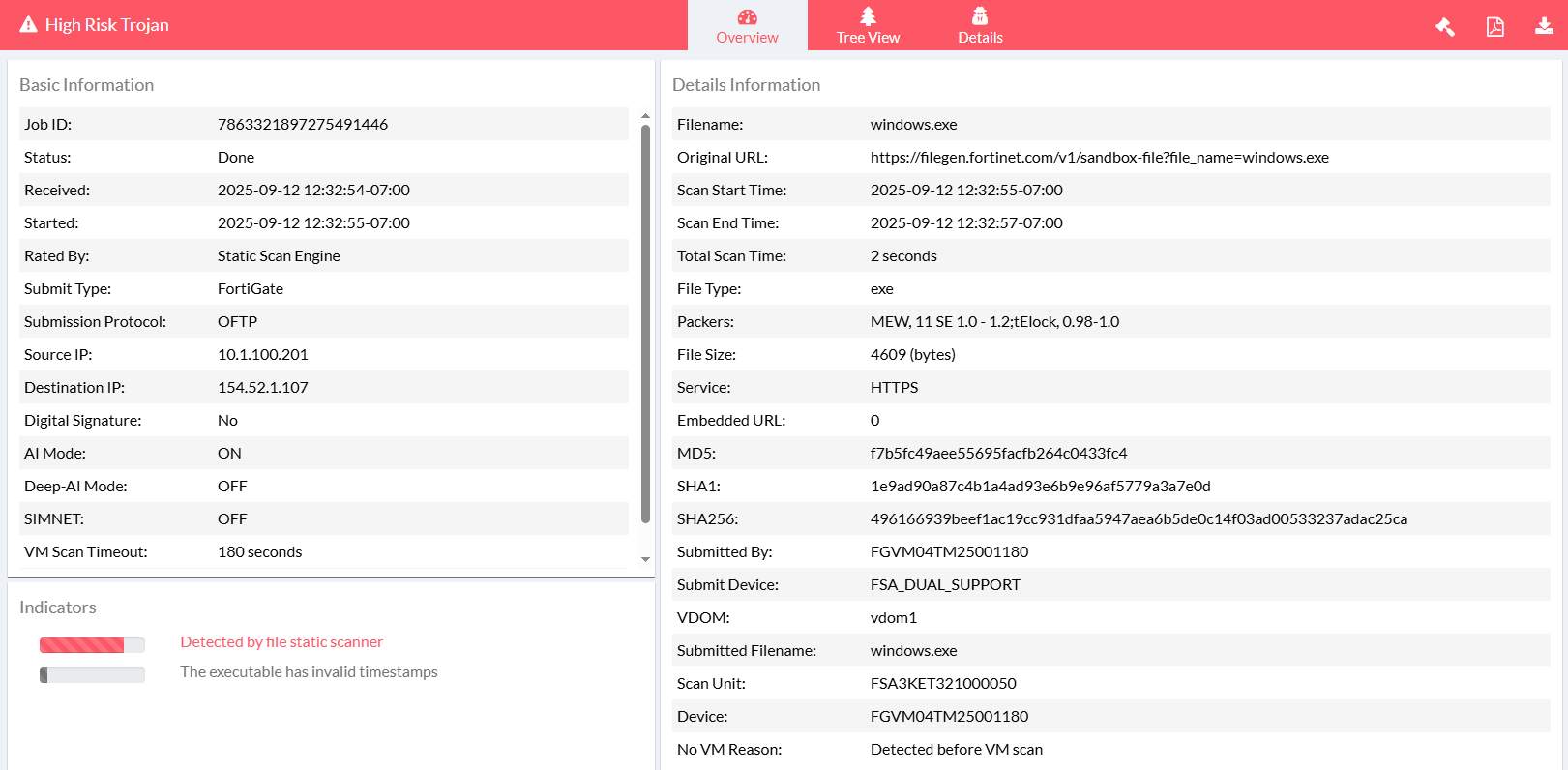
Use case 6: Split by policy, inline scan

In this use case, the system is set to default to an on-premise FortiSandbox appliance. Two firewall policies are configured with different antivirus profiles, one using the on-premise FortiSandbox and the other using FortiSandbox cloud.

File submissions are inspected in real-time based on the antivirus profile assigned to each policy, allowing simultaneous inline use of both the on-premise FortiSandbox and FortiSandbox Cloud.

Configure the following:

Option

Settings

Sandbox Settings

FortiSandbox

  • Inline scan: enabled

FortiSandbox Cloud

  • Inline scan: enabled

Default FortiSandbox Device

  • Preferred FortiSandbox device: FortiSandbox

Antivirus profile 1:

fsa_dual_inline_auto_selection

  • Feature set: Proxy-based

  • Scan strategy: Inline

  • FortiSandbox destination: Auto

Antivirus profile 2:

fsa_dual_inline_override_fortisandboxcloud

  • Feature set: Proxy-based

  • Scan strategy: Inline

  • FortiSandbox destination: FortiSandbox Cloud

Policy 1

  • Inspection mode: Proxy-based

  • Security Profiles: fsa_dual_inline_auto_selection

Policy 2

  • Inspection mode: Proxy-based

  • Security Profiles: fsa_dual_inline_override_fortisandboxcloud

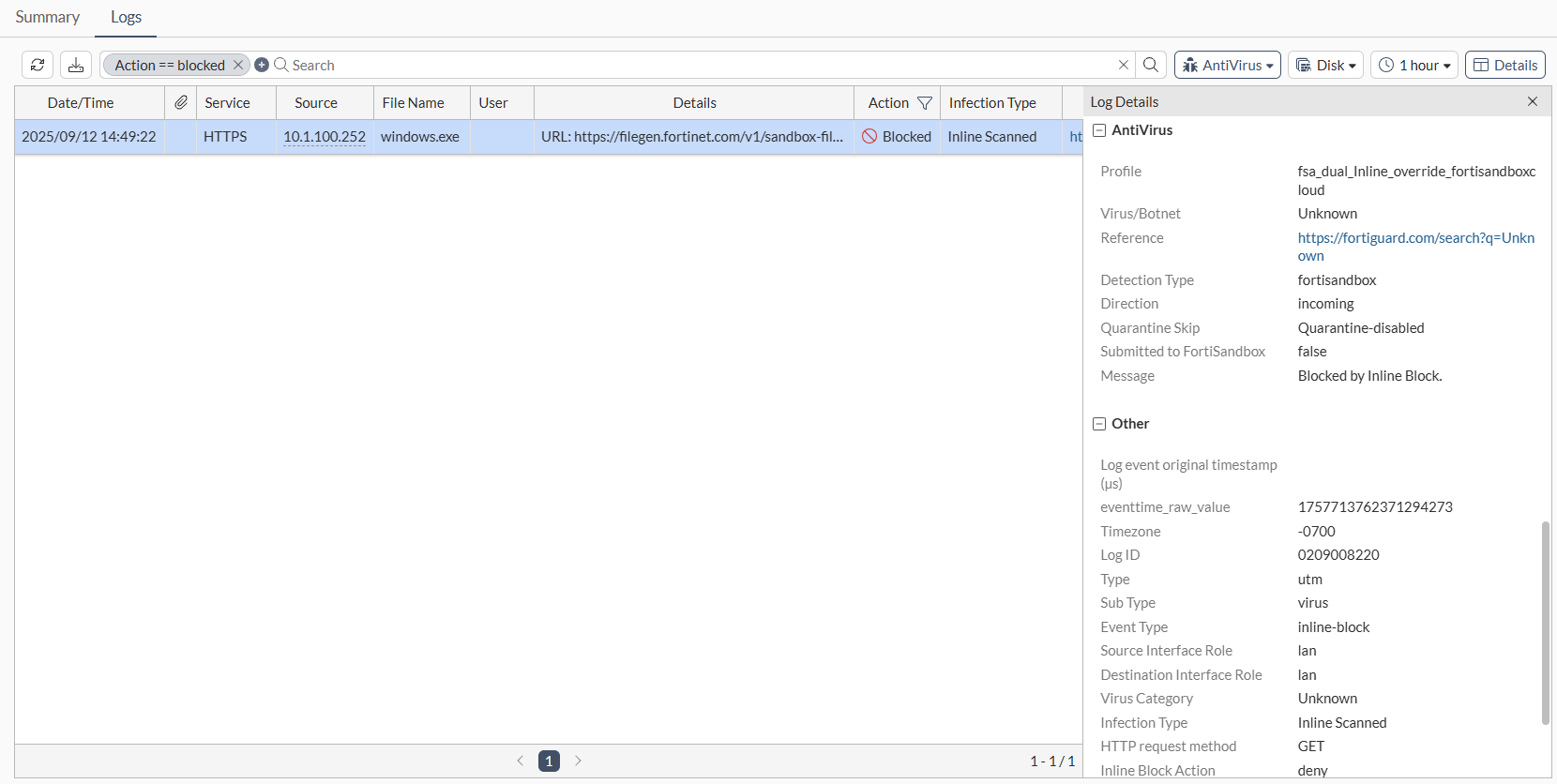
Attempt to download a file from a client that is routed to the non-sensitive policy and submits files to FortiSandbox Cloud. The file should be blocked.
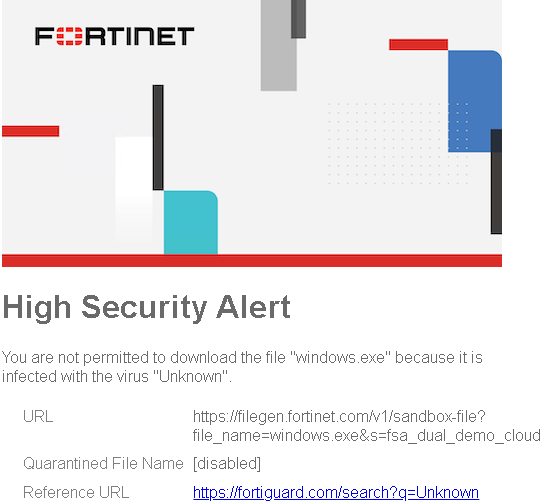
Check the log on the FortiGate to see that the file was blocked.
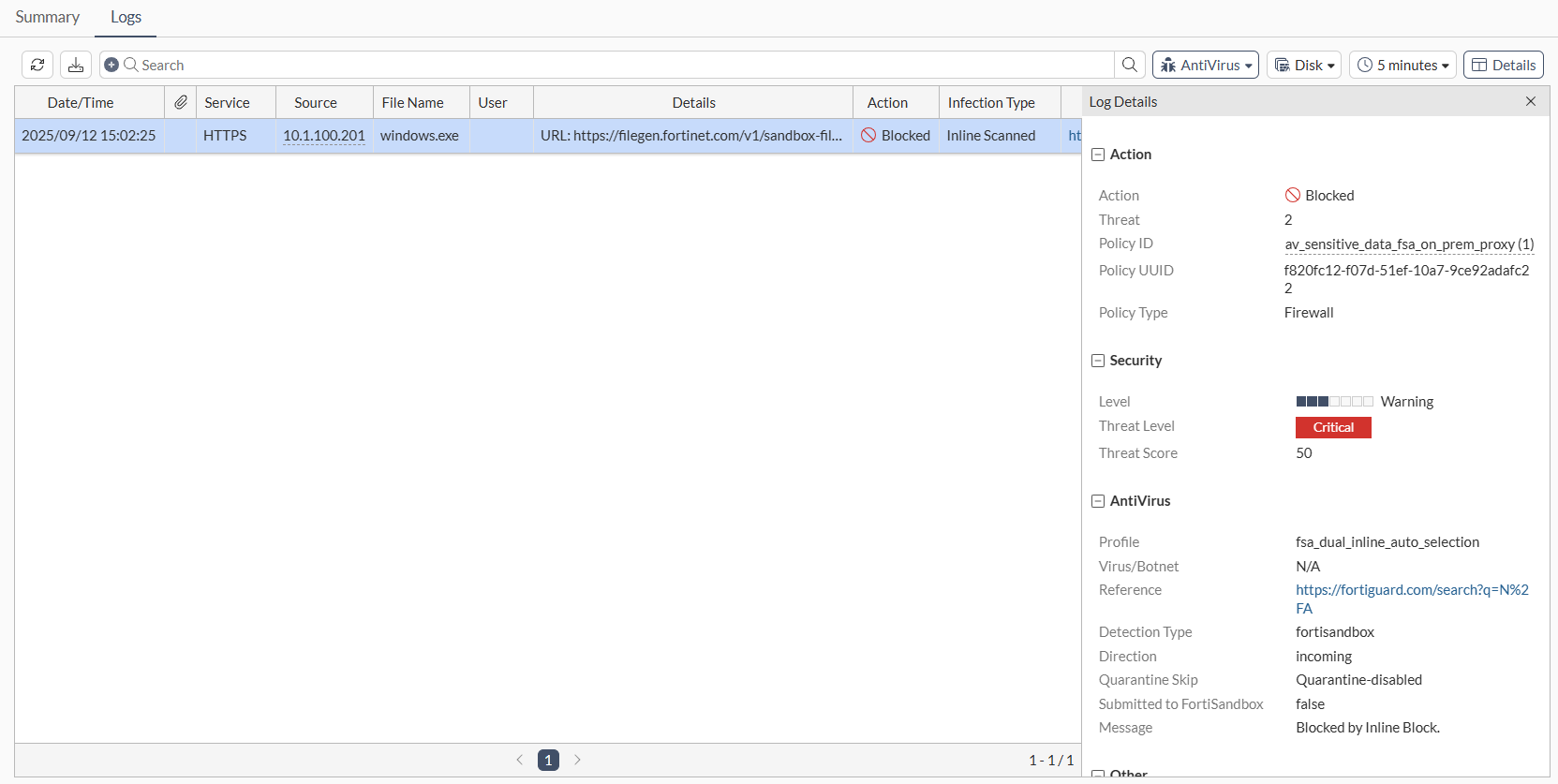
Attempt to download a file from a client that is routed to the sensitive policy and submits files to the on-premise FortiSandbox. The file should be blocked.

Check the log on the FortiGate to see that the file was blocked.
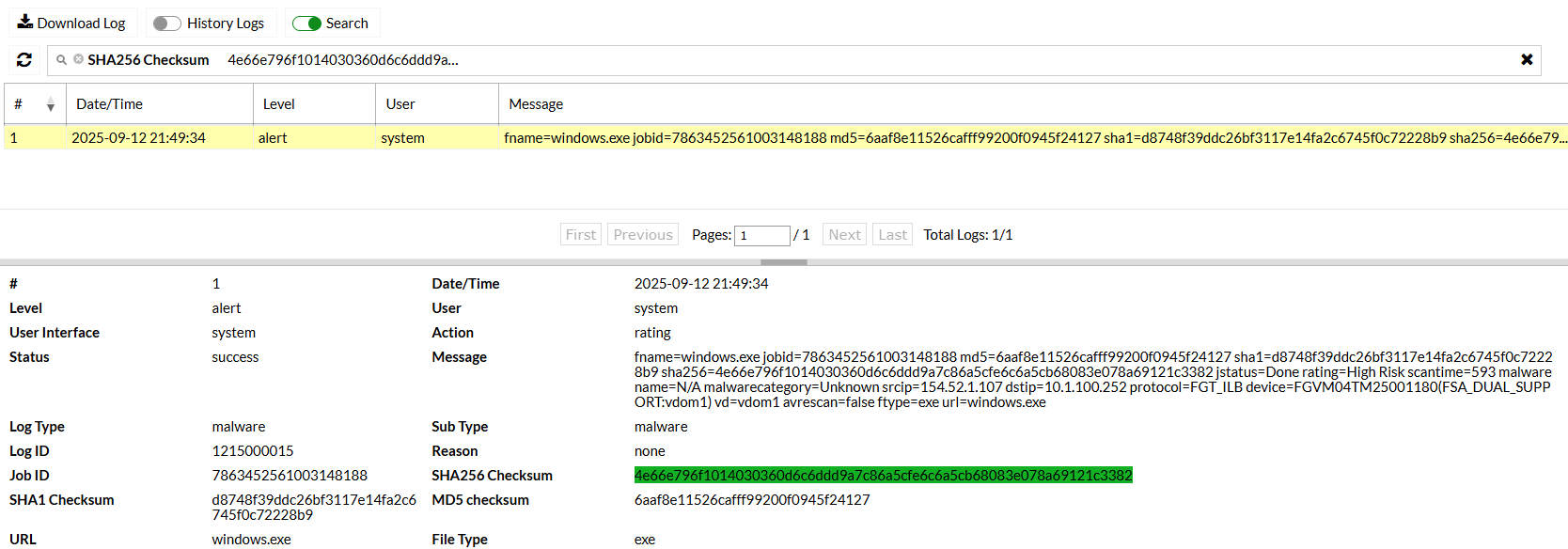
Check the FortiSandbox Cloud Job Events for the non-sensitive file log.
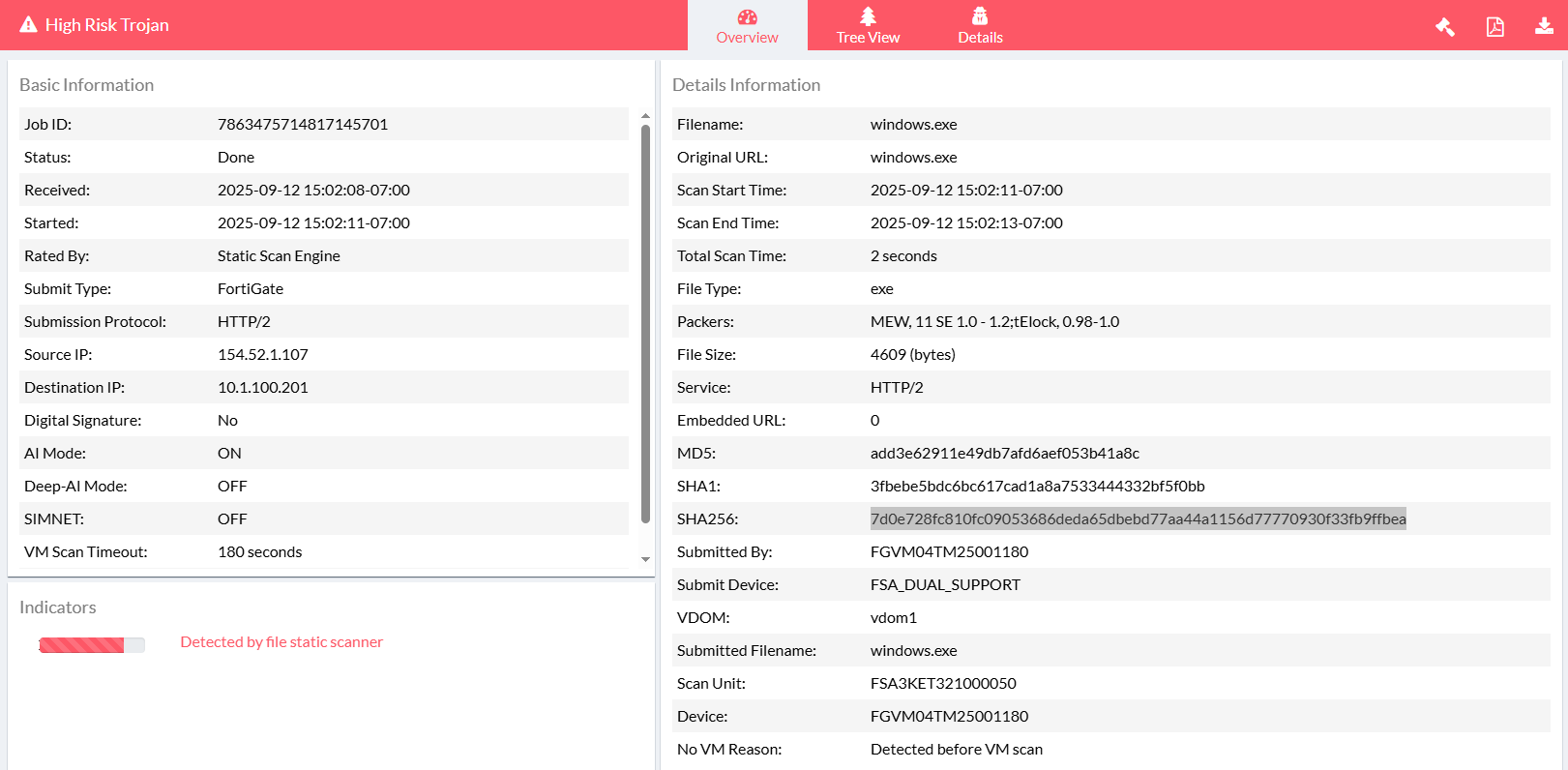
Check the on-premise FortiSandbox for the sensitive file log.
Use case 7: Combined analytics, broader coverage

In this use case, dual FortiSandbox appliances provides access to merged signature and URL databases across both the on-premise FortiSandbox and FortiSandbox Cloud. Any antivirus profile applied to a firewall policy utilizes data from both sources, resulting in broader detection coverage.

Configure the following:

Option

Settings

Sandbox Settings

FortiSandbox

  • Inline scan: enabled

FortiSandbox Cloud

  • Inline scan: enabled

Default FortiSandbox Device

  • Preferred FortiSandbox device: FortiSandbox

Antivirus profile 1:

fsa_dual_post_db_on_fsa_cld

  • Feature set: Proxy-based

  • Scan strategy: Post Transfer

  • FortiSandbox destination: FortiSandbox Cloud

Antivirus profile 2:

fsa_dual_post_db_on_auto

  • Feature set: Proxy-based

  • Scan strategy: Post Transfer

  • FortiSandbox destination: Auto

Policy 1

  • Inspection mode: Proxy-based

  • Security Profiles: fsa_dual_post_db_on_fsa_cld

Policy 2

  • Inspection mode: Proxy-based

  • Security Profiles: fsa_dual_post_db_on_auto

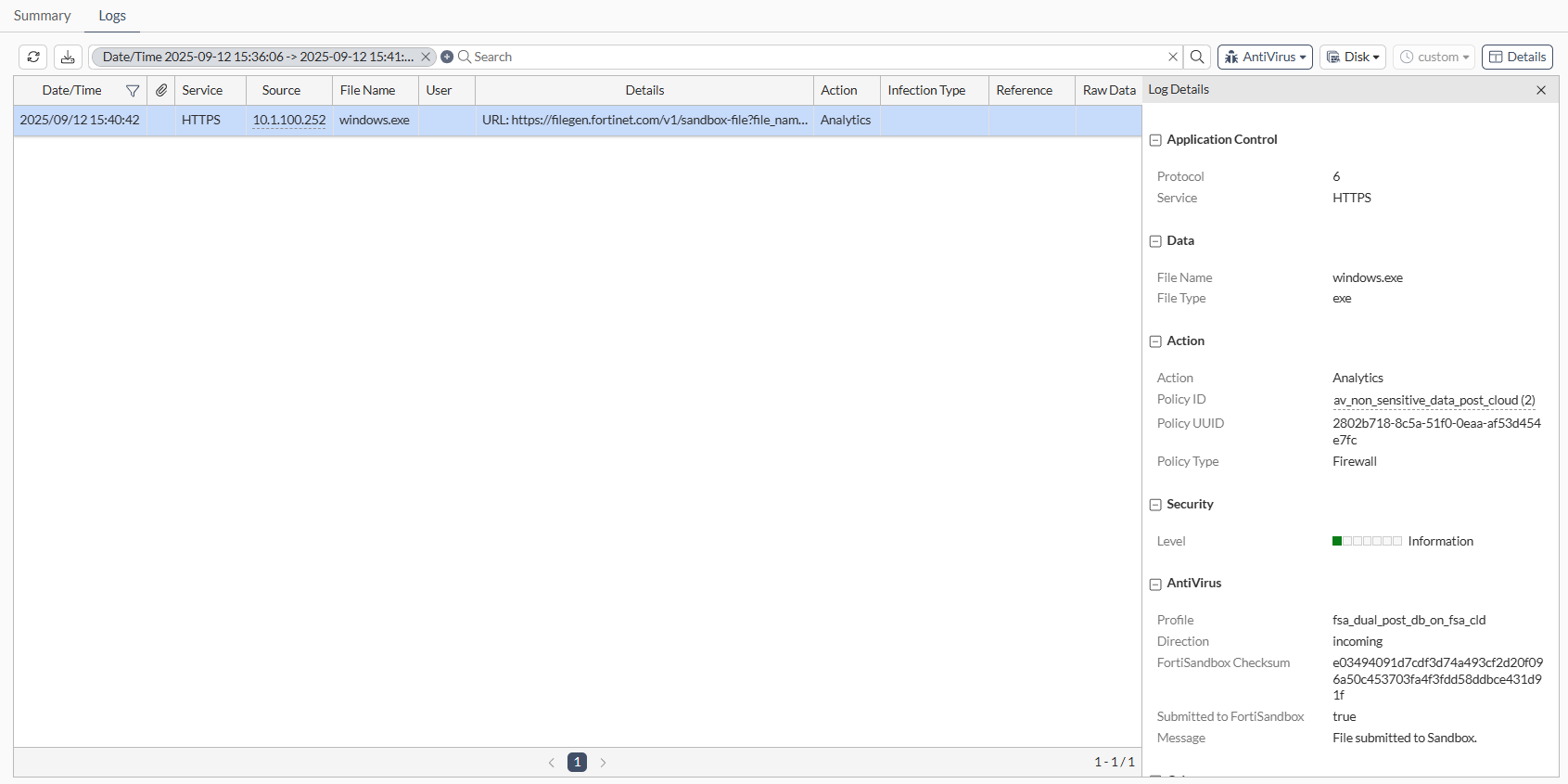
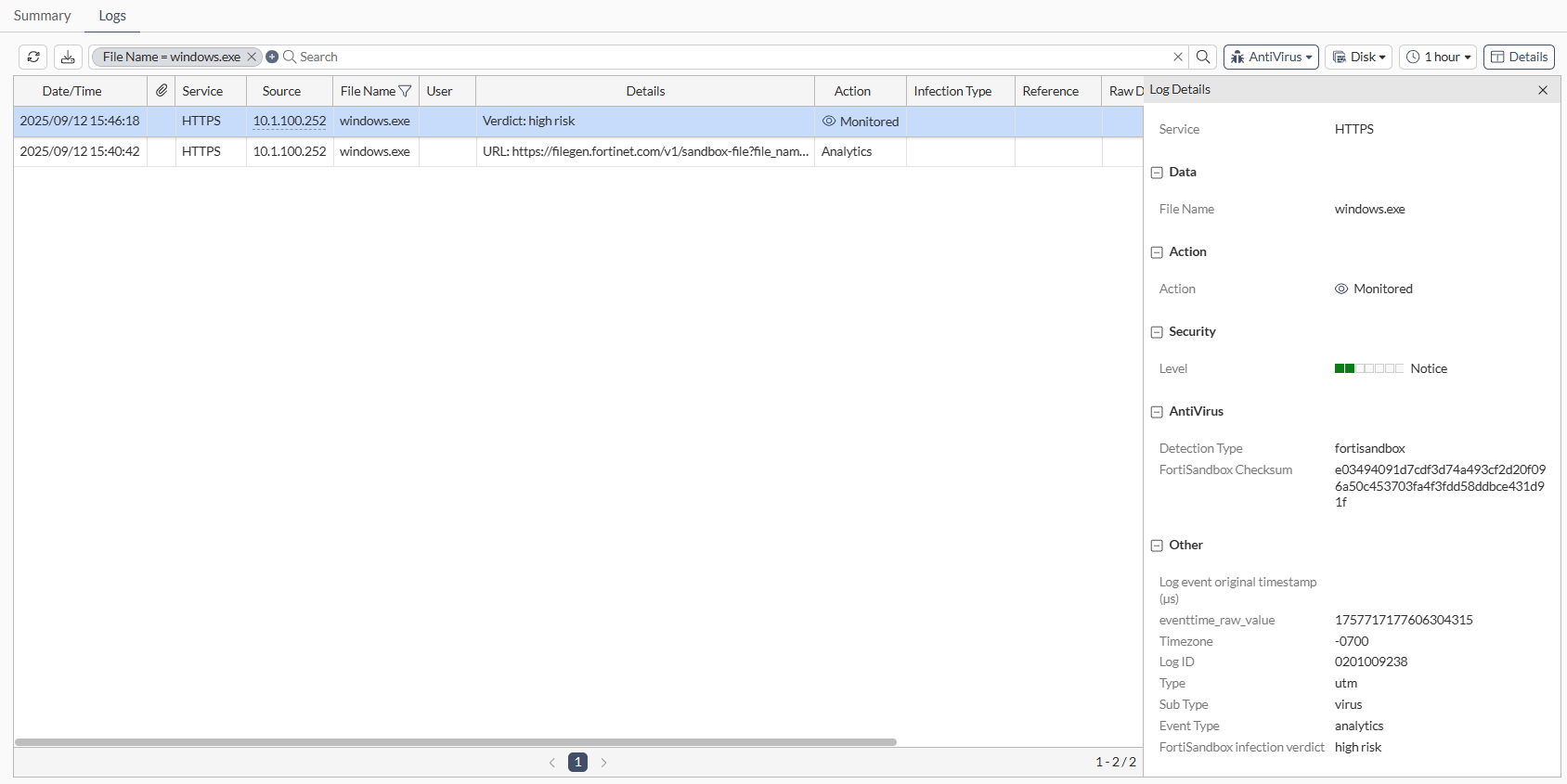
Download a file from https://www.fortiguard.com/sample-files and check the logs on FortiGate to see the analytics submission and verdict logs.
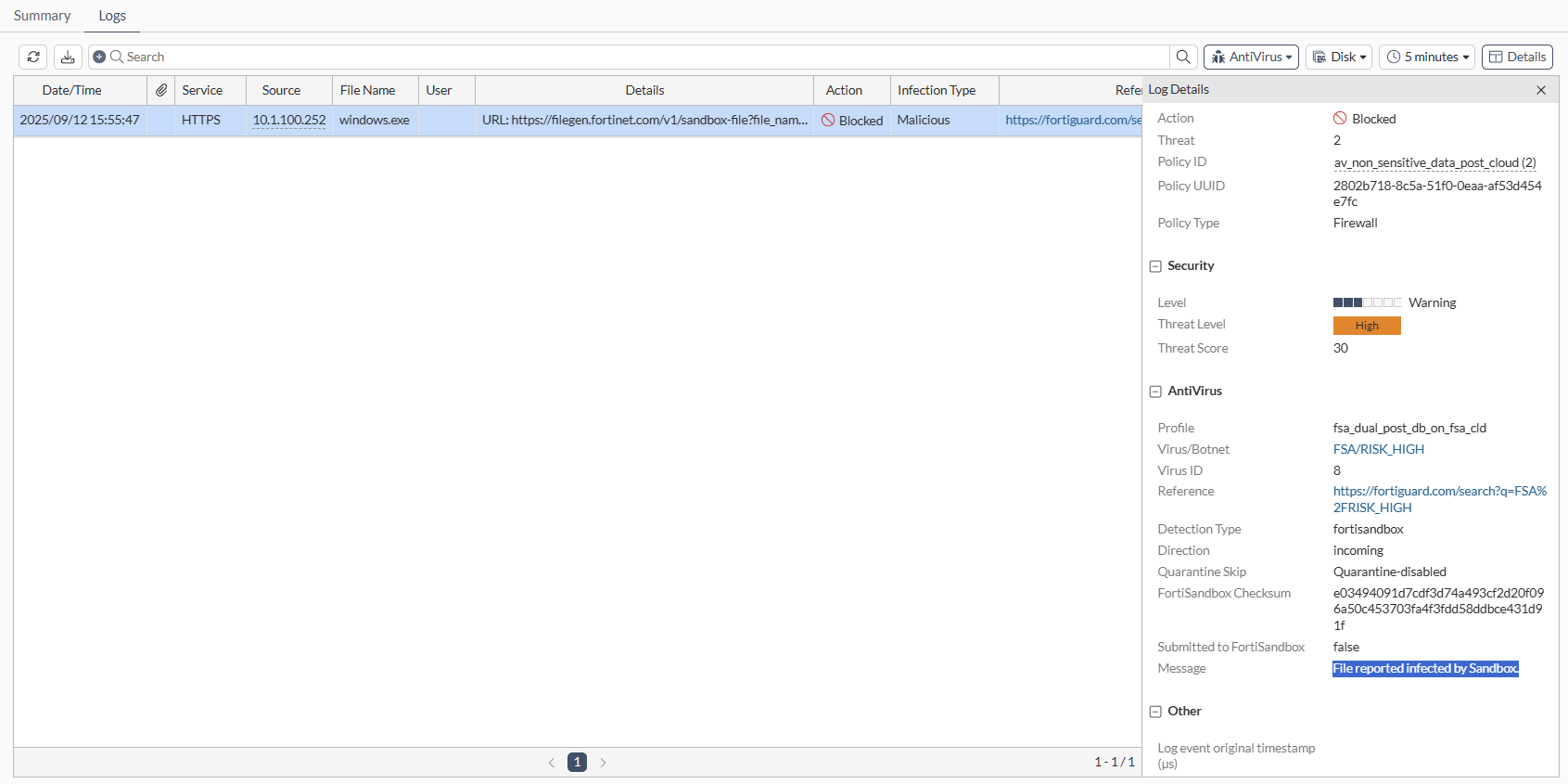
Download the same file again using the same client. The file should be blocked. Check the log on the FortiGate to see that the file was blocked.
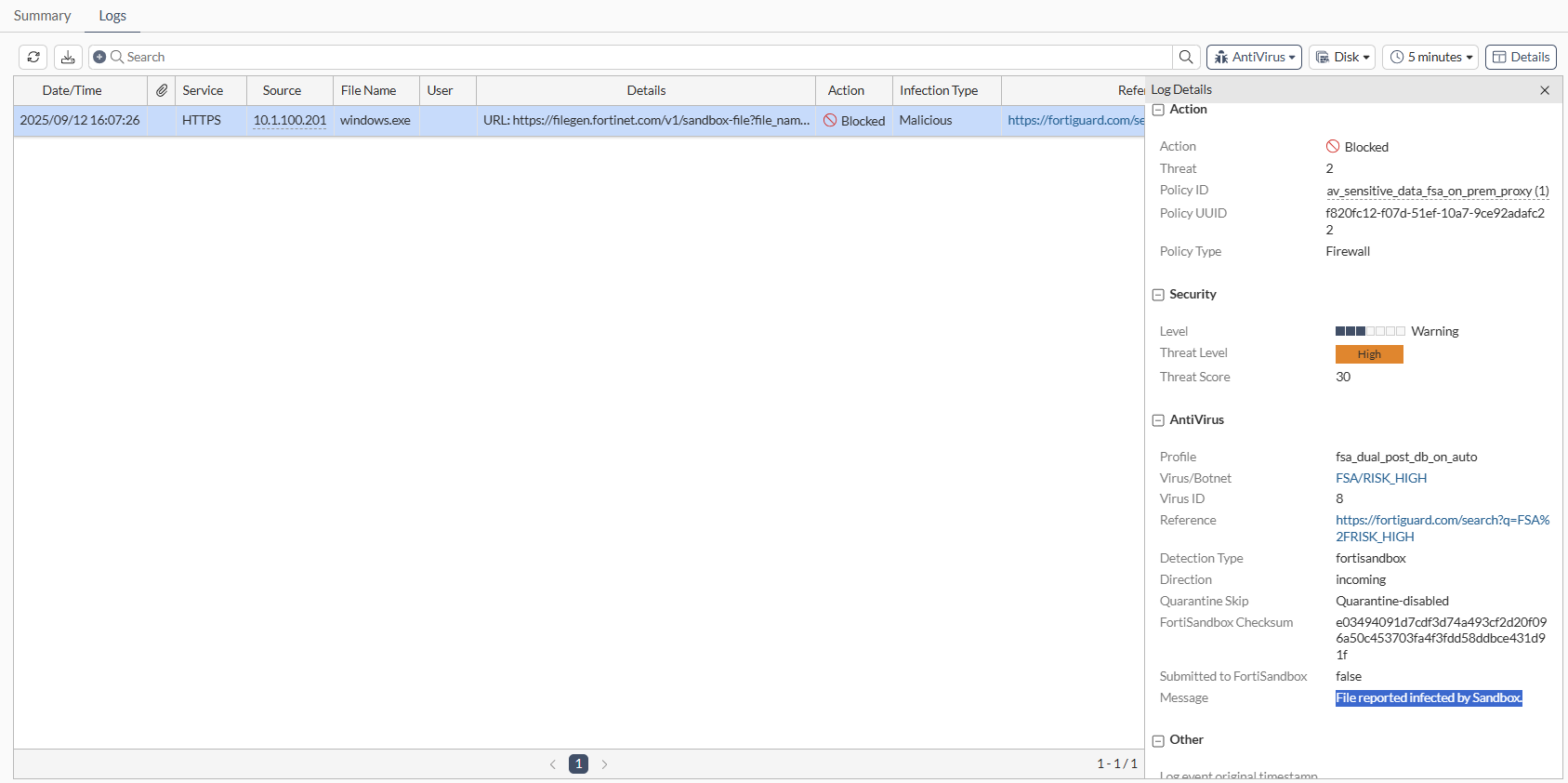
Download the same file again using the other policy that is pointing to the other FortiSandbox. The file should be blocked. Check the log on the FortiGate to see that the file was blocked.
Simultaneous FortiSandbox Cloud and on-premise integration

Simultaneous FortiSandbox Cloud and on-premise integration

FortiGate now support simultaneous use of FortiSandbox Cloud and on-premise, enabling antivirus profiles to route files based on policy or auto-selection. This hybrid approach offers flexible sandboxing, data privacy, and compliance. Signature and URL databases are combined.

To enable FortiSandbox Cloud and on-premise integration in the GUI:
  1. Go to Security Fabric > Fabric Connectors and double-click the Sandbox card.

  2. In the FortiSandbox section, set Status to Enable and configure the settings as required. See FortiSandbox appliance.

  3. In the FortiSandbox Cloud section, setStatus to Enable and configure the settings as required. See FortiSandbox Cloud (FortiSandbox PaaS).

  4. Set Preferred FortiSandbox device to FortiSandbox or FortiSandbox Cloud.

  5. Click OK.

To enable FortiSandbox Cloud and on-premise integration in the CLI:

Only one can be set as the default.

config system fortisandbox
    edit "sandbox"
        set status enable
        set default enable               
    next
    edit "sandbox-cloud"
        set status enable
        set default enable
    next
end
To configure an antivirus profile:
  1. Go to Security Profiles > AntiVirus and click Create New.

  2. Set Feature set to Flow-based or Proxy-based.

  3. Enable the protocols to inspect.

  4. Enable Send files to FortiSandbox for inspection.

  5. Set FortiSandbox destination to Auto, FortiSandbox, or FortiSandbox Cloud.

  6. Configure the remaining settings as required, then click OK.

    See Antivirus for more information.

To add the antivirus profile to a policy:
  1. Go to Policy & Objects > Firewall Policy, and click Create New or edit an existing policy.

  2. Set Inspection mode to Flow-based or Proxy-based.

  3. In the Security Profiles section, enable AntiVirus and select the antivirus profile from the drop-down list.

  4. Configure the remaining settings as needed, then click OK.

Use cases

Use case 1: Default on-premise, post transfer, proxy mode

In this use case, the system is set to default to an on-premise FortiSandbox appliance. All file submissions are routed to the on-premise FortiSandbox for post transfer analysis.

Configure the following:

Option

Settings

Sandbox Settings

FortiSandbox

  • Inline scan: enabled

FortiSandbox Cloud

  • Inline scan: enabled

Default FortiSandbox Device

  • Preferred FortiSandbox device: FortiSandbox

Antivirus profile:

fsa_dual_auto_post_transfer_proxy

  • Feature set: Proxy-based

  • Scan strategy: Post Transfer

  • FortiSandbox destination: Auto

Policy

  • Inspection mode: Proxy-based

  • Security Profiles: fsa_dual_auto_post_transfer_proxy

Download a file from https://www.fortiguard.com/sample-files and check the logs on FortiGate to see the analytics submission log showing that the antivirus profile was applied, and the verdict returned from the FortiSandbox showing that the detection type was FortiSandbox.

Use case 2: Default cloud, post transfer, flow mode

In this use case, the system is set to default to FortiSandbox Cloud. All file submissions are routed to FortiSandbox Cloud for post transfer analysis.

Configure the following:

Option

Settings

Sandbox Settings

FortiSandbox

  • Inline scan: enabled

FortiSandbox Cloud

  • Inline scan: enabled

Default FortiSandbox Device

  • Preferred FortiSandbox device: FortiSandbox Cloud

Antivirus profile:

fsa_dual_auto_post_transfer_flow

  • Feature set: Flow-based

  • Scan strategy: Post Transfer

  • FortiSandbox destination: Auto

Policy

  • Inspection mode: Flow-based

  • Security Profiles: fsa_dual_auto_post_transfer_flow

Download a file from https://www.fortiguard.com/sample-files and check the logs on FortiGate to see the analytics submission log showing that the antivirus profile was applied, and the verdict returned from FortiSandbox Cloud showing that the detection type was FortiSandbox.

Use case 3: On-premise override, inline scan

In this use case, FortiSandbox cloud is set as the default, but the user explicitly assigns an antivirus profile that forces traffic to the on-premise FortiSandbox. All file submissions are routed to the on-premise FortiSandbox for real-time analysis.

Configure the following:

Option

Settings

Sandbox Settings

FortiSandbox

  • Inline scan: enabled

FortiSandbox Cloud

  • Inline scan: enabled

Default FortiSandbox Device

  • Preferred FortiSandbox device: FortiSandbox Cloud

Antivirus profile:

fsa_dual_inline_override_fortisandbox

  • Feature set: Proxy-based

  • Scan strategy: Inline

  • FortiSandbox destination: FortiSandbox

Policy

  • Inspection mode: Proxy-based

  • Security Profiles: fsa_dual_inline_override_fortisandbox

Attempt to download a file from https://www.fortiguard.com/sample-files. The file should be blocked.

Check the log on the FortiGate to see that the file was blocked.

Check the on-premise FortiSandbox to confirm the override selection.

Use case 4: Cloud override, inline scan

In this use case, on-premise FortiSandbox is set as the default, but the user explicitly assigns an antivirus profile that forces traffic to the FortiSandbox cloud. All file submissions are routed to FortiSandbox Cloud for real-time analysis.

Configure the following:

Option

Settings

Sandbox Settings

FortiSandbox

  • Inline scan: enabled

FortiSandbox Cloud

  • Inline scan: enabled

Default FortiSandbox Device

  • Preferred FortiSandbox device: FortiSandbox

Antivirus profile:

fsa_dual_inline_override_fortisandboxcloud

  • Feature set: Proxy-based

  • Scan strategy: Inline

  • FortiSandbox destination: FortiSandbox Cloud

Policy

  • Inspection mode: Proxy-based

  • Security Profiles: fsa_dual_inline_override_fortisandboxcloud

Download a file from https://www.fortiguard.com/sample-files and check the logs on FortiGate to see that the file was detected.

Check the FortiSandbox Cloud Job Events to confirm.

Use case 5: Split by policy, post transfer

In this use case, the system is set to default to an on-premise FortiSandbox appliance. Two firewall policies are configured with different antivirus profiles, one targeting the on-premise FortiSandbox (proxy-based) and the other targeting the FortiSandbox cloud (flow-based).

Routine traffic is routed to FortiSandbox Cloud and sensitive traffic is directed to the on-premise FortiSandbox for post transfer analysis.

Configure the following:

Option

Settings

Sandbox Settings

FortiSandbox

  • Inline scan: disabled

FortiSandbox Cloud

  • Inline scan: disabled

Default FortiSandbox Device

  • Preferred FortiSandbox device: FortiSandbox

Antivirus profile 1:

fsa_dual_post_override_fortisandbox

  • Feature set: Proxy-based

  • Scan strategy: Post Transfer

  • FortiSandbox destination: FortiSandbox

Antivirus profile 2:

fsa_dual_post_override_fortisandboxcloud

  • Feature set: Flow-based

  • Scan strategy: Post Transfer

  • FortiSandbox destination: FortiSandbox Cloud

Policy 1

  • Inspection mode: Proxy-based

  • Security Profiles: fsa_dual_post_override_fortisandbox

Policy 1

  • Inspection mode: Flow-based

  • Security Profiles: fsa_dual_post_override_fortisandboxcloud

Download a file from a client that is routed to the non-sensitive policy and check the logs on FortiGate.

Download a file from a client that is routed to the sensitive policy and check the logs on FortiGate.

Add the FortiSandbox Files widget to a dashboard and then expand it to see that both submissions have verdicts returned from separate FortiSandboxes.

Check the FortiSandbox Cloud Job Events for the non-sensitive file log.

Check the on-premise FortiSandbox for the sensitive file log.

Use case 6: Split by policy, inline scan

In this use case, the system is set to default to an on-premise FortiSandbox appliance. Two firewall policies are configured with different antivirus profiles, one using the on-premise FortiSandbox and the other using FortiSandbox cloud.

File submissions are inspected in real-time based on the antivirus profile assigned to each policy, allowing simultaneous inline use of both the on-premise FortiSandbox and FortiSandbox Cloud.

Configure the following:

Option

Settings

Sandbox Settings

FortiSandbox

  • Inline scan: enabled

FortiSandbox Cloud

  • Inline scan: enabled

Default FortiSandbox Device

  • Preferred FortiSandbox device: FortiSandbox

Antivirus profile 1:

fsa_dual_inline_auto_selection

  • Feature set: Proxy-based

  • Scan strategy: Inline

  • FortiSandbox destination: Auto

Antivirus profile 2:

fsa_dual_inline_override_fortisandboxcloud

  • Feature set: Proxy-based

  • Scan strategy: Inline

  • FortiSandbox destination: FortiSandbox Cloud

Policy 1

  • Inspection mode: Proxy-based

  • Security Profiles: fsa_dual_inline_auto_selection

Policy 2

  • Inspection mode: Proxy-based

  • Security Profiles: fsa_dual_inline_override_fortisandboxcloud

Attempt to download a file from a client that is routed to the non-sensitive policy and submits files to FortiSandbox Cloud. The file should be blocked.

Check the log on the FortiGate to see that the file was blocked.

Attempt to download a file from a client that is routed to the sensitive policy and submits files to the on-premise FortiSandbox. The file should be blocked.

Check the log on the FortiGate to see that the file was blocked.

Check the FortiSandbox Cloud Job Events for the non-sensitive file log.

Check the on-premise FortiSandbox for the sensitive file log.

Use case 7: Combined analytics, broader coverage

In this use case, dual FortiSandbox appliances provides access to merged signature and URL databases across both the on-premise FortiSandbox and FortiSandbox Cloud. Any antivirus profile applied to a firewall policy utilizes data from both sources, resulting in broader detection coverage.

Configure the following:

Option

Settings

Sandbox Settings

FortiSandbox

  • Inline scan: enabled

FortiSandbox Cloud

  • Inline scan: enabled

Default FortiSandbox Device

  • Preferred FortiSandbox device: FortiSandbox

Antivirus profile 1:

fsa_dual_post_db_on_fsa_cld

  • Feature set: Proxy-based

  • Scan strategy: Post Transfer

  • FortiSandbox destination: FortiSandbox Cloud

Antivirus profile 2:

fsa_dual_post_db_on_auto

  • Feature set: Proxy-based

  • Scan strategy: Post Transfer

  • FortiSandbox destination: Auto

Policy 1

  • Inspection mode: Proxy-based

  • Security Profiles: fsa_dual_post_db_on_fsa_cld

Policy 2

  • Inspection mode: Proxy-based

  • Security Profiles: fsa_dual_post_db_on_auto

Download a file from https://www.fortiguard.com/sample-files and check the logs on FortiGate to see the analytics submission and verdict logs.

Download the same file again using the same client. The file should be blocked. Check the log on the FortiGate to see that the file was blocked.

Download the same file again using the other policy that is pointing to the other FortiSandbox. The file should be blocked. Check the log on the FortiGate to see that the file was blocked.