
Fortinet white logo
Fortinet white logo

New Features

Configurable timeout for log file system check

Configurable timeout for log file system check

FortiGate now supports a configurable timeout for log file system check:

config system global
    set log-fsck-timeout <integer>
end

Option

Description

log-fsck-timeout <integer>

Configure the maximum the number of seconds the FortiGate unit waits while the file system check is in progress before allowing the boot process to complete and the system fully is operational. Zero seconds means the FortiGate unit waits until the file system check is complete (0 - 3600, default = 300).

When an administrator starts a log file system check after an unexpected shutdown, FortiGate reboots and starts the scan during bootup. If the timeout period expires before the scan completes, FortiGate continues booting up. After successfully booting up, the scan runs in the background, and administrators can log in to FortiOS.

Scope and limitations

While background disk scanning is in progress, the following features are affected because the disk is unavailable:

  • Log feature: no logs are recorded to disk. Logs in memory can be viewed, and logs can be forwarded to remote devices, such as FortiAnalyzer and FortiGate Cloud.

  • IPS feature: the IPS engine does not launch.

  • Web filter flow mode: Web filter is paused because of no IPSE worker in the system. FortiGate bypasses all the URL access.

  • SCIM feature: no data from SCIM client is received.

  • Federated upgrade feature (upgrading all devices): Federated upgrade is suspended.

The features are no longer affected after the disk scanning completes.

Example

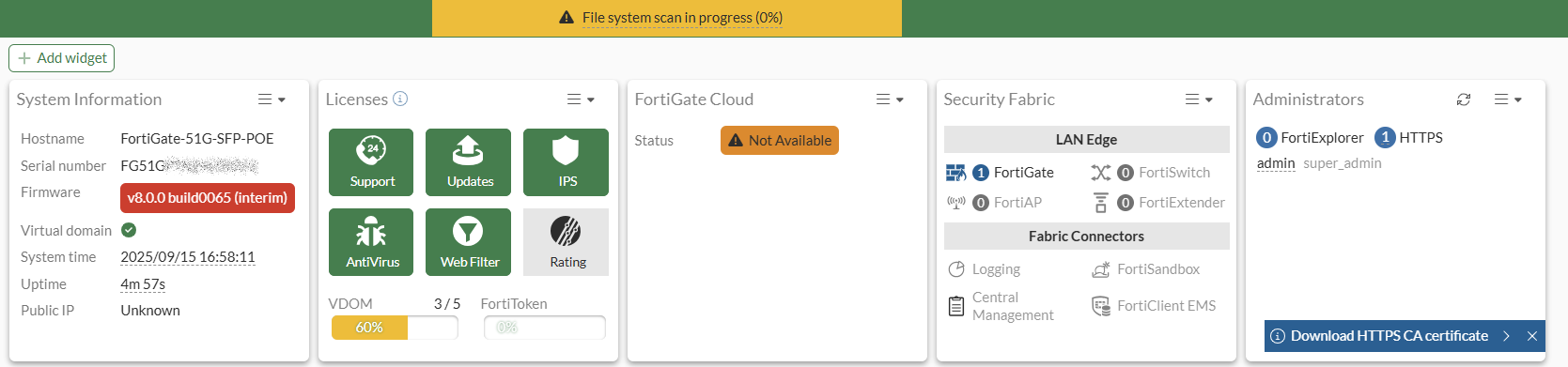
In this example, an administrator selects Reboot and check file system in the GUI after a power outage. FortiGate reboots and initiates scan during bootup. However, the configured timeout (log-fsck-timeout) expires before the scan completes. As a result, FortiGate continues booting up while performing the scan in the background, allowing administrators to log in to the GUI and perform most tasks. The GUI displays the file system scan progress in the banner.

To initiate a file system check in the GUI:
  1. After a power outage, the following message is displayed:
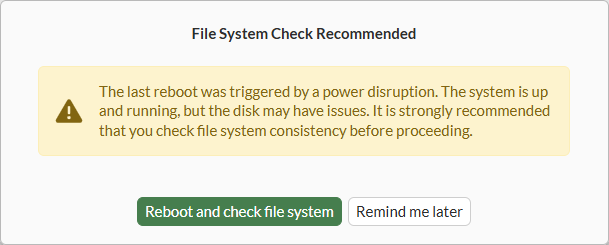
  2. Click Reboot and check file system.

    A confirmation dialog box is displayed:
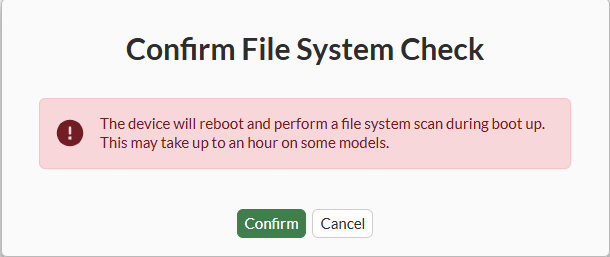
  3. Click Confirm to start the file system scan.

    After rebooting, FortiGate starts the file system check and attempts to finish the scan during bootup.

    However the configured timeout expires before the scan completes. FortiGate continues booting up and continues the scan in the background.

    Booting OS...
    Initializing firewall...
    
    System is starting...
    System file integrity init check failed!
    Scanning /dev/sda1 timeout. 
    
    
    FortiGate-101F login: Background scanning on disk.

    A log is added:

    1: date=2025-08-14 time=17:15:33 devname="FortiGate-101F" devid="FG101FTK20000146" eventtime=1755216932098384640 tz="-0700" logid="0100020212" type="event" subtype="system" level="alert" vd="root" logdesc="Disk scan is needed" msg="Automatical disk scan for /dev/sda1 was timeout. It will be executed in background after system is started!" 
  4. While the scan runs in the background, administrators can log in to the GUI.

    A File system scan in progress (<number>%) message is displayed in the banner to report scan progress:
Configurable timeout for log file system check

Configurable timeout for log file system check

FortiGate now supports a configurable timeout for log file system check:

config system global
    set log-fsck-timeout <integer>
end

Option

Description

log-fsck-timeout <integer>

Configure the maximum the number of seconds the FortiGate unit waits while the file system check is in progress before allowing the boot process to complete and the system fully is operational. Zero seconds means the FortiGate unit waits until the file system check is complete (0 - 3600, default = 300).

When an administrator starts a log file system check after an unexpected shutdown, FortiGate reboots and starts the scan during bootup. If the timeout period expires before the scan completes, FortiGate continues booting up. After successfully booting up, the scan runs in the background, and administrators can log in to FortiOS.

Scope and limitations

While background disk scanning is in progress, the following features are affected because the disk is unavailable:

  • Log feature: no logs are recorded to disk. Logs in memory can be viewed, and logs can be forwarded to remote devices, such as FortiAnalyzer and FortiGate Cloud.

  • IPS feature: the IPS engine does not launch.

  • Web filter flow mode: Web filter is paused because of no IPSE worker in the system. FortiGate bypasses all the URL access.

  • SCIM feature: no data from SCIM client is received.

  • Federated upgrade feature (upgrading all devices): Federated upgrade is suspended.

The features are no longer affected after the disk scanning completes.

Example

In this example, an administrator selects Reboot and check file system in the GUI after a power outage. FortiGate reboots and initiates scan during bootup. However, the configured timeout (log-fsck-timeout) expires before the scan completes. As a result, FortiGate continues booting up while performing the scan in the background, allowing administrators to log in to the GUI and perform most tasks. The GUI displays the file system scan progress in the banner.

To initiate a file system check in the GUI:
  1. After a power outage, the following message is displayed:

  2. Click Reboot and check file system.

    A confirmation dialog box is displayed:

  3. Click Confirm to start the file system scan.

    After rebooting, FortiGate starts the file system check and attempts to finish the scan during bootup.

    However the configured timeout expires before the scan completes. FortiGate continues booting up and continues the scan in the background.

    Booting OS...
    Initializing firewall...
    
    System is starting...
    System file integrity init check failed!
    Scanning /dev/sda1 timeout. 
    
    
    FortiGate-101F login: Background scanning on disk.

    A log is added:

    1: date=2025-08-14 time=17:15:33 devname="FortiGate-101F" devid="FG101FTK20000146" eventtime=1755216932098384640 tz="-0700" logid="0100020212" type="event" subtype="system" level="alert" vd="root" logdesc="Disk scan is needed" msg="Automatical disk scan for /dev/sda1 was timeout. It will be executed in background after system is started!" 
  4. While the scan runs in the background, administrators can log in to the GUI.

    A File system scan in progress (<number>%) message is displayed in the banner to report scan progress: