Enhance Security Fabric topology performance with lazy loading
The Security Fabric Physical and Logical topology pages are combined onto a single page that lazily loads and renders topology data. This improves performance and scalability for large fabrics by distributing data retrieval across devices and reducing memory load on the root FortiGate. The Assets and Identities widget also now opens searching and filtering devices, instead of device bubble clusters.
This feature is not applicable for FortiGate models with 2GB or less memory.
Example

To use the Topology page:
-
Configure the Security Fabric topology as shown.
-
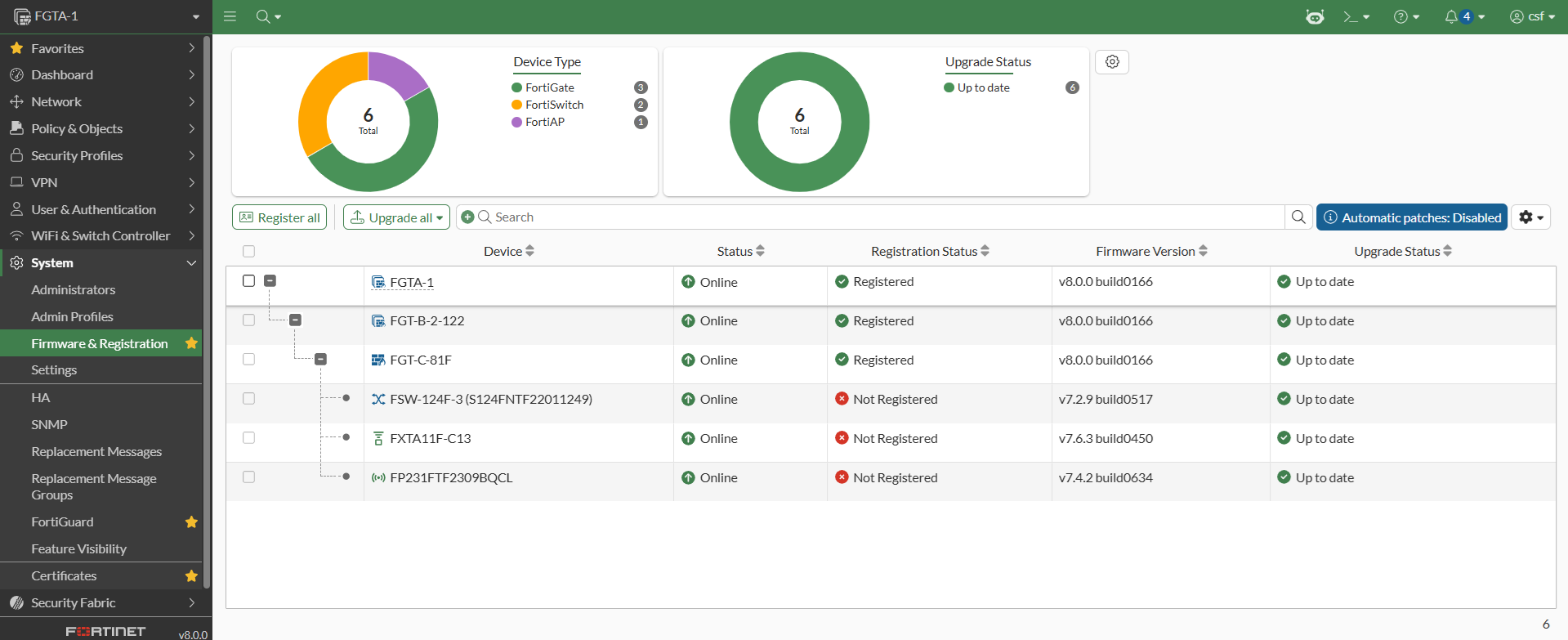
On FGTA-1, make sure that the Security Fabric tree is formed, and the FortiSwitch, FortiAP, and FortiExtender are managed by FGT-C-81F:
-
Go to Security Fabric > Topology, set Report Type to Physical, and click Apply.
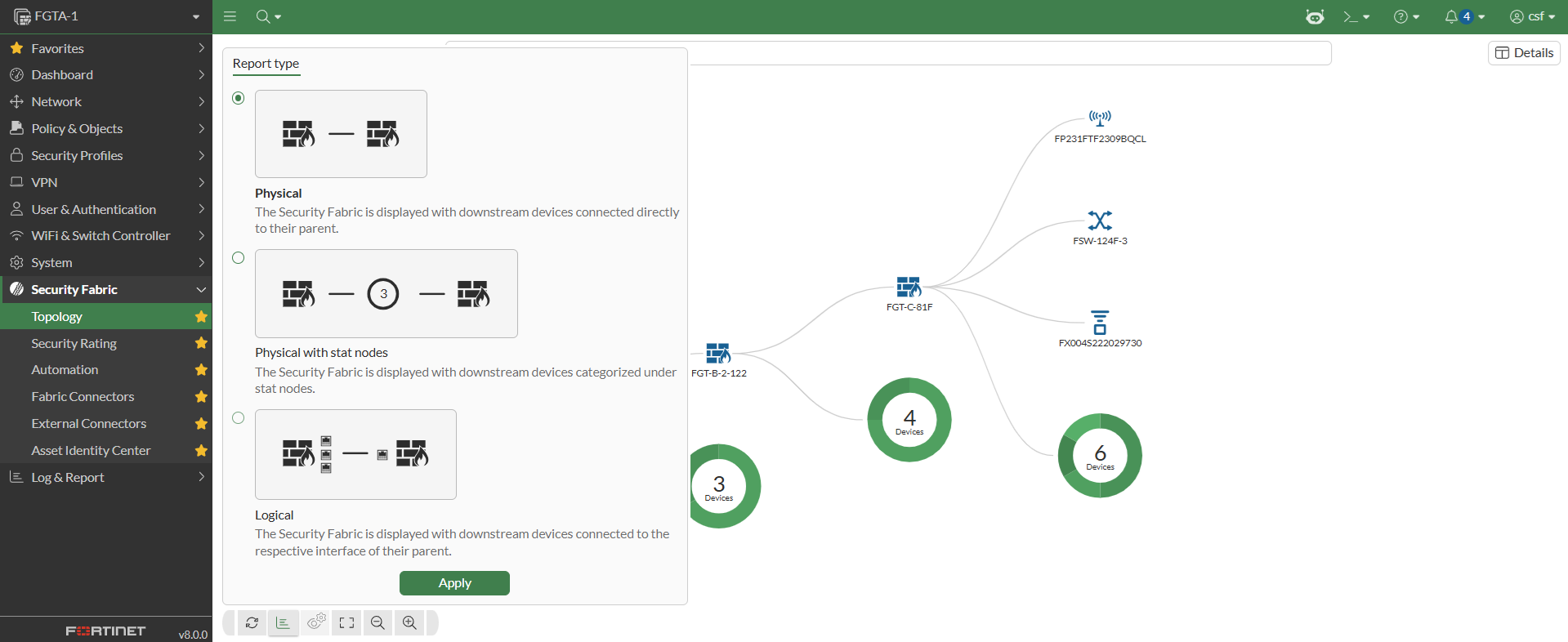
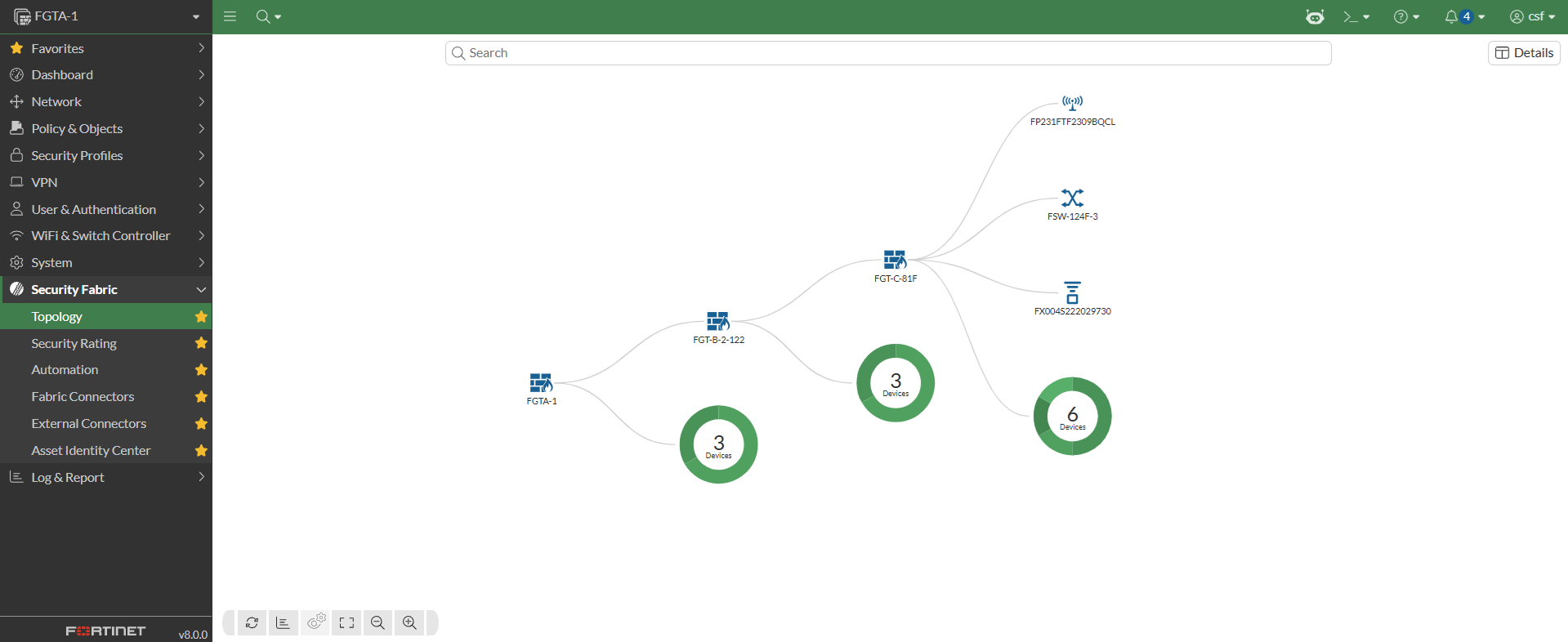
The Security Fabric is displayed with downstream devices connected directly to their parent:
-
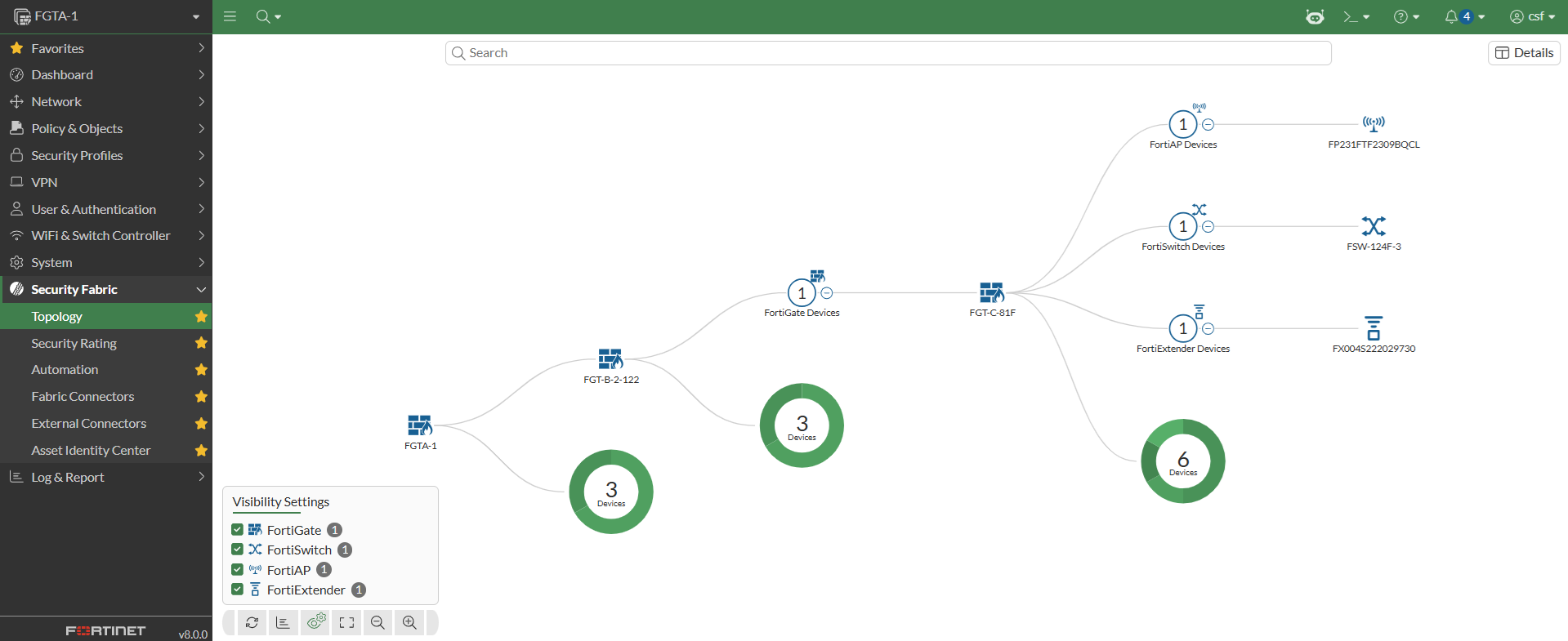
Click Change report type and set Report type to Physical with stat nodes.
The Security Fabric is displayed with downstream devices categorized under stat nodes:
-
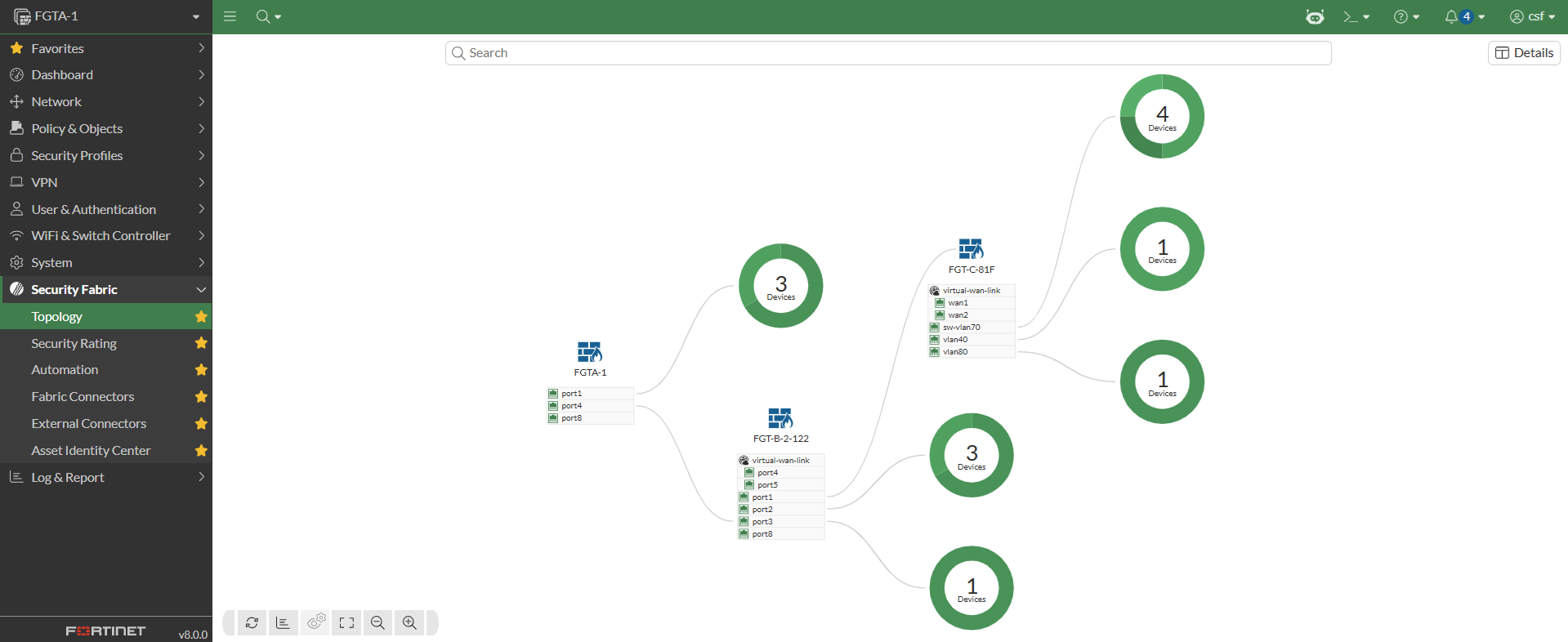
Click Change report type and set Report type to Logical.
The Security Fabric is displayed with downstream devices connected to the respective interface of their parent:
-
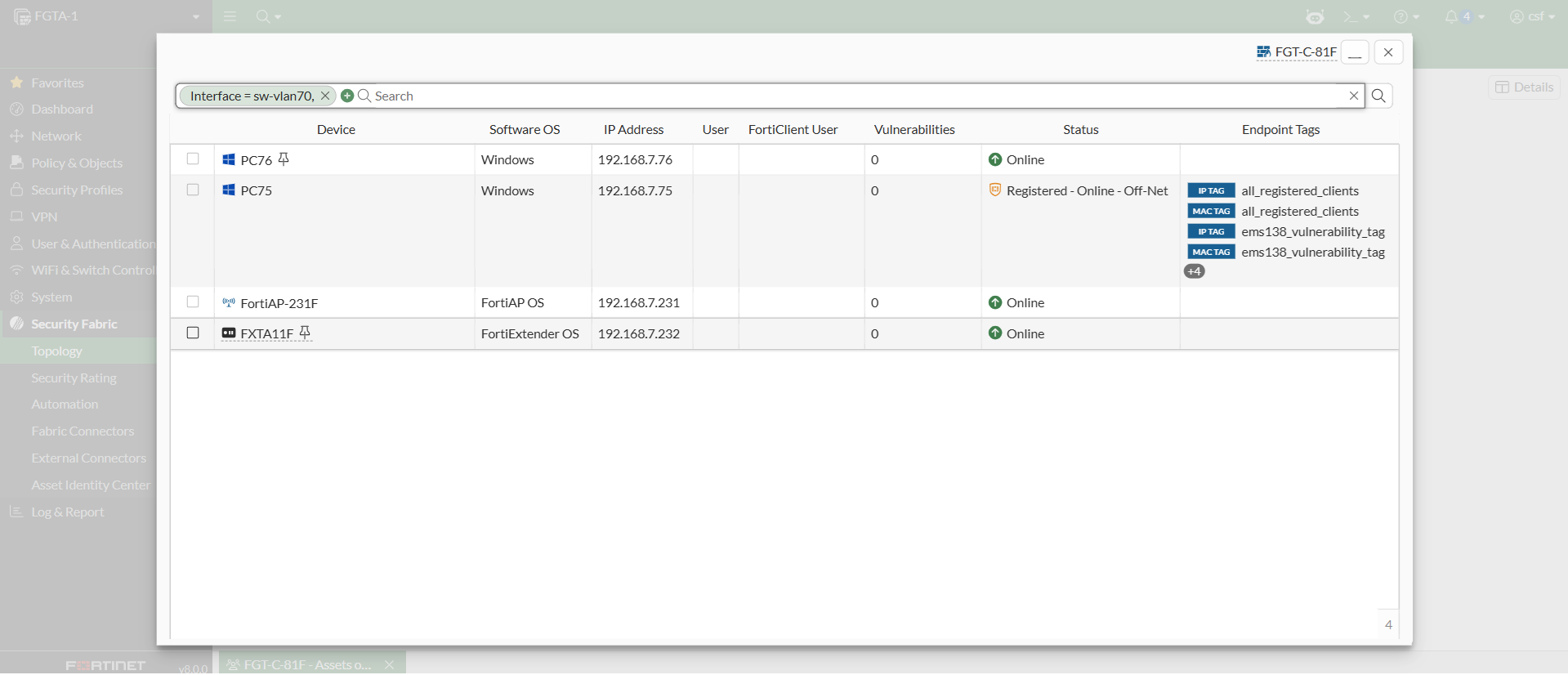
Click the FortiGate connected device donut chart and then click the popup.
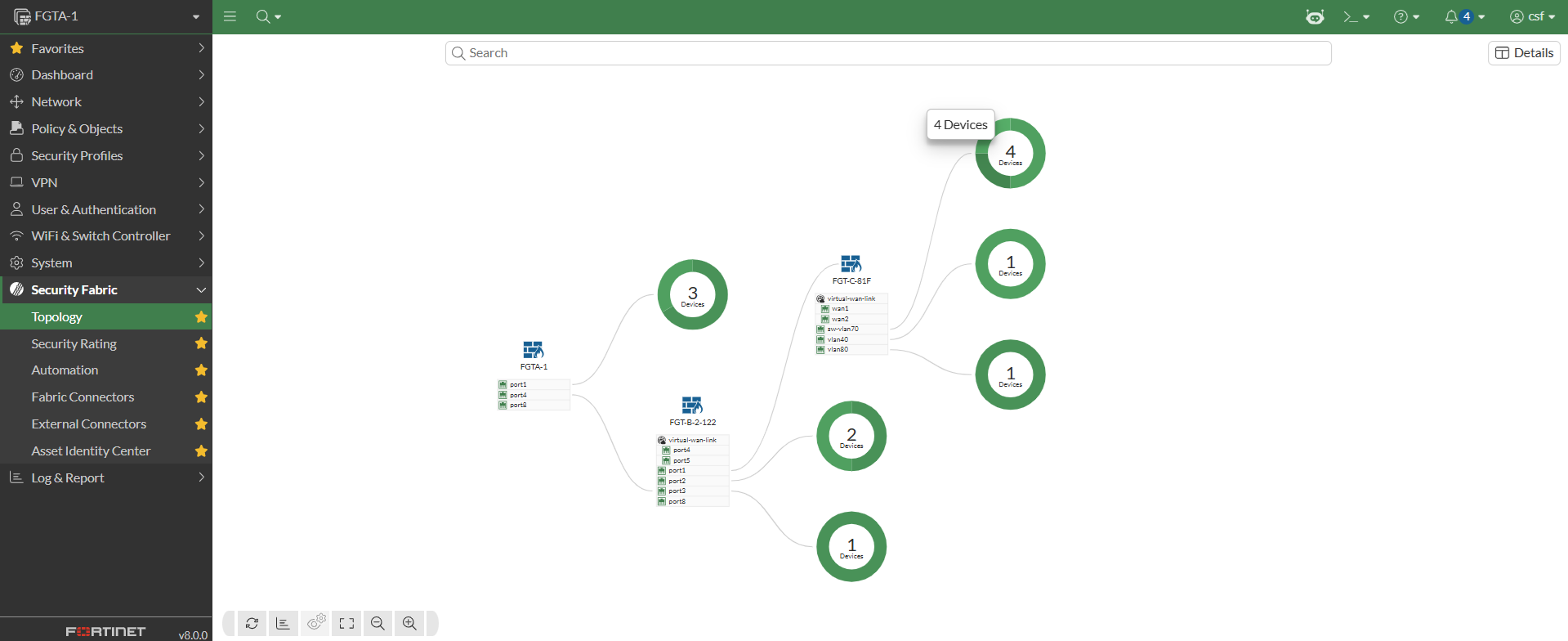
The Assets and Identities widget opens for searching, filtering, and other supported actions.