

FortiAI assistant and CLI Code Lab
This information is also available in the FortiOS 8.0 Administration Guide:
FortiAI-Assist is now embedded in FortiOS, and FortiOS includes the FortiAI assistant and CLI Code Lab tool to provide RAG-enhanced documentation support, automated diagnostic analysis, and CLI script execution.
FortiAI can answer technical questions by using the FortiOS documentation and troubleshoot issues by reading logs directly from FortiGate or by analyzing debug outputs provided by administrators. The CLI Code Lab tool helps administrators use natural language prompts to generate and execute complex FortiGate configurations.
Administrators can choose between FortiAI and OpenAI as the AI provider for FortiAI-Assist. With FortiAI and the required subscription, a monthly allotment of tokens is available for use, and additional tokens can be purchased as needed. With OpenAI, administrators can configure FortiAI-Assist to work directly with OpenAI for billing and tokens.
Administrator profiles control administrator access to FortiAI-Assist.
This topic includes the following sections to introduce the FortiAI assistant and the CLI Code Lab tool:
Requirements and tokens
FortiAI-Assist is available on the following FortiGate models with internet access:
|
FortiGate model |
Required subscription |
Available tokens |
|---|---|---|
|
FortiGate hardware with more than 2 GB RAM |
FortiCare Premium support |
Includes 2,000,000 starter tokens each month per device Additional tokens can be purchased and are shared among all FortiGate devices registered under the same FortiCare account.
|
|
FortiGate-VM S-series |
FortiCare Premium support or one of the following:
|
FortiGate models with 2 GB RAM or less do not support FortiAI-Assist.
The available tokens and billing depend on the AI provider for FortiAI:
-
With FortiAI as the AI provider, a monthly number of tokens is provided per device. Additional tokens can be purchased from Fortinet, and purchased tokens are shared among all FortiGate devices registered under the same FortiCare account. You can view token usage in FortiAI. See Checking token usage for FortiAI.
-
With OpenAI as the AI provider, tokens are purchased from and billed to OpenAI. FortiAI does not provide any information about OpenAI token usage.
How token usage is calculated
Tokens are used in large language models (LLMs) to process text and quantify usage. Token usage is calculated using the following guidelines:
-
When you use the FortiAI assistant, the text in both the prompt (input) and the response (output) is processed as tokens.
-
While there is not a one-to-one relationship between words or characters and tokens, in general, more text in the query and response means using more tokens.
-
Because the FortiAI assistant uses session history to inform its responses, queries that are a part of a long session will use more tokens than new conversations.
Best practices for managing token usage
To ensure you are using your monthly allocation of tokens effectively, consider implementing best practices for FortiAI users. For example:
-
Make your prompts concise and specific. In terms of token usage, the prompt
Can you please help me create a firewall address for 10.0.0.1 and another one for the domain awesome-domain.com?is less effective thanCreate firewall addresses for 10.0.0.1 and awesome-domain.com. -
Use filters in your prompts to receive concise and specific responses. For example, say that you want to create a site-to-site VPN based on an uploaded topology image.
-
Use words that relate to functions existing in FortiOS. For example, using
quarantine deviceconcisely tells the FortiAI assistant what action is required. -
Reference details in the existing thread when possible. This reduces redundancy and allows you to be concise and specific as you build upon previous prompts. However, note that the FortiAI assistant will not remember previous threads.
Getting started with FortiAI
This section describes how to enable FortiAI with FortiAI or OpenAI as the AI provider. It also includes some basic procedures:
Enabling FortiAI with FortiAI as AI provider
FortiAI can be enabled with FortiAI as the AI provider. This configuration includes a monthly allotment of tokens.
To enable FortiAI in the GUI:
-
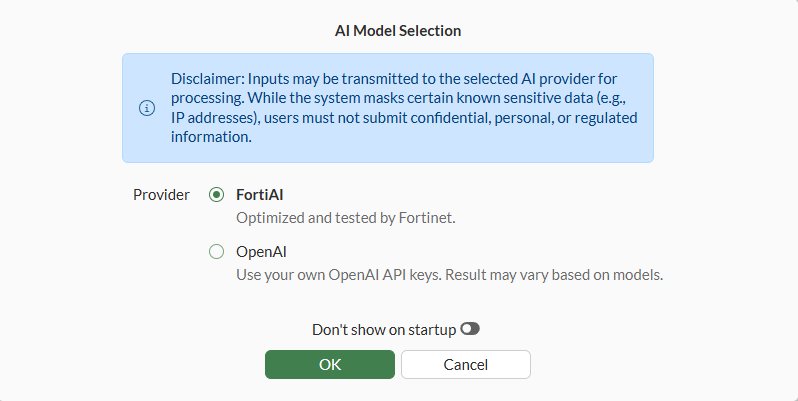
In the banner, click the FortiAI icon. The AI Model Selection dialog box appears.
-
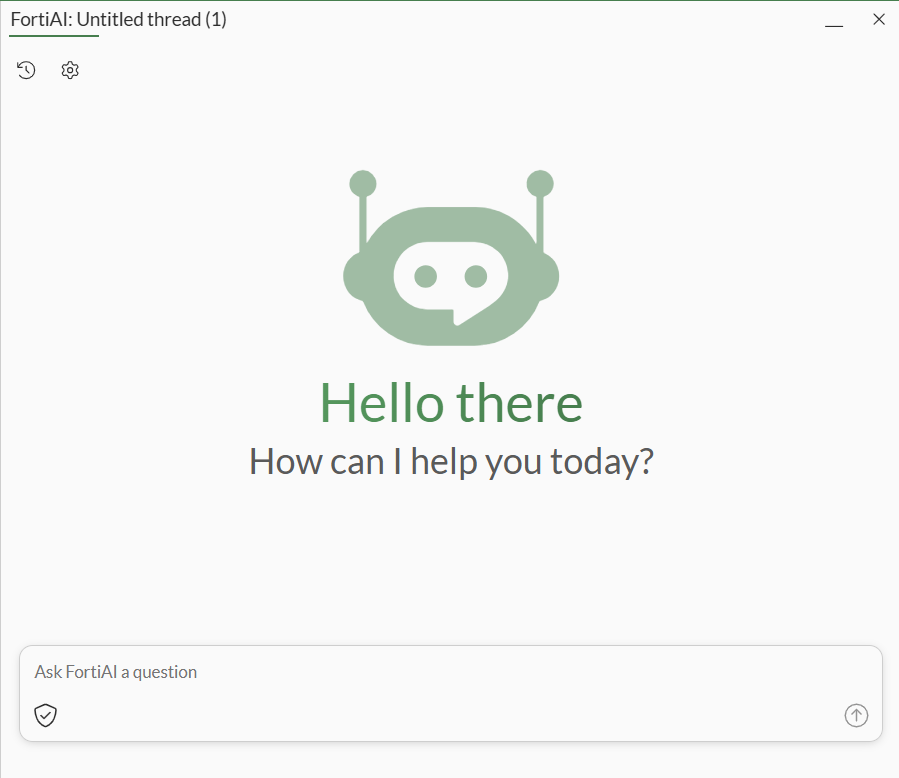
Select FortiAI and click OK. FortiAI is displayed on the right side of the GUI.
Enabling FortiAI with OpenAI as AI provider
FortiAI can be enabled with OpenAI as the AI provider. This option configures billing with OpenAI for tokens.
To configure OpenAI as AI provider in the GUI:
-
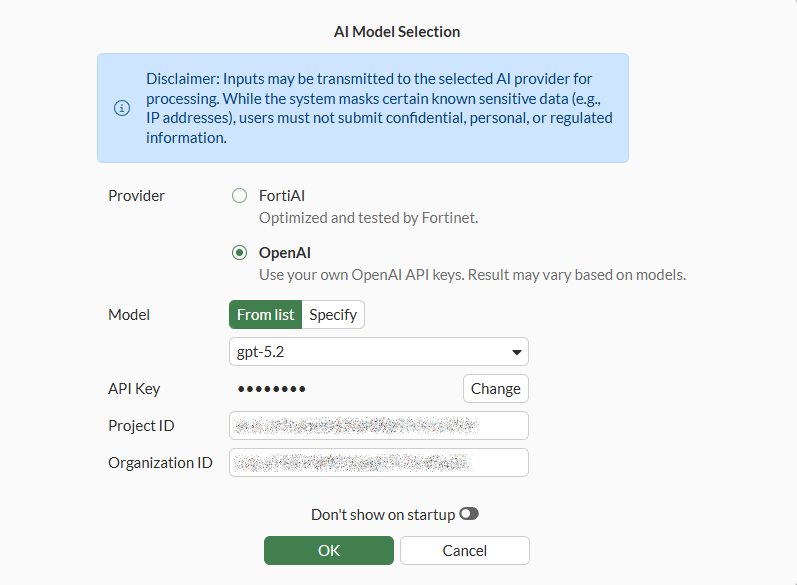
In the banner, click FortiAI. The AI Model Selection dialog box appears.
-
Select OpenAI and complete the options.
-
Click OK. FortiAI is displayed on the right side of the GUI powered by OpenAI instead of FortiAI.
The GUI always displays FortiAI regardless of the selected LLM.
To configure OpenAI as AI provider in the CLI:
config system admin
    edit "admin"
        set vdom "root"
        set accprofile "super_admin"
        set gui-llm-provider openai
        set openai-api-key xxx
        set openai-api-key-part2 yyy
        set openai-model "gpt-5.2"
        set openai-project-id "<project ID>"
        set openai-org-id "<organization ID>"
    next
end
Accessing CLI Code Lab
The CLI Code Lab is available from the FortiOS GUI banner and from FortiAI, and it can be used to generate, edit, and execute CLI commands for configuring FortiGate.
When FortiAI uses FortiAI as the AI provider, the following FortiOS documents are used to provide answers: FortiOS Administration Guide, FortiOS CLI Reference. FortiAI also checks its answers against the FortiGate to ensure the results are suitable for the specific model.
To access CLI Code Lab:
-
Use one of the following methods:
-
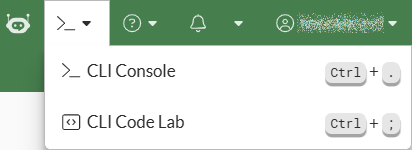
From the FortiOS GUI banner, click CLI Console > CLI Code Lab.
-
When FortiAI returns commands, an Edit button is available to open the commands in CLI Code Lab for editing.
-
Managing administrator access to FortiAI in administrator profiles
Administrator profiles control administrator access to FortiAI. FortiAI calls the FortiOS REST APIs with the same permissions as the logged in administrator.
To configure FortiAI access in administrator profiles in the GUI:
-
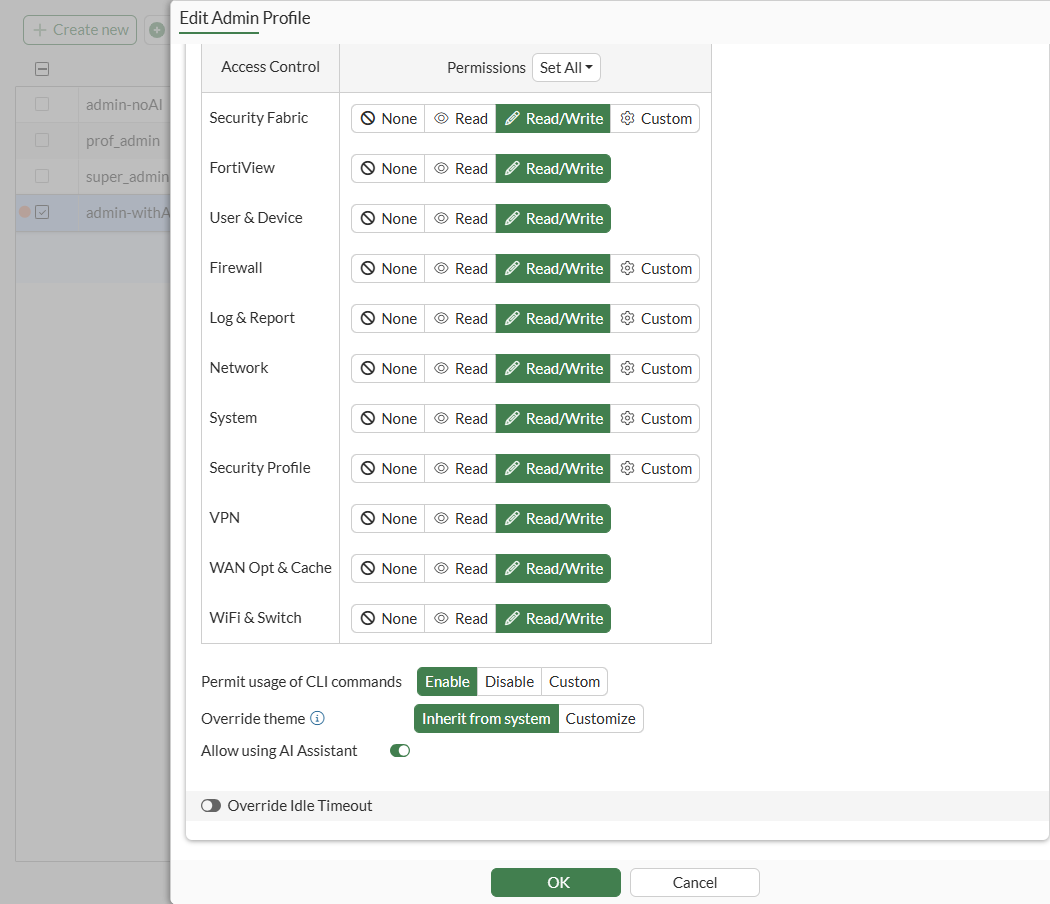
Go to System > Admin Profiles, and double-click an administrator profile to open it for editing.
Of the default administrator profiles provided with FortiOS, you can edit the setting in the prof_admin profile but not the super_admin profile.
-
Enable/disable Allow using AI Assistant and click OK.
When disabled, the FortiAI icon remains visible in the FortiOS banner for administrators; however, administrators cannot submit queries and receive answers.
To configure FortiAI access in admin profiles in the CLI:
config system accprofile
    edit "admin-withAI"
        set comments ''
        set secfabgrp read-write
        ...
        set gui-ai-assistant enable
    next
end
Masking sensitive data in chat
Sensitive data can be masked in FortiAI before it is sent to the AI provider. When data masking is enabled, a placeholder replaces sensitive data, such as IP addresses, MAC addresses, email addresses, phone numbers, URLs, and so on, before the data is sent to the AI provider.
A checkmark displays in the FortiAI chat window when data masking is enabled:

An X displays in the FortiAI chat window when data masking is disabled:

Click the icon to enable/disable data masking.
Accessing FortiAI chat history
The Chat history button lets you view a list of chat history. You can click any entry in the list to view the thread.
To use chat history:
-
In FortiAI, click the Chat history button.
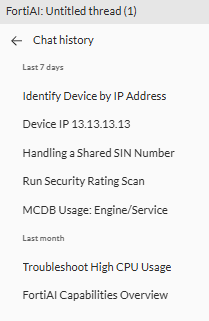
A list of chat history is displayed.
-
Click any item in the list to view the thread.
Setting chat message history
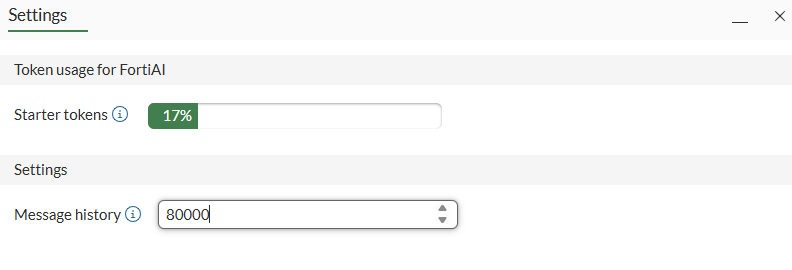
You can specify how much message history FortiAI sends with each new query in the same thread to the AI provider. In FortiAI settings, the Message history field specifies the maximum number of words.

When you enter a query in FortiAI, the entire thread history is sent to the AI provider as context. When the thread history reaches the Message history limit, the history is compressed. Compressed history loses some information and is therefore less accurate.
A large history uses more allocated capacity for each query, and a small history may reduce the accuracy of the response because it provides too little context. It is recommended to start with the default setting.
Exporting FortiAI chats and threads
You can export the following history from FortiAI to a JSON file:
-
Chat: the current conversation
-
Thread: the current conversation plus details, such as timestamps, message IDs, and so on
To export chats and threads:
-
In FortiAI, click the Settings (gear icon) > Export chat, and select either Export chat or Export thread.
A JSON file is downloaded to your local device.
Checking token usage for FortiAI
When FortiAI is the AI provider, you can check token usage in FortiAI settings.
When monthly tokens are fully consumed, FortiAI access is temporarily suspended until the next monthly cycle begins. See also How token usage is calculated.
To check FortiAI token usage:
-
In FortiAI, click the Settings (gear icon), and select Settings. The Settings are displayed.
-
Under Token usage for FortiAI, the Starter tokens box displays the percentage of used tokens.
-
Click OK to close the window.
Example
This section includes the following examples:
Example 1: use FortiAI to troubleshoot FortiGate

In this example, IPsec site-to-site VPN is configured between two FortiGates, but the tunnel is down. You can use FortiAI to help troubleshoot the issue.
To use FortiAI to troubleshoot:
-
Enable FortiAI as the AI provider. See Enabling FortiAI with FortiAI as AI provider.
-
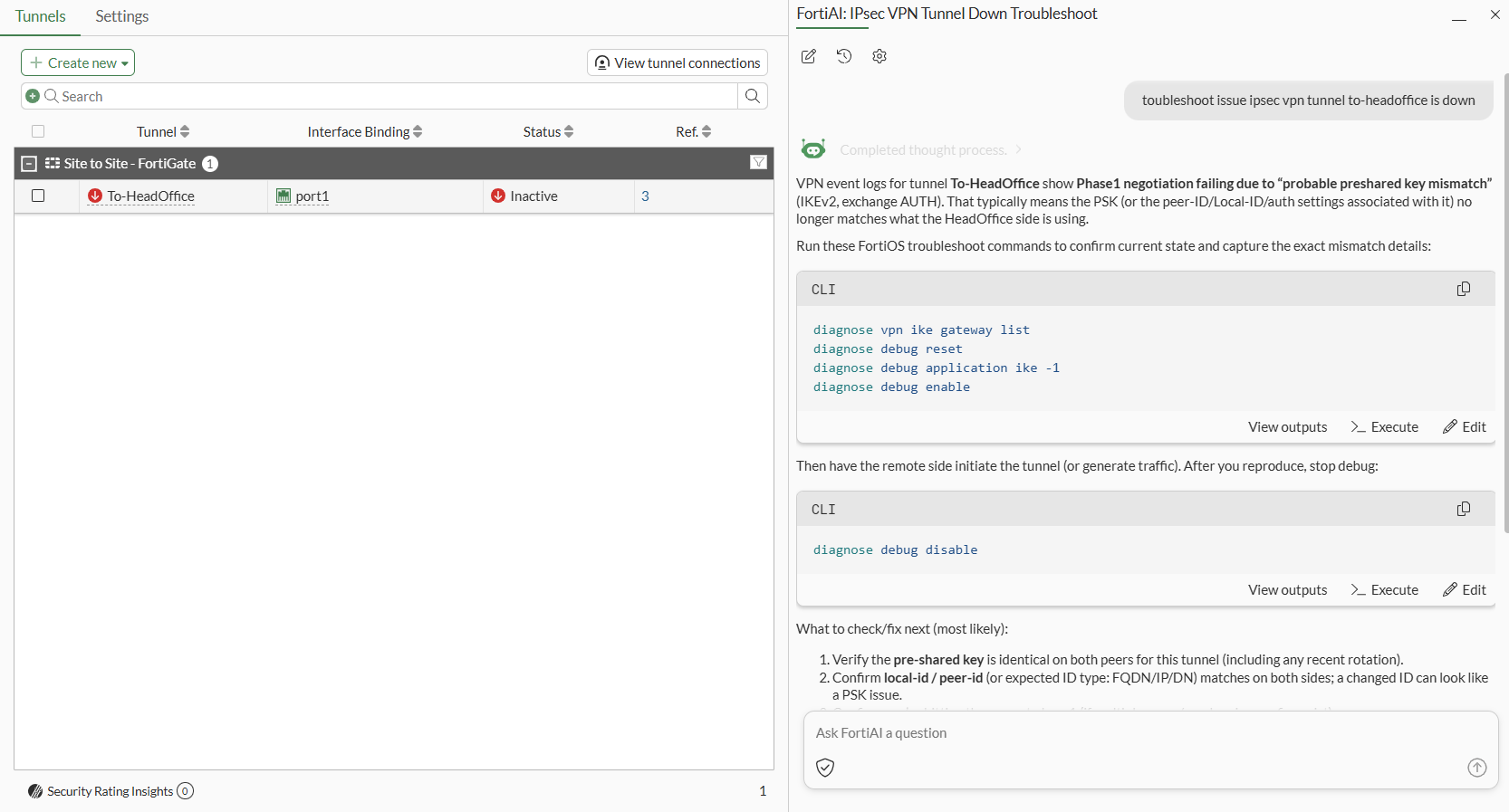
In the FortiAI chat window, enter the request:
toubleshoot issue ipsec vpn tunnel to-headoffice is down. -
FortiAI returns CLI commands to collect IKE debug logs as well as some suggested solutions.
-
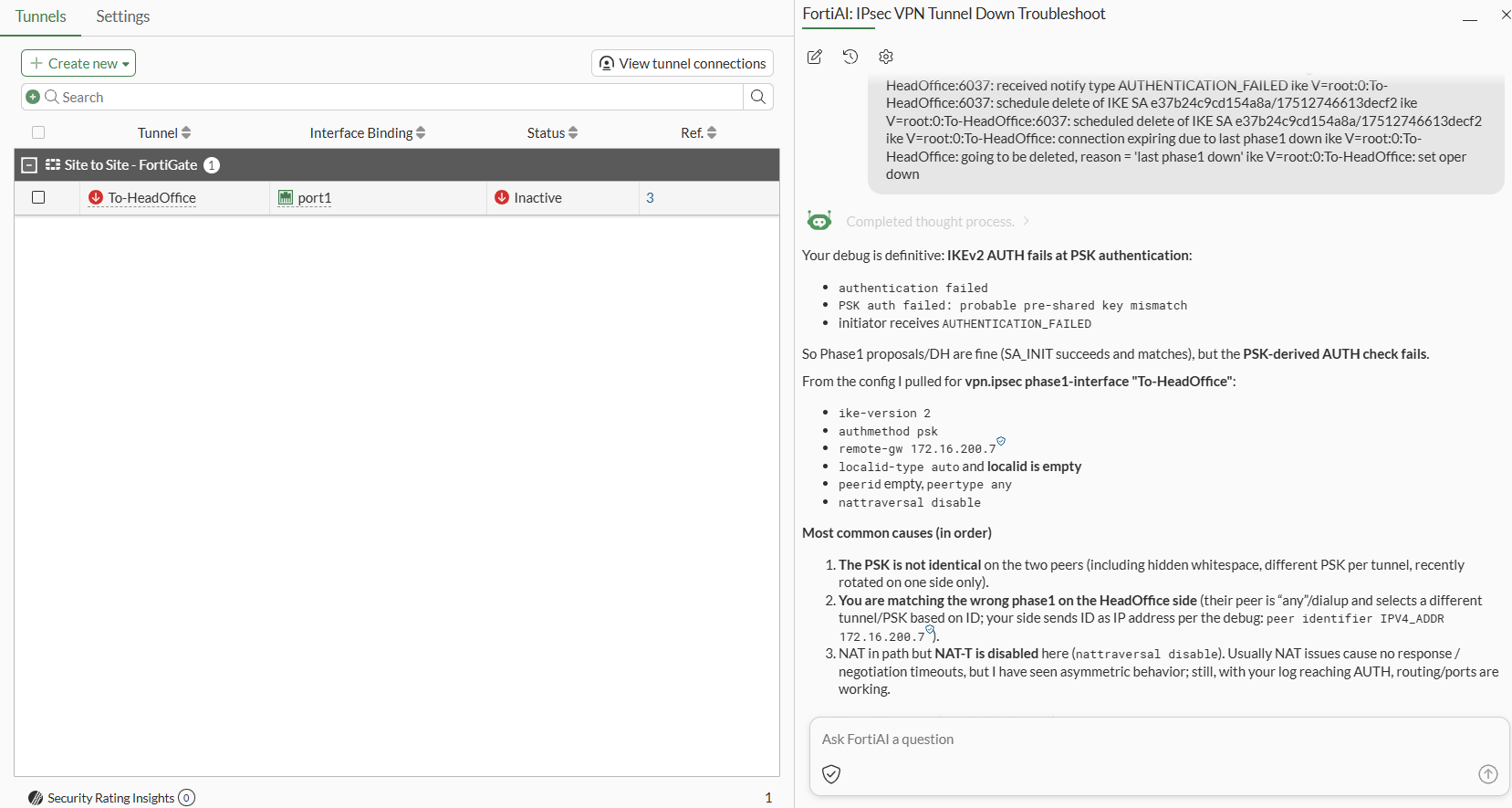
In a separate SSH session, run the commands, collect the log output, and paste the output in the chat window.
-
FortiAI analyzes the log and returns the results in order with the most common cause listed first:
Your debug is definitive: IKEv2 AUTH fails at PSK authentication:
-
authentication failed
-
PSK auth failed: probable pre-shared key mismatch
-
initiator receives AUTHENTICATION_FAILED
-
Example 2: use OpenAI to configure FortiGate
In this example, FortiAI is configured to use OpenAI as the AI provider. FortiAI is used to configure FortiGate to block social media by creating a web filter profile and updating a firewall policy to use the web filter profile.
To use OpenAI to configure FortiGate:
-
Enable OpenAI as the AI provider. See Enabling FortiAI with OpenAI as AI provider.
-
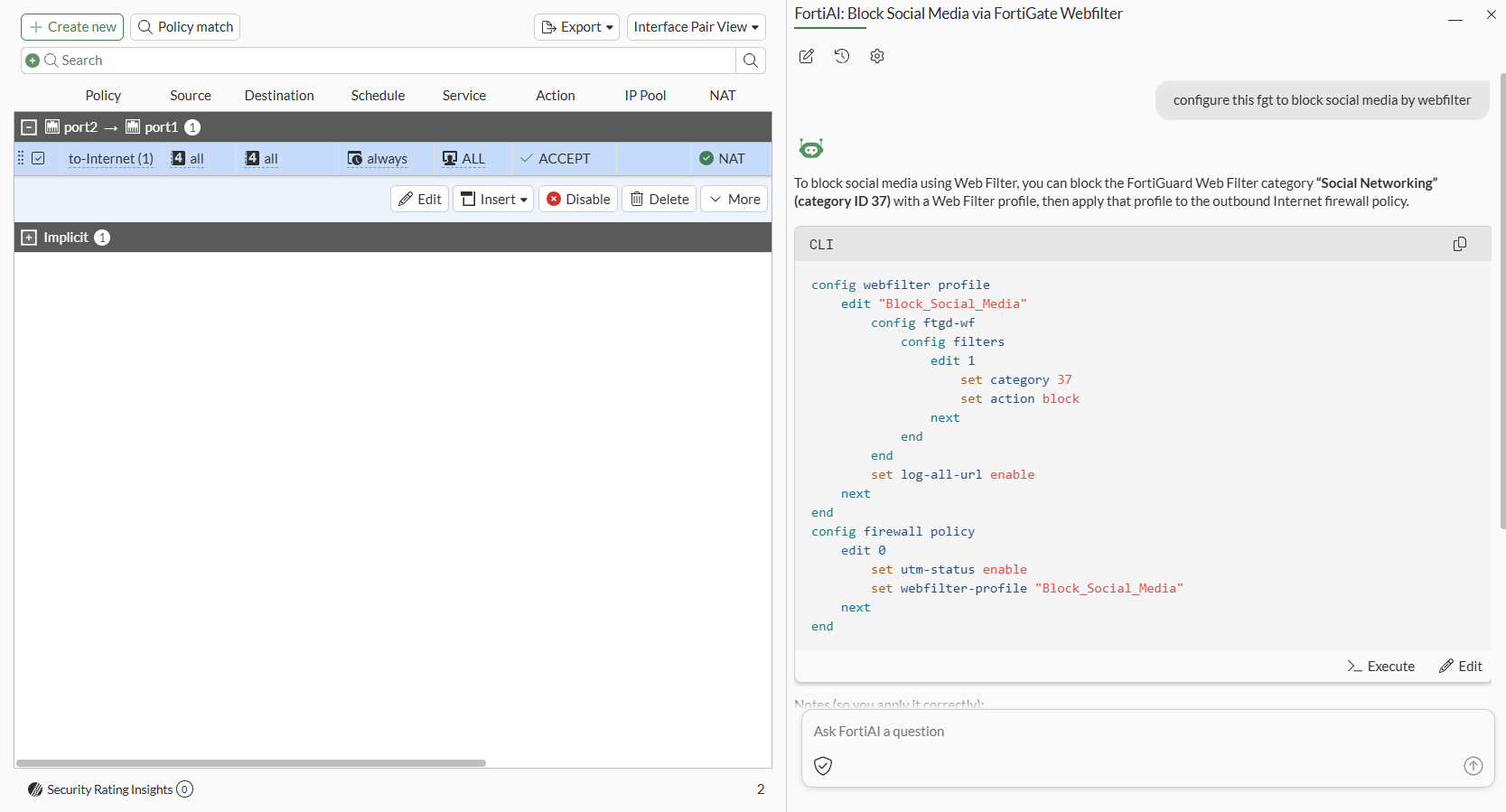
In the FortiAI chat window, enter the request:
configure this fgt to block social media by webfilter. -
FortiAI returns CLI commands for a web filter profile and firewall policy configuration.
-
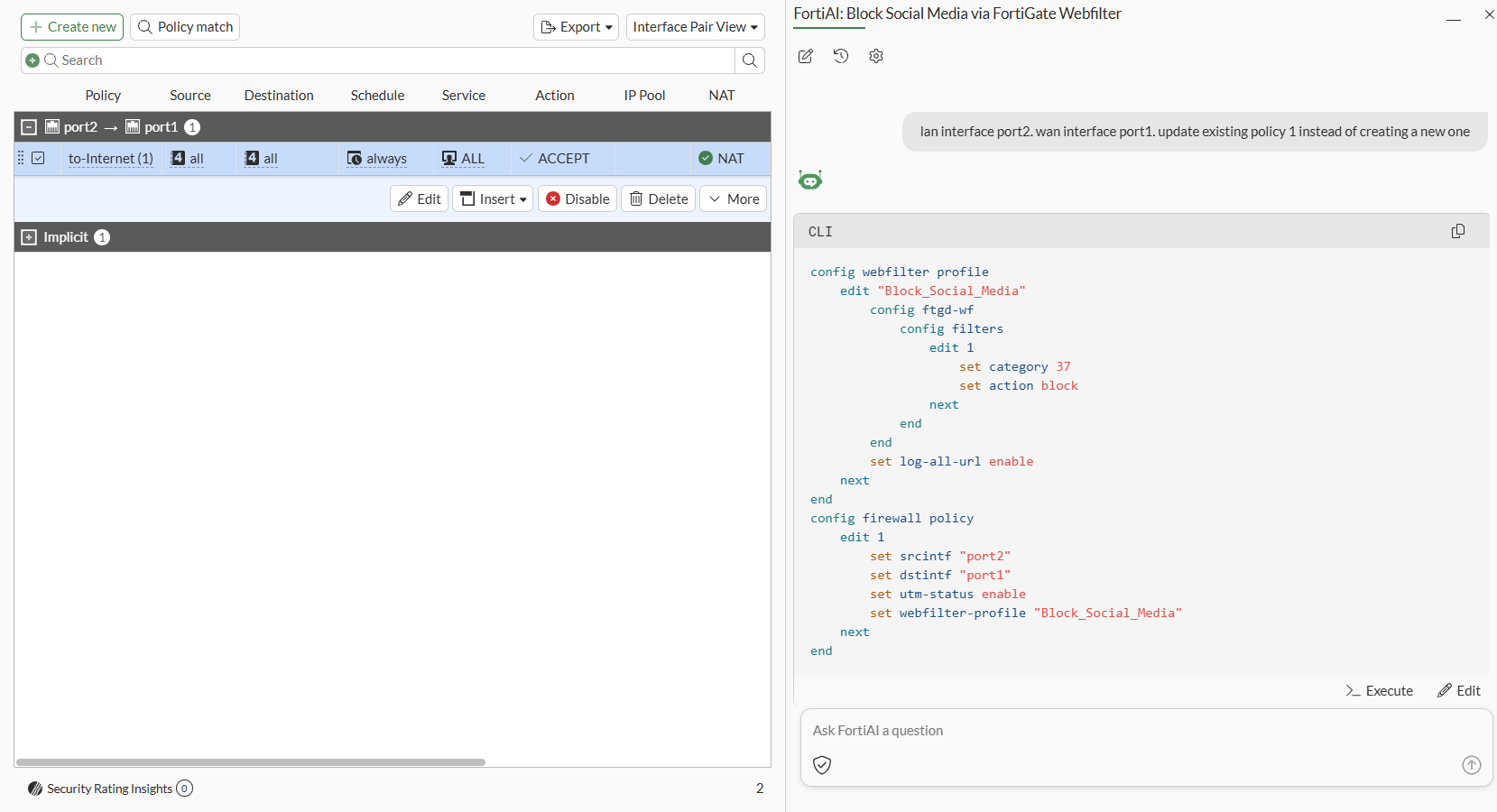
Enter more information, such as the LAN interface name or existing policy ID.
For example, enter:
lan interface port2. wan interface port1. update existing policy 1 instead of creating a new one.FortiAI uses the additional information to return tuned CLI commands.
-
On the bottom-right, click Edit to open the CLI Code Lab.
In the left pane of the CLI Code Lab, edit the CLI commands as needed.
-
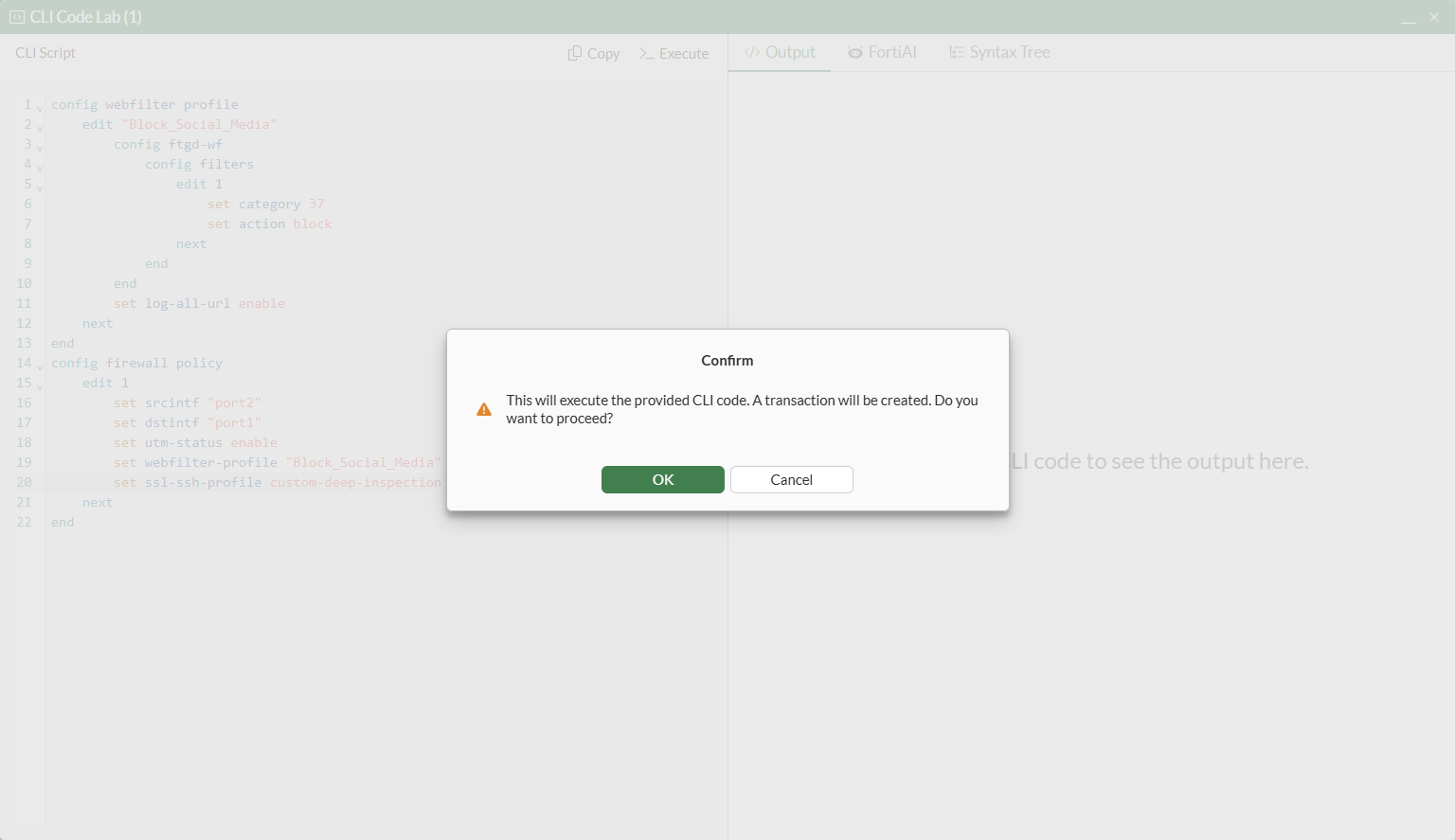
Click Execute. A Confirm dialog box is displayed.
-
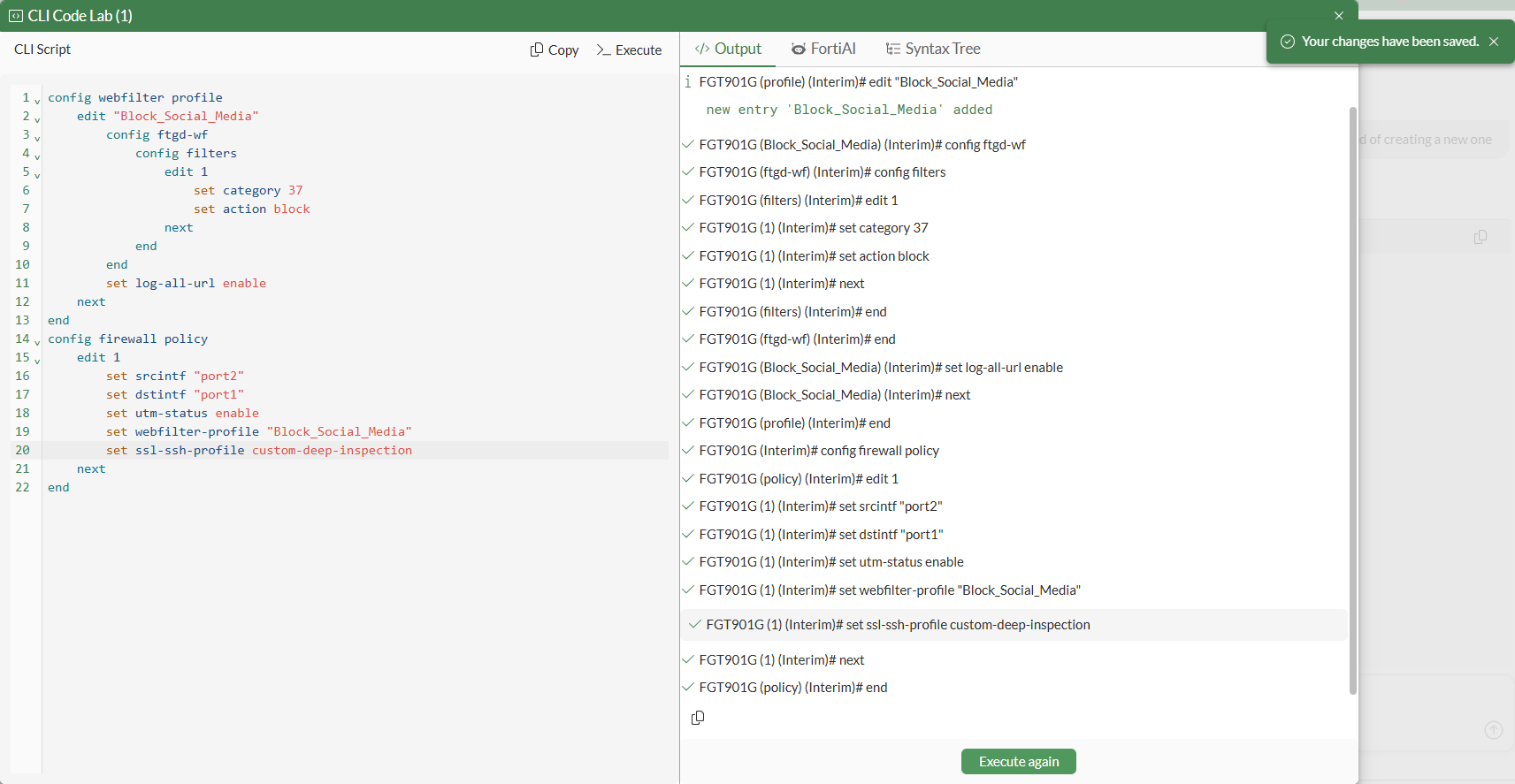
Click OK to execute the commands. The output is printed in the right pane of the CLI Code Lab.
-
Click Commit changes to save the configuration changes.
CLI syntax
A new option is available:
config system accprofile
    edit <name>
        set gui-ai-assistant {enable | disable}
    next
end
|
Option |
Description |
|---|---|
|
|
Enable/disable permission to use AI assistant (default = disable):
|
New options are available to enable OpenAI as the LLM provider:
config system admin
    edit <name>
        set accprofile <name>
        set gui-llm-provider {fortiai | openai}
        set openai-api-key <string>
        set openai-api-key-part2 <string>
        set openai-model <string>
        set openai-project-id <string>
        set openai-org-id <string>
    next
endd
|
Option |
Description |
|---|---|
|
|
Select the LLM provider:
|
|
|
Input the OpenAI password value. |
|
|
OpenAI API key part 2 for excess password value length. |
|
|
OpenAI model name. |
|
|
OpenAI project ID. |
|
|
OpenAI organization ID. |