

New Cloud SDN Orchestration VPN wizard for AWS
This information is also available in the FortiOS 8.0 Administration Guide:
A new Cloud SDN Orchestration VPN wizard is added to simplify configuration of a VPN tunnel between a FortiGate and a virtual private gateway or transit gateway on AWS. When a FortiGate has an SDN connector with the proper permissions established with AWS, the VPN wizard creates the FortiGate VPN configurations and pushes the necessary customer gateway and VPN tunnel configurations to AWS under the configured VPC. This reduces the chance of mis-configurations and the number of steps needed to configure a VPN tunnel.
A new config sys sdn-vpn command is available:
config sys sdn-vpn
    edit <name>
        set *sdn <string>
        set *remote-type {vgw | tgw}
        set *routing-type {static | dynamic}
        set *vgw-id <string>
        set nat-traversal {enable | disable}
        set *tunnel-interface <string>
        set *internal-interface <string>
        set *local-cidr <class_ip&net_netmask>
        set *remote-cidr <class_ip&net_netmask>
        set cgw-name <string>
        set psksecret <passwd>
    next
end
|
Option |
Description |
|---|---|
|
|
Configure public cloud VPN service. |
|
|
Public cloud VPN name. |
|
|
SDN connector name. |
|
|
Type of remote device:
|
|
|
Type of routing:
|
|
|
Virtual private gateway ID. |
|
|
Enable/disable use for NAT traversal. Please enable if your FortiGate device is behind a NAT/PAT device. |
|
|
Tunnel interface with public IP. |
|
|
Internal interface with local subnet. |
|
|
Local subnet address and subnet mask. |
|
|
Remote subnet address and subnet mask. |
|
|
AWS customer gateway name to be created. |
|
|
Pre-shared secret for PSK authentication. Auto-generated if not specified. |
New diagnose commands are available:
# diagnose debug app sdnvpnd -1

# diagnose test application awsd 5
5. list the settings created by sdn-vpn widgets
Example

This example demonstrates how to use the Cloud SDN Orchestration VPN wizard on FortiGate to create VPN configurations and push the necessary customer gateway and VPN tunnel configurations to AWS under the configured VPC.
Following are the requirements for using the wizard:
-
On AWS, create IAM and certificates for use with SDN connector.
-
On FortiGate, create a regional SDN connector for AWS and establish a connection to AWS. The wizard uses the AWS SDN connector. See AWS SDN connector using access keys for information about creating an AWS SDN connector.
-
On AWS, ensure the FortiGate SDN connector for AWS has the following permissions required by the wizard:
  - ec2:DescribeVpcs
  - ec2:DescribeSubnets
  - ec2:DescribeRouteTables
  - ec2:CreateRoute
  - ec2:DeleteRoute
  - ec2:DescribeCustomerGateways
  - ec2:CreateCustomerGateway
  - ec2:DeleteCustomerGateway
  - ec2:DescribeVpnGateways
  - ec2:EnableVgwRoutePropagation
  - ec2:DescribeTransitGateways
  - ec2:CreateTransitGatewayRouteTable
  - ec2:DeleteTransitGatewayRouteTable
  - ec2:EnableTransitGatewayRouteTablePropagation
  - ec2:DisassociateTransitGatewayRouteTable
  - ec2:AssociateTransitGatewayRouteTable
  - ec2:DescribeTransitGatewayRouteTables
  - ec2:CreateTransitGatewayRoute
  - ec2:DescribeTransitGatewayAttachments
  - ec2:DescribeTransitGatewayVpcAttachments
  - ec2:DescribeVpnConnections
  - ec2:CreateVpnConnection
  - ec2:DeleteVpnConnection
  - ec2:CreateVpnConnectionRoute
  - ec2:DeleteVpnConne
-
On AWS, provision a VPC with subnets.
-
On AWS, provision one of the following and attach it to the VPC:
-
Virtual private gateway (VPG)
This example uses a VPG.
-
Transit gateway(TGW)
When you attach a TGW to the VPC, ensure you set Type to VPN.
-
-
Use FortiGate local admin privileges or higher
Security Groups are manually edited after the wizard is finished to allow access from on-premise network.
To create VPN tunnels using the Cloud SDN Orchestration VPN wizard:
-
On AWS, create a new virtual private gateway and associate it with the target AWS VPC:
-
Go to an existing VPC or create a new VPC.
-
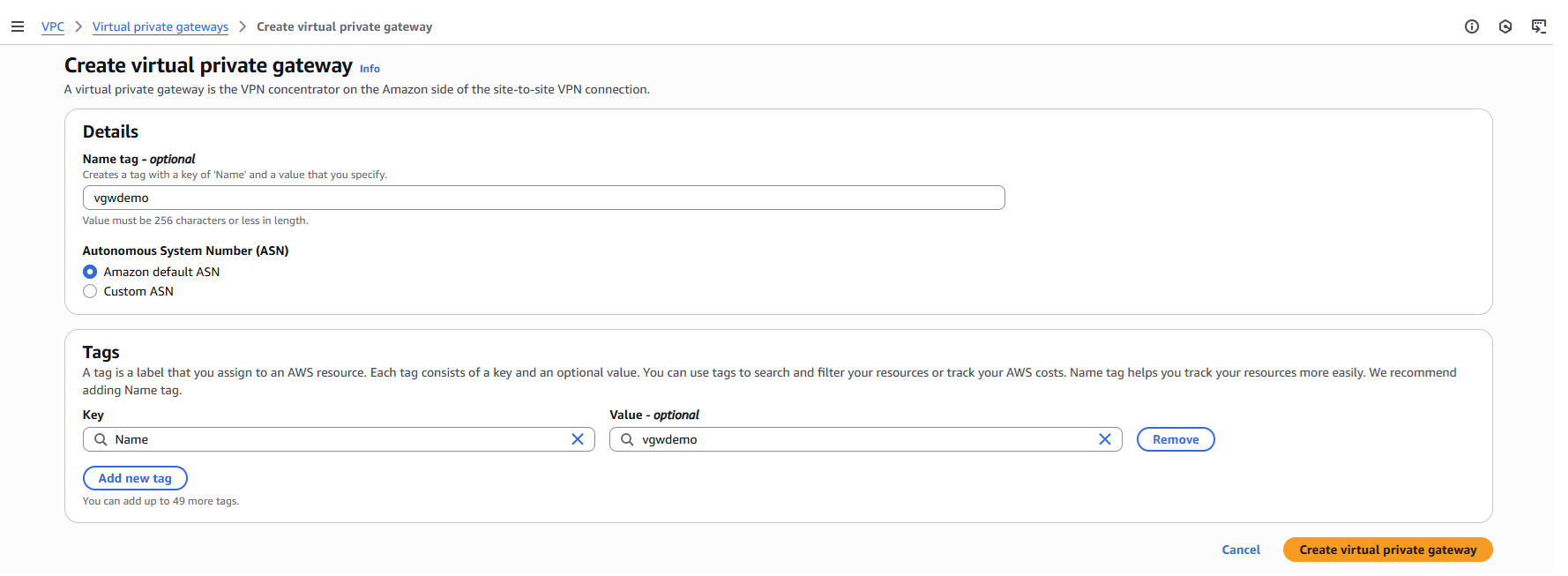
In the VPC side menu, go to Virtual private network (VPN) > Virtual private gateways. Click Create virtual private gateway.
-
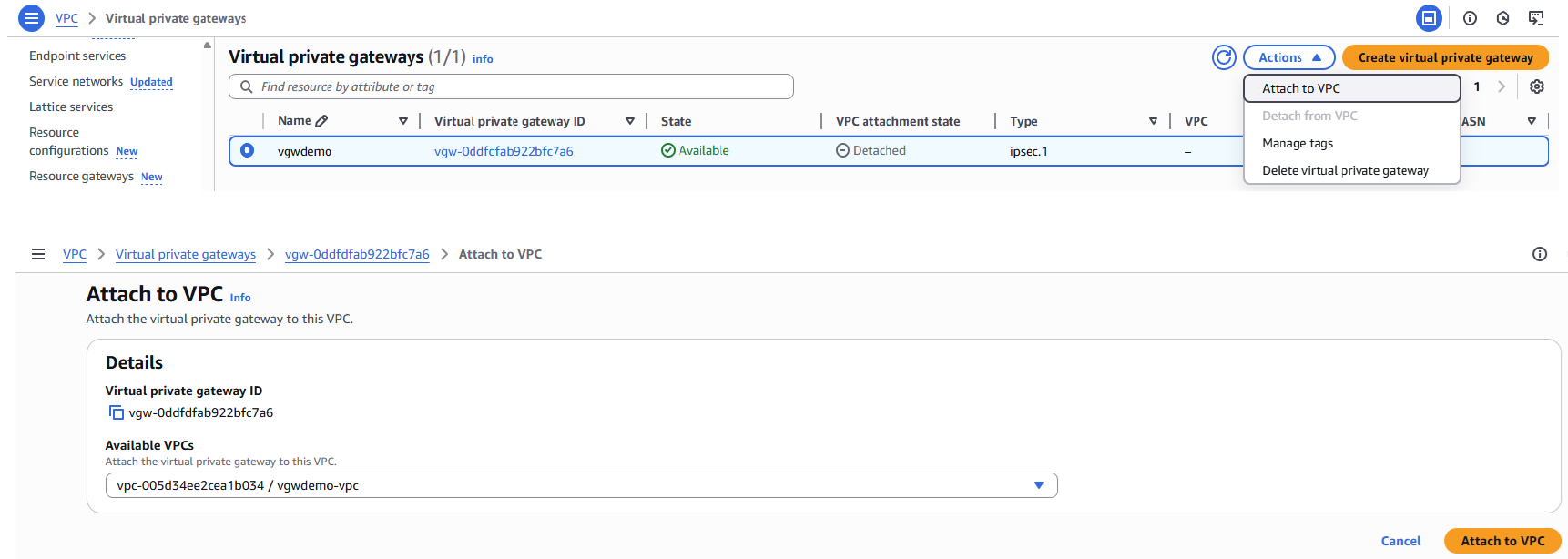
After the VPG is created, select it and click Actions. Select Attach to VPC.
-
Choose the VPC to attach this VPG to. Click Attach to VPC.
The new virtual private gateway is ready to for FortiGate configurations.

-
-
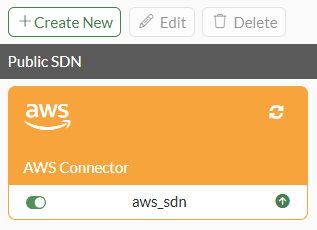
On FortiGate, go to Security Fabric > External Connectors, and click the AWS Connector to check that Status is Up.
This step assumes that the AWS Connector has already been configured.
-
On FortiGate, use the Cloud SDN Orchestration wizard to create VPN tunnels:
-
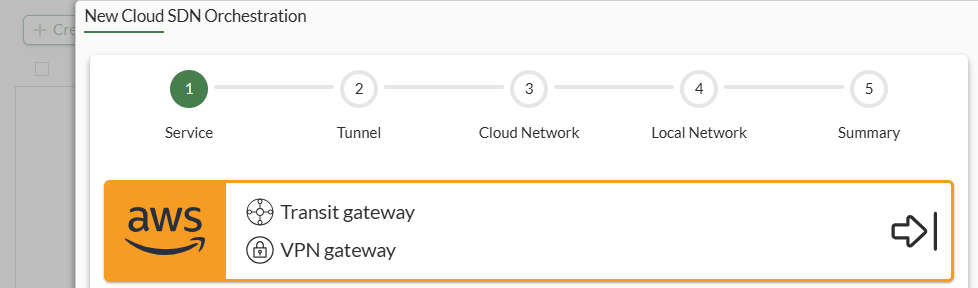
Go to VPN > Cloud SDN Orchestration, and click Create new. The New Cloud SDN Orchestration wizard is displayed on step 1 for Service.
-
Click the AWS icon to confirm orchestration for AWS and to display step 2 for Tunnel.
-
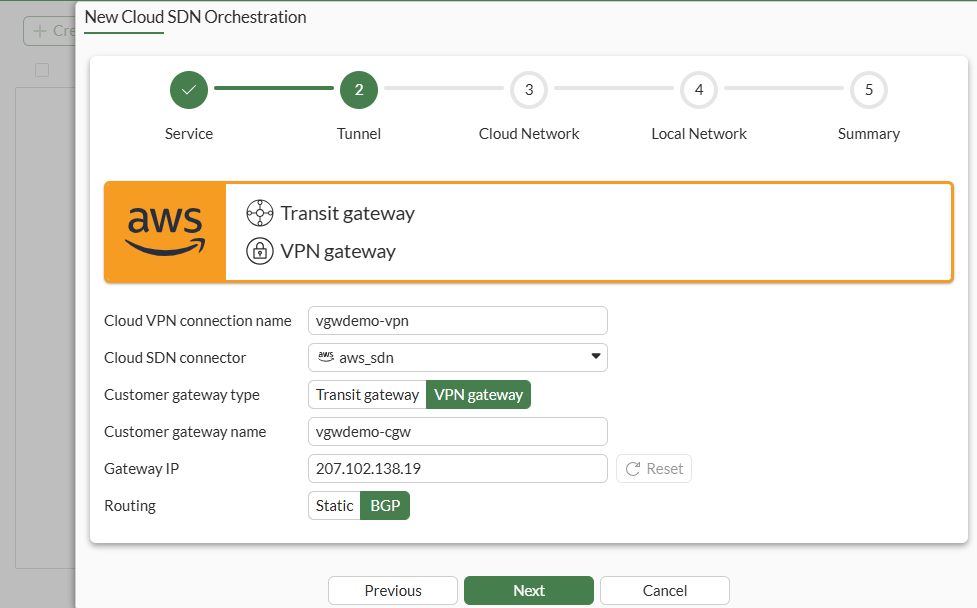
On the Tunnel page, complete the options, and click Next.
Option
Description
Cloud VPN connection name
Enter a name for the configuration.
Cloud SDN connector
Select the previously created AWS SDN connector.
Customer gateway type
Select the type of gateway created on AWS (Transit gateway or VPN gateway).
Customer gateway name
Enter the name of the gateway created on AWS.
Gateway IP
The IP address is automatically populated.
Routing
Select the type of routing to use for the tunnels (Static or BGP).
If permissions for the AWS SDN connector cannot be validated, the following error may display, and you my be unable to advance to the next wizard steps until you correct the permissions:
Failed to validate permission, ensure the SDN connector credentials are correct and you have the required permission from the cloud service.
The wizard moves to step 3 for Cloud Network.
-
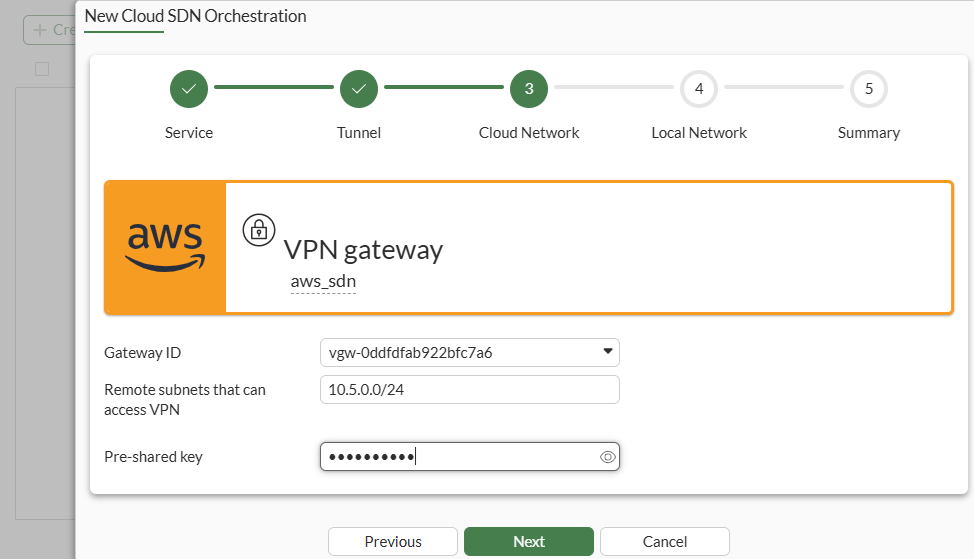
On the Cloud Network page, complete the options, and click Next.
Option
Description
Gateway ID
Select the gateway ID created in AWS.
Remote subnets that can access VPN
Enter the AWS subnets that can access VPN.
Pre-shared key
Enter the pre-shared key (PSK) for PSK authentication. Auto-generated if not specified.
The wizard moves to step 4 for Local Network.
-
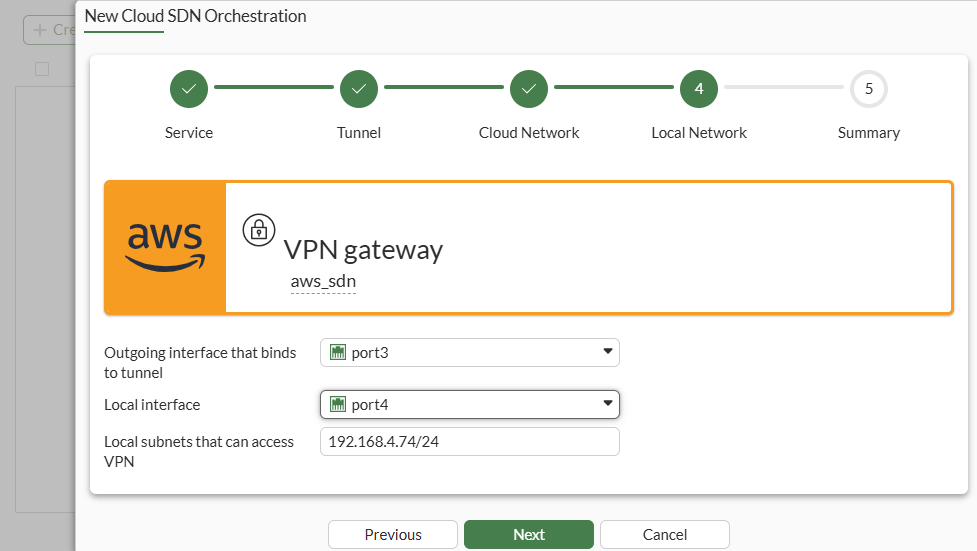
On the Local Network page, complete the options, and click Next.
Option
Description
Outgoing interface that binds to tunnel
Select the FortiGate outbound interface for VPN.
Local interface
Select the FortiGate inbound interface for VPN.
Local subnets that can access VPN
Enter the FortiGate subnets that can access VPN.
The wizard moves to step 5 for Summary.
-
On the Summary page, review the settings, and click Apply.
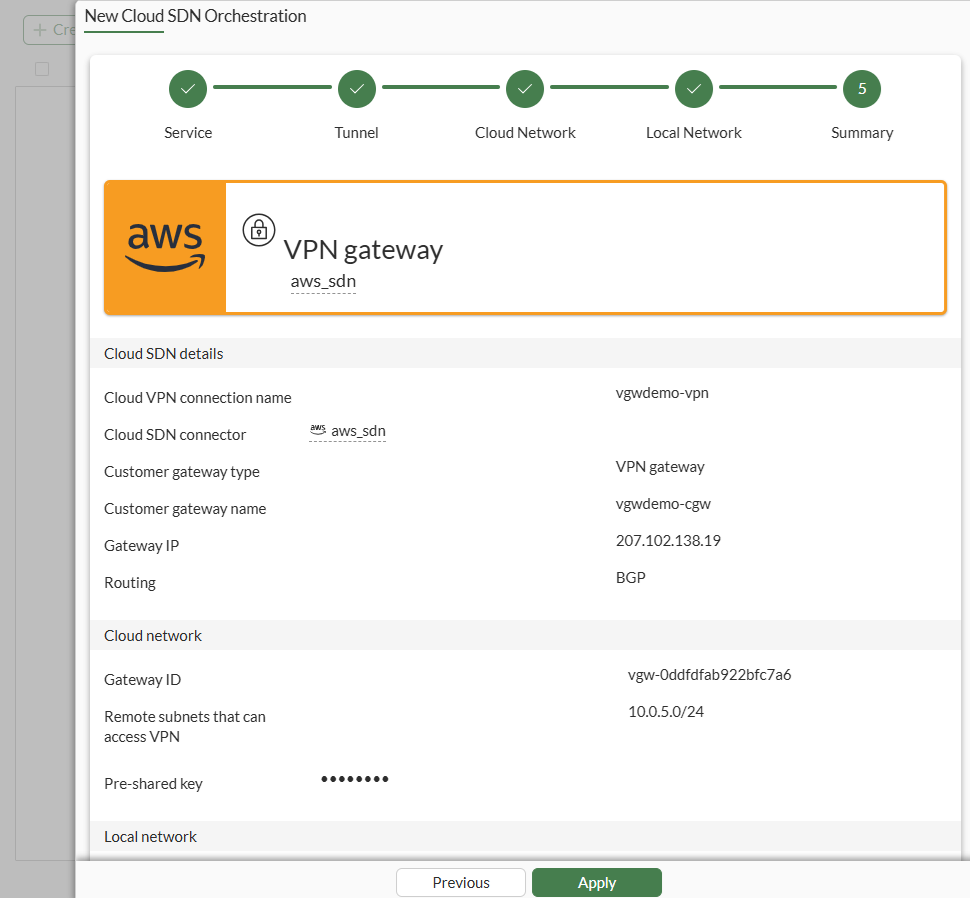
The wizard creates the VPN tunnels and pushes the Customer Gateway and VPN tunnel configurations to AWS under the configured VPC.
-
-
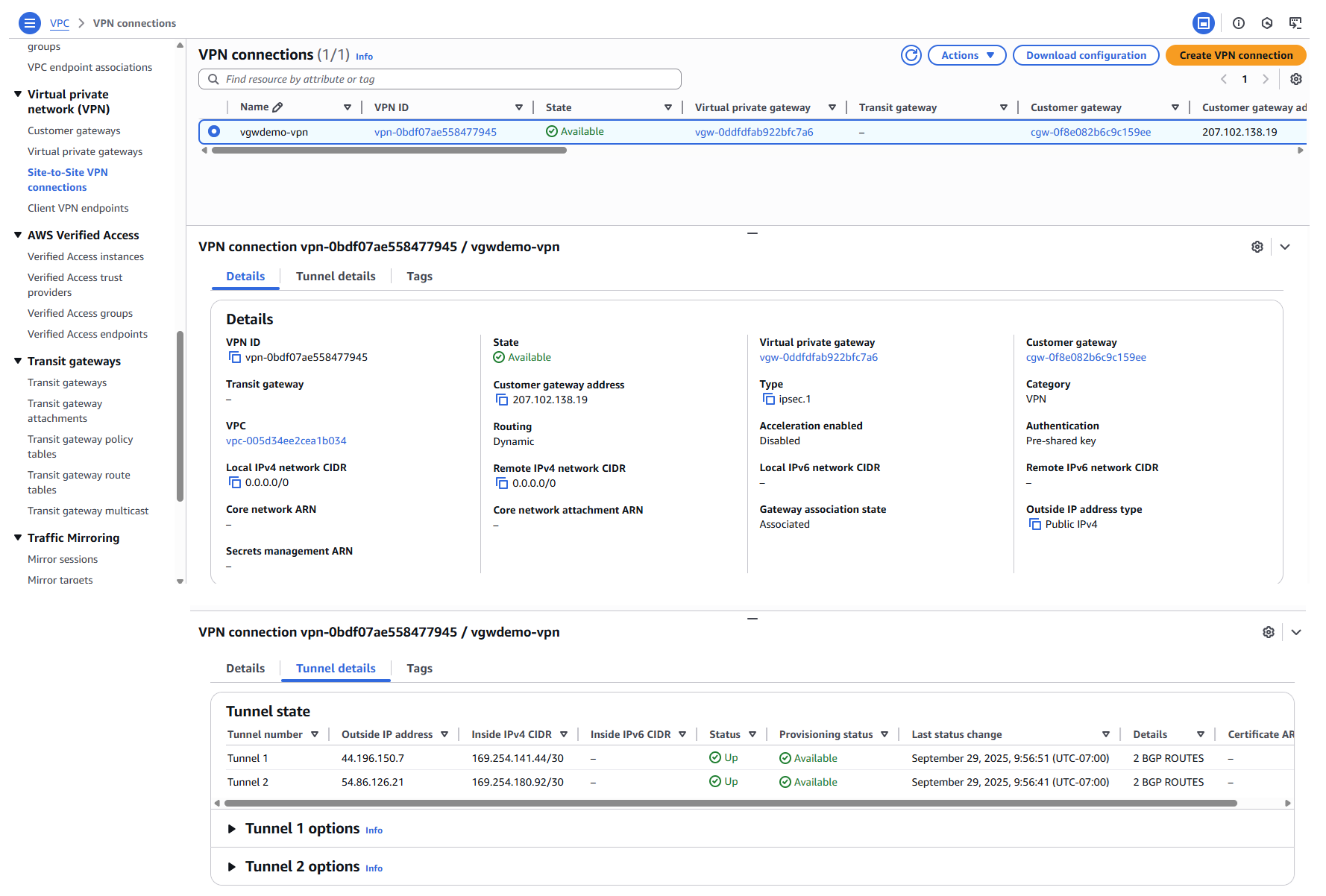
On AWS console, ensure the FortiGate wizard successfully created the Customer gateway and VPN connection.
-
Go to Virtual private network (VPN) > Customer gateways.

-
Under Virtual private network (VPN), click Site-to-Site VPN connections.
-
-
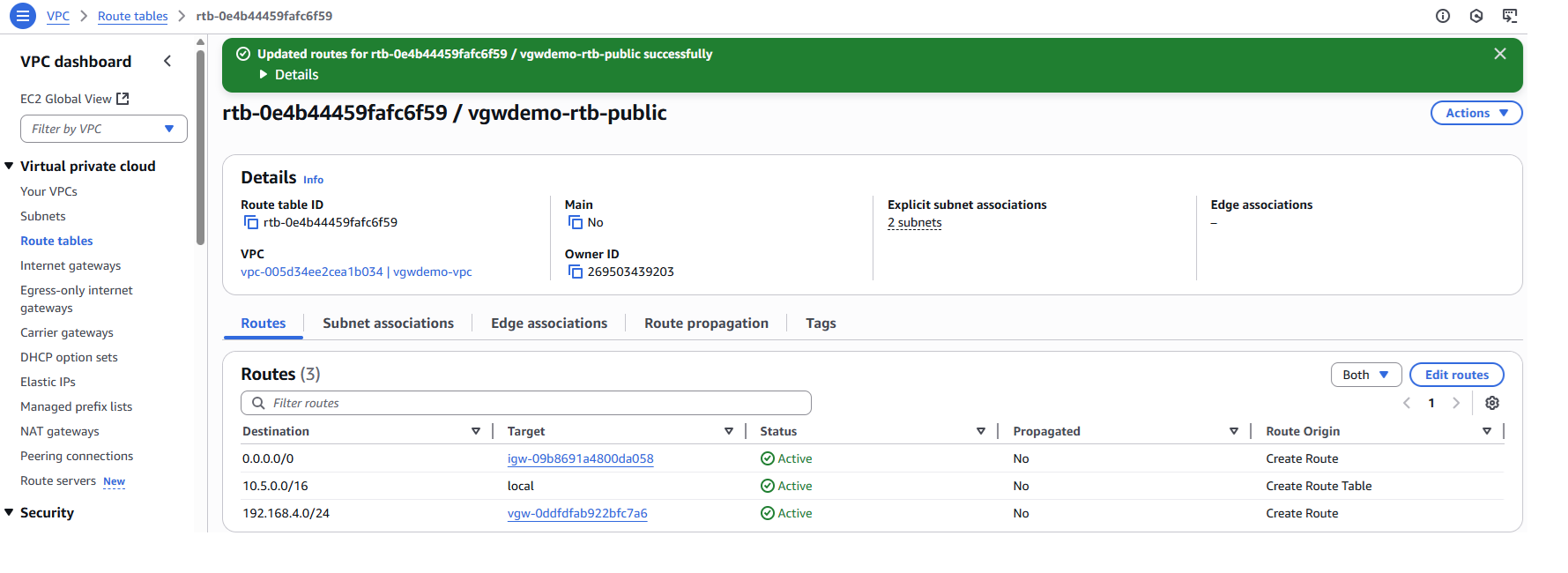
On AWS, go to Virtual private cloud > Route tables, and add route entry for the routing table of AWS VPC target subnet, and make the traffic to local FGW 192.168.4.0/24 use the VGW as the gateway.
To verify the VPN tunnel configurations in the GUI:
-
Go to VPN > Cloud SDN Orchestration. Select the configuration, and click View:

To verify the VPN tunnel configurations in the CLI:
-
Show the
system sdn-vpnsettings:show system sdn-vpn config system sdn-vpn edit "vgwdemo-vpn" set sdn "aws_sdn" set vgw-id "vgw-0ddfdfab922bfc7a6" set cgw-gateway 207.102.138.19 set tunnel-interface "port3" set internal-interface "port4" set local-cidr 192.168.4.0 255.255.255.0 set remote-cidr 10.5.0.0 255.255.255.0 set cgw-name "vgwdemo-cgw" set psksecret xxx next end -
Show the
vpn ipsec phase1-interfacesettings:show vpn ipsec phase1-interface config vpn ipsec phase1-interface edit "vgwdemo-vpn-0" set interface "port3" set ike-version 2 set keylife 28800 set peertype any set net-device disable set proposal aes128-sha1 set comments "Automatically generated by site-to-site VPN wizard." set dhgrp 2 set wizard-type cloud-sdn-orchestration set transport auto set remote-gw 44.196.150.7 set psksecret xxx next edit "vgwdemo-vpn-1" set interface "port3" set ike-version 2 set keylife 28800 set peertype any set net-device disable set proposal aes128-sha1 set comments "Automatically generated by site-to-site VPN wizard." set dhgrp 2 set wizard-type cloud-sdn-orchestration set transport auto set remote-gw 54.86.126.21 set psksecret xxx next end -
Show the
vpn ipsec phase2-interfacesettings:show vpn ipsec phase2-interface config vpn ipsec phase2-interface edit "vgwdemo-vpn-0" set phase1name "vgwdemo-vpn-0" set proposal aes128-sha1 set dhgrp 2 set auto-negotiate enable set comments "Automatically generated by site-to-site VPN wizard." set keylifeseconds 3600 next edit "vgwdemo-vpn-0-inside" set phase1name "vgwdemo-vpn-0" set proposal aes128-sha1 set dhgrp 2 set auto-negotiate enable set comments "Automatically generated by site-to-site VPN wizard." set keylifeseconds 3600 next edit "vgwdemo-vpn-1" set phase1name "vgwdemo-vpn-1" set proposal aes128-sha1 set dhgrp 2 set auto-negotiate enable set comments "Automatically generated by site-to-site VPN wizard." set keylifeseconds 3600 next edit "vgwdemo-vpn-1-inside" set phase1name "vgwdemo-vpn-1" set proposal aes128-sha1 set dhgrp 2 set auto-negotiate enable set comments "Automatically generated by site-to-site VPN wizard." set keylifeseconds 3600 next end -
Show the
system interface vgwdemo-vpn-0settings:show system interface vgwdemo-vpn-0 config system interface edit "vgwdemo-vpn-0" set vdom "root" set ip 169.254.141.46 255.255.255.255 set allowaccess ping set type tunnel set tcp-mss 1379 set remote-ip 169.254.141.45 255.255.255.252 set description "Automatically generated by site-to-site VPN wizard." set snmp-index 16 set interface "port3" set mtu-override enable set mtu 1427 next end -
Show the
system interface vgwdemo-vpn-1settings:show system interface vgwdemo-vpn-1 config system interface edit "vgwdemo-vpn-1" set vdom "root" set ip 169.254.180.94 255.255.255.255 set allowaccess ping set type tunnel set tcp-mss 1379 set remote-ip 169.254.180.93 255.255.255.252 set description "Automatically generated by site-to-site VPN wizard." set snmp-index 17 set interface "port3" set mtu-override enable set mtu 1427 next end -
Show the
config firewall policysettings:show firewall policy config firewall policy edit 1 set name "AWS_IPSEC_WIZ_vgwdemo-vpn-0_in" set uuid 0c945192-9d55-51f0-2ca8-e0de305845d8 set srcintf "vgwdemo-vpn-0" set dstintf "port4" set action accept set srcaddr "all" set dstaddr "all" set schedule "always" set service "ALL" set comments "Automatically generated by site-to-site VPN wizard." next edit 2 set name "AWS_IPSEC_WIZ_vgwdemo-vpn-0_out" set uuid 0c95b67c-9d55-51f0-7f37-75b1fe7ad6fa set srcintf "port4" set dstintf "vgwdemo-vpn-0" set action accept set srcaddr "all" set dstaddr "all" set schedule "always" set service "ALL" set comments "Automatically generated by site-to-site VPN wizard." next edit 3 set name "AWS_IPSEC_WIZ_vgwdemo-vpn-1_in" set uuid 0c9d02f6-9d55-51f0-bb0d-cdd46a5f0145 set srcintf "vgwdemo-vpn-1" set dstintf "port4" set action accept set srcaddr "all" set dstaddr "all" set schedule "always" set service "ALL" set comments "Automatically generated by site-to-site VPN wizard." next edit 4 set name "AWS_IPSEC_WIZ_vgwdemo-vpn-1_out" set uuid 0c9f31a2-9d55-51f0-a940-be65d2761bf9 set srcintf "port4" set dstintf "vgwdemo-vpn-1" set action accept set srcaddr "all" set dstaddr "all" set schedule "always" set service "ALL" set comments "Automatically generated by site-to-site VPN wizard." next end -
Show the
config router bgpsettings:show router bgp config router bgp set as 65000 set router-id 207.102.138.19 config neighbor edit "169.254.141.45" set capability-default-originate enable set remote-as 64512 next edit "169.254.180.93" set capability-default-originate enable set remote-as 64512 next end config network edit 1 set prefix 192.168.4.0 255.255.255.0 next end config redistribute "connected" end config redistribute "rip" end config redistribute "ospf" end config redistribute "static" end config redistribute "isis" end config redistribute6 "connected" end config redistribute6 "rip" end config redistribute6 "ospf" end config redistribute6 "static" end config redistribute6 "isis" end end -
View the VPN tunnel list:
# diagnose vpn tunnel list
list all ipsec tunnel in vd 0
------------------------------------------------------
name=vgwdemo-vpn-0 ver=2 serial=1 172.16.200.74:4500->44.196.150.7:4500 nexthop=172.16.200.254 tun_id=44.196.150.7 tun_id6=::44.196.150.7 status=up dst_mtu=1500 weight=1 country=US
bound_if=9 real_if=9 lgwy=static/1 tun=intf mode=auto/1 encap=none options[0x228]=npu frag-rfc  run_state=0 role=primary accept_traffic=1 overlay_id=0

proxyid_num=1 child_num=0 refcnt=5 ilast=6 olast=6 ad=/0
stat: rxp=912 txp=914 rxb=55715 txb=56934
dpd: mode=on-demand on=1 status=ok idle=20000ms retry=3 count=0 seqno=0
natt: mode=keepalive draft=0 interval=10 remote_port=4500
fec: egress=0 ingress=0
proxyid=vgwdemo-vpn-0 proto=0 sa=1 ref=3 serial=1 auto-negotiate
  src: 0:0.0.0.0-255.255.255.255:0
  dst: 0:0.0.0.0-255.255.255.255:0
  SA:  ref=3 options=38203 type=00 soft=0 mtu=1422 expire=2295/0B replaywin=2048
       seqno=dd esn=0 replaywin_lastseq=000000dc qat=0 rekey=0 hash_search_len=1
  life: type=01 bytes=0/0 timeout=3329/3600
  dec: spi=ba41a824 esp=aes key=16 67e826b2dd5d119f39b8a069593cb858
       ah=sha1 key=20 f0f633f79b8148a76a0b5dfa6685101958c462f7
  enc: spi=cbe6508c esp=aes key=16 f5e5b7e8a4a1285731167088f3e64783
       ah=sha1 key=20 48590b92b6660c8005407580229d63d6ea91903f
  dec:pkts/bytes=220/13397, enc:pkts/bytes=220/30032
  npu_flag=00 npu_rgwy=0.0.0.0:65535 npu_lgwy=0.0.0.0:65535npu_selid=0
  dec_npuid=0 enc_npuid=0 dec_engid=-1 enc_engid=-1 dec_saidx=-1 enc_saidx=-1
------------------------------------------------------
name=vgwdemo-vpn-1 ver=2 serial=2 172.16.200.74:4500->54.86.126.21:4500 nexthop=172.16.200.254 tun_id=54.86.126.21 tun_id6=::54.86.126.21 status=up dst_mtu=1500 weight=1 country=US
bound_if=9 real_if=9 lgwy=static/1 tun=intf mode=auto/1 encap=none options[0x228]=npu frag-rfc  run_state=0 role=primary accept_traffic=1 overlay_id=0

proxyid_num=1 child_num=0 refcnt=5 ilast=3 olast=3 ad=/0
stat: rxp=921 txp=925 rxb=56427 txb=57795
dpd: mode=on-demand on=1 status=ok idle=20000ms retry=3 count=0 seqno=0
natt: mode=keepalive draft=0 interval=10 remote_port=4500
fec: egress=0 ingress=0
proxyid=vgwdemo-vpn-1 proto=0 sa=1 ref=3 serial=1 auto-negotiate
  src: 0:0.0.0.0-255.255.255.255:0
  dst: 0:0.0.0.0-255.255.255.255:0
  SA:  ref=3 options=38203 type=00 soft=0 mtu=1422 expire=2320/0B replaywin=2048
       seqno=d8 esn=0 replaywin_lastseq=000000d7 qat=0 rekey=0 hash_search_len=1
  life: type=01 bytes=0/0 timeout=3332/3600
  dec: spi=ba41a825 esp=aes key=16 e056c5bc5ef6ec11a4ad10142872db53
       ah=sha1 key=20 77e2ac173d9c80e4676cc6f922b2843a380e6fbd
  enc: spi=c44fe363 esp=aes key=16 9548351f37e355bbc60e8a41cc38bd05
       ah=sha1 key=20 327ce26e4d4fc94d765fec7a0fec0e8d7f87d35b
  dec:pkts/bytes=215/13099, enc:pkts/bytes=215/29344
  npu_flag=00 npu_rgwy=0.0.0.0:65535 npu_lgwy=0.0.0.0:65535npu_selid=0
  dec_npuid=0 enc_npuid=0 dec_engid=-1 enc_engid=-1 dec_saidx=-1 enc_saidx=-1