Fortinet white logo
Fortinet white logo

Administration Guide

Setting GUI color themes NEW

Setting GUI color themes NEW

FortiOS include several predefined color themes for the GUI. You can also create custom color themes.

Predefined and custom themes can be associated with the FortiOS system, admin profiles, or individual administrators.

Banner messages associated with a severity can be created for custom themes using the CLI.

Creating custom color themes

You can create one or more custom GUI themes for FortiOS. Then you can assign different predefined or custom themes to the system, admin profiles, and administrators.

To create a custom theme in the GUI:
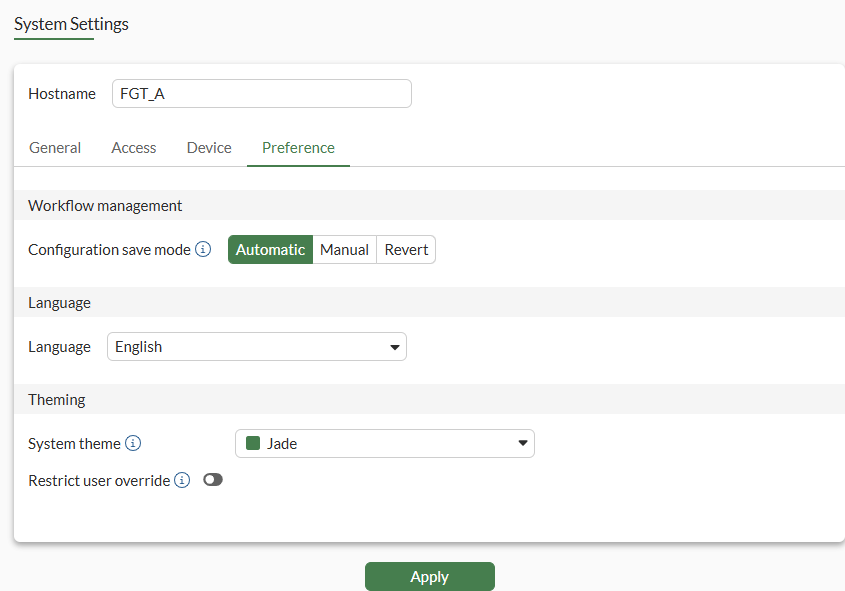
  1. Go to System > Settings > Preference.

  2. Beside System theme, click the list, and select Create (+). The Configure system theme pane is displayed.
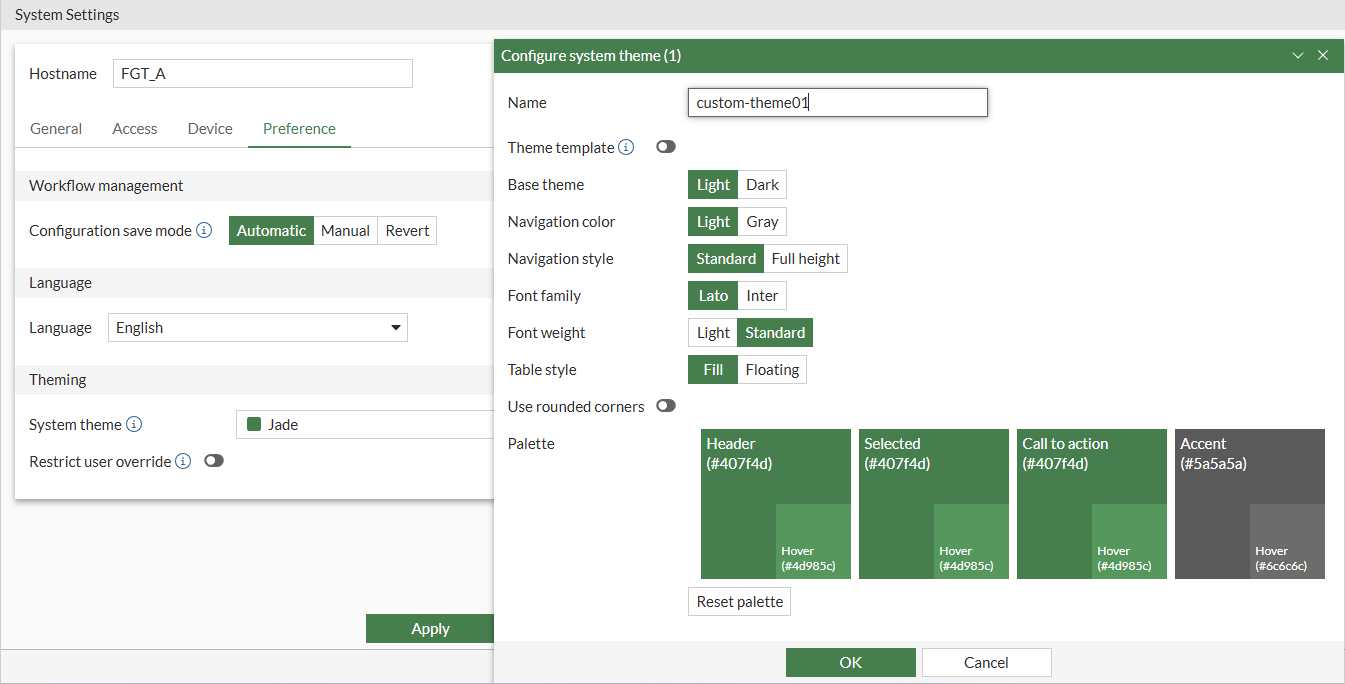
  3. (Optional) Enable Theme template and select an existing template to customize.

  4. Set the options, and click OK. The custom theme is selected.

  5. (Optional) Enable Restrict user override to restrict theme customization to administrators assigned the super_admin profile.

  6. Click Apply to apply the changes to the GUI.

To create a custom theme in the CLI:
config system theme    
    edit "custom theme 1"
        set nav-color gray
        set nav-style full-height
        set font inter
        set font-weight light
        set table-style float
        set border-radius enable
        set header-color "#e64747"
        set selected-color "#2cbaa2"
        set call-to-action-color "#ba2cb5"
        set accent-color "#df1616"
        set banner-msg ''
    next 
end

Assigning color themes

You can assign predefined and custom themes to the system, admin profiles, and administrators.

Administrators can also choose a theme.

To assign a theme to an administrator profile in the GUI:
  1. Go to System > Admin Profiles.

  2. Open an existing administrator profile for editing, or click Create new to create a new profile.

  3. Set Override Theme to Customize and select a theme, or click Create (+) to create a custom theme.
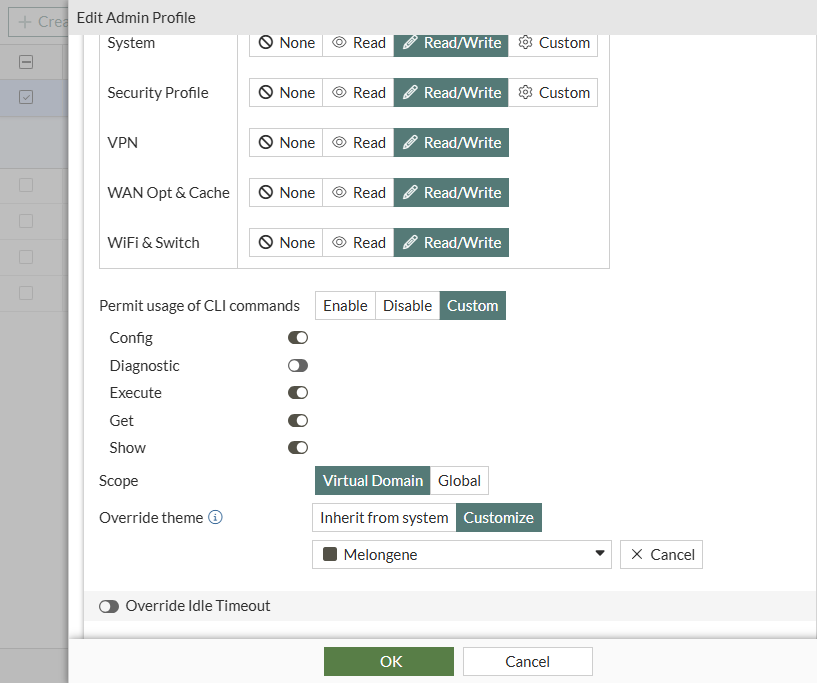
  4. Click OK to save the settings.

    The selected theme is used for administrators assigned this profile.

To assign a theme to an administrator profile in the CLI:
config system accprofile
    edit "prof_admin"       
        set gui-theme custom
        set gui-custom-theme custom theme 1
    next
end
To assign a theme to individual administrators in the GUI:
  1. Go to System > Administrators and double-click an administrator to open it for editing.

  2. Set Override Theme to Customize and select a theme, or click Create (+) to create a custom theme.

  3. Click OK to save the settings.

    The selected theme is used for the administrator.

To assign a custom theme to individual administrators in the CLI:
config system admin
    edit "admin"        
        set gui-theme custom
        set gui-custom-theme custom theme 1        
    next
end
To personalize the GUI:
  1. From the top-right corner, click your administrator name and select Personalize. The Personalize dialog box is displayed.

  2. Set Theme to Customize and select a theme, or click Create (+) to create a custom theme.

  3. Click OK to save the settings.

    The selected theme is used when you log in to FortiOS.

Configuring a banner

A banner can be configured for a custom color theme using the CLI.

To configure a banner for a custom theme in the CLI:
  1. Configure the banner message and severity:

    config system theme
        edit theme01        
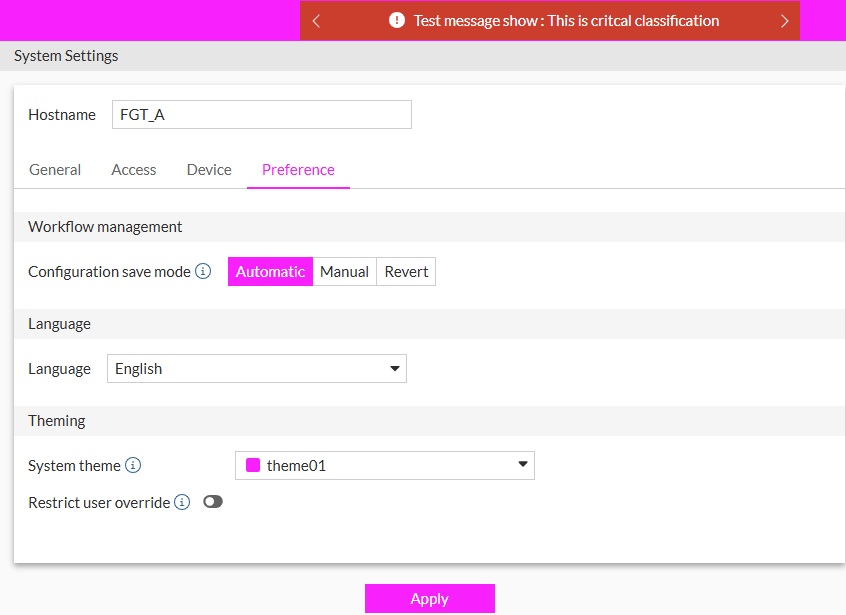
            set banner-msg "Test message show: This is critical classification"
            set banner-msg-severity critical
        next
    end

    The message displays in the banner for the custom theme:
Setting GUI color themes NEW

Setting GUI color themes NEW

FortiOS include several predefined color themes for the GUI. You can also create custom color themes.

Predefined and custom themes can be associated with the FortiOS system, admin profiles, or individual administrators.

Banner messages associated with a severity can be created for custom themes using the CLI.

Creating custom color themes

You can create one or more custom GUI themes for FortiOS. Then you can assign different predefined or custom themes to the system, admin profiles, and administrators.

To create a custom theme in the GUI:
  1. Go to System > Settings > Preference.

  2. Beside System theme, click the list, and select Create (+). The Configure system theme pane is displayed.

  3. (Optional) Enable Theme template and select an existing template to customize.

  4. Set the options, and click OK. The custom theme is selected.

  5. (Optional) Enable Restrict user override to restrict theme customization to administrators assigned the super_admin profile.

  6. Click Apply to apply the changes to the GUI.

To create a custom theme in the CLI:
config system theme    
    edit "custom theme 1"
        set nav-color gray
        set nav-style full-height
        set font inter
        set font-weight light
        set table-style float
        set border-radius enable
        set header-color "#e64747"
        set selected-color "#2cbaa2"
        set call-to-action-color "#ba2cb5"
        set accent-color "#df1616"
        set banner-msg ''
    next 
end

Assigning color themes

You can assign predefined and custom themes to the system, admin profiles, and administrators.

Administrators can also choose a theme.

To assign a theme to an administrator profile in the GUI:
  1. Go to System > Admin Profiles.

  2. Open an existing administrator profile for editing, or click Create new to create a new profile.

  3. Set Override Theme to Customize and select a theme, or click Create (+) to create a custom theme.

  4. Click OK to save the settings.

    The selected theme is used for administrators assigned this profile.

To assign a theme to an administrator profile in the CLI:
config system accprofile
    edit "prof_admin"       
        set gui-theme custom
        set gui-custom-theme custom theme 1
    next
end
To assign a theme to individual administrators in the GUI:
  1. Go to System > Administrators and double-click an administrator to open it for editing.

  2. Set Override Theme to Customize and select a theme, or click Create (+) to create a custom theme.

  3. Click OK to save the settings.

    The selected theme is used for the administrator.

To assign a custom theme to individual administrators in the CLI:
config system admin
    edit "admin"        
        set gui-theme custom
        set gui-custom-theme custom theme 1        
    next
end
To personalize the GUI:
  1. From the top-right corner, click your administrator name and select Personalize. The Personalize dialog box is displayed.

  2. Set Theme to Customize and select a theme, or click Create (+) to create a custom theme.

  3. Click OK to save the settings.

    The selected theme is used when you log in to FortiOS.

Configuring a banner

A banner can be configured for a custom color theme using the CLI.

To configure a banner for a custom theme in the CLI:
  1. Configure the banner message and severity:

    config system theme
        edit theme01        
            set banner-msg "Test message show: This is critical classification"
            set banner-msg-severity critical
        next
    end

    The message displays in the banner for the custom theme: