Fortinet white logo
Fortinet white logo

Administration Guide

Using FortiSandbox inline scanning with antivirus

Using FortiSandbox inline scanning with antivirus

FortiSandbox inline scanning can be used in proxy and flow mode. When inline scanning is enabled, the client's file is held while it is sent to FortiSandbox for inspection. During this time, the FortiGate may apply client comforting (see Protocol options). For example, leaking a certain amount of bytes at a certain time interval to the client. Once a verdict is returned, the appropriate action (allow or block) is performed on the held file. If there is an error connecting to the FortiSandbox or a timeout on the FortiSandbox scanning the file, the file can be passed, logged, or blocked based on FortiGate's configuration. For more information, see Configuring sandboxing.

When using FortiSandbox inline scanning in flow mode, you can utilize sandboxing alongside other flow-mode features, such as IPS; streamlining security operations by improving threat detection capabilities without the need to switch to proxy mode.

This topic describes how to configure the FortiSandbox inline scanning as follows:

FortiSandbox appliance inline scanning

Inline scanning requires a FortiSandbox appliance running version 4.2 or later, and the FortiSandbox must be reachable by port 4443. See Understanding Inline Block feature in the FortiSandbox Best Practices for more information.

FortiSandbox inline scanning is disabled by default. FortiSandbox inline scanning is best used in conjunction with AV engine scanning since there is a higher rate of detection by using both at the same time.

To enable FortiSandbox inline scanning:
config system fortisandbox
    set status enable
    set inline-scan {enable | disable}
    set server <fortisandbox_server_ip>
end
To configure the FortiSandbox scanning options in an antivirus profile:
config antivirus profile
    edit <name>
        set feature-set {proxy | flow}
        set fortisandbox-mode {inline | analytics-suspicious | analytics-everything}
        set fortisandbox-error-action {ignore | log-only | block}  
        set fortisandbox-timeout-action {ignore | log-only | block}
        set fortisandbox-max-upload <integer>
        set fortisandbox-scan-timeout <integer>
        config {http | ftp | imap | pop3 | smtp | mapi | cifs | ssh}
            set av-scan {disable | block | monitor}
            set fortisandbox {disable | block | monitor}
        end	
    next
end

Command

Description

feature-set {proxy | flow}

Set the inline scanning mode type.

fortisandbox-mode {inline | analytics-suspicious | analytics-everything}

Set the FortiSandbox scan mode:

  • inline: FortiSandbox inline scanning

  • analytics-suspicious: FortiSandbox post-transfer scanning; submit supported files if heuristics or other methods determine they are suspicious

  • analytics-everything: FortiSandbox post-transfer scanning; submit supported files and known infected files (default)

fortisandbox-error-action {ignore | log-only | block}

Set the action to take if FortiSandbox inline scanning encounters an error reaching the FortiSandbox:

  • ignore: Allow the file to pass, do not log the error.

  • log-only: Allow the file to pass, but log the connection error. (Default)

  • block: Block the file if a sandboxing error occurs.

fortisandbox-timeout-action {ignore | log-only | block}

Set the action to take if FortiSandbox inline scanning encounters a scan timeout:

  • ignore: Allow the file to pass, do not log the timeout.

  • log-only: Allow the file to pass, but log the timeout event. (Default)

  • block: Block the file if the scan times out.

fortisandbox-max-upload <integer>

Set the maximum size of files that can be uploaded to FortiSandbox (1 - 396, default = 10).

fortisandbox-scan-timeout <integer>

FortiSandbox inline scan timeout, in seconds (30 - 180, default = 60).

For on-premise Sandbox and FortiSandbox Cloud, setting fortisandbox-scan-timeout value lower than the timeout setting on the remote device may result in session timeout.

Lowering fortisandbox-scan-timeout from the default 60 seconds may result in session timeout when connecting to FortiGate Cloud Sandbox.

av-scan {disable | block | monitor}

Enable the antivirus scan service. Set to block or monitor to work with FortiSandbox (default = disable).

fortisandbox {disable | block | monitor}

Set the protocol level parameter for FortiSandbox file scanning:

  • disable (default), block, and monitor are available for inline scanning

  • disable (default) and monitor are available for post-transfer scanning

Configuring proxy-mode FortiSandbox inline scanning

This example assumes that Inline Block Policy is already enabled in FortiSandbox for the FortiGate with selected risk levels (see FortiGate devices in the FortiSandbox Administration Guide for more information). The inline block policy in this example blocks all risk levels: malicious, high risk, medium risk, and low risk.
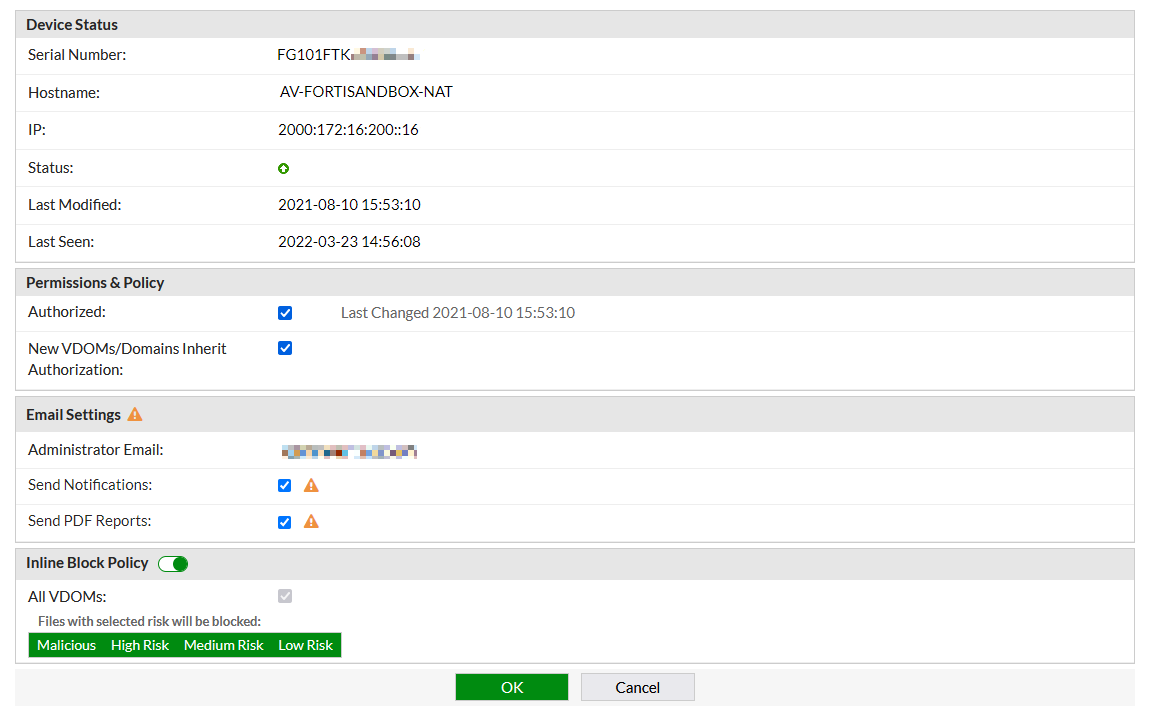
To configure proxy-mode FortiSandbox inline scanning in the GUI:
  1. Enable FortiSandbox inline scanning globally:

    config system fortisandbox
        set status enable
        set inline-scan enable
        set server "172.18.70.76"
    end
  2. Configure the antivirus profile:

    1. Go to Security Profiles > AntiVirus and click Create New.

    2. Set the Feature set to Proxy-based.

    3. Enable the protocols to inspect.

    4. Enable AntiVirus scan and set it to Block.

    5. Enable Send files to FortiSandbox for inspection and set the Action to Block. The Scan strategy appears as Inline because it was configured in the CLI.
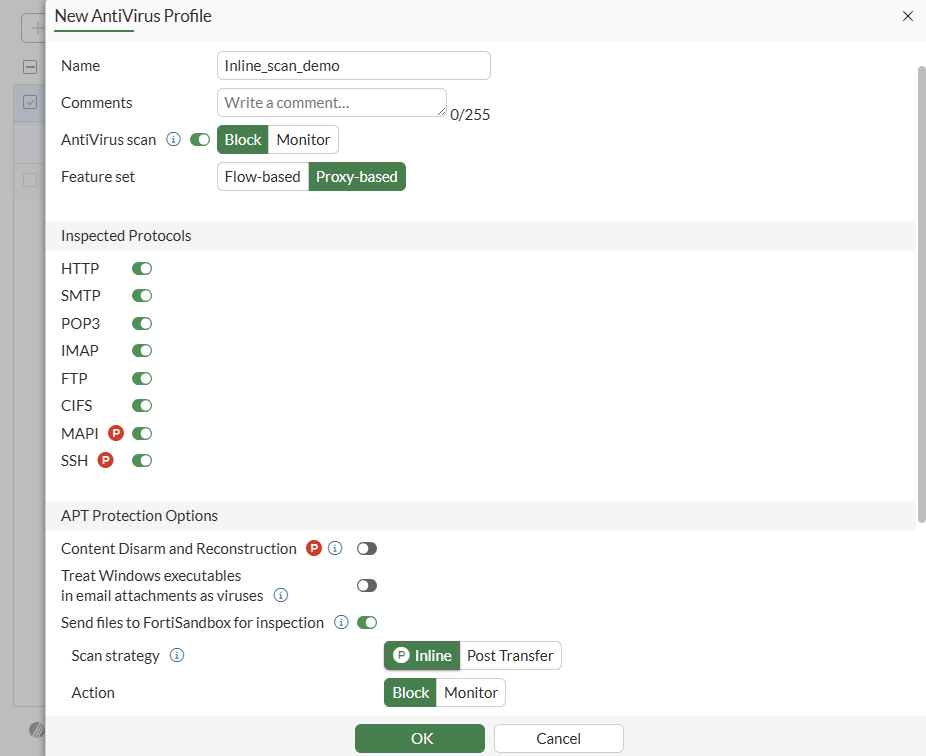
    6. Click OK.

To configure proxy-mode FortiSandbox inline scanning in the CLI:
  1. Enable FortiSandbox inline scanning globally:

    config system fortisandbox
        set status enable
        set inline-scan enable
        set server "172.18.70.76"
    end
  2. Configure the antivirus profile:

    config antivirus profile
        edit "Inline_scan_demo"
            set feature-set proxy
            set fortisandbox-mode inline
            config http
                set av-scan block
                set fortisandbox block
            end
            config ftp
                set av-scan block
                set fortisandbox block
            end
            config imap
                set av-scan block
                set fortisandbox block
            end
            config pop3
                set av-scan block
                set fortisandbox block
            end
            config smtp
                set av-scan block
                set fortisandbox block
            end
            config mapi
                set av-scan block
                set fortisandbox block
            end
            config cifs
                set av-scan block
                set fortisandbox block
            end
            config ssh
                set av-scan block
                set fortisandbox block
            end
        next 
    end
To verify that infected files are blocked inline:
  1. On a client, open a web browser and download an infected file.

  2. The file is held while being scanned by FortiSandbox. Once FortiSandbox determines that file's risk level is not tolerated by the inline block policy, the FortiGate drops the connection and displays a replacement message that the file cannot be downloaded.
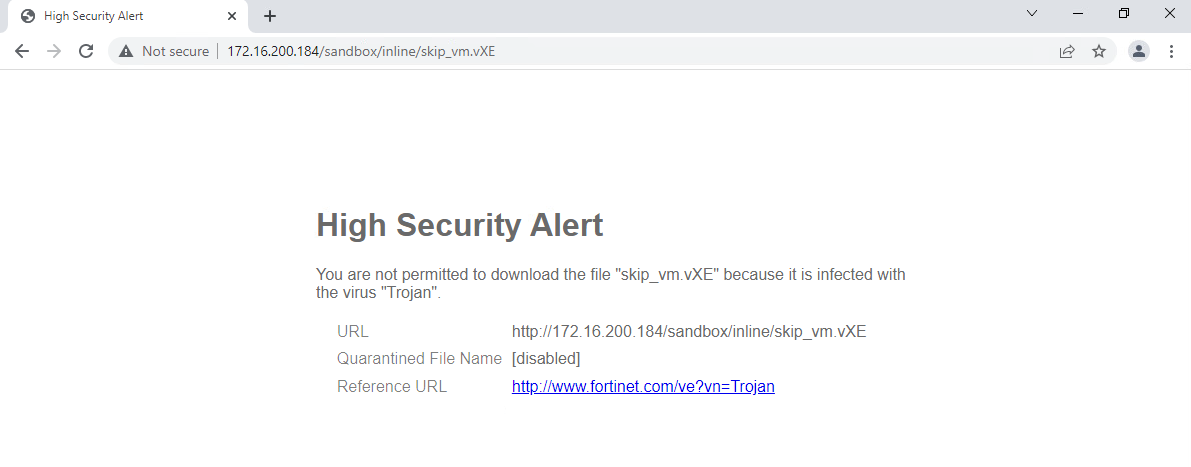
  3. In FortiOS, view the antivirus log.

    • In the GUI, go to Log & Report > Security Events and click the AntiVirus card.

    • In the CLI:

      # execute log filter category 2
      # execute log display
      1 logs found.
      1 logs returned.
      
      1: date=2022-03-23 time=16:19:37 eventtime=1648077577156255080 tz="-0700" logid="0210008232" type="utm" subtype="virus" eventtype="fortisandbox" level="warning" vd="vdom1" policyid=1 poluuid="9170ca3e-aade-51ec-772b-1d31f135fe26" policytype="policy" msg="Blocked by FortiSandbox." action="blocked" service="HTTP" sessionid=10545 srcip=10.1.100.181 dstip=172.16.200.184 srcport=37046 dstport=80 srccountry="Reserved" dstcountry="Reserved" srcintf="port1" srcintfrole="undefined" dstintf="port9" dstintfrole="undefined" srcuuid="5b426c60-aade-51ec-f020-b3d334ba18d3" dstuuid="5b426c60-aade-51ec-f020-b3d334ba18d3" proto=6 direction="incoming" filename="skip_vm.vXE" quarskip="File-was-not-quarantined" virus="Trojan" viruscat="Unknown" dtype="fortisandbox" ref="http://www.fortinet.com/ve?vn=Trojan" virusid=0 url="http://172.16.200.184/sandbox/inline/skip_vm.vXE" profile="Inline_scan_demo" agent="curl/7.68.0" httpmethod="GET" analyticssubmit="false" fsaaction="deny" fsaseverity="high-risk" fsaverdict="block" fsafileid=0 fsafiletype="exe" crscore=50 craction=2 crlevel="critical

FortiGuard AI-based Inline Malware Prevention Service

Inline scanning is supported when the FortiGate is licensed with the FortiGuard AI-based Inline Malware Prevention Service (IL MPS). It works similar to inline scanning for the FortiSandbox appliance, where the file that is being processed is first checked locally by the FortiGate. If it requires further analysis, the file is sent to the IL MPS for inspection. The file is submitted along with the following, additional information:

  • Device configuration (VDOM, service)

  • Username

  • Device identifiers

  • IP address

  • Suspicious URL

  • Suspicious files

The file and the above additional information remain in the FortiSandbox where they are evaluated by its multi-layered process leveraging its contained AI model. The information is not shared outside the FortiSandbox service with other large learning models. After the rating of either suspicious or clean is sent back to the FortiGate, the cloud-based service keeps the file, collected information, and derived information based on the retention period of 3 days and 60 days for files rated as Clean and Suspicious, respectively.

Inline scanning is supported for FortiSandbox appliances, FortiNDR, and IL MPS. On a FortiGate, only a single inline scanning type can be configured at one time.

To configure IL MPS scanning in the GUI:
  1. Enable the FortiGate Cloud feature visibility:

    1. Go to System > Feature Visibility.

    2. In the Additional Features section, enable FortiGate Cloud Sandbox.

    3. Click Apply.

  2. Configure the Sandbox Fabric connector:

    1. Go to Security Fabric > Fabric Connectors and double-click the Sandbox card.

    2. In the Settings tab, set the Type to FortiGate Cloud.

    3. Select a Region.

    4. Enable Inline scan.

    5. Click OK.

  3. Configure the antivirus profile:

    1. Go to Security Profiles > AntiVirus and click Create New.

    2. Set the Feature set to Proxy-based.

    3. Enable the protocols to inspect.

    4. Enable Send files to FortiSandbox for inspection.

    5. Set the Scan strategy to Inline, and set the Action to Block.
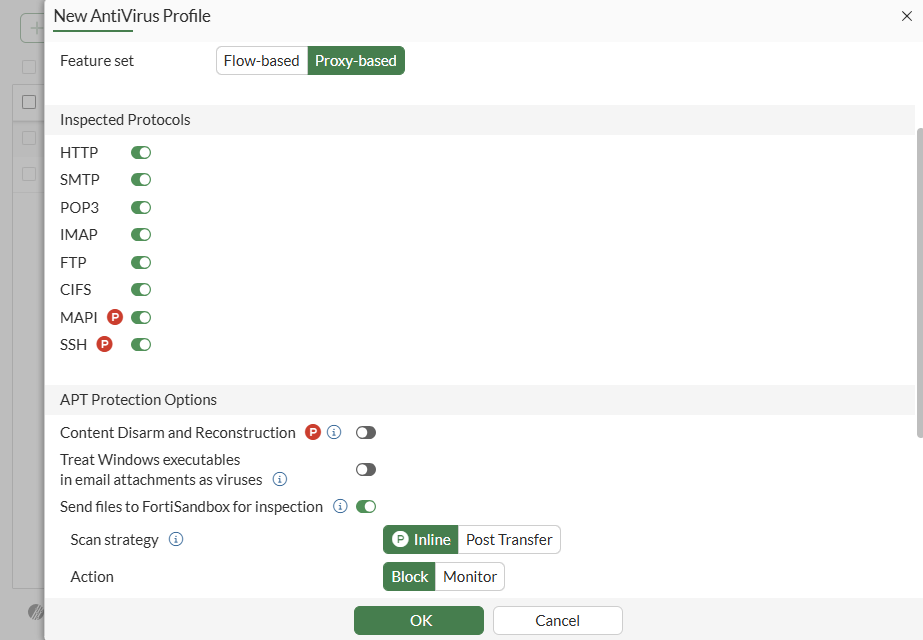
    6. Click OK.

To configure IL MPS scanning in the CLI:
  1. Disable FortiSandbox appliance and FortiSandbox Cloud:

    config system fortisandbox 
        set status disable 
    end
  2. Configure FortiGate Cloud Sandbox:

    # execute forticloud-sandbox region 
    0  Global
    1  Europe
    2  Japan
    3  US
    Please select cloud sandbox region[0-3]:0
    Cloud sandbox region is selected: Global
  3. Enable inline scanning for FortiGate Cloud:

    config system fortiguard
        set sandbox-region "Global"
        set sandbox-inline-scan enable
    end
  4. Configure the antivirus profile:

    config antivirus profile
        edit "av"
            set feature-set proxy
            set fortisandbox-mode inline
            config http
                set fortisandbox block
            end
            config ftp
                set fortisandbox block
            end
            config imap
                set fortisandbox block
            end
            config pop3
                set fortisandbox block
            end
            config smtp
                set fortisandbox block
            end
            config mapi
                set fortisandbox block
            end
            config cifs
                set fortisandbox block
            end
            config ssh
                set fortisandbox block
            end
            set scan-mode default
        next
    end
To verify that infected files are blocked inline:
  1. On a client, open a web browser and download an infected file using HTTP.

  2. The file is held while being scanned by FortiGate Cloud Sandbox. Once FortiGate Cloud Sandbox determines that file's risk level is not tolerated, the FortiGate drops the connection and displays a replacement message that the file cannot be downloaded.

  3. Verify the antivirus log:

    # execute log display
    1 logs found.
    1 logs returned.
    
    1: date=2022-07-12 time=16:31:26 eventtime=1657668686245018328 tz="-0700" logid="0210008232" type="utm" subtype="virus" eventtype="fortisandbox" level="warning" vd="vdom1" policyid=1 poluuid="54c06312-01fd-51ed-0db5-10c9586a0c2e" policytype="policy" msg="Blocked by FortiSandbox." action="blocked" service="HTTP" sessionid=19934 srcip=10.1.100.191 dstip=172.16.200.194 srcport=51688 dstport=80 srccountry="Reserved" dstcountry="Reserved" srcintf="port1" srcintfrole="undefined" dstintf="port9" dstintfrole="undefined" srcuuid="1cb467b6-01fd-51ed-8abf-72abd959c0d0" dstuuid="1cb467b6-01fd-51ed-8abf-72abd959c0d0" proto=6 direction="incoming" filename="skip_vm.vXE" quarskip="Quarantine-disabled" virus="Unknown" viruscat="Trojan" dtype="fortisandbox" ref="http://www.fortinet.com/ve?vn=Unknown" virusid=0 url="http://172.16.200.194/sandbox/inline/skip_vm.vXE" profile="av" agent="curl/7.68.0" httpmethod="GET" analyticssubmit="false" fsaaction="deny" fsaverdict="block" fsaseverity="high-risk" fsafileid=0 fsafiletype="exe" crscore=50 craction=2 crlevel="critical"
To verify that infected files are monitored:
  1. Edit the antivirus profile to monitor files over HTTP:

    config antivirus profile
        edit "av"
            set feature-set proxy
            set fortisandbox-mode inline
            config http
                set fortisandbox monitor
            end
        next
    end
  2. On a client, open a web browser and download an infected file using HTTP.

  3. Verify the antivirus log:

    # execute log display
    1 logs found.
    1 logs returned.
    					
    1: date=2022-07-12 time=16:34:25 eventtime=1657668865371976563 tz="-0700" logid="0210008233" type="utm" subtype="virus" eventtype="fortisandbox" level="notice" vd="vdom1" policyid=1 poluuid="54c06312-01fd-51ed-0db5-10c9586a0c2e" policytype="policy" msg="Detected by FortiSandbox." action="monitored" service="HTTP" sessionid=20002 srcip=10.1.100.191 dstip=172.16.200.194 srcport=51724 dstport=80 srccountry="Reserved" dstcountry="Reserved" srcintf="port1" srcintfrole="undefined" dstintf="port9" dstintfrole="undefined" srcuuid="1cb467b6-01fd-51ed-8abf-72abd959c0d0" dstuuid="1cb467b6-01fd-51ed-8abf-72abd959c0d0" proto=6 direction="incoming" filename="skip_vm.vXE" quarskip="Quarantine-disabled" virus="Unknown" viruscat="Trojan" dtype="fortisandbox" ref="http://www.fortinet.com/ve?vn=Unknown" virusid=0 url="http://172.16.200.194/sandbox/inline/skip_vm.vXE" profile="av" agent="curl/7.68.0" httpmethod="GET" analyticssubmit="false" fsaaction="deny" fsaverdict="block" fsaseverity="high-risk" fsafileid=0 fsafiletype="exe" crscore=50 craction=2 crlevel="critical"
To verify that infected files are blocked inline if a scan timeout occurs:
  1. Edit the antivirus profile to block files over HTTP and when there is a scan timeout:

    config antivirus profile
        edit "av"
            set feature-set proxy
            set fortisandbox-mode inline
            config http
                set fortisandbox block
            end
            set fortisandbox-timeout-action block
        next
    end
  2. On a client, open a web browser and download a large ZIP file (clean file).

  3. When the scan timeout occurs, a replacement message appears that The file "zipfile.zip" is still being scanned and will be released once complete. Please try the transfer again in a few minutes.

  4. Verify the antivirus log:

    # execute log display
    1 logs found.
    1 logs returned.
    
    1: date=2022-07-12 time=16:44:51 eventtime=1657669491697816069 tz="-0700" logid="0210008236" type="utm" subtype="virus" eventtype="fortisandbox" level="warning" vd="vdom1" policyid=1 poluuid="54c06312-01fd-51ed-0db5-10c9586a0c2e" policytype="policy" msg="FortiSandbox scan timeout." action="blocked" service="HTTP" sessionid=20258 srcip=10.1.100.191 dstip=172.16.200.194 srcport=51830 dstport=80 srccountry="Reserved" dstcountry="Reserved" srcintf="port1" srcintfrole="undefined" dstintf="port9" dstintfrole="undefined" srcuuid="1cb467b6-01fd-51ed-8abf-72abd959c0d0" dstuuid="1cb467b6-01fd-51ed-8abf-72abd959c0d0" proto=6 direction="incoming" filename="zipfile.zip" quarskip="Quarantine-disabled" url="http://172.16.200.194/sandbox/zipfile.zip" profile="av" agent="curl/7.68.0" httpmethod="GET" analyticssubmit="false" fsaaction="timeout" fsafileid=0 crscore=50 craction=2 crlevel="critical"
  5. After a few minutes, download the ZIP file again.

  6. When the scan is complete on the FortiSandbox side, the file is downloaded and no log is generated because the scan deemed that the file is clean.

FortiSandbox scanning error and timeout actions

In this example, the HTTP protocol settings for av-scan and fortisandbox in the AV profile are both set to block. All files traversing HTTP in this configuration are scanned by the AV engine first, and then by FortiSandbox inline scanning for further file analysis. Based on the FortiSandbox results, FortiOS will take the appropriate action.

Files can be blocked if they contain a scan error or timeout. The scan timeout is configured in FortiSandbox and set to 50 seconds. If the file scan takes longer than 50 seconds, FortiSandbox returns a timeout to the FortiGate, and file is dropped with the current configuration. If a user tries to download the same file again, the cached result is provided by FortiSandbox to the FortiGate based on the previous file scan.

This example assumes FortiSandbox inline scanning has been configured globally. The FortiGate will block the file if there is an inline scanning error or timeout.

To configure the antivirus profile to block files if there is an inline scanning error or timeout:
config antivirus profile
    edit "av"
        set feature-set proxy
        set fortisandbox-mode inline
        config http
            set av-scan block
            set fortisandbox block
        end
        set fortisandbox-error-action block
        set fortisandbox-timeout-action block
    next
end

If the administrator decides to take more risk and scan all files traversing HTTP, but log or ignore an inline scanning error or timeout, the profile is modified as follows:

config antivirus profile
    edit "av"
        set fortisandbox-error-action {log-only | ignore}
        set fortisandbox-timeout-action {log-only | ignore}
    next
end

The AV engine is still used first, followed by FortiSandbox inline scanning. The FortiGate will log or ignore the file if there is an inline scanning error or timeout, and the file is allowed to pass through.

Verifying flow-mode FortiSandbox inline scanning for HTTP actions

In the following example, FortiSandbox inline scanning in flow mode is set to block HTTP actions. Downloading a malicious file sample on HTTP is blocked.

To block HTTP actions through FortiSandbox inline scanning in flow mode:
  1. Configure FortiSandbox inline scanning in flow mode:

    config antivirus profile
        edit "fsa_inline_flow"
            set fortisandbox-mode inline
            config http
                set fortisandbox block
            end
        next
    end
  2. Attempt to download a malicious file sample on HTTP. The action is blocked.
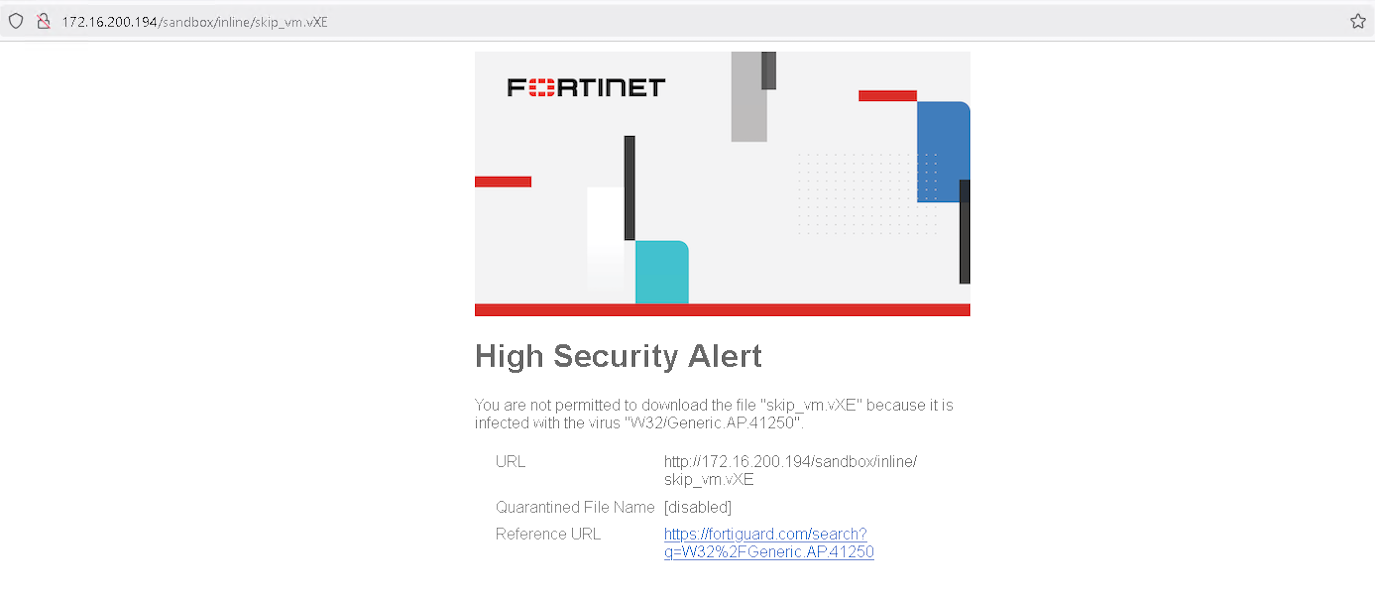
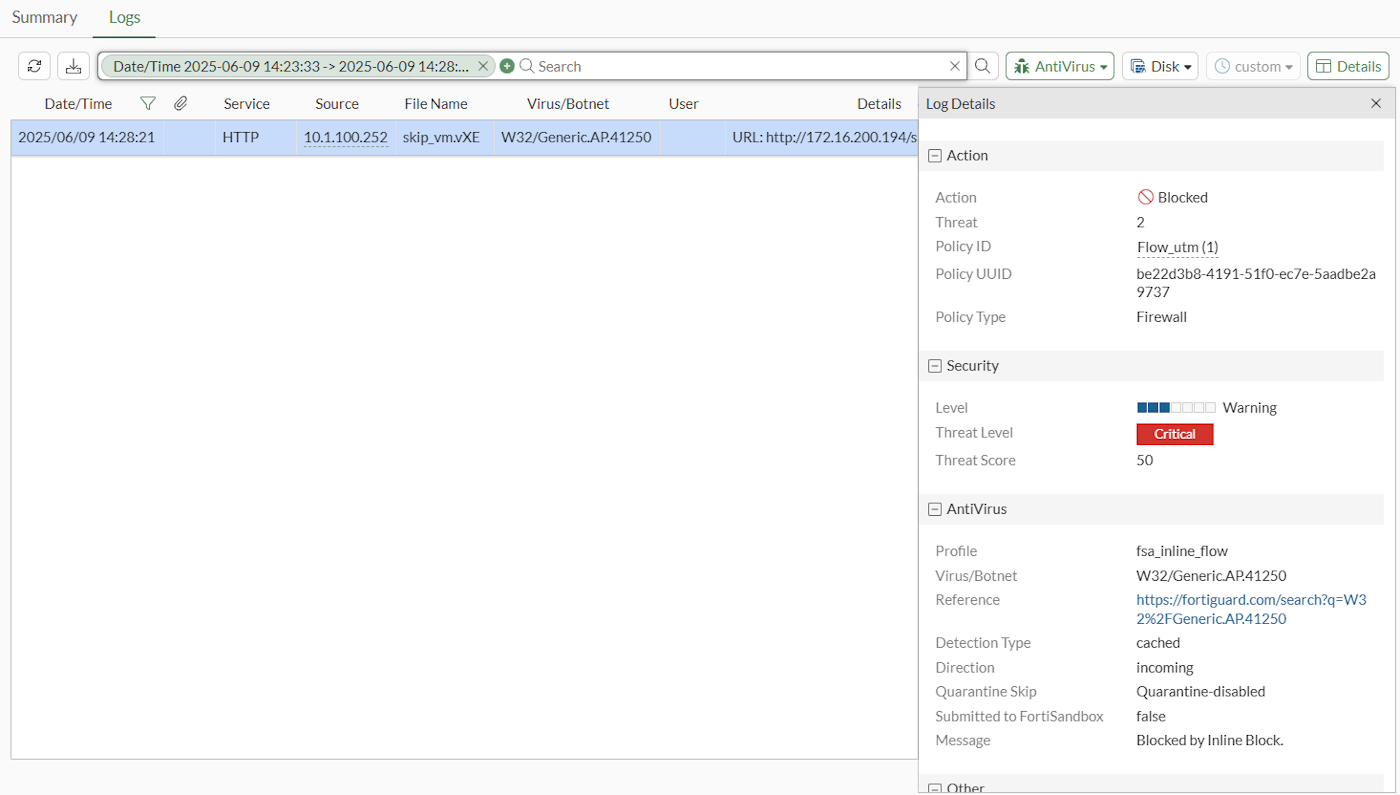
  3. View the logs in the GUI:

  4. View the logs in the CLI:

    # execute log display
    
    1:date=2025-06-09 time=14:24:09 eventtime=1749504249131410853 tz="-0700" logid="0209008220" type="utm" subtype="virus" eventtype="inline-block" level="warning" vd="vdom1" policyid=1 poluuid="be22d3b8-4191-51f0-ec7e-5aadbe2a9737" policytype="policy" msg="Blocked by Inline Block." action="blocked" service="HTTP" sessionid=93035 srcip=10.1.100.252 dstip=172.16.200.194 srcport=56671 dstport=80 srccountry="Reserved" dstcountry="Reserved" srcintf="port1" srcintfrole="undefined" dstintf="port9" dstintfrole="undefined" srcuuid="79ed46d8-4191-51f0-3dd9-dc7cd3922e47" dstuuid="79ed46d8-4191-51f0-3dd9-dc7cd3922e47" proto=6 direction="incoming" filename="skip_vm.vXE" filetype="exe" quarskip="Quarantine-disabled" virus="W32/Generic.AP.41250" viruscat="Unknown" dtype="cached" itype="inline-block" ref="https://fortiguard.com/search?q=W32%2FGeneric.AP.41250" url="http://172.16.200.194/sandbox/inline/skip_vm.vXE" profile="fsa_inline_flow" agent="Mozilla/5.0 (Windows NT 10.0; Win64; x64; rv:135.0) Gecko/20100101 Firefox/135.0" httpmethod="GET" analyticssubmit="false" icbaction="deny" icbverdict="block" icbseverity="malicious" icbfileid="ab5d58debc11e8c78dac5097267d472927f1d185cb21ffbedd00db9d6049c8d3" icbfiletype="exe" crscore=50 craction=2 crlevel="critical"

Verifying flow-mode FortiSandbox inline scanning for FTP actions

In the following example, FortiSandbox inline scanning in flow mode is set to monitor FTP actions. Uploading a malicious file sample on FTP is monitored.

To monitor FTP actions through FortiSandbox inline scanning in flow mode:
  1. Configure FortiSandbox inline scanning in flow mode:

    config antivirus profile
        edit "fsa_flow_inline"
            set fortisandbox-mode inline
            config ftp
                set fortisandbox monitor
            end
        next
    end
  2. Attempt to upload a malicious file sample on FTP. The action is monitored.
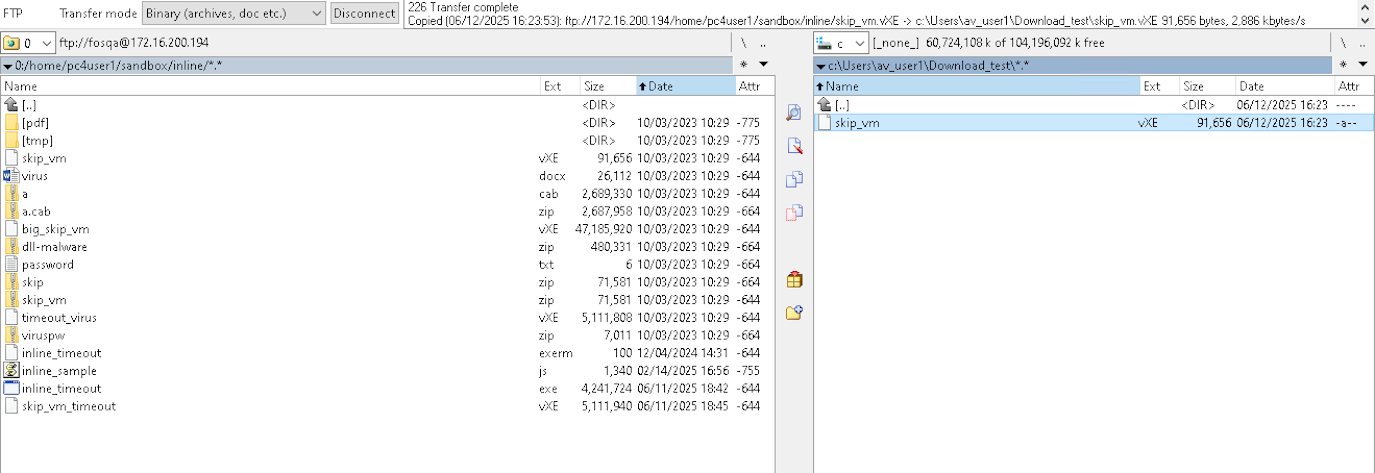
  3. View the logs:

    # execute log display
    
    1: date=2025-06-12 time=16:19:56 eventtime=1749770396462744989 tz="-0700" logid="0209008221" type="utm" subtype="virus" eventtype="inline-block" level="notice" vd="vdom1" policyid=1 poluuid="f820fc12-f07d-51ef-10a7-9ce92adafc22" policytype="policy" msg="Detected by Inline Block." action="monitored" service="FTP" sessionid=1305 srcip=172.16.200.194 dstip=10.1.100.252 srcport=20 dstport=65463 srccountry="Reserved" dstcountry="Reserved" psrcport=65453 pdstport=21 srcintf="port3" srcintfrole="lan" dstintf="port2" dstintfrole="lan" srcuuid="eb7a7402-4489-51ef-4afd-ca286e50ca04" dstuuid="eb7a7402-4489-51ef-4afd-ca286e50ca04" proto=6 direction="incoming" filename="skip_vm.vXE" filetype="exe" quarskip="Quarantine-disabled" virus="W32/Generic.AP.41250" viruscat="NotApplicable" dtype="fortisandbox" itype="inline-block" ref="https://fortiguard.com/search?q=W32%2FGeneric.AP.41250" profile="fsa_flow_inline" analyticssubmit="false" icbaction="deny" icbverdict="block" icbseverity="malicious" icbfileid="ab5d58debc11e8c78dac5097267d472927f1d185cb21ffbedd00db9d6049c8d3" icbfiletype="exe" crscore=50 craction=2 crlevel="critical"

Verifying flow-mode FortiSandbox inline scanning for POP3 actions

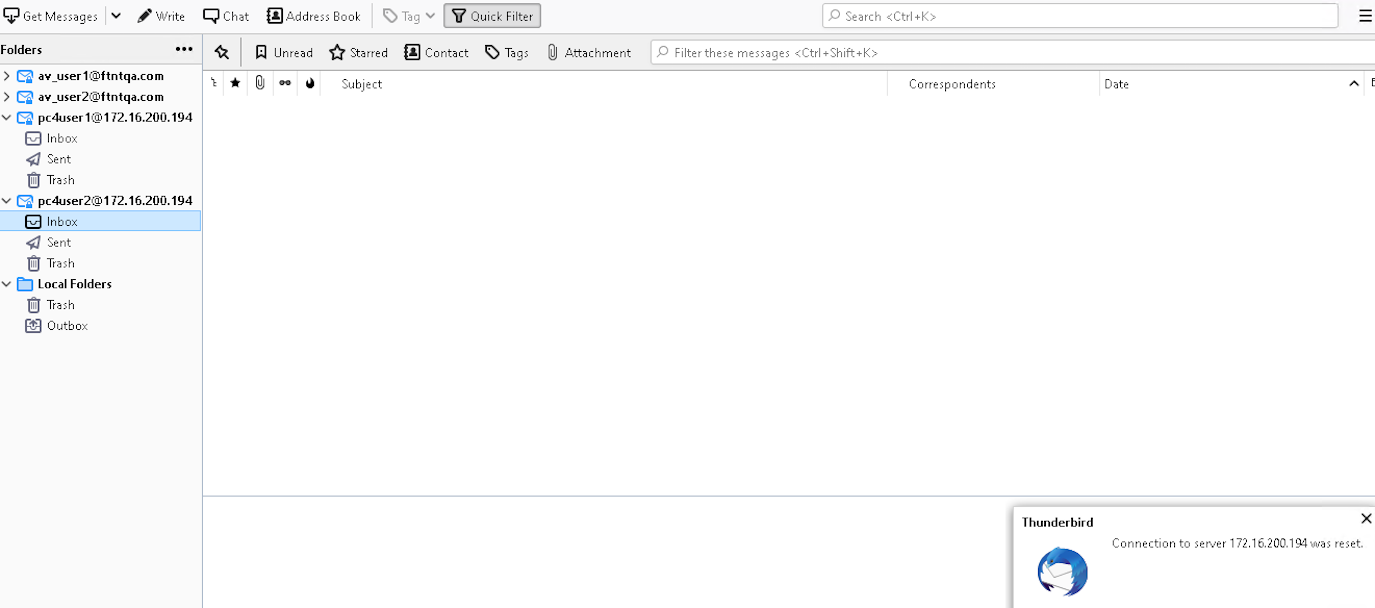
In the following example, FortiSandbox inline scanning in flow mode is set to block POP3 actions. Downloading a malicious file sample on POP3 is blocked.

To block POP3 actions through FortiSandbox inline scanning in flow mode:
  1. Configure FortiSandbox inline scanning in flow mode:

    config antivirus profile
        edit "fsa_inline_flow"
            set fortisandbox-mode inline
            config pop3
                set fortisandbox block
            end
        next
    end
  2. A malicious file is emailed to the client on POP3.
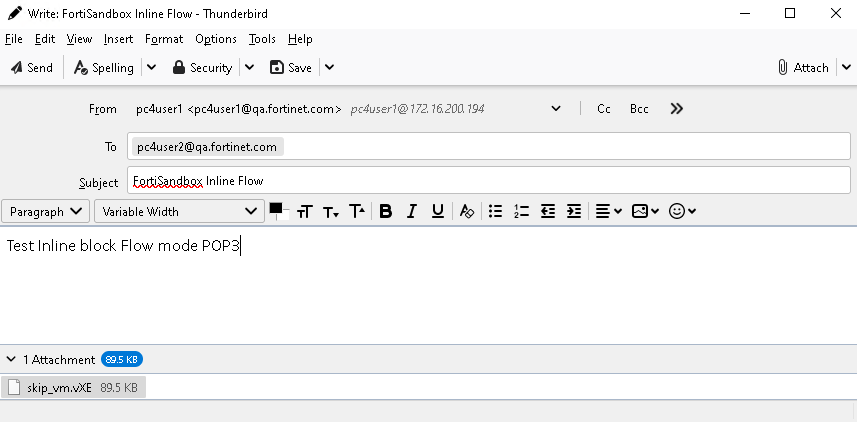
    The email is blocked.
  3. View the logs:

    # execute log display
    
    1: date=2025-06-12 time=17:02:06 eventtime=1749772926320332178 tz="-0700" logid="0209008220" type="utm" subtype="virus" eventtype="inline-block" level="warning" vd="vdom1" policyid=1 poluuid="f820fc12-f07d-51ef-10a7-9ce92adafc22" policytype="policy" msg="Blocked by Inline Block." action="blocked" service="POP3S" sessionid=3036 srcip=10.1.100.252 dstip=172.16.200.194 srcport=49642 dstport=110 srccountry="Reserved" dstcountry="Reserved" srcintf="port2" srcintfrole="lan" dstintf="port3" dstintfrole="lan" srcuuid="eb7a7402-4489-51ef-4afd-ca286e50ca04" dstuuid="eb7a7402-4489-51ef-4afd-ca286e50ca04" proto=6 direction="incoming" filename="skip_vm.vXE" filetype="exe" quarskip="Quarantine-disabled" virus="W32/Generic.AP.41250" viruscat="Unknown" dtype="fortisandbox" itype="inline-block" ref="https://fortiguard.com/search?q=W32%2FGeneric.AP.41250" profile="fsa_inline_flow" from="pc4user1@qa.fortinet.com" to="pc4user2@qa.fortinet.com" messageid="<a9de312a-91a8-3340-0f2e-4b19f0238e50@qa.fortinet.com>" analyticssubmit="false" icbaction="deny" icbverdict="block" icbseverity="malicious" icbfileid="ab5d58debc11e8c78dac5097267d472927f1d185cb21ffbedd00db9d6049c8d3" icbfiletype="exe" crscore=50 craction=2 crlevel="critical"

Using FortiSandbox inline scanning with antivirus

Using FortiSandbox inline scanning with antivirus

FortiSandbox inline scanning can be used in proxy and flow mode. When inline scanning is enabled, the client's file is held while it is sent to FortiSandbox for inspection. During this time, the FortiGate may apply client comforting (see Protocol options). For example, leaking a certain amount of bytes at a certain time interval to the client. Once a verdict is returned, the appropriate action (allow or block) is performed on the held file. If there is an error connecting to the FortiSandbox or a timeout on the FortiSandbox scanning the file, the file can be passed, logged, or blocked based on FortiGate's configuration. For more information, see Configuring sandboxing.

When using FortiSandbox inline scanning in flow mode, you can utilize sandboxing alongside other flow-mode features, such as IPS; streamlining security operations by improving threat detection capabilities without the need to switch to proxy mode.

This topic describes how to configure the FortiSandbox inline scanning as follows:

FortiSandbox appliance inline scanning

Inline scanning requires a FortiSandbox appliance running version 4.2 or later, and the FortiSandbox must be reachable by port 4443. See Understanding Inline Block feature in the FortiSandbox Best Practices for more information.

FortiSandbox inline scanning is disabled by default. FortiSandbox inline scanning is best used in conjunction with AV engine scanning since there is a higher rate of detection by using both at the same time.

To enable FortiSandbox inline scanning:
config system fortisandbox
    set status enable
    set inline-scan {enable | disable}
    set server <fortisandbox_server_ip>
end
To configure the FortiSandbox scanning options in an antivirus profile:
config antivirus profile
    edit <name>
        set feature-set {proxy | flow}
        set fortisandbox-mode {inline | analytics-suspicious | analytics-everything}
        set fortisandbox-error-action {ignore | log-only | block}  
        set fortisandbox-timeout-action {ignore | log-only | block}
        set fortisandbox-max-upload <integer>
        set fortisandbox-scan-timeout <integer>
        config {http | ftp | imap | pop3 | smtp | mapi | cifs | ssh}
            set av-scan {disable | block | monitor}
            set fortisandbox {disable | block | monitor}
        end	
    next
end

Command

Description

feature-set {proxy | flow}

Set the inline scanning mode type.

fortisandbox-mode {inline | analytics-suspicious | analytics-everything}

Set the FortiSandbox scan mode:

  • inline: FortiSandbox inline scanning

  • analytics-suspicious: FortiSandbox post-transfer scanning; submit supported files if heuristics or other methods determine they are suspicious

  • analytics-everything: FortiSandbox post-transfer scanning; submit supported files and known infected files (default)

fortisandbox-error-action {ignore | log-only | block}

Set the action to take if FortiSandbox inline scanning encounters an error reaching the FortiSandbox:

  • ignore: Allow the file to pass, do not log the error.

  • log-only: Allow the file to pass, but log the connection error. (Default)

  • block: Block the file if a sandboxing error occurs.

fortisandbox-timeout-action {ignore | log-only | block}

Set the action to take if FortiSandbox inline scanning encounters a scan timeout:

  • ignore: Allow the file to pass, do not log the timeout.

  • log-only: Allow the file to pass, but log the timeout event. (Default)

  • block: Block the file if the scan times out.

fortisandbox-max-upload <integer>

Set the maximum size of files that can be uploaded to FortiSandbox (1 - 396, default = 10).

fortisandbox-scan-timeout <integer>

FortiSandbox inline scan timeout, in seconds (30 - 180, default = 60).

For on-premise Sandbox and FortiSandbox Cloud, setting fortisandbox-scan-timeout value lower than the timeout setting on the remote device may result in session timeout.

Lowering fortisandbox-scan-timeout from the default 60 seconds may result in session timeout when connecting to FortiGate Cloud Sandbox.

av-scan {disable | block | monitor}

Enable the antivirus scan service. Set to block or monitor to work with FortiSandbox (default = disable).

fortisandbox {disable | block | monitor}

Set the protocol level parameter for FortiSandbox file scanning:

  • disable (default), block, and monitor are available for inline scanning

  • disable (default) and monitor are available for post-transfer scanning

Configuring proxy-mode FortiSandbox inline scanning

This example assumes that Inline Block Policy is already enabled in FortiSandbox for the FortiGate with selected risk levels (see FortiGate devices in the FortiSandbox Administration Guide for more information). The inline block policy in this example blocks all risk levels: malicious, high risk, medium risk, and low risk.

To configure proxy-mode FortiSandbox inline scanning in the GUI:
  1. Enable FortiSandbox inline scanning globally:

    config system fortisandbox
        set status enable
        set inline-scan enable
        set server "172.18.70.76"
    end
  2. Configure the antivirus profile:

    1. Go to Security Profiles > AntiVirus and click Create New.

    2. Set the Feature set to Proxy-based.

    3. Enable the protocols to inspect.

    4. Enable AntiVirus scan and set it to Block.

    5. Enable Send files to FortiSandbox for inspection and set the Action to Block. The Scan strategy appears as Inline because it was configured in the CLI.

    6. Click OK.

To configure proxy-mode FortiSandbox inline scanning in the CLI:
  1. Enable FortiSandbox inline scanning globally:

    config system fortisandbox
        set status enable
        set inline-scan enable
        set server "172.18.70.76"
    end
  2. Configure the antivirus profile:

    config antivirus profile
        edit "Inline_scan_demo"
            set feature-set proxy
            set fortisandbox-mode inline
            config http
                set av-scan block
                set fortisandbox block
            end
            config ftp
                set av-scan block
                set fortisandbox block
            end
            config imap
                set av-scan block
                set fortisandbox block
            end
            config pop3
                set av-scan block
                set fortisandbox block
            end
            config smtp
                set av-scan block
                set fortisandbox block
            end
            config mapi
                set av-scan block
                set fortisandbox block
            end
            config cifs
                set av-scan block
                set fortisandbox block
            end
            config ssh
                set av-scan block
                set fortisandbox block
            end
        next 
    end
To verify that infected files are blocked inline:
  1. On a client, open a web browser and download an infected file.

  2. The file is held while being scanned by FortiSandbox. Once FortiSandbox determines that file's risk level is not tolerated by the inline block policy, the FortiGate drops the connection and displays a replacement message that the file cannot be downloaded.

  3. In FortiOS, view the antivirus log.

    • In the GUI, go to Log & Report > Security Events and click the AntiVirus card.

    • In the CLI:

      # execute log filter category 2
      # execute log display
      1 logs found.
      1 logs returned.
      
      1: date=2022-03-23 time=16:19:37 eventtime=1648077577156255080 tz="-0700" logid="0210008232" type="utm" subtype="virus" eventtype="fortisandbox" level="warning" vd="vdom1" policyid=1 poluuid="9170ca3e-aade-51ec-772b-1d31f135fe26" policytype="policy" msg="Blocked by FortiSandbox." action="blocked" service="HTTP" sessionid=10545 srcip=10.1.100.181 dstip=172.16.200.184 srcport=37046 dstport=80 srccountry="Reserved" dstcountry="Reserved" srcintf="port1" srcintfrole="undefined" dstintf="port9" dstintfrole="undefined" srcuuid="5b426c60-aade-51ec-f020-b3d334ba18d3" dstuuid="5b426c60-aade-51ec-f020-b3d334ba18d3" proto=6 direction="incoming" filename="skip_vm.vXE" quarskip="File-was-not-quarantined" virus="Trojan" viruscat="Unknown" dtype="fortisandbox" ref="http://www.fortinet.com/ve?vn=Trojan" virusid=0 url="http://172.16.200.184/sandbox/inline/skip_vm.vXE" profile="Inline_scan_demo" agent="curl/7.68.0" httpmethod="GET" analyticssubmit="false" fsaaction="deny" fsaseverity="high-risk" fsaverdict="block" fsafileid=0 fsafiletype="exe" crscore=50 craction=2 crlevel="critical

FortiGuard AI-based Inline Malware Prevention Service

Inline scanning is supported when the FortiGate is licensed with the FortiGuard AI-based Inline Malware Prevention Service (IL MPS). It works similar to inline scanning for the FortiSandbox appliance, where the file that is being processed is first checked locally by the FortiGate. If it requires further analysis, the file is sent to the IL MPS for inspection. The file is submitted along with the following, additional information:

  • Device configuration (VDOM, service)

  • Username

  • Device identifiers

  • IP address

  • Suspicious URL

  • Suspicious files

The file and the above additional information remain in the FortiSandbox where they are evaluated by its multi-layered process leveraging its contained AI model. The information is not shared outside the FortiSandbox service with other large learning models. After the rating of either suspicious or clean is sent back to the FortiGate, the cloud-based service keeps the file, collected information, and derived information based on the retention period of 3 days and 60 days for files rated as Clean and Suspicious, respectively.

Inline scanning is supported for FortiSandbox appliances, FortiNDR, and IL MPS. On a FortiGate, only a single inline scanning type can be configured at one time.

To configure IL MPS scanning in the GUI:
  1. Enable the FortiGate Cloud feature visibility:

    1. Go to System > Feature Visibility.

    2. In the Additional Features section, enable FortiGate Cloud Sandbox.

    3. Click Apply.

  2. Configure the Sandbox Fabric connector:

    1. Go to Security Fabric > Fabric Connectors and double-click the Sandbox card.

    2. In the Settings tab, set the Type to FortiGate Cloud.

    3. Select a Region.

    4. Enable Inline scan.

    5. Click OK.

  3. Configure the antivirus profile:

    1. Go to Security Profiles > AntiVirus and click Create New.

    2. Set the Feature set to Proxy-based.

    3. Enable the protocols to inspect.

    4. Enable Send files to FortiSandbox for inspection.

    5. Set the Scan strategy to Inline, and set the Action to Block.

    6. Click OK.

To configure IL MPS scanning in the CLI:
  1. Disable FortiSandbox appliance and FortiSandbox Cloud:

    config system fortisandbox 
        set status disable 
    end
  2. Configure FortiGate Cloud Sandbox:

    # execute forticloud-sandbox region 
    0  Global
    1  Europe
    2  Japan
    3  US
    Please select cloud sandbox region[0-3]:0
    Cloud sandbox region is selected: Global
  3. Enable inline scanning for FortiGate Cloud:

    config system fortiguard
        set sandbox-region "Global"
        set sandbox-inline-scan enable
    end
  4. Configure the antivirus profile:

    config antivirus profile
        edit "av"
            set feature-set proxy
            set fortisandbox-mode inline
            config http
                set fortisandbox block
            end
            config ftp
                set fortisandbox block
            end
            config imap
                set fortisandbox block
            end
            config pop3
                set fortisandbox block
            end
            config smtp
                set fortisandbox block
            end
            config mapi
                set fortisandbox block
            end
            config cifs
                set fortisandbox block
            end
            config ssh
                set fortisandbox block
            end
            set scan-mode default
        next
    end
To verify that infected files are blocked inline:
  1. On a client, open a web browser and download an infected file using HTTP.

  2. The file is held while being scanned by FortiGate Cloud Sandbox. Once FortiGate Cloud Sandbox determines that file's risk level is not tolerated, the FortiGate drops the connection and displays a replacement message that the file cannot be downloaded.

  3. Verify the antivirus log:

    # execute log display
    1 logs found.
    1 logs returned.
    
    1: date=2022-07-12 time=16:31:26 eventtime=1657668686245018328 tz="-0700" logid="0210008232" type="utm" subtype="virus" eventtype="fortisandbox" level="warning" vd="vdom1" policyid=1 poluuid="54c06312-01fd-51ed-0db5-10c9586a0c2e" policytype="policy" msg="Blocked by FortiSandbox." action="blocked" service="HTTP" sessionid=19934 srcip=10.1.100.191 dstip=172.16.200.194 srcport=51688 dstport=80 srccountry="Reserved" dstcountry="Reserved" srcintf="port1" srcintfrole="undefined" dstintf="port9" dstintfrole="undefined" srcuuid="1cb467b6-01fd-51ed-8abf-72abd959c0d0" dstuuid="1cb467b6-01fd-51ed-8abf-72abd959c0d0" proto=6 direction="incoming" filename="skip_vm.vXE" quarskip="Quarantine-disabled" virus="Unknown" viruscat="Trojan" dtype="fortisandbox" ref="http://www.fortinet.com/ve?vn=Unknown" virusid=0 url="http://172.16.200.194/sandbox/inline/skip_vm.vXE" profile="av" agent="curl/7.68.0" httpmethod="GET" analyticssubmit="false" fsaaction="deny" fsaverdict="block" fsaseverity="high-risk" fsafileid=0 fsafiletype="exe" crscore=50 craction=2 crlevel="critical"
To verify that infected files are monitored:
  1. Edit the antivirus profile to monitor files over HTTP:

    config antivirus profile
        edit "av"
            set feature-set proxy
            set fortisandbox-mode inline
            config http
                set fortisandbox monitor
            end
        next
    end
  2. On a client, open a web browser and download an infected file using HTTP.

  3. Verify the antivirus log:

    # execute log display
    1 logs found.
    1 logs returned.
    					
    1: date=2022-07-12 time=16:34:25 eventtime=1657668865371976563 tz="-0700" logid="0210008233" type="utm" subtype="virus" eventtype="fortisandbox" level="notice" vd="vdom1" policyid=1 poluuid="54c06312-01fd-51ed-0db5-10c9586a0c2e" policytype="policy" msg="Detected by FortiSandbox." action="monitored" service="HTTP" sessionid=20002 srcip=10.1.100.191 dstip=172.16.200.194 srcport=51724 dstport=80 srccountry="Reserved" dstcountry="Reserved" srcintf="port1" srcintfrole="undefined" dstintf="port9" dstintfrole="undefined" srcuuid="1cb467b6-01fd-51ed-8abf-72abd959c0d0" dstuuid="1cb467b6-01fd-51ed-8abf-72abd959c0d0" proto=6 direction="incoming" filename="skip_vm.vXE" quarskip="Quarantine-disabled" virus="Unknown" viruscat="Trojan" dtype="fortisandbox" ref="http://www.fortinet.com/ve?vn=Unknown" virusid=0 url="http://172.16.200.194/sandbox/inline/skip_vm.vXE" profile="av" agent="curl/7.68.0" httpmethod="GET" analyticssubmit="false" fsaaction="deny" fsaverdict="block" fsaseverity="high-risk" fsafileid=0 fsafiletype="exe" crscore=50 craction=2 crlevel="critical"
To verify that infected files are blocked inline if a scan timeout occurs:
  1. Edit the antivirus profile to block files over HTTP and when there is a scan timeout:

    config antivirus profile
        edit "av"
            set feature-set proxy
            set fortisandbox-mode inline
            config http
                set fortisandbox block
            end
            set fortisandbox-timeout-action block
        next
    end
  2. On a client, open a web browser and download a large ZIP file (clean file).

  3. When the scan timeout occurs, a replacement message appears that The file "zipfile.zip" is still being scanned and will be released once complete. Please try the transfer again in a few minutes.

  4. Verify the antivirus log:

    # execute log display
    1 logs found.
    1 logs returned.
    
    1: date=2022-07-12 time=16:44:51 eventtime=1657669491697816069 tz="-0700" logid="0210008236" type="utm" subtype="virus" eventtype="fortisandbox" level="warning" vd="vdom1" policyid=1 poluuid="54c06312-01fd-51ed-0db5-10c9586a0c2e" policytype="policy" msg="FortiSandbox scan timeout." action="blocked" service="HTTP" sessionid=20258 srcip=10.1.100.191 dstip=172.16.200.194 srcport=51830 dstport=80 srccountry="Reserved" dstcountry="Reserved" srcintf="port1" srcintfrole="undefined" dstintf="port9" dstintfrole="undefined" srcuuid="1cb467b6-01fd-51ed-8abf-72abd959c0d0" dstuuid="1cb467b6-01fd-51ed-8abf-72abd959c0d0" proto=6 direction="incoming" filename="zipfile.zip" quarskip="Quarantine-disabled" url="http://172.16.200.194/sandbox/zipfile.zip" profile="av" agent="curl/7.68.0" httpmethod="GET" analyticssubmit="false" fsaaction="timeout" fsafileid=0 crscore=50 craction=2 crlevel="critical"
  5. After a few minutes, download the ZIP file again.

  6. When the scan is complete on the FortiSandbox side, the file is downloaded and no log is generated because the scan deemed that the file is clean.

FortiSandbox scanning error and timeout actions

In this example, the HTTP protocol settings for av-scan and fortisandbox in the AV profile are both set to block. All files traversing HTTP in this configuration are scanned by the AV engine first, and then by FortiSandbox inline scanning for further file analysis. Based on the FortiSandbox results, FortiOS will take the appropriate action.

Files can be blocked if they contain a scan error or timeout. The scan timeout is configured in FortiSandbox and set to 50 seconds. If the file scan takes longer than 50 seconds, FortiSandbox returns a timeout to the FortiGate, and file is dropped with the current configuration. If a user tries to download the same file again, the cached result is provided by FortiSandbox to the FortiGate based on the previous file scan.

This example assumes FortiSandbox inline scanning has been configured globally. The FortiGate will block the file if there is an inline scanning error or timeout.

To configure the antivirus profile to block files if there is an inline scanning error or timeout:
config antivirus profile
    edit "av"
        set feature-set proxy
        set fortisandbox-mode inline
        config http
            set av-scan block
            set fortisandbox block
        end
        set fortisandbox-error-action block
        set fortisandbox-timeout-action block
    next
end

If the administrator decides to take more risk and scan all files traversing HTTP, but log or ignore an inline scanning error or timeout, the profile is modified as follows:

config antivirus profile
    edit "av"
        set fortisandbox-error-action {log-only | ignore}
        set fortisandbox-timeout-action {log-only | ignore}
    next
end

The AV engine is still used first, followed by FortiSandbox inline scanning. The FortiGate will log or ignore the file if there is an inline scanning error or timeout, and the file is allowed to pass through.

Verifying flow-mode FortiSandbox inline scanning for HTTP actions

In the following example, FortiSandbox inline scanning in flow mode is set to block HTTP actions. Downloading a malicious file sample on HTTP is blocked.

To block HTTP actions through FortiSandbox inline scanning in flow mode:
  1. Configure FortiSandbox inline scanning in flow mode:

    config antivirus profile
        edit "fsa_inline_flow"
            set fortisandbox-mode inline
            config http
                set fortisandbox block
            end
        next
    end
  2. Attempt to download a malicious file sample on HTTP. The action is blocked.

  3. View the logs in the GUI:

  4. View the logs in the CLI:

    # execute log display
    
    1:date=2025-06-09 time=14:24:09 eventtime=1749504249131410853 tz="-0700" logid="0209008220" type="utm" subtype="virus" eventtype="inline-block" level="warning" vd="vdom1" policyid=1 poluuid="be22d3b8-4191-51f0-ec7e-5aadbe2a9737" policytype="policy" msg="Blocked by Inline Block." action="blocked" service="HTTP" sessionid=93035 srcip=10.1.100.252 dstip=172.16.200.194 srcport=56671 dstport=80 srccountry="Reserved" dstcountry="Reserved" srcintf="port1" srcintfrole="undefined" dstintf="port9" dstintfrole="undefined" srcuuid="79ed46d8-4191-51f0-3dd9-dc7cd3922e47" dstuuid="79ed46d8-4191-51f0-3dd9-dc7cd3922e47" proto=6 direction="incoming" filename="skip_vm.vXE" filetype="exe" quarskip="Quarantine-disabled" virus="W32/Generic.AP.41250" viruscat="Unknown" dtype="cached" itype="inline-block" ref="https://fortiguard.com/search?q=W32%2FGeneric.AP.41250" url="http://172.16.200.194/sandbox/inline/skip_vm.vXE" profile="fsa_inline_flow" agent="Mozilla/5.0 (Windows NT 10.0; Win64; x64; rv:135.0) Gecko/20100101 Firefox/135.0" httpmethod="GET" analyticssubmit="false" icbaction="deny" icbverdict="block" icbseverity="malicious" icbfileid="ab5d58debc11e8c78dac5097267d472927f1d185cb21ffbedd00db9d6049c8d3" icbfiletype="exe" crscore=50 craction=2 crlevel="critical"

Verifying flow-mode FortiSandbox inline scanning for FTP actions

In the following example, FortiSandbox inline scanning in flow mode is set to monitor FTP actions. Uploading a malicious file sample on FTP is monitored.

To monitor FTP actions through FortiSandbox inline scanning in flow mode:
  1. Configure FortiSandbox inline scanning in flow mode:

    config antivirus profile
        edit "fsa_flow_inline"
            set fortisandbox-mode inline
            config ftp
                set fortisandbox monitor
            end
        next
    end
  2. Attempt to upload a malicious file sample on FTP. The action is monitored.

  3. View the logs:

    # execute log display
    
    1: date=2025-06-12 time=16:19:56 eventtime=1749770396462744989 tz="-0700" logid="0209008221" type="utm" subtype="virus" eventtype="inline-block" level="notice" vd="vdom1" policyid=1 poluuid="f820fc12-f07d-51ef-10a7-9ce92adafc22" policytype="policy" msg="Detected by Inline Block." action="monitored" service="FTP" sessionid=1305 srcip=172.16.200.194 dstip=10.1.100.252 srcport=20 dstport=65463 srccountry="Reserved" dstcountry="Reserved" psrcport=65453 pdstport=21 srcintf="port3" srcintfrole="lan" dstintf="port2" dstintfrole="lan" srcuuid="eb7a7402-4489-51ef-4afd-ca286e50ca04" dstuuid="eb7a7402-4489-51ef-4afd-ca286e50ca04" proto=6 direction="incoming" filename="skip_vm.vXE" filetype="exe" quarskip="Quarantine-disabled" virus="W32/Generic.AP.41250" viruscat="NotApplicable" dtype="fortisandbox" itype="inline-block" ref="https://fortiguard.com/search?q=W32%2FGeneric.AP.41250" profile="fsa_flow_inline" analyticssubmit="false" icbaction="deny" icbverdict="block" icbseverity="malicious" icbfileid="ab5d58debc11e8c78dac5097267d472927f1d185cb21ffbedd00db9d6049c8d3" icbfiletype="exe" crscore=50 craction=2 crlevel="critical"

Verifying flow-mode FortiSandbox inline scanning for POP3 actions

In the following example, FortiSandbox inline scanning in flow mode is set to block POP3 actions. Downloading a malicious file sample on POP3 is blocked.

To block POP3 actions through FortiSandbox inline scanning in flow mode:
  1. Configure FortiSandbox inline scanning in flow mode:

    config antivirus profile
        edit "fsa_inline_flow"
            set fortisandbox-mode inline
            config pop3
                set fortisandbox block
            end
        next
    end
  2. A malicious file is emailed to the client on POP3.

    The email is blocked.

  3. View the logs:

    # execute log display
    
    1: date=2025-06-12 time=17:02:06 eventtime=1749772926320332178 tz="-0700" logid="0209008220" type="utm" subtype="virus" eventtype="inline-block" level="warning" vd="vdom1" policyid=1 poluuid="f820fc12-f07d-51ef-10a7-9ce92adafc22" policytype="policy" msg="Blocked by Inline Block." action="blocked" service="POP3S" sessionid=3036 srcip=10.1.100.252 dstip=172.16.200.194 srcport=49642 dstport=110 srccountry="Reserved" dstcountry="Reserved" srcintf="port2" srcintfrole="lan" dstintf="port3" dstintfrole="lan" srcuuid="eb7a7402-4489-51ef-4afd-ca286e50ca04" dstuuid="eb7a7402-4489-51ef-4afd-ca286e50ca04" proto=6 direction="incoming" filename="skip_vm.vXE" filetype="exe" quarskip="Quarantine-disabled" virus="W32/Generic.AP.41250" viruscat="Unknown" dtype="fortisandbox" itype="inline-block" ref="https://fortiguard.com/search?q=W32%2FGeneric.AP.41250" profile="fsa_inline_flow" from="pc4user1@qa.fortinet.com" to="pc4user2@qa.fortinet.com" messageid="<a9de312a-91a8-3340-0f2e-4b19f0238e50@qa.fortinet.com>" analyticssubmit="false" icbaction="deny" icbverdict="block" icbseverity="malicious" icbfileid="ab5d58debc11e8c78dac5097267d472927f1d185cb21ffbedd00db9d6049c8d3" icbfiletype="exe" crscore=50 craction=2 crlevel="critical"