

FortiGuard server preference NEW
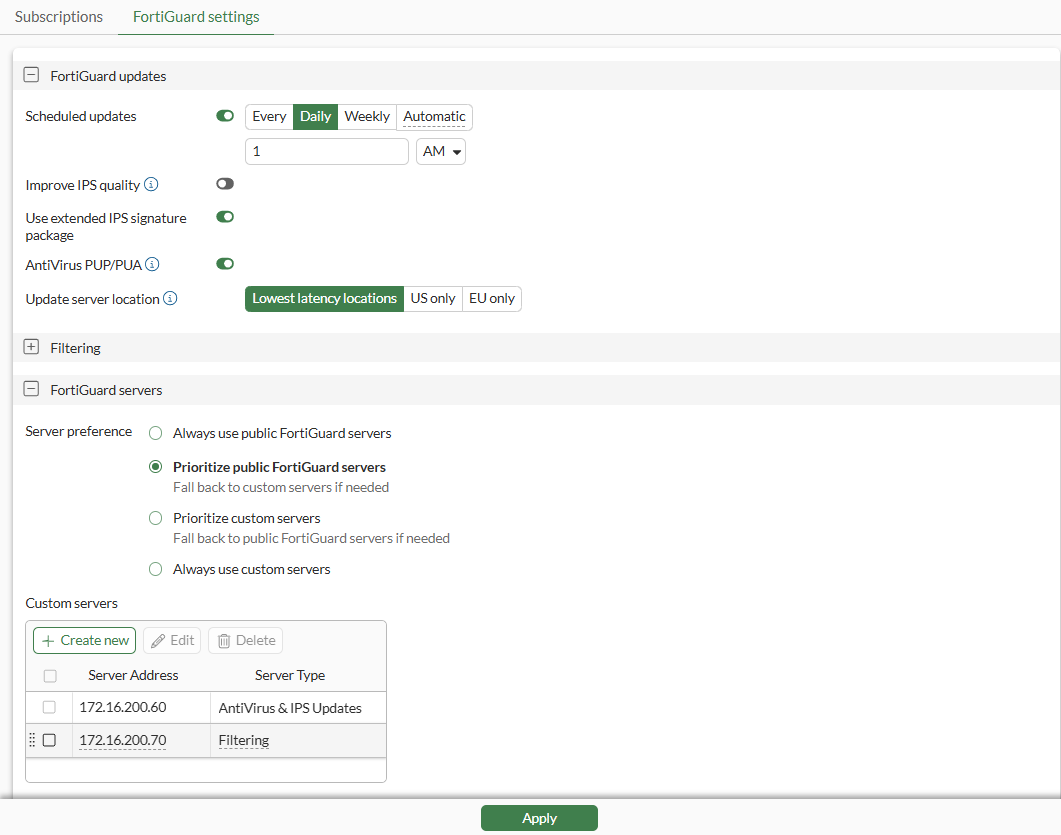
On the System > FortiGuard > FortiGuard settings page, use the FortiGuard servers section to configure FortiGuard server preference.
You can also configure the number of FortiGuard servers to use for load balancing:
config system fortiguard
    set load-balance-servers <integer>
end
To configure the FortiGuard server preference in the GUI:
-
Go to System > FortiGuard > FortiGuard settings.
-
Under FortiGuard servers, set Server preference to one of the following:
Always use public FortiGuard servers
Select for FortiGate to use only default FortiGuard servers. No custom servers are used.
Hidden when central management is enabled and set to FortiGate Cloud in the GUI (
fortiguardin the CLI).Prioritize public FortiGuard servers
Fall back to custom servers if needed
Select for FortiGate to prioritize public FortiGuard servers and fall back to custom servers if needed.
Prioritize custom servers
Fall back to public FortiGuard servers if needed
Select for FortiGate to prioritize custom servers and fall back to public FortiGuard servers if needed.
Hidden when Always use public FortiGuard servers is selected.
-
Add custom servers, if using:
-
Under Custom servers, click Create new.
-
Set Address Type to FQDN, IPv4, or IPv6.
-
In Address, enter the server address.
-
Click the Type box, select one or more server types, and click Close.
Choose from:
-
AntiVirus & IPS Updates
-
Filtering
-
IoT detection
-
Virtual patching query
-
-
Click OK. The custom server is displayed.
-
Repeat this step to add additional custom servers.
-
-
Click Apply.
Using only public FortiGuard servers
This example describes how to configure FortiGate to use only default FortiGuard servers. No custom servers are used.
To configure FortiGuard servers in the GUI:
-
Go to System > FortiGuard > FortiGuard settings.
-
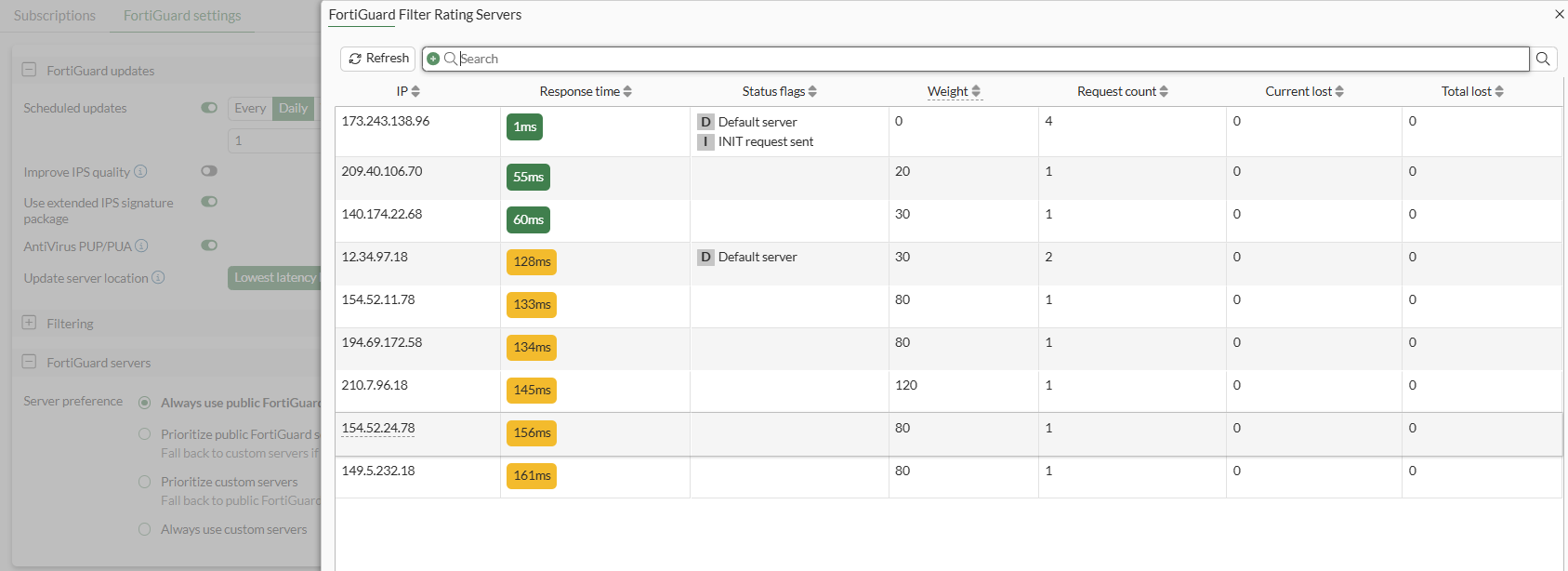
Under FortiGuard servers, set Server preference to Always use public FortiGuard servers, and click Apply.
-
In the right-side gutter, under FortiGuard Filter Rating Servers, click View Details.
Only default FortiGuard servers are used. No custom servers are used.
To configure FortiGuard servers in the CLI:
config system central-management
    set include-default-servers enable
    set use-default-servers-as-main enable
end
Prioritizing public FortiGuard servers
This example describes how to configure FortiGate to prioritize public FortiGuard servers and fall back to custom servers if needed.
To configure FortiGuard servers in the GUI:
-
Go to System > FortiGuard > FortiGuard settings.
-
Under FortiGuard servers, set Server preference to Prioritize FortiGuard servers.
-
Add one or more custom servers.
-
Click Apply.
-
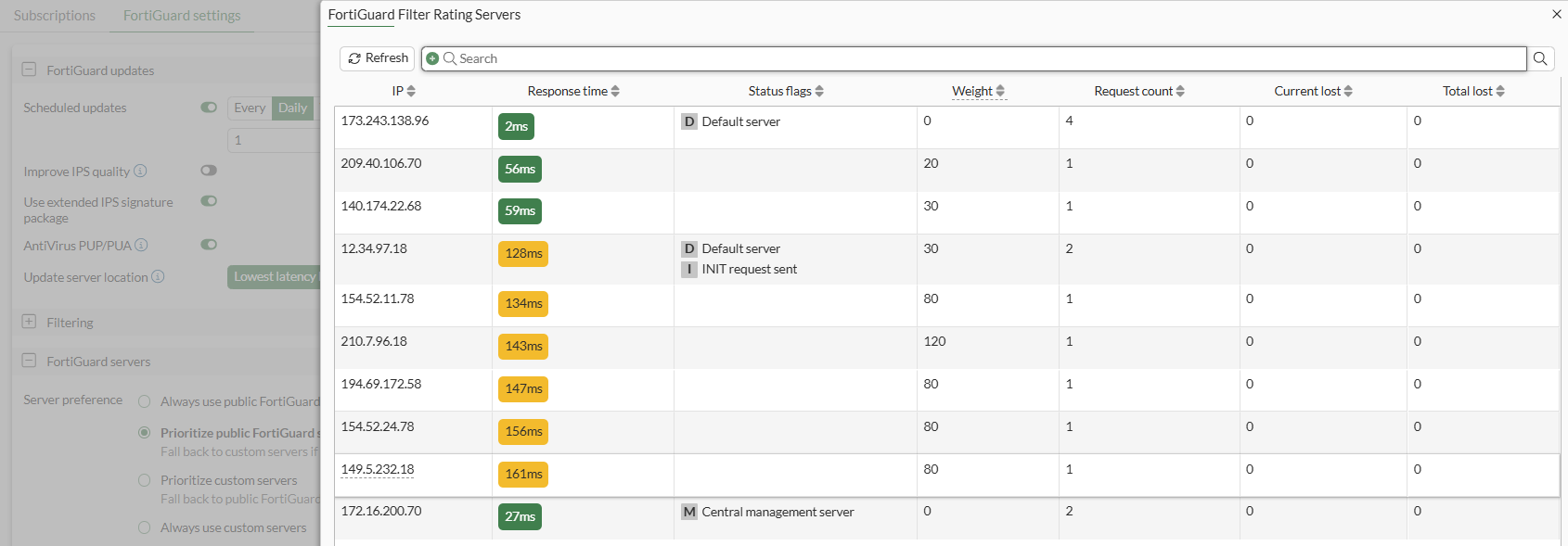
In the right-side gutter, under FortiGuard Filter Rating Servers, click View Details.
The custom server (172.16.200.70) is below the default FortiGuard servers.
To configure FortiGuard servers in the CLI:
config system central-management
    config server-list
        edit 1
            set server-type update
            set addr-type ipv4
            set server-address 172.16.200.60
        next
        edit 2
            set server-type rating
            set addr-type ipv4
            set server-address 172.16.200.70
        next
    end
    set include-default-servers enable
    set use-default-servers-as-main enable
end
Prioritizing custom servers
This example describes how to configure FortiGate to prioritize custom servers and fall back to public FortiGuard servers if needed.
To configure FortiGuard servers in the GUI:
-
Go to System > FortiGuard > FortiGuard settings.
-
Under FortiGuard servers, set Server preference to Prioritize custom servers.
-
Add one or more custom servers.
-
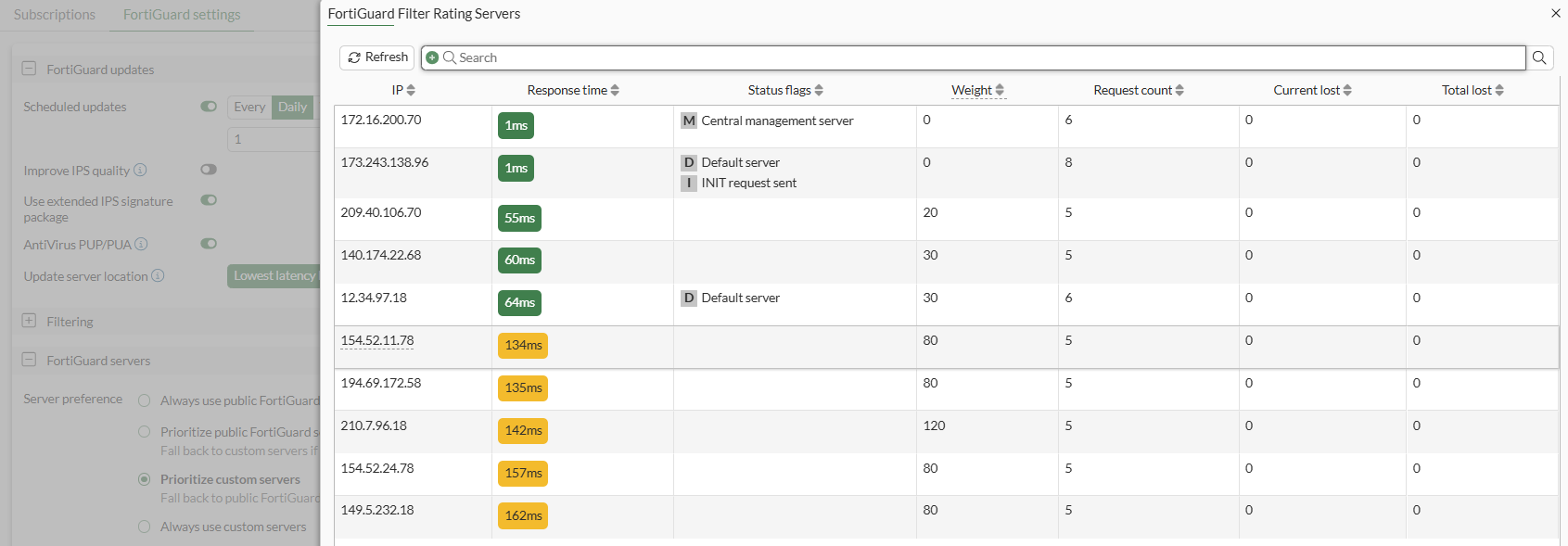
In the right-side gutter, under FortiGuard Filter Rating Servers, click View Details.
The custom server (172.16.200.70) is above the default FortiGuard servers.
To configure FortiGuard servers in the CLI:
config system central-management
    config server-list
        edit 1
            set server-type update
            set addr-type ipv4
            set server-address 172.16.200.60
        next
        edit 2
            set server-type rating
            set addr-type ipv4
            set server-address 172.16.200.70
        next
    end
    set include-default-servers enable
    set use-default-servers-as-main disable
end
Using only custom servers
This example describes how to configure FortiGate to always use custom servers.
When central management is enabled and set to FortiGate Cloud in the GUI (fortiguard in the CLI), the Always use custom servers option is hidden.
To configure FortiGuard servers in the GUI:
-
Go to System > FortiGuard > FortiGuard settings.
-
Under FortiGuard servers, set Server preference to Always use custom servers.
-
Add one or more custom servers.
-
In the right-side gutter, under FortiGuard Filter Rating Servers, click View Details.
Only custom servers are used. No default FortiGuard servers are used.

To configure FortiGuard servers in the CLI:
config system central-management
    config server-list
        edit 1
            set server-type update
            set addr-type ipv4
            set server-address 172.16.200.60
        next
        edit 2
            set server-type rating
            set addr-type ipv4
            set server-address 172.16.200.70
        next
    end
    set include-default-servers disable
end