Fortinet white logo
Fortinet white logo

Administration Guide

Adding MAC-based addresses to devices

Adding MAC-based addresses to devices

Assets detected by device detection appear in the Assets monitor. You can manage policies around devices by adding a new device object (MAC-based address) to a device. Once you add the MAC-based address, the device can be used in address groups or directly in policies.

To add a MAC-based address to a device:
  1. Go to Dashboard > Assets & Identities > Assets. The Assets monitor opens.

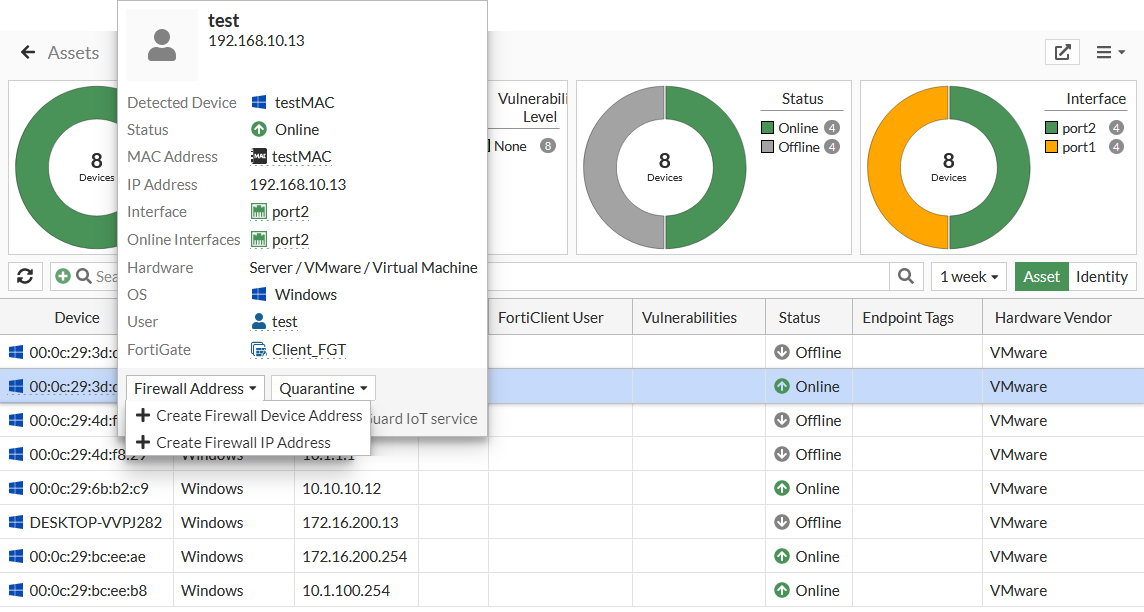
  2. Click a device, then click Create > Firewall Address > Create Firewall IP Address. The New Address pane opens.
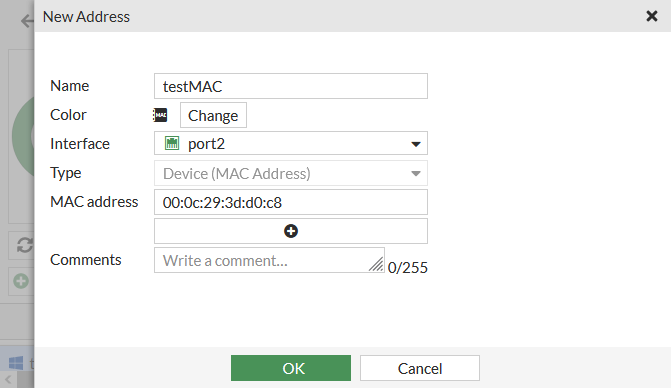
  3. In the Name field, give the device a descriptive name so that it is easy to find it in the Device column.

  4. Configure the MAC Address.

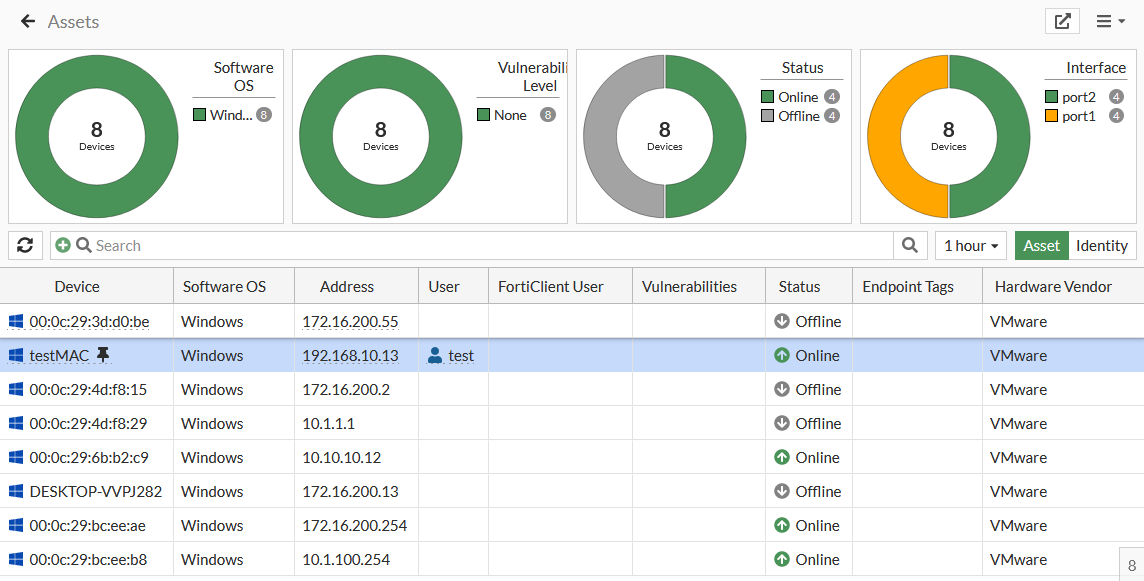
  5. Click OK, then refresh the page. The MAC address icon appears in the Address column next to the device name.
Adding MAC-based addresses to devices

Adding MAC-based addresses to devices

Assets detected by device detection appear in the Assets monitor. You can manage policies around devices by adding a new device object (MAC-based address) to a device. Once you add the MAC-based address, the device can be used in address groups or directly in policies.

To add a MAC-based address to a device:
  1. Go to Dashboard > Assets & Identities > Assets. The Assets monitor opens.

  2. Click a device, then click Create > Firewall Address > Create Firewall IP Address. The New Address pane opens.

  3. In the Name field, give the device a descriptive name so that it is easy to find it in the Device column.

  4. Configure the MAC Address.

  5. Click OK, then refresh the page. The MAC address icon appears in the Address column next to the device name.