
Fortinet white logo
Fortinet white logo

Administration Guide

Add LDAP user authentication

Add LDAP user authentication

This configuration adds LDAP user authentication to the FortiClient dialup VPN configuration (FortiClient as dialup client). You must have already generated and exported a CA certificate from your AD server.

Since IPsec uses IKEv2 by default, the FortiClient must utilize EAP-TTLS for authenticating against the FortiGate and the LDAPS authentication server. This requires FortiClient running 7.4.3 or later, and configurations synchronized from FortiClient EMS.

This example demonstrates the EMS configurations needed to configure the Remote Access profile.

For a complete end-to-end configuration with options to configure VPN over TCP, see LDAP authentication with TCP as transport.

To configure LDAP user authentication using the GUI:
  1. Import the CA certificate into FortiGate:

    1. Go to System > Certificates.

      If the Certificates option is not visible, enable it in Feature Visibility. See Feature visibility for details.

    2. Click Import > CA Certificate.

    3. Set Type to File.

    4. Click Upload then find and select the certificate file.

    5. Click OK.

      The CA certificate now appears in the list of External CA Certificates. In this example, it is called CA_Cert_1.

    6. Optionally, rename the system generated CA_Cert_1 to something more descriptive:

      config vpn certificate ca
          rename CA_Cert_1 to LDAPS-CA
      end
  2. Configure the LDAP user:

    1. Go to User & Authentication > LDAP Servers and click Create New.

    2. Set Name to ldaps-server and specify Server IP/Name.

    3. Specify Common Name Identifier and Distinguished Name.

    4. Set Bind Type to Regular.

    5. Specify Username and Password.

    6. Set Protocol to LDAPS.

    7. Enable Certificate and select LDAPS-CA from the list.

    8. Optionally, enable Server identity check if you need to verify the server domain name/IP address against the server certificate.

    9. Click Test Connectivity. The Connection status should change to Successful.
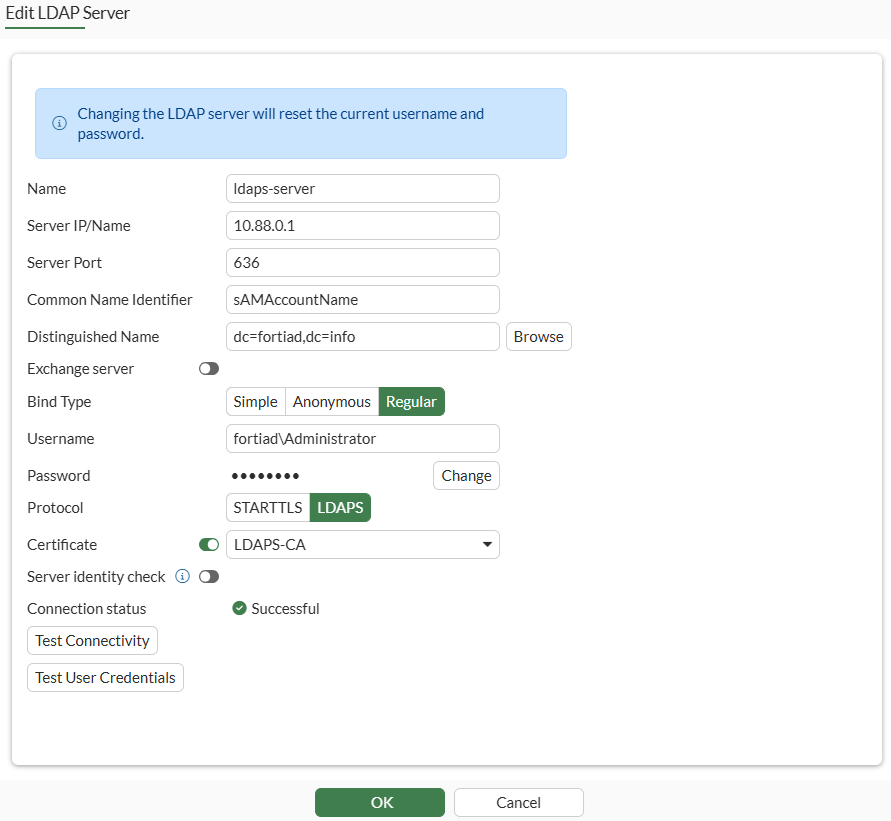
    10. Click OK.

  3. Add the LDAP user to the user group:

    1. Go to User & Authentication > User Groups and edit the vpngroup group.

    2. In Remote Groups, click Add to add the ldaps-server remote server.

    3. Click OK.

To configure LDAP user authentication using the CLI:
  1. Import the CA certificate using the GUI.

  2. Configure the LDAP user:

    config user ldap
        edit "ldaps-server"
            set server "10.88.0.1"
            set server-identity-check disable
            set cnid "sAMAccountName"
            set dn "dc=fortiad,dc=info"
            set type regular
            set username "fortiad\\Administrator"
            set password ENC **********
            set secure ldaps
            set ca-cert "LDAPS-CA"
            set port 636
        next
    end
  3. Add the LDAP user to the user group:

    config user group
        edit "vpngroup" 
            append member "ldaps-server"
        next 
    end
To configure the Remote Access profile from EMS:
  1. On FortiClient EMS, navigate to Endpoint Profiles > Remote Access and click Edit on the Default endpoint profile.

  2. Under VPN Tunnels, click Add Tunnel.

  3. Set VPN type as Manual.

  4. Click Next.

  5. Under Basic Settings, enter the following:

    Field

    Value

    Name

    Corp_remote

    Remote Gateway

    203.0.113.249

    Authentication Method

    Pre-shared Key

    Pre-Shared Key

    Enter pre-shared key that was configured on FortiGate’s dialup VPN configuration.

    Prompt for Username

    Enabled

  6. Click VPN Settings, enter the following:

    Field

    Value

    IKE

    Version 2

    Address Assignment

    Mode Config

    Encapsulation

    IKE UDP Port

    IKE TCP Port

    500

  7. Click Phase 1, enter the following details:

    Field

    Value

    IKE Proposal

    Encryption, Authentication

    AES128, SHA256

    Encryption, Authentication

    AES256, SHA256

    DH Groups

    20, 21

    Key Life

    86400

    EAP Authentication Method

    EAP-TTLS

    Dead Peer Detection

    Enable

    NAT Traversal

    Enable

  8. Click Phase 2, enter the following details:

    Field

    Value

    IKE Proposal

    Encryption, Authentication

    AES128, SHA256

    Encryption, Authentication

    AES256, SHA256

    DH Groups

    20

    Key Life

    43200

    Enable Replay Detection

    Enable

    Enable Perfect Forward Secrecy (PFS)

    Enable

  9. Click Save to save the VPN Tunnel configuration.

  10. Click Save to save Remote Access endpoint profile.

To verify the connection:
  1. On the FortiClient, go to Remote Access and find the VPN tunnel Corp_remote to connect.

  2. Click Connect.

  3. When prompted, enter the LDAP username and password.

  4. Once connected, go to the FortiGate > Dashboard > Network Monitor > VPN.

    The LDAP user will be shown in the Member column:

  5. In the debug command diagnose vpn ike gateway list, the eap-user field displays the LDAP user name:

    # diagnose vpn ike gateway list
    	
    vd: root/0
    name: remote_vpn_0
    version: 2
    interface: port3 5
    addr: 203.0.113.249:4500 -> 198.51.100.2:58861
    tun_id: 10.10.2.1/::10.0.0.6
    remote_location: 0.0.0.0
    network-id: 0
    transport: UDP
    created: 1048s ago
    eap-user: tsmith
    2FA: no
    peer-id: 198.51.100.2
    peer-id-auth: no
    FortiClient UID: 9A016B5A6E914B42AD4168C066EB04CA
    assigned IPv4 address: 10.10.2.1/255.255.255.255

Add LDAP user authentication

Add LDAP user authentication

This configuration adds LDAP user authentication to the FortiClient dialup VPN configuration (FortiClient as dialup client). You must have already generated and exported a CA certificate from your AD server.

Since IPsec uses IKEv2 by default, the FortiClient must utilize EAP-TTLS for authenticating against the FortiGate and the LDAPS authentication server. This requires FortiClient running 7.4.3 or later, and configurations synchronized from FortiClient EMS.

This example demonstrates the EMS configurations needed to configure the Remote Access profile.

For a complete end-to-end configuration with options to configure VPN over TCP, see LDAP authentication with TCP as transport.

To configure LDAP user authentication using the GUI:
  1. Import the CA certificate into FortiGate:

    1. Go to System > Certificates.

      If the Certificates option is not visible, enable it in Feature Visibility. See Feature visibility for details.

    2. Click Import > CA Certificate.

    3. Set Type to File.

    4. Click Upload then find and select the certificate file.

    5. Click OK.

      The CA certificate now appears in the list of External CA Certificates. In this example, it is called CA_Cert_1.

    6. Optionally, rename the system generated CA_Cert_1 to something more descriptive:

      config vpn certificate ca
          rename CA_Cert_1 to LDAPS-CA
      end
  2. Configure the LDAP user:

    1. Go to User & Authentication > LDAP Servers and click Create New.

    2. Set Name to ldaps-server and specify Server IP/Name.

    3. Specify Common Name Identifier and Distinguished Name.

    4. Set Bind Type to Regular.

    5. Specify Username and Password.

    6. Set Protocol to LDAPS.

    7. Enable Certificate and select LDAPS-CA from the list.

    8. Optionally, enable Server identity check if you need to verify the server domain name/IP address against the server certificate.

    9. Click Test Connectivity. The Connection status should change to Successful.

    10. Click OK.

  3. Add the LDAP user to the user group:

    1. Go to User & Authentication > User Groups and edit the vpngroup group.

    2. In Remote Groups, click Add to add the ldaps-server remote server.

    3. Click OK.

To configure LDAP user authentication using the CLI:
  1. Import the CA certificate using the GUI.

  2. Configure the LDAP user:

    config user ldap
        edit "ldaps-server"
            set server "10.88.0.1"
            set server-identity-check disable
            set cnid "sAMAccountName"
            set dn "dc=fortiad,dc=info"
            set type regular
            set username "fortiad\\Administrator"
            set password ENC **********
            set secure ldaps
            set ca-cert "LDAPS-CA"
            set port 636
        next
    end
  3. Add the LDAP user to the user group:

    config user group
        edit "vpngroup" 
            append member "ldaps-server"
        next 
    end
To configure the Remote Access profile from EMS:
  1. On FortiClient EMS, navigate to Endpoint Profiles > Remote Access and click Edit on the Default endpoint profile.

  2. Under VPN Tunnels, click Add Tunnel.

  3. Set VPN type as Manual.

  4. Click Next.

  5. Under Basic Settings, enter the following:

    Field

    Value

    Name

    Corp_remote

    Remote Gateway

    203.0.113.249

    Authentication Method

    Pre-shared Key

    Pre-Shared Key

    Enter pre-shared key that was configured on FortiGate’s dialup VPN configuration.

    Prompt for Username

    Enabled

  6. Click VPN Settings, enter the following:

    Field

    Value

    IKE

    Version 2

    Address Assignment

    Mode Config

    Encapsulation

    IKE UDP Port

    IKE TCP Port

    500

  7. Click Phase 1, enter the following details:

    Field

    Value

    IKE Proposal

    Encryption, Authentication

    AES128, SHA256

    Encryption, Authentication

    AES256, SHA256

    DH Groups

    20, 21

    Key Life

    86400

    EAP Authentication Method

    EAP-TTLS

    Dead Peer Detection

    Enable

    NAT Traversal

    Enable

  8. Click Phase 2, enter the following details:

    Field

    Value

    IKE Proposal

    Encryption, Authentication

    AES128, SHA256

    Encryption, Authentication

    AES256, SHA256

    DH Groups

    20

    Key Life

    43200

    Enable Replay Detection

    Enable

    Enable Perfect Forward Secrecy (PFS)

    Enable

  9. Click Save to save the VPN Tunnel configuration.

  10. Click Save to save Remote Access endpoint profile.

To verify the connection:
  1. On the FortiClient, go to Remote Access and find the VPN tunnel Corp_remote to connect.

  2. Click Connect.

  3. When prompted, enter the LDAP username and password.

  4. Once connected, go to the FortiGate > Dashboard > Network Monitor > VPN.

    The LDAP user will be shown in the Member column:

  5. In the debug command diagnose vpn ike gateway list, the eap-user field displays the LDAP user name:

    # diagnose vpn ike gateway list
    	
    vd: root/0
    name: remote_vpn_0
    version: 2
    interface: port3 5
    addr: 203.0.113.249:4500 -> 198.51.100.2:58861
    tun_id: 10.10.2.1/::10.0.0.6
    remote_location: 0.0.0.0
    network-id: 0
    transport: UDP
    created: 1048s ago
    eap-user: tsmith
    2FA: no
    peer-id: 198.51.100.2
    peer-id-auth: no
    FortiClient UID: 9A016B5A6E914B42AD4168C066EB04CA
    assigned IPv4 address: 10.10.2.1/255.255.255.255