Fortinet white logo
Fortinet white logo

Administration Guide

Enforcing security posture verification before dial-up VPN connection

Enforcing security posture verification before dial-up VPN connection

IPsec dial-up VPN can enforce ZTNA security posture verification before clients establish a VPN tunnel. This ensures the client has appropriate security posture before FortiGate grants a tunnel connection. The endpoint must be managed by FortiClient EMS, and its tags are synchronized with both EMS and FortiGate.

When a tag is defined on an IKEv2 IPsec tunnel, only the client IP addresses resolved by the tag can establish connection to the tunnel. When multiple tags are used, tags are checked sequentially until a match is made. If no tags match, then the client cannot establish a VPN connection.

Furthermore, to enhance resiliency, FortiClient endpoints can send security posture tags in JSON Web Token (JWT) format directly to FortiGate. The JWT tags are received during the VPN establishment process after authentication. They are also received periodically on tag changes and tag token expiration. This provides a backup mechanism for FortiGate to verify tags when FortiClient EMS is unreachable or slow to respond. FortiGate continues to prioritize querying FortiClient EMS for tag verification as the primary method.

JWT format security posture tags requires FortiClient 7.4.5 and FortiClient EMS 7.4.4 or above. See Improvements to tag compliance check for VPN connection for more background on FortiClient settings.

CLI syntax

config vpn ipsec phase1-interface
    edit <name>
        set ike-version 2
        set remote-gw-match {any | ipmask | iprange | geography | ztna}
        set remote-gw-ztna-tags <IPv4 ZTNA posture tags>
    next
end

When set remote-gw-match ztna is enabled, remote-gw-ztna-tags can be configured.

Example 1: basic configurations

A PC (172.16.200.242) makes a connection to the dial-up VPN gateway (172.16.200.4). The following example configuration and outputs show a successful connection with a matching ZTNA security posture tag (EMS1_ZTNA_all_registered_clients) and an unsuccessful connection when a ZTNA security posture tag cannot be matched.

It is assumed that the following mandatory pre-configurations are complete before configuring VPN:

  • FortiGate has established a connection with FortiClient EMS and has synchronized the ZTNA security posture tags, including the EMS1_ZTNA_all_registered_clients tag.

  • FortiClient is registered to EMS and has the ZTNA security posture tag (EMS1_ZTNA_all_registered_clients).

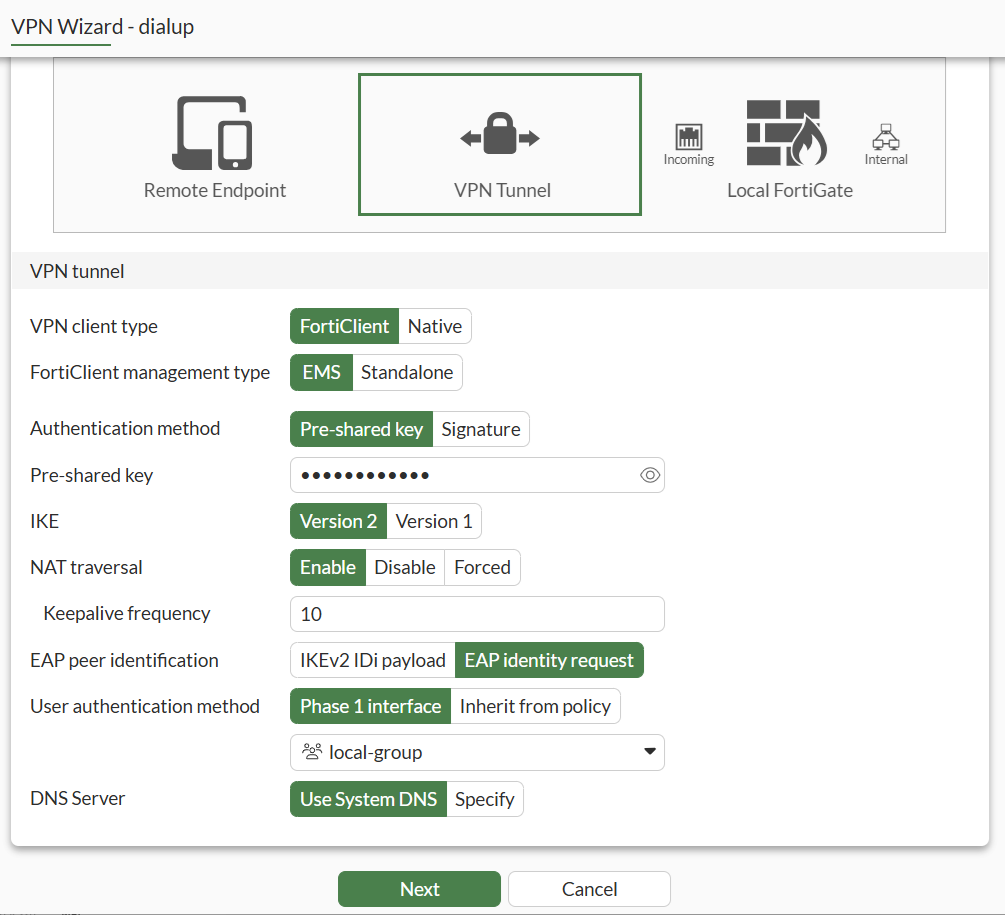
In this example, the VPN Wizard is used in the GUI to configure the IPsec tunnel and use the ZTNA tag EMS1_ZTNA_all_registered_clients. This requires that IKEv2 is enabled. The example mostly uses the default settings in the wizard, but these can be modified as required by your use case.

To configure the VPN gateway with the GUI:
  1. Go to VPN > VPN Wizard.

  2. Enter the Tunnel name, such as dialup.

  3. Set Select a Template to Remote Access then click Begin.

  4. Configure the VPN tunnel:

    VPN client type

    FortiClient

    FortiClient management typ

    EMS

    Authentication method

    Pre-shared key

    Pre-shared key

    Enter the pre-shared key.

    IKE

    Version 2

    NAT traversal

    Enable

    EAP peer identification

    EAP identity request

    User authentication method

    Phase1 interface

    Select a user group for user authentication from the drop-down list.

    DNS Server

    Use System DNS

  5. Click Next.

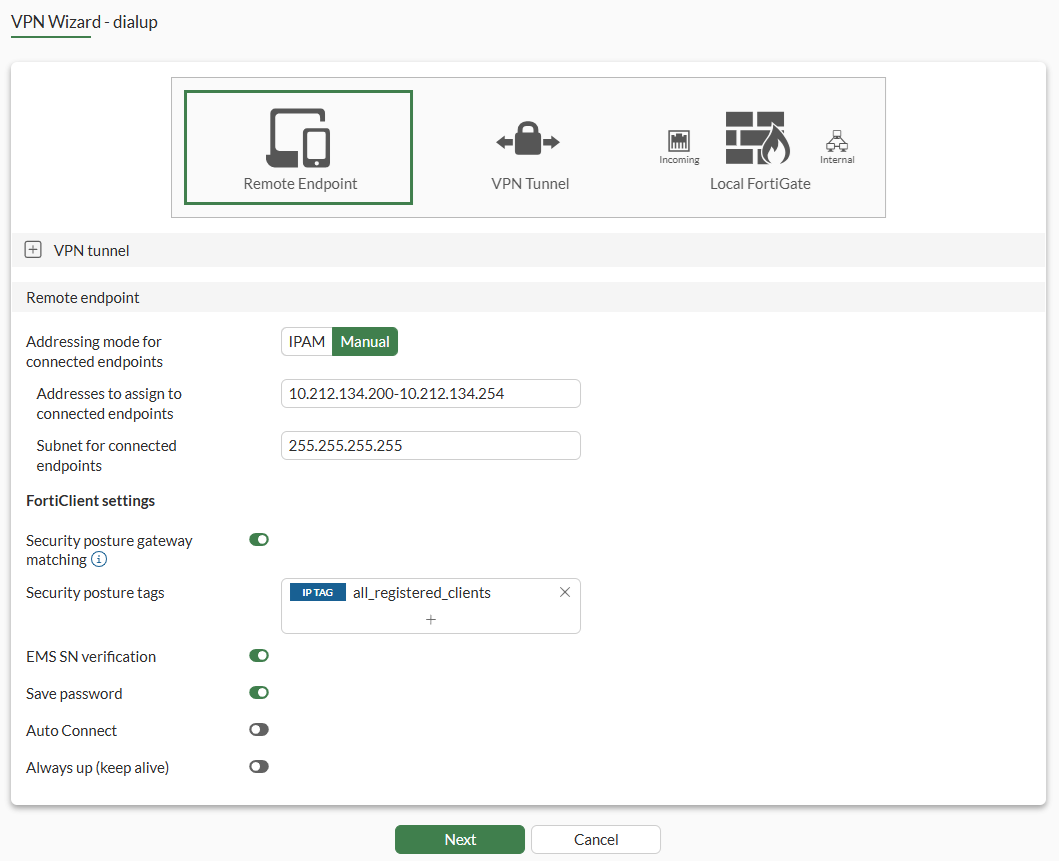
  6. Configure the Remote endpoint:

    Addressing mode for connected endpoints

    IPAM or Manual. This example uses Manual.

    Addresses to assign to connected endpoints

    Enter the VPN IP address range that needs to be assigned to VPN endpoints: 10.212.134.200-10.212.134.254

    Subnet for connected endpoints

    255.255.255.255

    Security posture gateway matching

    Enable

    Security posture tags

    Add one or more ZTNA Tags, for example: IP TAG all_registered_clients

    EMS SN verification

    Enable

    Save password

    Enable

    Auto Connect

    Disable

    Always up (keep alive)

    Disable

  7. Click Next.

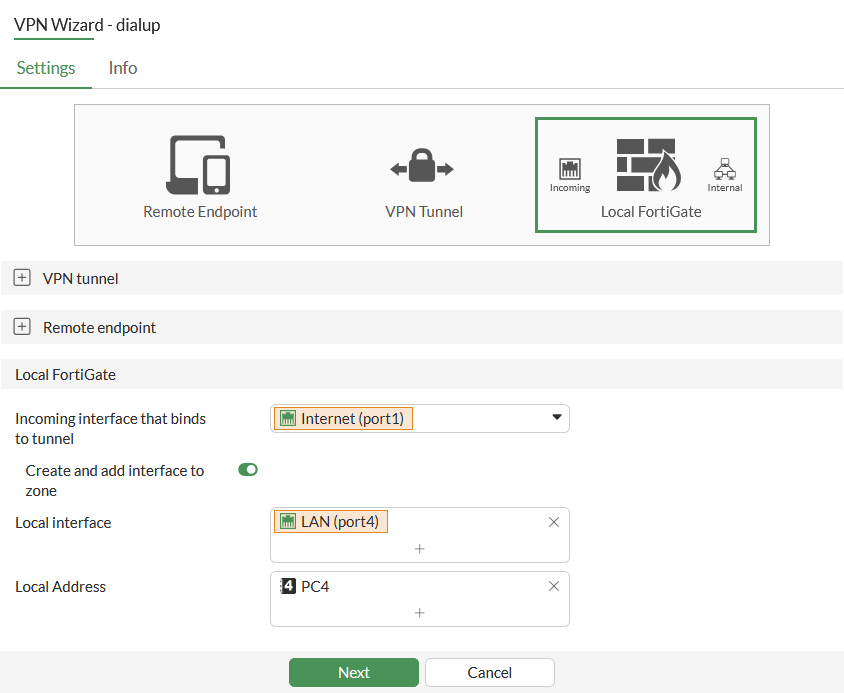
  8. Configure the Local FortiGate:

    Incoming interface that binds to tunnel

    Select the WAN Interface.

    In this example, that is the interface with IP address 172.16.200.4.

    Create and add interface to zone

    Enable

    Local interface

    Select the LAN interface.

    In this example, that is the interface that is connected to PC4.

    Local Address

    Select a local address to allow access from the VPN.

    In this example, that is the IP address of PC4.

  9. Click Next.

  10. Review the configuration. If everything looks correct, click Submit.

To configure the VPN gateway with the CLI:
config firewall address
    edit "dialup_range"
        set type iprange
        set start-ip 10.212.134.200
        set end-ip 10.212.134.254
    next
end
config vpn ipsec phase1-interface
    edit "dialup"
        set type dynamic
        set interface "port1"
        set ike-version 2
        set peertype any
        set net-device disable
        set mode-cfg enable
        set proposal aes128-sha256 aes256-sha256 aes128gcm-prfsha256 aes256gcm-prfsha384 chacha20poly1305-prfsha256
        set eap enable
        set eap-identity send-request
        set authusrgrp "local-group"
        set ems-sn-check enable
        set remote-gw-match ztna
        set assign-ip-from name
        set dns-mode auto
        set ipv4-split-include "dialup_split"
        set ipv4-name "dialup_range"
        set save-password enable
        set psksecret xxxxxxxx
        set remote-gw-ztna-tags "EMS1_ZTNA_all_registered_clients"
    next
end
config vpn ipsec phase2-interface
    edit "DY"
        set phase1name "dialup"
        set proposal aes128-sha1 aes256-sha1 aes128-sha256 aes256-sha256 aes128gcm aes256gcm chacha20poly1305
    next
end

Results

When a client (172.16.200.242) has the appropriate ZTNA security posture tag, it is synchronized to FortiClient EMS and FortiGate.

To view the IP address that is resolved to tag:
# diagnose firewall dynamic list EMS1_ZTNA_all_registered_clients
 
CMDB name: EMS1_ZTNA_all_registered_clients
TAG name: all_registered_clients
EMS1_ZTNA_all_registered_clients: ID(6)
        ADDR(172.16.200.242)
Total IP dynamic range blocks: 0.
Total IP dynamic addresses: 1.

The address resolves to the IP address that is configured on the client endpoint. It does not resolve to the NAT’d public IP address when the client is behind NAT. In other words, the address resolves to the IP Address in the following output, and not the Public IP Address:

# diagnose endpoint ec-shm list
 
Record #0:
                IP Address = 172.16.200.242
                MAC Address = **:**:**:**:67:74
                MAC list =
                VDOM = root (0)
                TOKEN VDOM =  (-1)
                EMS serial number: FCTEMS***********
                EMS tenant id: *************1EDB589FBC4626
                Client cert SN: *************60ACA9FE283DEEC3B
                Public IP address: *************
                Quarantined: no
                Online status: online
                Registration status: registered
                On-net status: on-net
                Gateway Interface: port1
                FortiClient version: 7.2.4
                …
                Number of Routes: (1)
                        Gateway Route #0:
                                - IP:172.16.200.242, MAC: **:**:**:**:67:74, VPN: no
                                - Interface:port1, VDOM:root (0), SN: FG5H*************

From the PC1 client, establish a tunnel with the FortiGate VPN gateway. When enabled, the following debug information displays the output when the security posture tag is matched:

# diagnose debug application ike -1
… 
ike V=root:0:DY:155: received FCT-UID : 6108A9179A5C40D7BD57504E15114C1F
ike V=root:0:DY:155: received EMS SN : FCTEMS***********
ike V=root:0:DY:155: received EMS tenant ID : *************1EDB589FBC4626
ike V=root:0:DY:155: peer identifier IPV4_ADDR 172.16.200.242
ike V=root:0:DY:155: re-validate gw ID
ike V=root:0:DY:155: gw validation OK
ike V=root:0:DY:155: responder preparing EAP identity request
…
ike V=root:0:FCT:22: responder received AUTH msg
ike V=root:0:FCT:22: peer identifier IPV4_ADDR 172.16.200.242
ike V=root:0:FCT:22: auth verify done 
ike V=root:0:FCT:22: responder AUTH continuation
ike V=root:0:FCT:22: authentication succeeded
ike V=root:0:FCT:22: EMS SN check passed
ike V=root:0:FCT:22: EMS ZTNA tags check success ZTNA_all_registered_clients
ike V=root:0:FCT:22: responder creating new child 

The following tunnel output indicates a dial-up tunnel has been established:

# diagnose vpn ike gateway list 
vd: root/0
name: dialup_0
version: 2
interface: port1 9
addr: 172.16.200.4:500 -> 172.16.200.242:500
tun_id: 10.212.134.200/::10.0.0.5
remote_location: 0.0.0.0
network-id: 0
transport: UDP
created: 34s ago
eap-user: userc
2FA: no
peer-id: 172.16.200.242
peer-id-auth: no
FortiClient UID: 6108A9179A5C40D7BD57504E15114C1F
assigned IPv4 address: 10.212.134.200/255.255.255.255
pending-queue: 0
PPK: no
IKE SA: created 1/1  established 1/1  time 10/10/10 ms
IPsec SA: created 1/1  established 1/1  time 0/0/0 ms
…
 
# diagnose vpn tunnel list 
list all ipsec tunnel in vd 0
------------------------------------------------------
name=dialup ver=2 serial=1 172.16.200.4:0->0.0.0.0:0 nexthop= tun_id=10.0.0.1 tun_id6=::10.0.0.1 status=up dst_mtu=0 weight=1
bound_if=9 real_if=0 lgwy=static/1 tun=intf mode=dialup/2 encap=none/552 options[0228]=npu frag-rfc  role=primary accept_traffic=1 overlay_id
=0
 
proxyid_num=0 child_num=1 refcnt=3 ilast=42978277 olast=42978277 ad=/0
stat: rxp=1290 txp=40 rxb=65588 txb=34472
dpd: mode=on-demand on=0 status=ok idle=20000ms retry=3 count=0 seqno=0
natt: mode=none draft=0 interval=0 remote_port=0
fec: egress=0 ingress=0
------------------------------------------------------
name=dialup_0 ver=2 serial=5 172.16.200.4:0->172.16.200.242:0 nexthop=172.16.200.242 tun_id=10.212.134.200 tun_id6=::10.0.0.5 status=up dst_mtu=1
500 weight=1
bound_if=9 real_if=9 lgwy=static/1 tun=intf mode=dial_inst/3 encap=none/74408 options[122a8]=npu rgwy-chg frag-rfc  run_state=0 role=primary
accept_traffic=1 overlay_id=0
 
parent=dialup index=0
…

In the scenario where a client without a matching tag tries to establish a tunnel, the following debug information indicates that the tunnel cannot match the remote IP of the client.

ike V=root:0:FCT:23: responder received AUTH msg
ike V=root:0:FCT:23: peer identifier IPV4_ADDR 172.16.200.242
ike V=root:0:FCT:23: auth verify done
ike V=root:0:FCT:23: responder AUTH continuation
ike V=root:0:FCT:23: authentication succeeded
ike V=root:0:FCT:23: EMS SN check passed
ike V=root:0:FCT:23: EMS ZTNA tags check failure, abort
ike V=root:FCT Negotiate SA Error: EMS ZTNA tags check failed
ike V=root:0:FCT:23: sending IKE_AUTH ZTNA TAGS check failure notification response 

Example 2: EMS unreachable

In this example, FortiClient EMS is configured to use ZTNA token, which enables FortiClient to send security posture tags in JWT format.

A remote employee connects to the FortiGate VPN gateway while the FortiClient EMS connection is temporarily unavailable. FortiGate falls back to verifying the JWT security posture tag and allows the VPN connection to be established.
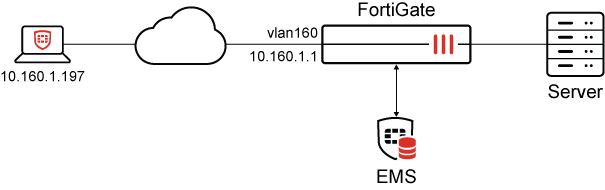
This example includes the following sections:

Configuring FortiClient EMS

To configure FortiClient EMS:
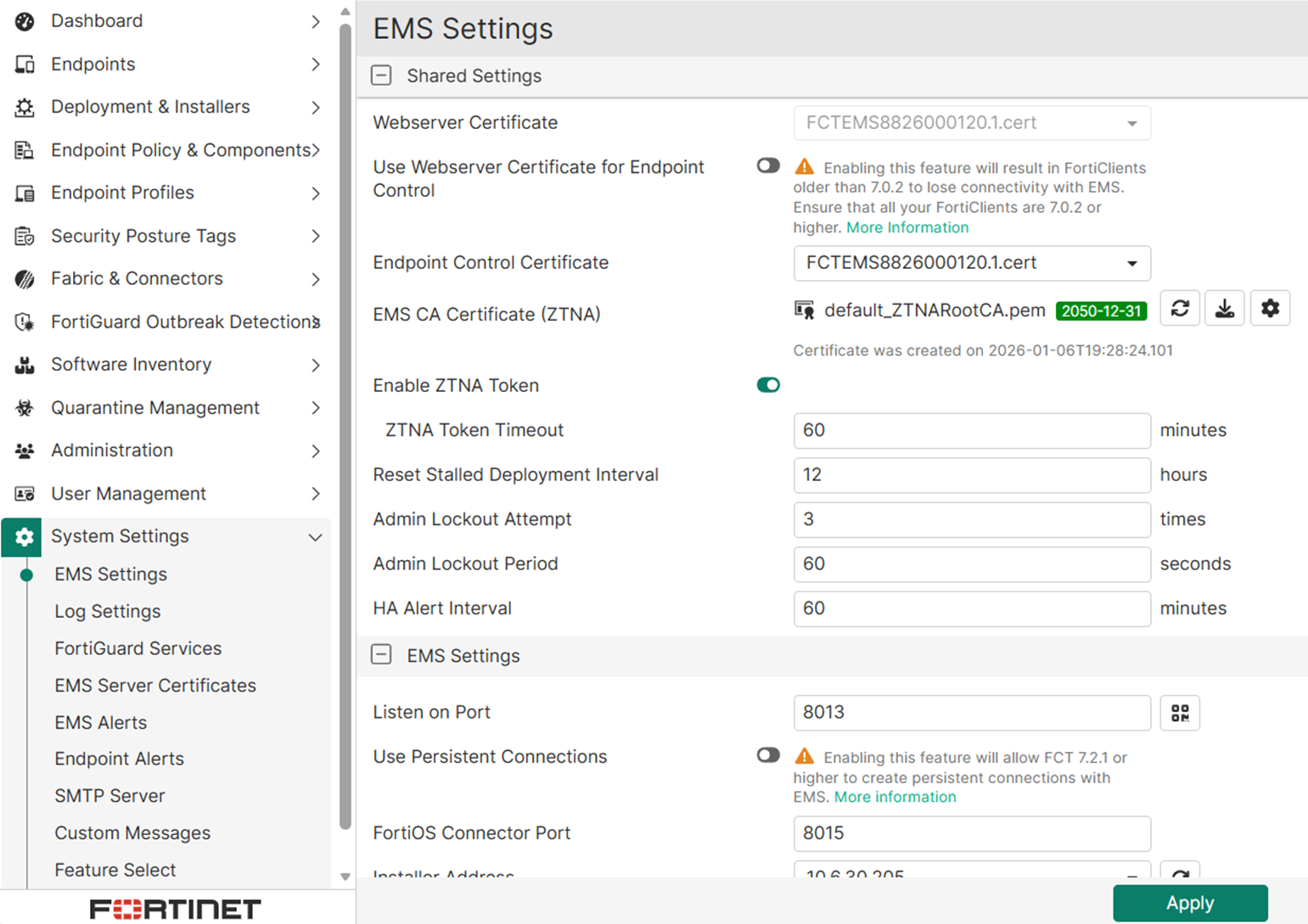
  1. On FortiClient EMS, go to System Settings > EMS Settings, and enable Enable ZTNA Token.

  2. Set the ZTNA Token Timeout and interval time.
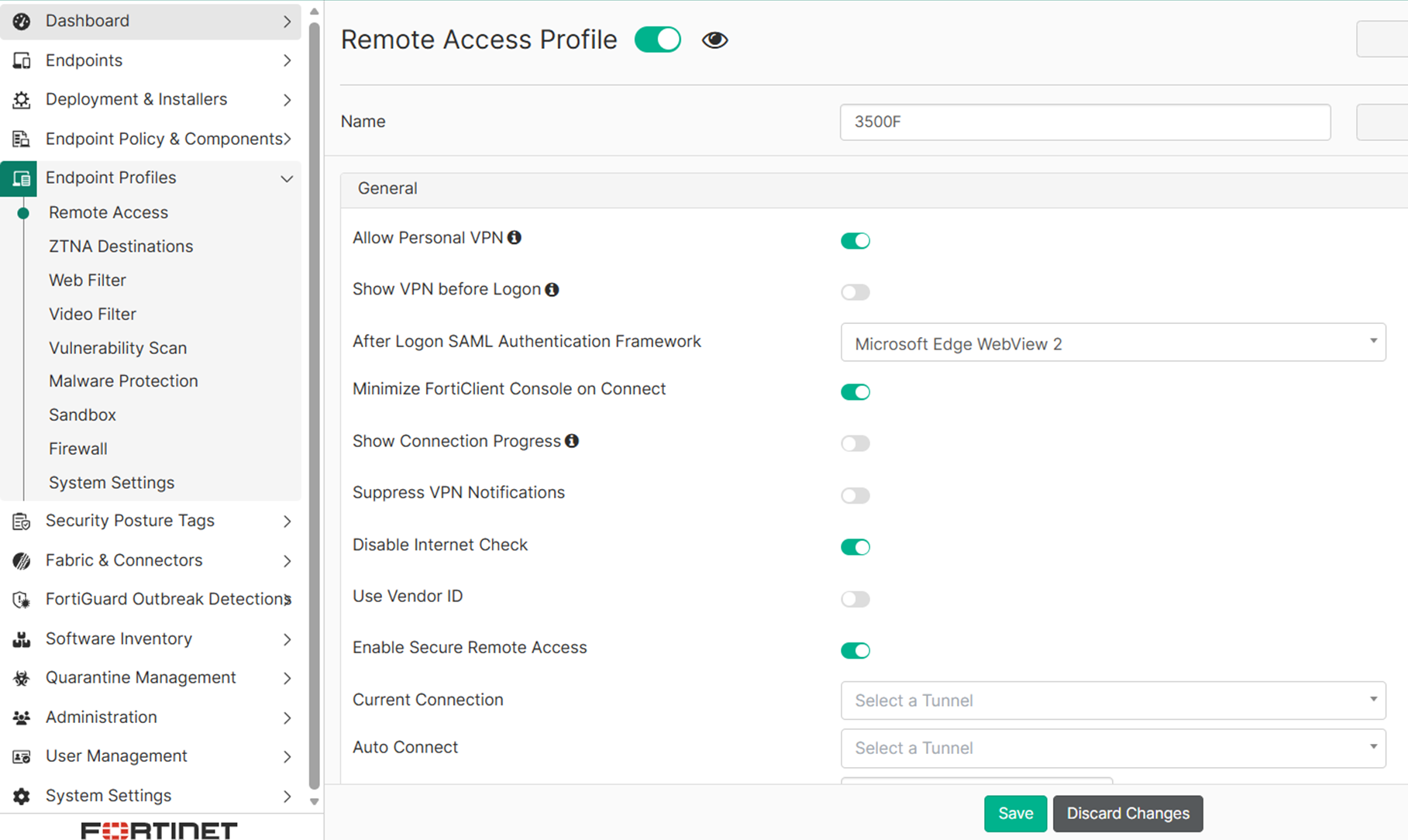
  3. Go to Endpoints Profiles > Remote Access, and edit a Remote Access profile.

  4. Under General, enable Enable Secure Remote Access.
  5. Under VPN Tunnels, add or edit a tunnel.

  6. In Advanced Settings, select the security posture tags.

  7. Save the profile and push to FortiClient endpoints.

Configuring FortiGate

These steps assume FortiClient EMS fabric settings are already configured, and security posture tags have been synchronized to the FortiGate.

To configure the VPN tunnel on FortiGate:
  1. On FortiGate, configure VPN phase1. Enable remote-gw-match-ztna and choose your ZTNA tags:

    config vpn ipsec phase1-interface
        edit "FCT_EMS_TAG_ph2"
            set type dynamic
            set interface "vlan160"
            set ike-version 2
            set peertype any
            set net-device disable
            set mode-cfg enable
            set proposal aes128-sha256 aes256-sha256 aes128gcm-prfsha256 aes256gcm-prfsha384 chacha20poly1305-prfsha256
            set dpd on-idle
            set dhgrp 20 21
            set eap enable
            set eap-identity send-request
            set authusrgrp "local_group"
            set ems-sn-check enable
            set remote-gw-match ztna
            set ipv4-start-ip 10.139.1.2
            set ipv4-end-ip 10.139.1.20
            set dns-mode auto
            set ipv4-split-include "all"
            set save-password enable
            set psksecret <password>
            set dpd-retryinterval 60
            set remote-gw-ztna-tags "EMS3_ZTNA_a"
        next
    end
  2. Configure VPN phase2:

    config vpn ipsec phase2-interface
        edit "FCT_EMS_TAG_ph2"
            set phase1name "FCT_EMS_TAG_ph2"
            set proposal aes128-sha256 aes256-sha256 aes128gcm aes256gcm chacha20poly1305
            set dhgrp 20 21
        next
    end
  3. Configure a firewall policy:

    config firewall policy
        edit 14
            set name "FCT_EMS_TAG_ph2"
            set srcintf "FCT_EMS_TAG_ph2"
            set dstintf "mgmt1"
            set action accept
            set srcaddr "all"
            set dstaddr "all"
            set schedule "always"
            set service "ALL"
            set nat enable
        next
    end

Verifying

To verify:
  1. Initiate a VPN connection from the remote FortiClient endpoint while the EMS connection failed.

  2. During the VPN negotiation, use these commands to view the real-time debugs:

    # diagnose debug application ike -1
    # diagnose debug enable
    ike V=root:0: udp comes 10.160.1.197:55846->10.160.1.1:4500,ifindex=1123,vrf=0,len=466....
    …
    ike V=root:0:FCT_EMS_TAG_ph2:FCT_EMS_TAG_ph2: created connection: 0x55e62c7d8a50 1123 10.160.1.1->10.160.1.197:55846.
    ,,,
    ike V=root:0:FCT_EMS_TAG_ph2:40481: responder received AUTH msg
    ike V=root:0:FCT_EMS_TAG_ph2:40481: processing notify type INITIAL_CONTACT
    ike V=root:0:FCT_EMS_TAG_ph2:40481: peer identifier IPV4_ADDR 10.160.1.197
    ike V=root:0:FCT_EMS_TAG_ph2:40481: eap-peer=yes
    ike V=root:0:FCT_EMS_TAG_ph2:40481: re-validate gw ID
    ike V=root:0:FCT_EMS_TAG_ph2:40481: gw validation OK
    ike V=root:0:FCT_EMS_TAG_ph2:40481: responder preparing EAP identity request
    …
    ike V=root:0:FCT_EMS_TAG_ph2:40481: authentication succeeded
    ike V=root:0:FCT_EMS_TAG_ph2:40481: processing notify type FORTICLIENT_CONNECT
    ike V=root:0:FCT_EMS_TAG_ph2:40481: received FCT data len = 309, data = 'VER=1
    FCTVER=7.4.5.1949
    UID=F8A6AFF3531843B4972CBDBEEEB30E3C
    IP=10.160.1.197
    MAC=00-0c-29-2c-4d-d7;00-0c-29-2c-4d-e1;00-0c-29-2c-4d-eb;
    HOST=DESKTOP-EMS-TAG-PH2
    USER=tester
    OSVER=Microsoft Windows 8.0 , 64-bit (build 9200)
    REG_STATUS=0
    EMSSN=FCTEMS8826000120
    EMSID=00000000000000000000000000000000
    FCTTAGS=1

    The tag FCTTAGS=1 indicates that FortiClient has JWT enabled and is sending security posture tags to FortiGate directly.

    ike V=root:0:FCT_EMS_TAG_ph2:40481: received FCT-UID : F8A6AFF3531843B4972CBDBEEEB30E3C
    …
    ike V=root:0:FCT_EMS_TAG_ph2_0:40481: processing notify type ZTNA_TAG
    

    This indicates FortiClient JWT has been received by the FortiGate:

    ...              
    ike V=root:0:FCT_EMS_TAG_ph2_0:40481: received ZTNA tags update token (len=791) data=eyJhbGciOiJSUzI1NiIsInR5cCI6IkpXVCJ9.eyJlbmRwb2ludCI6eyJ1aWQiOiJGOEE2QUZGMzUzMTg0M0I0OTcyQ0JEQkVFRUIzMEUzQyIsInRhZ3MiOlt7Im5hbWUiOiJhIiwidHlwZSI6MSwibGV2bCI6bnVsbH0seyJuYW1lIjoiYWxsX3JlZ2lzdGVyZWRfY2xpZW50cyIsInR5cGUiOjEsImxldmwiOm51bGx9LHsibmFtZSI6IkxvdyIsInR5cGUiOjMsImxldmwiOm51bGx9XSwibndpZnMiOm51bGwsInp0bmFfY2VydF9zbiI6IkIwOUQ5NzE3ODEyMUI1ODhFRDMwNTUxMzc1Nzc1MjJDN0I2ODlCNzkiLCJvd25lciI6bnVsbH0sImV4cCI6MTc2OTc2MTM4NywiaWF0IjoxNzY5NzU3Nzg3fQ.GT4B2wuDJcVKn1LCb6UW1by0pXxvW5vdQD2DzvCmRxODoy-gk9-XKaXZtvlRyFVAVG6BGDOZR0UIW--Eduhps4zCr0PdQhy2cFnhsKu7tygdxSEEHpm_ESXi6t3EcIbxPb5y4xQflb1ny4TscB-OVN68pXT_BwgfuszBcYON2ZzgEiRbcJmfwzAkmjThfHik59EZBOOC_lQv1pkQ3-IQHJVSq0QhBIPx8seYhSIMtto9vJwIEciaZ8DPGbHtJ1WlOtm7SKbkoIDer4xSDVhKO03McJ0hlxFQpjc7AufONrN1jbgW3ydJJ03u3tQHbWETufayz3-eN9GlufTpidUBgQ
    ike V=root:0:FCT_EMS_TAG_ph2_0: EMS ZTNA token tags check success ZTNA_a
    ike V=root:0:FCT_EMS_TAG_ph2_0:40481: send EMS_ZTNA_TAGS_CHECK_SUCCESS
    

    This indicates the JWT security posture tags have been validated.

  3. Verify the VPN is established:

    # diagnose vpn ike gateway list name FCT_EMS_TAG_ph2_0
    vd: root/0
    name: FCT_EMS_TAG_ph2_0
    version: 2
    interface: vlan160 1123
    addr: 10.160.1.1:4500 -> 10.160.1.197:55846
    tun_id: 10.139.1.2/::10.0.0.183
    remote_location: 0.0.0.0
    network-id: 0
    transport: UDP
    created: 39081s ago
    eap-user: u1
    2FA: no
    peer-id: 10.160.1.197
    peer-id-auth: no
    FortiClient UID: F8A6AFF3531843B4972CBDBEEEB30E3C
    assigned IPv4 address: 10.139.1.2/255.255.255.255
    nat: me peer
    pending-queue: 0
    PPK: no
    IKE SA: created 1/1  established 1/1  time 20/20/20 ms
    IPsec SA: created 1/2  established 1/2  time 0/0/0 ms
      id/spi: 40481 db9b0112a09c6850/ac673ffc75f4cdca
      direction: responder
      status: established 39081-39081s ago = 20ms
    ...
    
    # diagnose vpn tunnel list name FCT_EMS_TAG_ph2_0
    list ipsec tunnel by names in vd 0
    ------------------------------------------------------
    name=FCT_EMS_TAG_ph2_0 ver=2 serial=196 10.160.1.1:4500->10.160.1.197:55846 nexthop=0.0.0.0 tun_id=10.139.1.2 tun_id6=::10.0.0.183 status=up dst_mtu=1500 weight=1 country=ZZ
    bound_if=1123 real_if=1123 lgwy=static/1 tun=intf mode=dial_inst/3 encap=none options[0x23a8]=npu rgwy-chg rport-chg frag-rfc  run_state=0 role=sync-primary accept_traffic=1 overlay_id=0
    parent=FCT_EMS_TAG_ph2 index=0
    proxyid_num=1 child_num=0 refcnt=7 ilast=15 olast=15 ad=/0
    stat: rxp=11054 txp=11874 rxb=3338588 txb=4823896
    dpd: mode=on-idle on=1 status=ok idle=60000ms retry=3 count=0 seqno=2
    natt: mode=keepalive draft=0 interval=10 remote_port=55846
    fec: egress=0 ingress=0 
    proxyid=FCT_EMS_TAG_ph2 proto=0 sa=1 ref=4 serial=1 add-route

Enforcing security posture verification before dial-up VPN connection

Enforcing security posture verification before dial-up VPN connection

IPsec dial-up VPN can enforce ZTNA security posture verification before clients establish a VPN tunnel. This ensures the client has appropriate security posture before FortiGate grants a tunnel connection. The endpoint must be managed by FortiClient EMS, and its tags are synchronized with both EMS and FortiGate.

When a tag is defined on an IKEv2 IPsec tunnel, only the client IP addresses resolved by the tag can establish connection to the tunnel. When multiple tags are used, tags are checked sequentially until a match is made. If no tags match, then the client cannot establish a VPN connection.

Furthermore, to enhance resiliency, FortiClient endpoints can send security posture tags in JSON Web Token (JWT) format directly to FortiGate. The JWT tags are received during the VPN establishment process after authentication. They are also received periodically on tag changes and tag token expiration. This provides a backup mechanism for FortiGate to verify tags when FortiClient EMS is unreachable or slow to respond. FortiGate continues to prioritize querying FortiClient EMS for tag verification as the primary method.

JWT format security posture tags requires FortiClient 7.4.5 and FortiClient EMS 7.4.4 or above. See Improvements to tag compliance check for VPN connection for more background on FortiClient settings.

CLI syntax

config vpn ipsec phase1-interface
    edit <name>
        set ike-version 2
        set remote-gw-match {any | ipmask | iprange | geography | ztna}
        set remote-gw-ztna-tags <IPv4 ZTNA posture tags>
    next
end

When set remote-gw-match ztna is enabled, remote-gw-ztna-tags can be configured.

Example 1: basic configurations

A PC (172.16.200.242) makes a connection to the dial-up VPN gateway (172.16.200.4). The following example configuration and outputs show a successful connection with a matching ZTNA security posture tag (EMS1_ZTNA_all_registered_clients) and an unsuccessful connection when a ZTNA security posture tag cannot be matched.

It is assumed that the following mandatory pre-configurations are complete before configuring VPN:

  • FortiGate has established a connection with FortiClient EMS and has synchronized the ZTNA security posture tags, including the EMS1_ZTNA_all_registered_clients tag.

  • FortiClient is registered to EMS and has the ZTNA security posture tag (EMS1_ZTNA_all_registered_clients).

In this example, the VPN Wizard is used in the GUI to configure the IPsec tunnel and use the ZTNA tag EMS1_ZTNA_all_registered_clients. This requires that IKEv2 is enabled. The example mostly uses the default settings in the wizard, but these can be modified as required by your use case.

To configure the VPN gateway with the GUI:
  1. Go to VPN > VPN Wizard.

  2. Enter the Tunnel name, such as dialup.

  3. Set Select a Template to Remote Access then click Begin.

  4. Configure the VPN tunnel:

    VPN client type

    FortiClient

    FortiClient management typ

    EMS

    Authentication method

    Pre-shared key

    Pre-shared key

    Enter the pre-shared key.

    IKE

    Version 2

    NAT traversal

    Enable

    EAP peer identification

    EAP identity request

    User authentication method

    Phase1 interface

    Select a user group for user authentication from the drop-down list.

    DNS Server

    Use System DNS

  5. Click Next.

  6. Configure the Remote endpoint:

    Addressing mode for connected endpoints

    IPAM or Manual. This example uses Manual.

    Addresses to assign to connected endpoints

    Enter the VPN IP address range that needs to be assigned to VPN endpoints: 10.212.134.200-10.212.134.254

    Subnet for connected endpoints

    255.255.255.255

    Security posture gateway matching

    Enable

    Security posture tags

    Add one or more ZTNA Tags, for example: IP TAG all_registered_clients

    EMS SN verification

    Enable

    Save password

    Enable

    Auto Connect

    Disable

    Always up (keep alive)

    Disable

  7. Click Next.

  8. Configure the Local FortiGate:

    Incoming interface that binds to tunnel

    Select the WAN Interface.

    In this example, that is the interface with IP address 172.16.200.4.

    Create and add interface to zone

    Enable

    Local interface

    Select the LAN interface.

    In this example, that is the interface that is connected to PC4.

    Local Address

    Select a local address to allow access from the VPN.

    In this example, that is the IP address of PC4.

  9. Click Next.

  10. Review the configuration. If everything looks correct, click Submit.

To configure the VPN gateway with the CLI:
config firewall address
    edit "dialup_range"
        set type iprange
        set start-ip 10.212.134.200
        set end-ip 10.212.134.254
    next
end
config vpn ipsec phase1-interface
    edit "dialup"
        set type dynamic
        set interface "port1"
        set ike-version 2
        set peertype any
        set net-device disable
        set mode-cfg enable
        set proposal aes128-sha256 aes256-sha256 aes128gcm-prfsha256 aes256gcm-prfsha384 chacha20poly1305-prfsha256
        set eap enable
        set eap-identity send-request
        set authusrgrp "local-group"
        set ems-sn-check enable
        set remote-gw-match ztna
        set assign-ip-from name
        set dns-mode auto
        set ipv4-split-include "dialup_split"
        set ipv4-name "dialup_range"
        set save-password enable
        set psksecret xxxxxxxx
        set remote-gw-ztna-tags "EMS1_ZTNA_all_registered_clients"
    next
end
config vpn ipsec phase2-interface
    edit "DY"
        set phase1name "dialup"
        set proposal aes128-sha1 aes256-sha1 aes128-sha256 aes256-sha256 aes128gcm aes256gcm chacha20poly1305
    next
end

Results

When a client (172.16.200.242) has the appropriate ZTNA security posture tag, it is synchronized to FortiClient EMS and FortiGate.

To view the IP address that is resolved to tag:
# diagnose firewall dynamic list EMS1_ZTNA_all_registered_clients
 
CMDB name: EMS1_ZTNA_all_registered_clients
TAG name: all_registered_clients
EMS1_ZTNA_all_registered_clients: ID(6)
        ADDR(172.16.200.242)
Total IP dynamic range blocks: 0.
Total IP dynamic addresses: 1.

The address resolves to the IP address that is configured on the client endpoint. It does not resolve to the NAT’d public IP address when the client is behind NAT. In other words, the address resolves to the IP Address in the following output, and not the Public IP Address:

# diagnose endpoint ec-shm list
 
Record #0:
                IP Address = 172.16.200.242
                MAC Address = **:**:**:**:67:74
                MAC list =
                VDOM = root (0)
                TOKEN VDOM =  (-1)
                EMS serial number: FCTEMS***********
                EMS tenant id: *************1EDB589FBC4626
                Client cert SN: *************60ACA9FE283DEEC3B
                Public IP address: *************
                Quarantined: no
                Online status: online
                Registration status: registered
                On-net status: on-net
                Gateway Interface: port1
                FortiClient version: 7.2.4
                …
                Number of Routes: (1)
                        Gateway Route #0:
                                - IP:172.16.200.242, MAC: **:**:**:**:67:74, VPN: no
                                - Interface:port1, VDOM:root (0), SN: FG5H*************

From the PC1 client, establish a tunnel with the FortiGate VPN gateway. When enabled, the following debug information displays the output when the security posture tag is matched:

# diagnose debug application ike -1
… 
ike V=root:0:DY:155: received FCT-UID : 6108A9179A5C40D7BD57504E15114C1F
ike V=root:0:DY:155: received EMS SN : FCTEMS***********
ike V=root:0:DY:155: received EMS tenant ID : *************1EDB589FBC4626
ike V=root:0:DY:155: peer identifier IPV4_ADDR 172.16.200.242
ike V=root:0:DY:155: re-validate gw ID
ike V=root:0:DY:155: gw validation OK
ike V=root:0:DY:155: responder preparing EAP identity request
…
ike V=root:0:FCT:22: responder received AUTH msg
ike V=root:0:FCT:22: peer identifier IPV4_ADDR 172.16.200.242
ike V=root:0:FCT:22: auth verify done 
ike V=root:0:FCT:22: responder AUTH continuation
ike V=root:0:FCT:22: authentication succeeded
ike V=root:0:FCT:22: EMS SN check passed
ike V=root:0:FCT:22: EMS ZTNA tags check success ZTNA_all_registered_clients
ike V=root:0:FCT:22: responder creating new child 

The following tunnel output indicates a dial-up tunnel has been established:

# diagnose vpn ike gateway list 
vd: root/0
name: dialup_0
version: 2
interface: port1 9
addr: 172.16.200.4:500 -> 172.16.200.242:500
tun_id: 10.212.134.200/::10.0.0.5
remote_location: 0.0.0.0
network-id: 0
transport: UDP
created: 34s ago
eap-user: userc
2FA: no
peer-id: 172.16.200.242
peer-id-auth: no
FortiClient UID: 6108A9179A5C40D7BD57504E15114C1F
assigned IPv4 address: 10.212.134.200/255.255.255.255
pending-queue: 0
PPK: no
IKE SA: created 1/1  established 1/1  time 10/10/10 ms
IPsec SA: created 1/1  established 1/1  time 0/0/0 ms
…
 
# diagnose vpn tunnel list 
list all ipsec tunnel in vd 0
------------------------------------------------------
name=dialup ver=2 serial=1 172.16.200.4:0->0.0.0.0:0 nexthop= tun_id=10.0.0.1 tun_id6=::10.0.0.1 status=up dst_mtu=0 weight=1
bound_if=9 real_if=0 lgwy=static/1 tun=intf mode=dialup/2 encap=none/552 options[0228]=npu frag-rfc  role=primary accept_traffic=1 overlay_id
=0
 
proxyid_num=0 child_num=1 refcnt=3 ilast=42978277 olast=42978277 ad=/0
stat: rxp=1290 txp=40 rxb=65588 txb=34472
dpd: mode=on-demand on=0 status=ok idle=20000ms retry=3 count=0 seqno=0
natt: mode=none draft=0 interval=0 remote_port=0
fec: egress=0 ingress=0
------------------------------------------------------
name=dialup_0 ver=2 serial=5 172.16.200.4:0->172.16.200.242:0 nexthop=172.16.200.242 tun_id=10.212.134.200 tun_id6=::10.0.0.5 status=up dst_mtu=1
500 weight=1
bound_if=9 real_if=9 lgwy=static/1 tun=intf mode=dial_inst/3 encap=none/74408 options[122a8]=npu rgwy-chg frag-rfc  run_state=0 role=primary
accept_traffic=1 overlay_id=0
 
parent=dialup index=0
…

In the scenario where a client without a matching tag tries to establish a tunnel, the following debug information indicates that the tunnel cannot match the remote IP of the client.

ike V=root:0:FCT:23: responder received AUTH msg
ike V=root:0:FCT:23: peer identifier IPV4_ADDR 172.16.200.242
ike V=root:0:FCT:23: auth verify done
ike V=root:0:FCT:23: responder AUTH continuation
ike V=root:0:FCT:23: authentication succeeded
ike V=root:0:FCT:23: EMS SN check passed
ike V=root:0:FCT:23: EMS ZTNA tags check failure, abort
ike V=root:FCT Negotiate SA Error: EMS ZTNA tags check failed
ike V=root:0:FCT:23: sending IKE_AUTH ZTNA TAGS check failure notification response 

Example 2: EMS unreachable

In this example, FortiClient EMS is configured to use ZTNA token, which enables FortiClient to send security posture tags in JWT format.

A remote employee connects to the FortiGate VPN gateway while the FortiClient EMS connection is temporarily unavailable. FortiGate falls back to verifying the JWT security posture tag and allows the VPN connection to be established.

This example includes the following sections:

Configuring FortiClient EMS

To configure FortiClient EMS:
  1. On FortiClient EMS, go to System Settings > EMS Settings, and enable Enable ZTNA Token.

  2. Set the ZTNA Token Timeout and interval time.

  3. Go to Endpoints Profiles > Remote Access, and edit a Remote Access profile.

  4. Under General, enable Enable Secure Remote Access.

  5. Under VPN Tunnels, add or edit a tunnel.

  6. In Advanced Settings, select the security posture tags.

  7. Save the profile and push to FortiClient endpoints.

Configuring FortiGate

These steps assume FortiClient EMS fabric settings are already configured, and security posture tags have been synchronized to the FortiGate.

To configure the VPN tunnel on FortiGate:
  1. On FortiGate, configure VPN phase1. Enable remote-gw-match-ztna and choose your ZTNA tags:

    config vpn ipsec phase1-interface
        edit "FCT_EMS_TAG_ph2"
            set type dynamic
            set interface "vlan160"
            set ike-version 2
            set peertype any
            set net-device disable
            set mode-cfg enable
            set proposal aes128-sha256 aes256-sha256 aes128gcm-prfsha256 aes256gcm-prfsha384 chacha20poly1305-prfsha256
            set dpd on-idle
            set dhgrp 20 21
            set eap enable
            set eap-identity send-request
            set authusrgrp "local_group"
            set ems-sn-check enable
            set remote-gw-match ztna
            set ipv4-start-ip 10.139.1.2
            set ipv4-end-ip 10.139.1.20
            set dns-mode auto
            set ipv4-split-include "all"
            set save-password enable
            set psksecret <password>
            set dpd-retryinterval 60
            set remote-gw-ztna-tags "EMS3_ZTNA_a"
        next
    end
  2. Configure VPN phase2:

    config vpn ipsec phase2-interface
        edit "FCT_EMS_TAG_ph2"
            set phase1name "FCT_EMS_TAG_ph2"
            set proposal aes128-sha256 aes256-sha256 aes128gcm aes256gcm chacha20poly1305
            set dhgrp 20 21
        next
    end
  3. Configure a firewall policy:

    config firewall policy
        edit 14
            set name "FCT_EMS_TAG_ph2"
            set srcintf "FCT_EMS_TAG_ph2"
            set dstintf "mgmt1"
            set action accept
            set srcaddr "all"
            set dstaddr "all"
            set schedule "always"
            set service "ALL"
            set nat enable
        next
    end

Verifying

To verify:
  1. Initiate a VPN connection from the remote FortiClient endpoint while the EMS connection failed.

  2. During the VPN negotiation, use these commands to view the real-time debugs:

    # diagnose debug application ike -1
    # diagnose debug enable
    ike V=root:0: udp comes 10.160.1.197:55846->10.160.1.1:4500,ifindex=1123,vrf=0,len=466....
    …
    ike V=root:0:FCT_EMS_TAG_ph2:FCT_EMS_TAG_ph2: created connection: 0x55e62c7d8a50 1123 10.160.1.1->10.160.1.197:55846.
    ,,,
    ike V=root:0:FCT_EMS_TAG_ph2:40481: responder received AUTH msg
    ike V=root:0:FCT_EMS_TAG_ph2:40481: processing notify type INITIAL_CONTACT
    ike V=root:0:FCT_EMS_TAG_ph2:40481: peer identifier IPV4_ADDR 10.160.1.197
    ike V=root:0:FCT_EMS_TAG_ph2:40481: eap-peer=yes
    ike V=root:0:FCT_EMS_TAG_ph2:40481: re-validate gw ID
    ike V=root:0:FCT_EMS_TAG_ph2:40481: gw validation OK
    ike V=root:0:FCT_EMS_TAG_ph2:40481: responder preparing EAP identity request
    …
    ike V=root:0:FCT_EMS_TAG_ph2:40481: authentication succeeded
    ike V=root:0:FCT_EMS_TAG_ph2:40481: processing notify type FORTICLIENT_CONNECT
    ike V=root:0:FCT_EMS_TAG_ph2:40481: received FCT data len = 309, data = 'VER=1
    FCTVER=7.4.5.1949
    UID=F8A6AFF3531843B4972CBDBEEEB30E3C
    IP=10.160.1.197
    MAC=00-0c-29-2c-4d-d7;00-0c-29-2c-4d-e1;00-0c-29-2c-4d-eb;
    HOST=DESKTOP-EMS-TAG-PH2
    USER=tester
    OSVER=Microsoft Windows 8.0 , 64-bit (build 9200)
    REG_STATUS=0
    EMSSN=FCTEMS8826000120
    EMSID=00000000000000000000000000000000
    FCTTAGS=1

    The tag FCTTAGS=1 indicates that FortiClient has JWT enabled and is sending security posture tags to FortiGate directly.

    ike V=root:0:FCT_EMS_TAG_ph2:40481: received FCT-UID : F8A6AFF3531843B4972CBDBEEEB30E3C
    …
    ike V=root:0:FCT_EMS_TAG_ph2_0:40481: processing notify type ZTNA_TAG
    

    This indicates FortiClient JWT has been received by the FortiGate:

    ...              
    ike V=root:0:FCT_EMS_TAG_ph2_0:40481: received ZTNA tags update token (len=791) data=eyJhbGciOiJSUzI1NiIsInR5cCI6IkpXVCJ9.eyJlbmRwb2ludCI6eyJ1aWQiOiJGOEE2QUZGMzUzMTg0M0I0OTcyQ0JEQkVFRUIzMEUzQyIsInRhZ3MiOlt7Im5hbWUiOiJhIiwidHlwZSI6MSwibGV2bCI6bnVsbH0seyJuYW1lIjoiYWxsX3JlZ2lzdGVyZWRfY2xpZW50cyIsInR5cGUiOjEsImxldmwiOm51bGx9LHsibmFtZSI6IkxvdyIsInR5cGUiOjMsImxldmwiOm51bGx9XSwibndpZnMiOm51bGwsInp0bmFfY2VydF9zbiI6IkIwOUQ5NzE3ODEyMUI1ODhFRDMwNTUxMzc1Nzc1MjJDN0I2ODlCNzkiLCJvd25lciI6bnVsbH0sImV4cCI6MTc2OTc2MTM4NywiaWF0IjoxNzY5NzU3Nzg3fQ.GT4B2wuDJcVKn1LCb6UW1by0pXxvW5vdQD2DzvCmRxODoy-gk9-XKaXZtvlRyFVAVG6BGDOZR0UIW--Eduhps4zCr0PdQhy2cFnhsKu7tygdxSEEHpm_ESXi6t3EcIbxPb5y4xQflb1ny4TscB-OVN68pXT_BwgfuszBcYON2ZzgEiRbcJmfwzAkmjThfHik59EZBOOC_lQv1pkQ3-IQHJVSq0QhBIPx8seYhSIMtto9vJwIEciaZ8DPGbHtJ1WlOtm7SKbkoIDer4xSDVhKO03McJ0hlxFQpjc7AufONrN1jbgW3ydJJ03u3tQHbWETufayz3-eN9GlufTpidUBgQ
    ike V=root:0:FCT_EMS_TAG_ph2_0: EMS ZTNA token tags check success ZTNA_a
    ike V=root:0:FCT_EMS_TAG_ph2_0:40481: send EMS_ZTNA_TAGS_CHECK_SUCCESS
    

    This indicates the JWT security posture tags have been validated.

  3. Verify the VPN is established:

    # diagnose vpn ike gateway list name FCT_EMS_TAG_ph2_0
    vd: root/0
    name: FCT_EMS_TAG_ph2_0
    version: 2
    interface: vlan160 1123
    addr: 10.160.1.1:4500 -> 10.160.1.197:55846
    tun_id: 10.139.1.2/::10.0.0.183
    remote_location: 0.0.0.0
    network-id: 0
    transport: UDP
    created: 39081s ago
    eap-user: u1
    2FA: no
    peer-id: 10.160.1.197
    peer-id-auth: no
    FortiClient UID: F8A6AFF3531843B4972CBDBEEEB30E3C
    assigned IPv4 address: 10.139.1.2/255.255.255.255
    nat: me peer
    pending-queue: 0
    PPK: no
    IKE SA: created 1/1  established 1/1  time 20/20/20 ms
    IPsec SA: created 1/2  established 1/2  time 0/0/0 ms
      id/spi: 40481 db9b0112a09c6850/ac673ffc75f4cdca
      direction: responder
      status: established 39081-39081s ago = 20ms
    ...
    
    # diagnose vpn tunnel list name FCT_EMS_TAG_ph2_0
    list ipsec tunnel by names in vd 0
    ------------------------------------------------------
    name=FCT_EMS_TAG_ph2_0 ver=2 serial=196 10.160.1.1:4500->10.160.1.197:55846 nexthop=0.0.0.0 tun_id=10.139.1.2 tun_id6=::10.0.0.183 status=up dst_mtu=1500 weight=1 country=ZZ
    bound_if=1123 real_if=1123 lgwy=static/1 tun=intf mode=dial_inst/3 encap=none options[0x23a8]=npu rgwy-chg rport-chg frag-rfc  run_state=0 role=sync-primary accept_traffic=1 overlay_id=0
    parent=FCT_EMS_TAG_ph2 index=0
    proxyid_num=1 child_num=0 refcnt=7 ilast=15 olast=15 ad=/0
    stat: rxp=11054 txp=11874 rxb=3338588 txb=4823896
    dpd: mode=on-idle on=1 status=ok idle=60000ms retry=3 count=0 seqno=2
    natt: mode=keepalive draft=0 interval=10 remote_port=55846
    fec: egress=0 ingress=0 
    proxyid=FCT_EMS_TAG_ph2 proto=0 sa=1 ref=4 serial=1 add-route