
Fortinet white logo
Fortinet white logo

Administration Guide

SPA easy configuration key for FortiSASE

SPA easy configuration key for FortiSASE

A gutter section is available in the Fabric Overlay Orchestrator page if the FortiSASE SPA license is active. From this section, the user can open a pane that will generate a FortiSASE SPA easy configuration key based on the current Fabric Overlay Orchestrator configuration which can be used in the SPA setup of FortiSASE.

The easy configuration key is an encode of Base64 of a JSON object. It includes the FortiOS version, gateway, peer IP address, BGP Autonomous Systems (AS), BGP method, and the FortiSASE BGP router subnet.

To access the easy configuration key:
  1. Prepare the two FortiGates:

    1. Go to System > FortiGuard and confirm that the FortiGates have a FortiSASE SPA license.
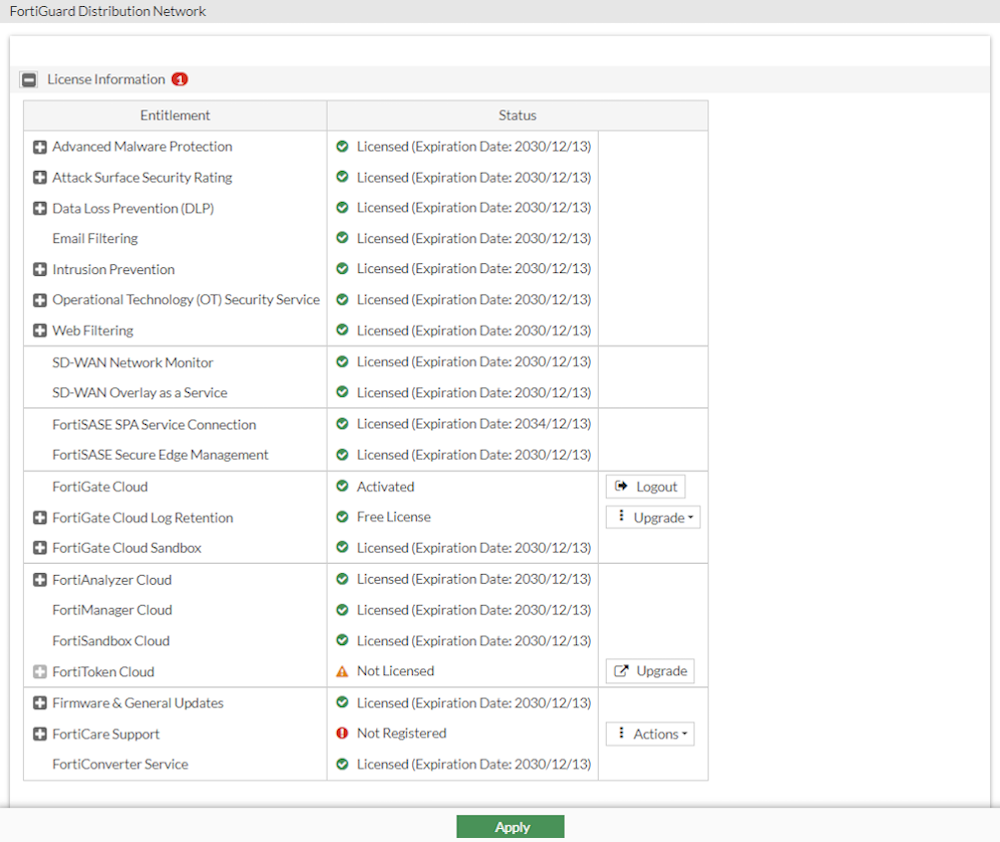
    2. Configure the Security Fabric in both FortiGates.

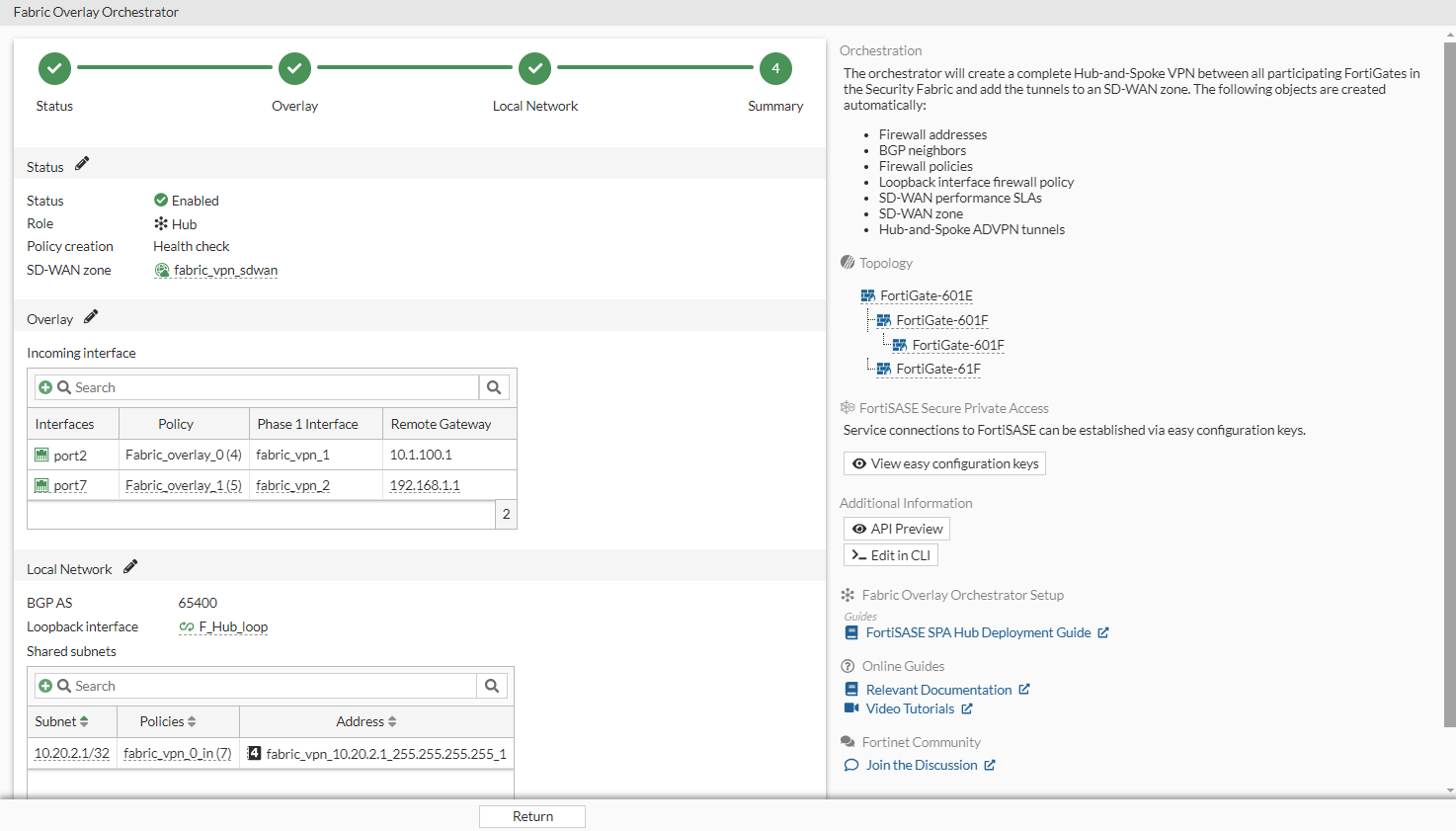
    3. Go to VPN > Fabric Overlay Orchestrator and enable it on both FortiGates. See Using the Fabric Overlay Orchestrator.

      The FortiSASE Secure Private Access section will be included in the gutter.
  2. Access the easy configuration key:

    1. In VPN > Fabric Overlay Orchestrator, click View easy configuration keys in the gutter.

      The View easy configuration keys pane is displayed.
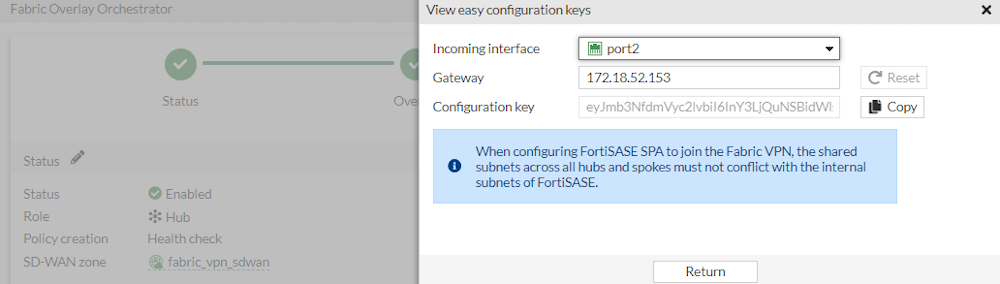
    2. Select the Incoming interface.

    3. Enter the Gateway.

      Note

      Shared subnets cannot conflict with FortiSASE's internal subnets.

    4. Click Copy beside the Configuration key.

      This easy configuration key can be pasted into FortiSASE when setting up SPA.

      Note

      If the FortiOS administrator makes any changes to BGP or to their IPsec, the configuration key is auto-updated on FortiOS. However, the FortiSASE administrator needs to know to re-copy and paste the configuration into FortiSASE.

      Currently, there is no way to detect the above and throw a warning on either FortiSASE nor FortiOS GUI.

SPA easy configuration key for FortiSASE

SPA easy configuration key for FortiSASE

A gutter section is available in the Fabric Overlay Orchestrator page if the FortiSASE SPA license is active. From this section, the user can open a pane that will generate a FortiSASE SPA easy configuration key based on the current Fabric Overlay Orchestrator configuration which can be used in the SPA setup of FortiSASE.

The easy configuration key is an encode of Base64 of a JSON object. It includes the FortiOS version, gateway, peer IP address, BGP Autonomous Systems (AS), BGP method, and the FortiSASE BGP router subnet.

To access the easy configuration key:
  1. Prepare the two FortiGates:

    1. Go to System > FortiGuard and confirm that the FortiGates have a FortiSASE SPA license.

    2. Configure the Security Fabric in both FortiGates.

    3. Go to VPN > Fabric Overlay Orchestrator and enable it on both FortiGates. See Using the Fabric Overlay Orchestrator.

      The FortiSASE Secure Private Access section will be included in the gutter.

  2. Access the easy configuration key:

    1. In VPN > Fabric Overlay Orchestrator, click View easy configuration keys in the gutter.

      The View easy configuration keys pane is displayed.

    2. Select the Incoming interface.

    3. Enter the Gateway.

      Note

      Shared subnets cannot conflict with FortiSASE's internal subnets.

    4. Click Copy beside the Configuration key.

      This easy configuration key can be pasted into FortiSASE when setting up SPA.

      Note

      If the FortiOS administrator makes any changes to BGP or to their IPsec, the configuration key is auto-updated on FortiOS. However, the FortiSASE administrator needs to know to re-copy and paste the configuration into FortiSASE.

      Currently, there is no way to detect the above and throw a warning on either FortiSASE nor FortiOS GUI.