

Using local and remote categories
For some functions, local and remote FortiGuard categories must be explicitly selected to apply. In SSL/SSH inspection profiles, custom categories must be explicitly selected to be exempt from SSL inspection. In Proxy addresses, custom categories must be explicitly selected as URL categories for them to apply. In both settings, if a URL is in multiple selected categories, the order of precedence is local categories, then remote categories, and then FortiGuard categories.
SSL/SSH inspection profiles
To use local and remote categories in an SSL/SSH inspection profile to exempt them from SSL inspection in the GUI:
- Go to Security Profiles > SSL/SSH Inspection.
- Create a new profile or edit an existing one.
- Ensure that Inspection method is Full SSL Inspection.
- In the Exempt from SSL Inspection section, add the local and remote categories to the Web categories list .
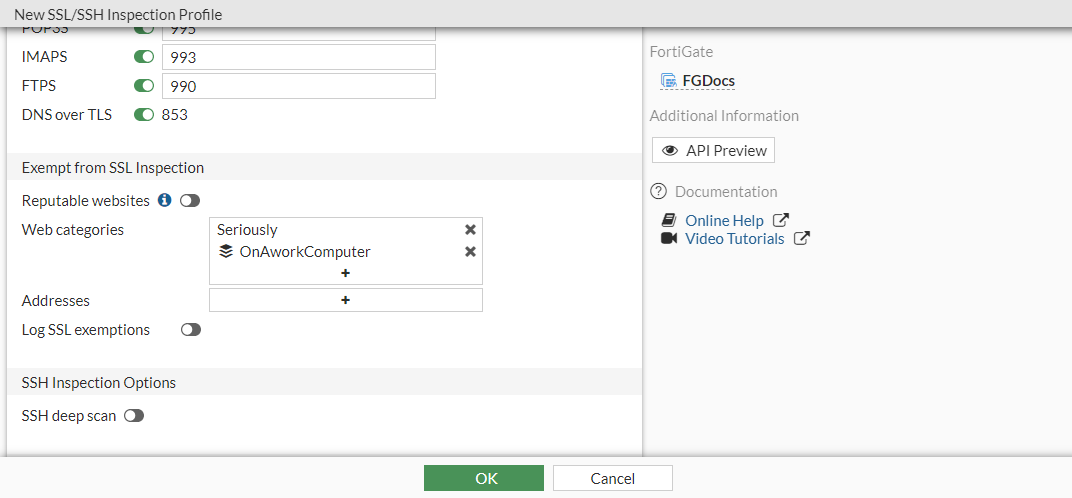
- Configure the remaining settings as required, then click OK.
To use local and remote categories in an SSL/SSH inspection profile to exempt them from SSL inspection in the CLI:
config vdom
    edit root
        config firewall ssl-ssh-profile
            edit "SSL_Inspection"
                config https
                    set ports 443
                    set status deep-inspection
                end
                ...
                config ssl-exempt
                    edit 1
                        set fortiguard-category 140
                    next
                    edit 2
                        set fortiguard-category 192
                    next
                end
            next
        end
    next
end
Proxy addresses
To use local and remote categories in a proxy address in the GUI:
- Go to Policy & Objects > Addresses and select Proxy > Address.
- Click Create new or edit an existing proxy address.
- Set Type to URL Category.
- In the URL Category, add the local and remote categories.
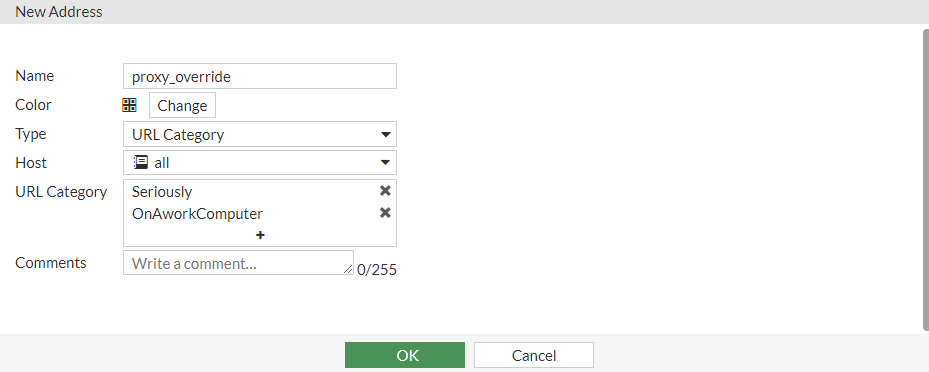
- Configure the remaining settings as required, then click OK.
To use local and remote categories in a proxy address in the CLI:
config vdom
    edit root
        config firewall proxy-address
            edit "proxy_override"
                set type category
                set host "all"
                set category 140 192
                set color 23
            next
        end
    next
end