

Licensing in air-gap environments
In the Operational Technology industry, industrial equipment is critical and must not be connected to the internet. However, the equipment is still required to be protected by a firewall in this air-gap environment. Without a gateway to FortiGuard in air-gap environments, FortiGuard packages, such as AntiVirus and IPS, must be manually uploaded to the FortiGate. FortiGate licenses can be downloaded from FortiCloud and uploaded manually to the FortiGate.

|
Manual licensing for air-gap environments is supported only on FortiGate hardware appliances, for both rugged and non-rugged models running FortiOS 7.2.0 or later. Manual licensing is currently not supported on FortiGate virtual machine (VM) appliances. |
To manually upload FortiGate licenses in the GUI:
-
Register the FortiGuard license on FortiCloud. See Registration in the FortiOS Administration Guide for more information.
-
Download the product entitlement file in FortiCloud:
-
Go to Products > Product List.
-
Select the serial number of the FortiGate. The product page opens.
-
In the License & Key section, click Get The License File. The file downloads to your device in the format
FG201E*********ProductEntitlement.lic.
-
-
In FortiOS, go to System > FortiGuard. Currently, the status for all services is Pending.

-
Click Upload License File. The file explorer opens.
-
Navigate to the product entitlement file and click Open.
The license file uploads to the FortiGate. Once the upload is complete, the FortiGate shows that it is registered and licensed.

-
Click Apply.
To manually upgrade the AntiVirus Database in the GUI:
-
Download the static upgrade file from FortiCloud:
-
Go to support.fortinet.com.
-
Go to Download > Download FortiGuard Service Updates > FortiGate.
-
Select the FortiOS version from the OS Version dropdown.
-
Select the file from the appropriate FortiGate product model section. The file downloads to your device.
-
-
In FortiOS, go to System > FortiGuard and expand the AntiVirus section to view the current licenses.
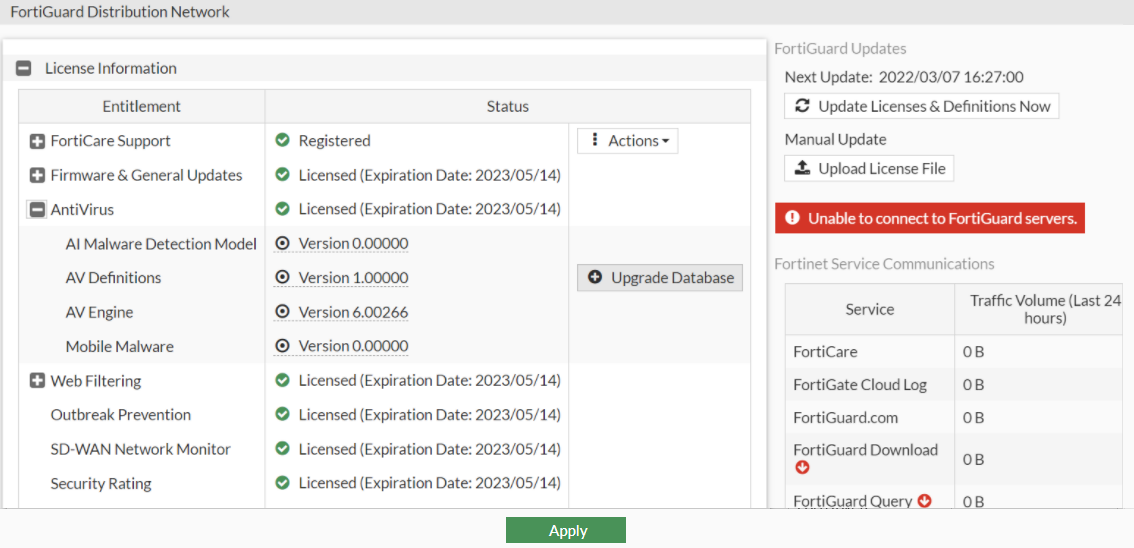
-
Click Upgrade Database. The Anti-Virus Database Upgrade pane opens.
-
Click Upload. The file explorer opens.
-
Navigate to the static upgrade file and click Open.
-
Click OK.
-
Click Apply.
The AntiVirus Database is upgraded.
To manually upload FortiGate licenses in the CLI:
# execute restore manual-license {ftp | tftp} <license file name> <server> [args]