

Search engines
This topic gives examples of the following advanced filter features:

|
These advanced filters are only available in proxy-based inspection mode. |
Safe search
This setting applies to popular search sites and prevents explicit websites and images from appearing in search results.
The supported search sites are:
-
Google
-
Yahoo
-
Bing
-
Yandex
To enable safe search in the GUI:
-
Go to Security Profiles > Web Filter and click Create New, or edit an existing profile.
-
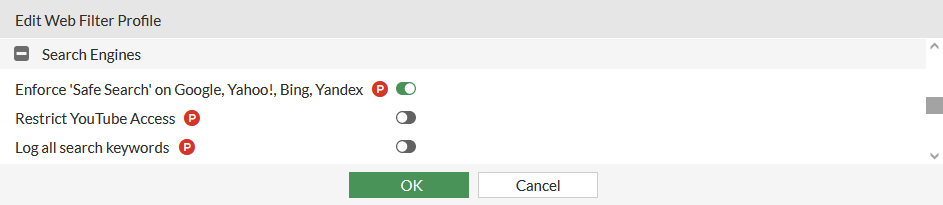
In the Search Engines section, enable Enforce 'Safe Search' on Google, Yahoo!, Bing, Yandex.
-
Click OK.
To enable safe search in the CLI:
config webfilter profile
    edit "webfilter"
        config web
            set safe-search url header
        end
    next
end
Restrict YouTube and Vimeo access
The Restrict YouTube access setting in the video filter profile adds the HTTP header YouTube-Restrict: Strict or YouTube-Restrict: Moderate into the HTTP request when enabled. When YouTube reads this header, it applies the appropriate content restriction based on the selected mode. YouTube Restricted Mode is an optional setting that filters out potentially mature videos while leaving a large number of videos still available (see Restrict YouTube content available to users and Manage your organization's YouTube settings for more information). Google defines the restricted YouTube access modes as follows:
-
Strict Restricted YouTube access: this setting is the most restrictive. Strict Restricted Mode does not block all videos, but works as a filter to screen out many videos based on an automated system, while leaving some videos still available for viewing.
-
Moderate Restricted YouTube access: this setting is similar to Strict Restricted Mode but makes a much larger collection of videos available.
To restrict YouTube access in the GUI:
-
Go to Security Profiles > Web Filter and click Create New, or edit an existing profile.
-
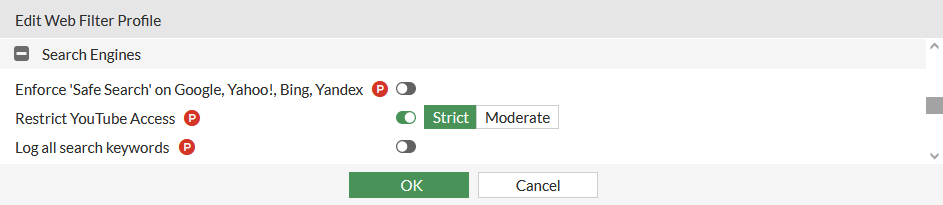
In the Search Engines section, enable Restrict YouTube Access and select either Strict or Moderate.
-
Click OK.
To restrict YouTube access in the CLI:
config webfilter profile
    edit <name>
        config web
            set youtube-restrict {none | strict | moderate}
        end
    next
end
The file filter profile includes a setting to restrict Vimeo access, which can only be configured in the CLI.
To restrict Vimeo access:
config webfilter profile
    edit <name>
        config web
            set vimeo-restrict {7 | 134}
        end
    next
end
|
vimeo-restrict {7 | 134} |
Set the Vimeo restriction:
|
Log all search keywords
Use this setting to log all search phrases.
To enable logging search keywords in the GUI:
-
Go to Security Profiles > Web Filter and click Create New, or edit an existing profile.
-
In the Search Engines section, enable Log all search keywords.
-
Click OK.
To enable logging search keywords in the CLI:
config webfilter profile
    edit "webfilter"
        config web
            set log-search enable
        end
    next
end