
Fortinet white logo
Fortinet white logo

Administration Guide

Sandbox

Sandbox

FortiSandbox SaaS is a service that uploads and analyzes files that FortiGate antivirus (AV) marks as suspicious.

In a proxy-based AV profile on a FortiGate, the administrator selects Send files to FortiSandbox for inspection to enable a FortiGate to upload suspicious files to FortiGuard for analysis. Once uploaded, the file is executed and the resulting behavior analyzed for risk. If the file exhibits risky behavior or is found to contain a virus, a new virus signature is created and added to the FortiGuard AV signature database. The next time the FortiGate updates its AV database it has the new signature. The turnaround time on Cloud Sandboxing and AV submission ranges from 10 minutes for automated SandBox detection to 10 hours if FortiGuard Labs is involved.

FortiGuard Labs considers a file suspicious if it exhibits some unusual behavior, yet does not contain a known virus. The behaviors that FortiGate Cloud Analytics considers suspicious change depending on the threat climate and other factors.

FortiGate Cloud enables you to view the status of any suspicious files uploaded: pending, clean, identified as malware, or unknown. The console also provides data on the time, user, and location of the infected file for forensic analysis.

The Sandbox page collects information that the FortiSandbox SaaS service compiles. FortiSandbox SaaS submits files to FortiGuard for threat analysis. You can configure your use of the service and view analyzed files' results.

FortiSandbox SaaS regions include Global, Europe, U.S., and Japan.

FortiSandbox SaaS allows the following file upload sources:

  • File uploads from FortiGate:
    • For a FortiGate without a FortiSandbox SaaS subscription, FortiSandbox SaaS supports up to 100 uploads per day or two uploads per minute. See Subscription types

    • For FortiGates with a FortiSandbox SaaS subscription, the following upload limits apply:

      FortiGate model

      Per minute

      Per day

      FortiGate 30-90/VM00

      5

      7200

      FortiGate 100-400/VM01

      10

      14400

      FortiGate 500-900/VM02, VM04

      20

      28880

      FortiGate 1000-2000/VM08, VM16

      50

      72000

      FortiGate 3000/VM32 and higher models

      100

      144000

  • For manual uploads from FortiGate Cloud, FortiSandbox SaaS supports up to 50 uploads per day per account.
To set up Sandbox:
  1. Complete the FortiGate Cloud Sandbox (FortiSandbox SaaS) steps.
  2. In Security Profiles > AntiVirus, create a profile that has Send files to FortiSandbox for inspection configured.
  3. Create a firewall policy with logging enabled that uses the Sandbox-enabled AV profile.
  4. Once devices have uploaded some files to FortiSandbox SaaS, log in to FortiGate Cloud to see the results.
To upload a sample to Sandbox:
  1. Go to Sandbox > Scan results.
  2. Click Upload sample.
  3. Browse to and select a file to upload, then click Submit. Once analysis completes, Scan results displays the results.

Settings
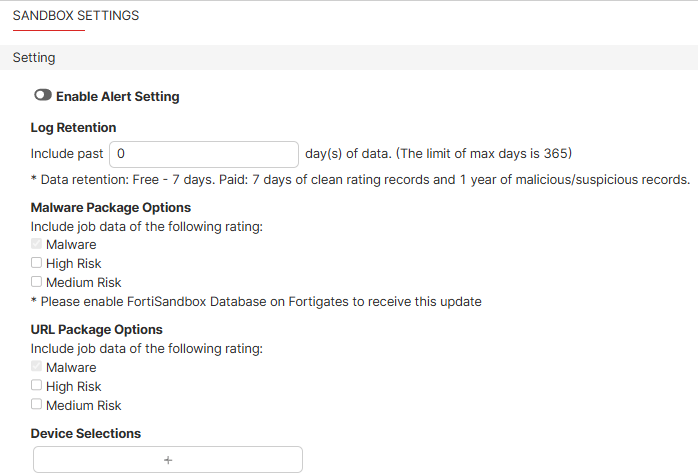
In Settings > Sandbox settings, you can configure FortiSandbox SaaS settings:

Setting

Description

Enable Alert Setting
  • Enable alert emails
  • Enter multiple email addresses (separated by commas) to receive alerts
  • Set which severity levels trigger FortiGate Cloud to send alert emails
Log Retention Set number of days to retain log data.
Malware Package Options Select the data risk level that FortiGate Cloud automatically submits to FortiGuard to further antithreat research.

URL Package Options

Device Selections

Select the desired FortiGates to enable Sandbox detection for.

To configure Sandbox alert emails:
  1. Go to Sandbox > Sandbox settings.
  2. Select Enable Alert Setting.
  3. Enter email addresses into the list to contact in the event of a Sandbox alert.
  4. Select the severity levels to trigger an alert.
  5. Click Apply.

Sandbox

Sandbox

FortiSandbox SaaS is a service that uploads and analyzes files that FortiGate antivirus (AV) marks as suspicious.

In a proxy-based AV profile on a FortiGate, the administrator selects Send files to FortiSandbox for inspection to enable a FortiGate to upload suspicious files to FortiGuard for analysis. Once uploaded, the file is executed and the resulting behavior analyzed for risk. If the file exhibits risky behavior or is found to contain a virus, a new virus signature is created and added to the FortiGuard AV signature database. The next time the FortiGate updates its AV database it has the new signature. The turnaround time on Cloud Sandboxing and AV submission ranges from 10 minutes for automated SandBox detection to 10 hours if FortiGuard Labs is involved.

FortiGuard Labs considers a file suspicious if it exhibits some unusual behavior, yet does not contain a known virus. The behaviors that FortiGate Cloud Analytics considers suspicious change depending on the threat climate and other factors.

FortiGate Cloud enables you to view the status of any suspicious files uploaded: pending, clean, identified as malware, or unknown. The console also provides data on the time, user, and location of the infected file for forensic analysis.

The Sandbox page collects information that the FortiSandbox SaaS service compiles. FortiSandbox SaaS submits files to FortiGuard for threat analysis. You can configure your use of the service and view analyzed files' results.

FortiSandbox SaaS regions include Global, Europe, U.S., and Japan.

FortiSandbox SaaS allows the following file upload sources:

  • File uploads from FortiGate:
    • For a FortiGate without a FortiSandbox SaaS subscription, FortiSandbox SaaS supports up to 100 uploads per day or two uploads per minute. See Subscription types

    • For FortiGates with a FortiSandbox SaaS subscription, the following upload limits apply:

      FortiGate model

      Per minute

      Per day

      FortiGate 30-90/VM00

      5

      7200

      FortiGate 100-400/VM01

      10

      14400

      FortiGate 500-900/VM02, VM04

      20

      28880

      FortiGate 1000-2000/VM08, VM16

      50

      72000

      FortiGate 3000/VM32 and higher models

      100

      144000

  • For manual uploads from FortiGate Cloud, FortiSandbox SaaS supports up to 50 uploads per day per account.
To set up Sandbox:
  1. Complete the FortiGate Cloud Sandbox (FortiSandbox SaaS) steps.
  2. In Security Profiles > AntiVirus, create a profile that has Send files to FortiSandbox for inspection configured.
  3. Create a firewall policy with logging enabled that uses the Sandbox-enabled AV profile.
  4. Once devices have uploaded some files to FortiSandbox SaaS, log in to FortiGate Cloud to see the results.
To upload a sample to Sandbox:
  1. Go to Sandbox > Scan results.
  2. Click Upload sample.
  3. Browse to and select a file to upload, then click Submit. Once analysis completes, Scan results displays the results.

Settings

In Settings > Sandbox settings, you can configure FortiSandbox SaaS settings:

Setting

Description

Enable Alert Setting
  • Enable alert emails
  • Enter multiple email addresses (separated by commas) to receive alerts
  • Set which severity levels trigger FortiGate Cloud to send alert emails
Log Retention Set number of days to retain log data.
Malware Package Options Select the data risk level that FortiGate Cloud automatically submits to FortiGuard to further antithreat research.

URL Package Options

Device Selections

Select the desired FortiGates to enable Sandbox detection for.

To configure Sandbox alert emails:
  1. Go to Sandbox > Sandbox settings.
  2. Select Enable Alert Setting.
  3. Enter email addresses into the list to contact in the event of a Sandbox alert.
  4. Select the severity levels to trigger an alert.
  5. Click Apply.