

Logs
In Logs, you can view and download FortiOS traffic, security, and event logs. You can use the dropdown list on the upper right corner to select the desired FortiGate(s), and the time dropdown list to filter data for the desired time period. You can also use the log category dropdown list to filter data for the desired log category.
FortiGate Cloud can display and export a maximum of 2000 rows of log data. If desired, you can download 40000 rows per log type (traffic, system, security, and so on) from the FortiGate itself by going to Log & Report and setting the source to FortiGate Cloud.
The following provides a list of the available log types and subtypes:
-
Traffic:
- Forward traffic
- Local traffic
- Multicast traffic
- Sniffer traffic
- Zero trust network access traffic
- Security:
- Anomaly
- Antispam
- Antivirus
- Application control
- Data loss prevention
- DNS query
- File filter
- Intrusion prevention
- SSH
- SSL
- VoIP
- Web application firewall
- Web filter
- Events:
- CIFS
- Endpoint
- General system
- High availability
- Router
- SD-WAN
- SDN connector
- Security rating
- User
- VPN
- Web proxy
- WiFi
To download a log:
Downloading raw logs is available for FortiGates with a subscription.
- Go to Analytics > Log Archives > Raw logs.
- Select the desired logs.
- Click Download. The log downloads to your device.
To browse raw logs:
- Go to Analytics > Log Archives > Raw logs.
-
Select a subscription FortiGate from the dropdown list on the right, then select the desired log file.
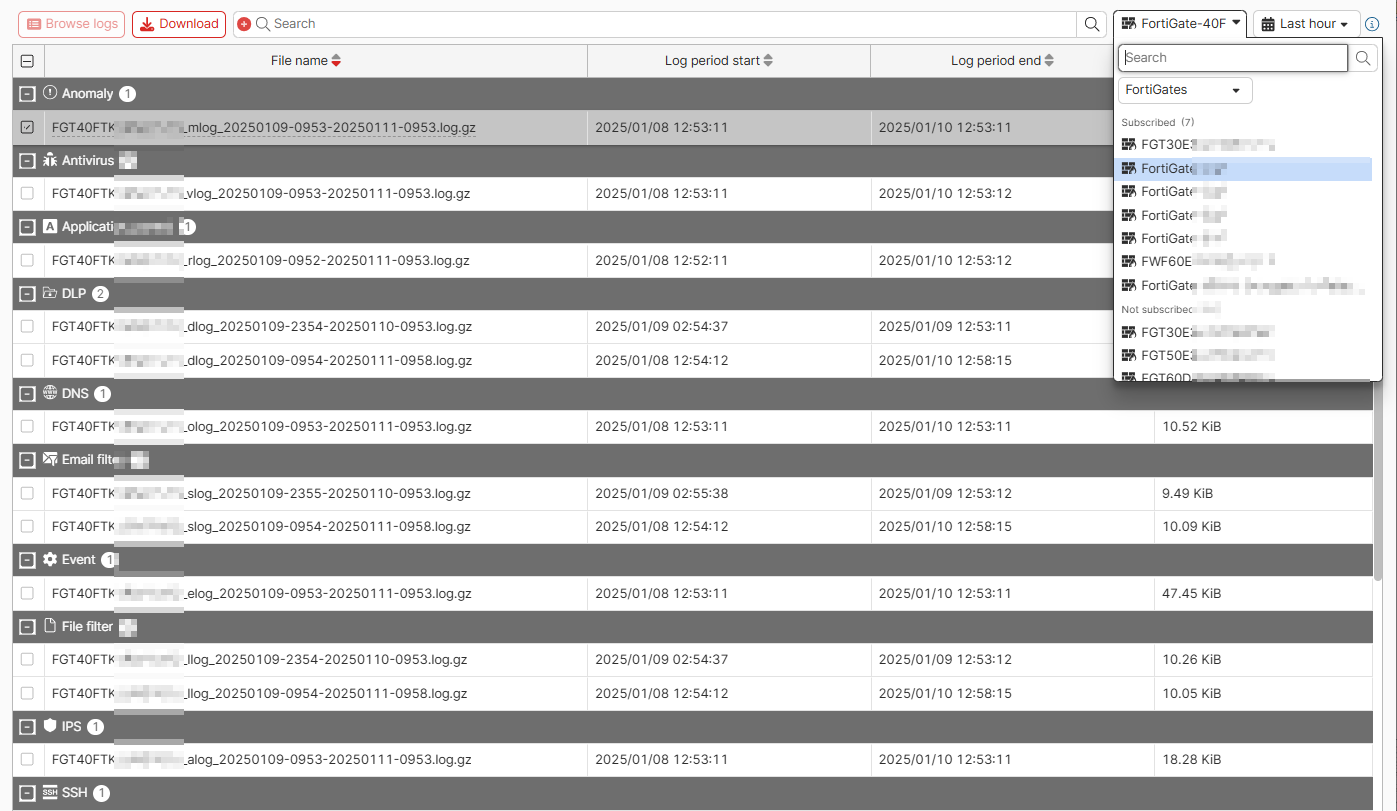
- Click Browse logs.
To export log data as a CSV file:
- Go to Analytics > Logs and select the desired log type.
- Click Export to CSV. A CSV file of the log data downloads to your device.