
Fortinet white logo
Fortinet white logo

Admin Guide (Standalone)

Configure Bluetooth Low Energy

Configure Bluetooth Low Energy

Some FortiExtender models have a Bluetooth Low Energy (BLE) 5.0 interface that operates in the 2.4 GHz band. By default, the BLE interface is turned off to prevent unauthorized access. When BLE is active, any nearby device can attempt to connect.

For specific instructions on enabling BLE, refer to the QuickStart Guide that came with your FortiExtender. In general, you can enable Bluetooth pairing mode by holding the Bluetooth button for more than 3 seconds. This opens a brief pairing window, during which the device's BLE radio is active and discoverable. Once in pairing mode, the device will "listen" for connection attempts for 90 seconds. If no pairing is completed during that interval, the BLE window closes and the LED turns off.

Note

Fortinet recommends always securing your FortiExtender by setting a strong admin password and disabling Bluetooth when not in use. Only press the Bluetooth button when you are ready to pair a device. Do not leave a FortiExtender in pairing mode unattended.

For additional security, you can disable the Bluetooth button so that pressing it will not trigger BLE function.

To disable the FortiExtender BLE button - GUI:
  1. From the FortiExtender GUI, go to Settings > System and click Edit.
  2. In the Bluetooth dropdown list, select disable.
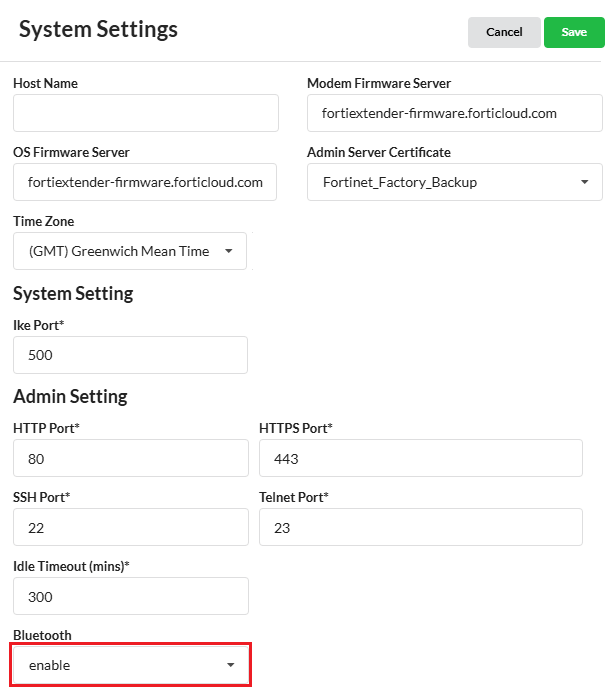
  3. When you are finished, click Save.
To disable the FortiExtender BLE button - CLI:
config system bluetooth
  set status disable
end

Configure Bluetooth Low Energy

Configure Bluetooth Low Energy

Some FortiExtender models have a Bluetooth Low Energy (BLE) 5.0 interface that operates in the 2.4 GHz band. By default, the BLE interface is turned off to prevent unauthorized access. When BLE is active, any nearby device can attempt to connect.

For specific instructions on enabling BLE, refer to the QuickStart Guide that came with your FortiExtender. In general, you can enable Bluetooth pairing mode by holding the Bluetooth button for more than 3 seconds. This opens a brief pairing window, during which the device's BLE radio is active and discoverable. Once in pairing mode, the device will "listen" for connection attempts for 90 seconds. If no pairing is completed during that interval, the BLE window closes and the LED turns off.

Note

Fortinet recommends always securing your FortiExtender by setting a strong admin password and disabling Bluetooth when not in use. Only press the Bluetooth button when you are ready to pair a device. Do not leave a FortiExtender in pairing mode unattended.

For additional security, you can disable the Bluetooth button so that pressing it will not trigger BLE function.

To disable the FortiExtender BLE button - GUI:
  1. From the FortiExtender GUI, go to Settings > System and click Edit.
  2. In the Bluetooth dropdown list, select disable.

  3. When you are finished, click Save.
To disable the FortiExtender BLE button - CLI:
config system bluetooth
  set status disable
end