

FortiDeceptor Campaign
FortiDeceptor can connect to EMS, leveraging EMS capabilities to push deception tokens to FortiClient endpoints more efficiently without requiring mobile device management or group policy objects. The following summarizes the workflow for this integration:
- Configure a Fortinet Security Fabric connector for FortiDeceptor in EMS. This leverages the same Fabric connection that FortiGate uses. See Configuring a Fabric connector for FortiDeceptor in EMS:.
- Import a campaign profile from FortiDeceptor to EMS. See Importing a FortiDeceptor campaign profile to EMS.
- Apply the profile to the desired endpoint policy. See Applying the profile to the desired endpoint policy.
- After FortiClient receives the profile update, it downloads and installs the FortiDeception token. The token deploys lure services across various locations on the endpoint to attract potential attackers. If an attacker triggers the lure, FortiClient generates an incident report and sends it to the FortiDeceptor. If you enabled quarantine integration, the endpoint is automatically quarantined. You can remove the endpoint from quarantine using EMS or FortiDeceptor. See FortiDeceptor integration on FortiClient and EMS.
This feature supports FortiClient (Windows) and (Linux).
Configuring a Fabric connector for FortiDeceptor in EMS:
To configure a Fabric connector for FortiDeceptor in EMS:
- Enable the FortiDeceptor integration feature in EMS:
- Go to System Settings > Feature Select.
- Enable FortiDeceptor (Beta).
- Click Save.
- Go to Fabric & Connectors > Fabric Devices.
- Under OAuth 2.0 Fabric Connectors, click Add.
- From the Connector Type dropdown list, select FortiDeceptor.
- Configure the fields as applicable for your FortiDeceptor. You can generate the REST API key on FortiDeceptor in Account > REST API > Generate. Click Test.
- After verifying the connection, on the Admin Settings tab, configure the fields as desired. For Role, the EMS admin role selected defines which EMS APIs (and therefore, features) that the Fabric device connector can access. For example, a Fabric connector that is configured with the Standard administrator role can access EMS APIs for endpoint and policy permissions and has read-only permissions to settings permissions. Click Finish.
- The Client Credentials dialog displays the client ID and secret, which are required to configure quarantine integration. Copy these values and save them in a secure location. The client secret is not visible once you close this dialog. Click Close.
- Click Yes to confirm closing the dialog. The Fabric connection successfully establishes and displays in the OAuth 2.0 Fabric Connectors list. Status updates when quarantine integration is enabled on FortiDeceptor. Otherwise, it displays as N/A.

Importing a FortiDeceptor campaign profile to EMS
To import a FortiDeceptor campaign profile to EMS:
- Go to Endpoint Profiles > FortiDeceptor Campaign.
- Click Import Profile from FortiDeceptor.
- From the dropdown list, select the desired FortiDeceptor. Click Next.
- Select the desired FortiDeception token. Click Next.
- Configure the synchronization mode as desired:
Option
Description
One Time Pull
FortiClient EMS does not automatically sync profile changes from the FortiGate or FortiManager. You can manually sync profile changes after importing the profile.
Group Schedule
Configure a group synchronization schedule for all selected profiles. Select the next date and time to automatically update the profiles, and the profile update interval in days, hours, or seconds.
Individual Schedule
Configure an individual synchronization schedule for each selected profile. Select the next date and time to automatically update each profile, and the profile update interval in days, hours, or seconds.
- Click Import. The FortiDeceptor campaign profile displays in the campaign list.

You cannot import a FortiDeceptor campaign profile in EMS. You can edit it in FortiDeceptor and sync it to EMS as per the configured synchronization mode.
Applying the profile to the desired endpoint policy
To apply the profile to the desired endpoint policy:
- Go to Endpoint Policy & Components > Manage Policies.
- Edit the desired existing policy or create a new one.
- In the Profile > FDC dropdown list, select the imported profile.
- Configure other fields as desired, then click Save.
FortiDeceptor integration on FortiClient and EMS
After FortiClient receives the policy change from EMS, FortiClient retrieves the FortiDeception token from EMS and installs it on the endpoint. When viewing the endpoint in EMS, the Status > FortiDeceptor Campaign Deployment field displays the current status of the token, which progresses from Pending to Notified to Deployed.

In Endpoints, you can filter endpoints by their FortiDeceptor campaign deployment status.
After FortiClient installs the token, it strategically distributes lures across various locations on the endpoint. For example, an RDP lure is placed in the Documents folder. Linux supports a limited set of lure types. Possible locations may include the following:
|
Lure type |
OS support |
Description |
|---|---|---|
|
AWS |
|
Specify where to create the lure file, aws_access_test22222222222222222_key.JSON, in FortiDeceptor. |
|
Azure |
|
Specify where to create the lure file, azure_access.JSON, in FortiDeceptor. |
|
Cached credentials |
|
Multiple cmd.exe and conhost.exe processes are created and visible in Task Manager. |
|
HoneyDoc |
|
Specify where to create the lure file in FortiDeceptor. |
|
ODBC |
|
Added to the User Data sources list and can be viewed using the ODBC Data Source Administrator (32-bit) application. |
|
RDP |
|
RDP config file located in:
|
|
SAP |
|
sap_logon.ini file created at C:\Users\Username\AppData\Roaming\SAP\Common |
|
SMB/Samba |
|
|
|
SSH |
|
SSH config file located at:
|
When a lure service is triggered on the endpoint, FortiClient detects the event and reports the incident to FortiDeceptor. For example, if an RDP file is executed, it initiates a connection to the remote decoy machine, and the incident is logged in FortiDeceptor in Incident > Analysis.
Quarantine integration
If FortiDeceptor is configured with quarantine integration, it can automatically quarantine an endpoint when a lure service is triggered.
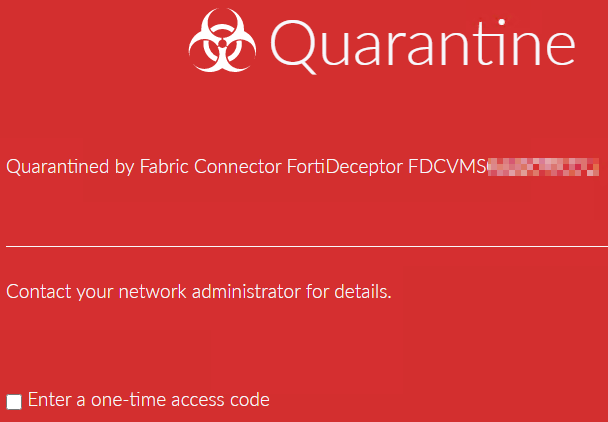
You can remove an endpoint from quarantine using FortiDeceptor or EMS.
To remove an endpoint from quarantine:
Do one of the following:
-
To remove an endpoint from quarantine using FortiDeceptor, go to Fabric > Quarantine Status, select the endpoint, and click Unblock.
-
To remove an endpoint from quarantine using EMS, see Quarantining an endpoint.
FortiClient sends FortiDeceptor quarantine events to EMS. You can view them on the endpoint System Events tab.
Removing the FortiDeceptor token from an endpoint
You can disable the FortiDeceptor profile from an endpoint. For example, you can reconfigure the assigned endpoint policy to use the default FortiDeceptor profile, which is not configured with tokens. When FortiClient receives the profile change, it uninstalls the token and removes all lures from the endpoint. In Endpoints, the FortiDeceptor Campaign Deployment status progresses from Pending to uninstall to Notified to uninstall to Clean. The FortiDeceptor Campaign Deployment field will eventually no longer be visible for the endpoint.