

Getting CLI help
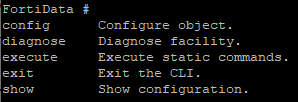
Enter a question mark (?) at the command prompt to display a list of CLI commands and their description.
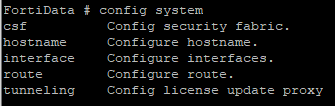
Enter config system ? to display all configuration system related commands and their descriptions.
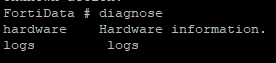
Enter diagnose ? to display all diagnose related commands and their descriptions.
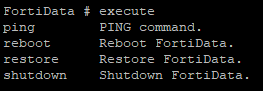
Enter execute ? to display all execute related commands and their descriptions.
Enter show system ? to display all show system related commands and their descriptions.

Abbreviating commands
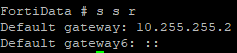
You can abbreviate words in the command line to their smallest number of non-ambiguous characters.
For example, the show system route command can be abbreviated to s s r.
Completing commands automatically
Enter a word or part of a word and then press ?. No space is required before the command.
For example, enter e and then ?. You can see the following information:

The table below lists the shortcuts and descriptions:
|
Action |
Shortcut |
Description |
|---|---|---|
|
List
|
?
|
List CLI commands and their descriptions. |
Tab
|
Display the key command word. Press Tab multiple times to switch among different words, such as get, show, and config, etc. | |
|
Recall |
↑ or Ctrl + P |
Recall the previous command. Command memory is limited to the current session. |
↓ or Ctrl + N |
Recall the next command. | |
|
Cursor move |
←or → |
Move the cursor within the command line. |
Ctrl + A
|
Move the cursor to the beginning of the command line. | |
Ctrl + E
|
Move the cursor to the end of the command line. | |
Ctrl + B
|
Move the cursor after one word. | |
Ctrl + F
|
Move the cursor before one word. | |
|
Delete |
Ctrl + D
|
Delete the current character. |
|
Abort commands |
Ctrl + C
|
Abort current interactive commands, such as when entering multiple lines. If you are not currently within an interactive command such as config or edit, this closes the CLI connection. |
|
Continue to next line |
\ then Enter |
Continue typing a command on the next line for a multi-line command. |