Web and Video Filter
Web Filter allows you to block, allow, warn, and monitor web traffic based on URL category or custom URL filters. When a domain is detected, the URL is sent to FortiGuard for categorization. FortiClient then takes action based on the returned category. You can create a custom URL filter exclusion list that overrides the FortiGuard category.
Since FortiClient cannot perform deep inspection and instead leverages certificate inspection for HTTPS websites, FortiClient also cannot present a block page with a trusted connection. This is seen as a browser certificate warning. To avoid this, there are two options:
- Leverage the web browser plugin for HTTPS web filtering. See Web browser plugin for HTTPS web filtering.
- Action On HTTPS Site Blocking. See the FortiClient EMS Administration Guide.
FortiClient inspects all web traffic, not just traffic that a web browser generates. This means you may get web filter certificate warnings or popup messages for other applications, such as Outlook.
If HTTP/3 is enabled on the browser or device, you must add the FortiClient Web Filter extension to the browser to ensure Web Filter is applied.
Video Filter helps protect you by filtering sensitive video contents from websites like YouTube. The EMS administrator configures Video Filter settings and deploys them to FortiClient.
The endpoint must be able to reach globalvideoquery.fortinet.net or usvideoquery.fortinet.net for Video Filter to work.

|
If FortiClient cannot contact FortiGuard, FortiClient blocks all web traffic by default. To configure FortiClient to allow web traffic when FortiGuard is unreachable, see the FortiClient XML Reference Guide. |
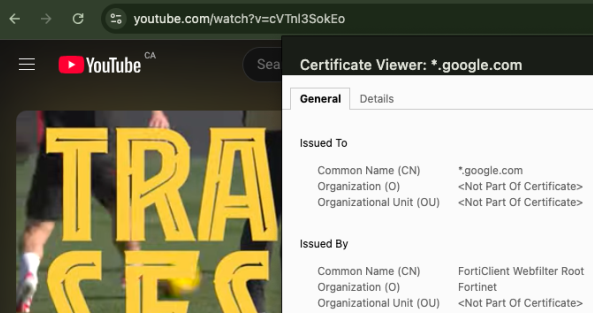
On macOS, Video Filter events does not display on the endpoint. To verify that the Video Filter feature is active on a macOS endpoint, you can open YouTube and confirm that a FortiClient Web Filter certificate intercepts YouTube traffic. In Chrome, you can view this information by going to More tools > Developer tools > Security > View certificate.