
Fortinet white logo
Fortinet white logo

User Guide

7.2.0

Configuring charts

Configuring charts

Motion detection triggers recordings of vehicles and people, and camera models that support this feature will automatically process the video stream so that they can try to recognize attributes such as vehicles or a person's gender and age. Charts can be made from this video metadata.

Before you use charts, however, you must configure some settings. This gives required context for some charts. Optionally you can also define defaults.

General steps to use charts are:

  1. Enabling the cameras' built-in AI to collect metadata for charts (see the FortiRecorder Administration Guide)
  2. Defining inside and outside areas in the camera view
  3. Defining defaults and chart time intervals
  4. Generating charts

Defining inside and outside areas in the camera view

Inside and outside areas of the surveillance site shown in video streams must be defined so that charts can show frequent directions of movement.

For example, if a camera is installed near a building's door, then you could define the area around the door as "inside" and the sidewalk or parking lot nearby as "outside." Then when you filter charts to show people going inside, it will only show events when people entered the door, but not when they left or only walked by the building.

Note

Configure areas immediately after the camera is installed. Do not change areas unless the camera is moved.

If the in/out area has been reconfigured, chart trends generated that includes the time period before the in/out area reconfiguration may no longer be relevant. Users may misunderstand this trend on the chart. Therefore you may want to notify them if you adjust the area.

  1. On the view pane for a camera, click the Settings button and then select Configure In Out Area.

    A polygon appears over the view, initially labeled Outside.

  2. If you want to draw the inside area instead, then click Toggle Out Area.

    The polygon label changes to Inside.

    For example, if you have an exterior camera that is aimed towards the building's front door, and so most of the view area is outside, then you probably only want to consider the small entrance area "inside". Around the door, you would put an Inside polygon.

    The remaining area around a polygon is defined as the opposite: in this example, "outside".

  3. Drag the corners of the polygon until it covers the inside or outside area.
  4. Click Save In Out Area.
  5. Repeat the previous steps for all cameras that you will use with charts.

Defining defaults and chart time intervals

Some common settings are used by many charts, such as starting each week on Sunday. Optionally you can change these default settings.

  1. Click the Settings button in the top right corner.
  2. Go to Settings > Chart Manager.
  3. Configure the following settings:

    Setting

    Description

    Business Hours

    Mark the checkbox and then select a time range to define when the building is open.

    In charts where Data Source is Traffic, the time range when the building is closed is indicated with lighter gray text. This visually indicates when occupancy should be low, and motion detection might be suspicious.

    Capacity Reset Hour

    For charts where Metric is Occupancy Est. or Stay Est., select the time of day when the occupancy counter will reset to zero. This effectively acts as the start of the day.

    Tip: For accurate occupancy charts, select a counter reset time when the building is empty (it really has zero people, matching the chart counter), or at least has the fewest people.

    Start of Week

    Select the day of the week that is the start of the time range in charts.

    Default Detection Mode

    Select the default option for Detection Mode

  4. Click OK.

Generating charts

Charts can be generated on demand, using the settings that you select.

  1. On a view pane, click the Settings button.
  2. Go to Open Chart Manager.

    Initially, no chart is shown. You can either:

    • Reuse existing chart settings by selecting a name from Chart Profile and then clicking Generate Chart.
    • Continue this procedure to manually configure chart settings.
  3. From the Data Source dropdown list, select either:

    • Traffic — Bar charts about statistics such as direction of movement, occupancy, and people's gender and age.

      Traffic Accumulation Chart with Previous Time Period Comparison
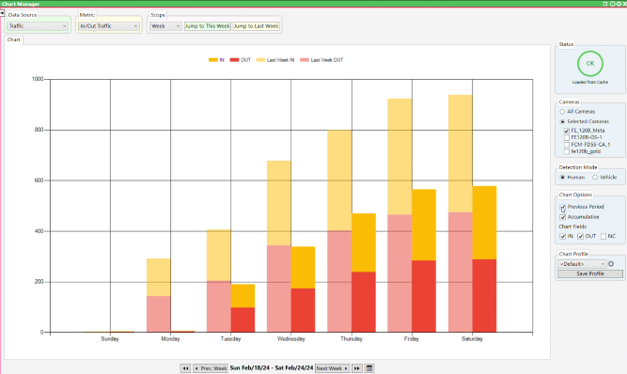
      FortiCentral chart manager showing accumulated traffic relative to the previous time interval

    • Paths — Overlay on a camera view with a heatmap that visualizes common paths of movement.

      Path Chart with Movement Heatmap
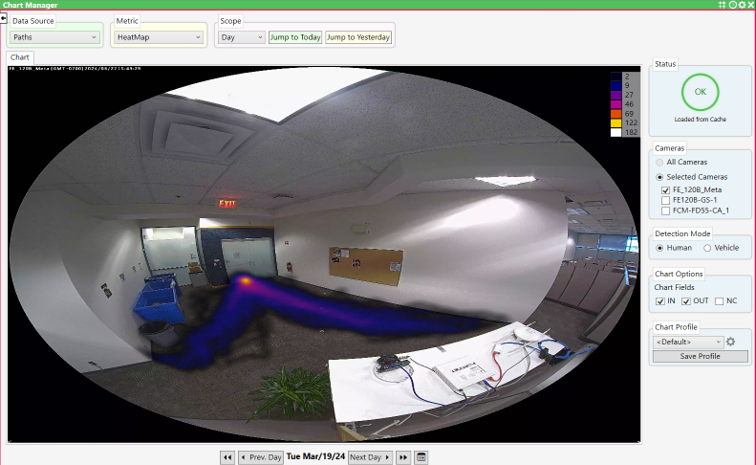
      FortiCentral chart manager with heat map showing common movement paths

    Available options in other settings vary by this selection.

  4. Configure the following settings:

    Setting

    Description

    Metric

    Select either:

    • In/Out Traffic — Counts of how many people or vehicles went inside, outside, or neither, as observed by the cameras selected in Cameras, during the time interval selected in Scope.
    • Occupancy Est. — Counts of how many people or vehicles were estimated to be in the building site, based on entries and exits observed. See also Capacity Reset Hour and Limiting building occupancy.
    • Stay Est. — Estimate of how long people or vehicles remained in the building site, based on entries and exits observed. See also Capacity Reset Hour.
    • Gender/Age — Counts of males, females, adults, and children.
    • Heat Map — Overlay the camera view with color to indicate commonly used paths: areas with fewer motion detections (dark blue and purple) to more (yellow and white).
    • Path Overlay — Overlay the camera view with lines indicating direction and path of movement. Specify which directions in Chart Fields.

    Available options vary by your selection in Data Source.

    Scope

    Select the time range of the chart.

    If you want to show a previous time, then either:

    • Click the button next to Scope, such as Jump to Previous Week.
    • At the bottom of the pane, click the time range. In the calendar dialog, click to select the start of the time range, and then click OK. To fine tune, click the buttons next to the date, such as Prev. Hour or Next Hour.

    See also Start of Week and Business Hours.

    Cameras

    Select either All Cameras, or Selected Cameras and then choose which camera(s) to use.

    Available options vary by your selection in Data Source. For paths, the chart information is an overlay on a still image from a camera, so you can only select one camera at a time.

    Detection Mode

    Select which type of movement, such as Human or Vehicle.

    Chart Options

    Select which data to show, and how to display it in the chart:

    • Previous Period — Counts are for both the current and previous time interval, with the previous time interval shown in lighter colors.

      This option is available only if Data Source is Traffic.

    • Accumulative — Counts are a total that increases over time, instead of restarting the count from zero during each unit of time on the chart.

      This option is available only if Metric is In/OutTraffic.

    • Chart Fields — Select which movement directions to show:

      • IN
      • OUT
      • NC — Neither in nor out. "Not counted" can occur if the person or vehicle remained in the inside or outside area, and never moved between them, and therefore the in/out direction is not defined.

      This option is available only if Metric is In/OutTraffic, Heat Maps, and Path Overlay.

  5. If you want to save the chart settings for reuse later, click Save Profile, enter a name for the profile, and click OK.

    The profile name appears in the Chart Profile dropdown list. Next time you use charts, you can select the profile to quickly load the same settings.

    Optionally, you can also click the Settings icon next to Chart Profile to configure permissions and some preferences that affect all charts. See Renaming chart profiles and changing permissions.

  6. Click Generate Chart.

    Time required varies by the amount of metadata that FortiCentral must download from the camera and process. If you selected a large time range with many cameras (for example, if Scope is Year and Cameras is All Cameras and you have many cameras), then the time required could be several minutes. The Status area indicates chart progress.

    If you want to generate other charts, then change the selected options. The chart automatically refreshes.

Configuring charts

Configuring charts

Motion detection triggers recordings of vehicles and people, and camera models that support this feature will automatically process the video stream so that they can try to recognize attributes such as vehicles or a person's gender and age. Charts can be made from this video metadata.

Before you use charts, however, you must configure some settings. This gives required context for some charts. Optionally you can also define defaults.

General steps to use charts are:

  1. Enabling the cameras' built-in AI to collect metadata for charts (see the FortiRecorder Administration Guide)
  2. Defining inside and outside areas in the camera view
  3. Defining defaults and chart time intervals
  4. Generating charts

Defining inside and outside areas in the camera view

Inside and outside areas of the surveillance site shown in video streams must be defined so that charts can show frequent directions of movement.

For example, if a camera is installed near a building's door, then you could define the area around the door as "inside" and the sidewalk or parking lot nearby as "outside." Then when you filter charts to show people going inside, it will only show events when people entered the door, but not when they left or only walked by the building.

Note

Configure areas immediately after the camera is installed. Do not change areas unless the camera is moved.

If the in/out area has been reconfigured, chart trends generated that includes the time period before the in/out area reconfiguration may no longer be relevant. Users may misunderstand this trend on the chart. Therefore you may want to notify them if you adjust the area.

  1. On the view pane for a camera, click the Settings button and then select Configure In Out Area.

    A polygon appears over the view, initially labeled Outside.

  2. If you want to draw the inside area instead, then click Toggle Out Area.

    The polygon label changes to Inside.

    For example, if you have an exterior camera that is aimed towards the building's front door, and so most of the view area is outside, then you probably only want to consider the small entrance area "inside". Around the door, you would put an Inside polygon.

    The remaining area around a polygon is defined as the opposite: in this example, "outside".

  3. Drag the corners of the polygon until it covers the inside or outside area.
  4. Click Save In Out Area.
  5. Repeat the previous steps for all cameras that you will use with charts.

Defining defaults and chart time intervals

Some common settings are used by many charts, such as starting each week on Sunday. Optionally you can change these default settings.

  1. Click the Settings button in the top right corner.
  2. Go to Settings > Chart Manager.
  3. Configure the following settings:

    Setting

    Description

    Business Hours

    Mark the checkbox and then select a time range to define when the building is open.

    In charts where Data Source is Traffic, the time range when the building is closed is indicated with lighter gray text. This visually indicates when occupancy should be low, and motion detection might be suspicious.

    Capacity Reset Hour

    For charts where Metric is Occupancy Est. or Stay Est., select the time of day when the occupancy counter will reset to zero. This effectively acts as the start of the day.

    Tip: For accurate occupancy charts, select a counter reset time when the building is empty (it really has zero people, matching the chart counter), or at least has the fewest people.

    Start of Week

    Select the day of the week that is the start of the time range in charts.

    Default Detection Mode

    Select the default option for Detection Mode

  4. Click OK.

Generating charts

Charts can be generated on demand, using the settings that you select.

  1. On a view pane, click the Settings button.
  2. Go to Open Chart Manager.

    Initially, no chart is shown. You can either:

    • Reuse existing chart settings by selecting a name from Chart Profile and then clicking Generate Chart.
    • Continue this procedure to manually configure chart settings.
  3. From the Data Source dropdown list, select either:

    • Traffic — Bar charts about statistics such as direction of movement, occupancy, and people's gender and age.

      Traffic Accumulation Chart with Previous Time Period Comparison

      FortiCentral chart manager showing accumulated traffic relative to the previous time interval

    • Paths — Overlay on a camera view with a heatmap that visualizes common paths of movement.

      Path Chart with Movement Heatmap

      FortiCentral chart manager with heat map showing common movement paths

    Available options in other settings vary by this selection.

  4. Configure the following settings:

    Setting

    Description

    Metric

    Select either:

    • In/Out Traffic — Counts of how many people or vehicles went inside, outside, or neither, as observed by the cameras selected in Cameras, during the time interval selected in Scope.
    • Occupancy Est. — Counts of how many people or vehicles were estimated to be in the building site, based on entries and exits observed. See also Capacity Reset Hour and Limiting building occupancy.
    • Stay Est. — Estimate of how long people or vehicles remained in the building site, based on entries and exits observed. See also Capacity Reset Hour.
    • Gender/Age — Counts of males, females, adults, and children.
    • Heat Map — Overlay the camera view with color to indicate commonly used paths: areas with fewer motion detections (dark blue and purple) to more (yellow and white).
    • Path Overlay — Overlay the camera view with lines indicating direction and path of movement. Specify which directions in Chart Fields.

    Available options vary by your selection in Data Source.

    Scope

    Select the time range of the chart.

    If you want to show a previous time, then either:

    • Click the button next to Scope, such as Jump to Previous Week.
    • At the bottom of the pane, click the time range. In the calendar dialog, click to select the start of the time range, and then click OK. To fine tune, click the buttons next to the date, such as Prev. Hour or Next Hour.

    See also Start of Week and Business Hours.

    Cameras

    Select either All Cameras, or Selected Cameras and then choose which camera(s) to use.

    Available options vary by your selection in Data Source. For paths, the chart information is an overlay on a still image from a camera, so you can only select one camera at a time.

    Detection Mode

    Select which type of movement, such as Human or Vehicle.

    Chart Options

    Select which data to show, and how to display it in the chart:

    • Previous Period — Counts are for both the current and previous time interval, with the previous time interval shown in lighter colors.

      This option is available only if Data Source is Traffic.

    • Accumulative — Counts are a total that increases over time, instead of restarting the count from zero during each unit of time on the chart.

      This option is available only if Metric is In/OutTraffic.

    • Chart Fields — Select which movement directions to show:

      • IN
      • OUT
      • NC — Neither in nor out. "Not counted" can occur if the person or vehicle remained in the inside or outside area, and never moved between them, and therefore the in/out direction is not defined.

      This option is available only if Metric is In/OutTraffic, Heat Maps, and Path Overlay.

  5. If you want to save the chart settings for reuse later, click Save Profile, enter a name for the profile, and click OK.

    The profile name appears in the Chart Profile dropdown list. Next time you use charts, you can select the profile to quickly load the same settings.

    Optionally, you can also click the Settings icon next to Chart Profile to configure permissions and some preferences that affect all charts. See Renaming chart profiles and changing permissions.

  6. Click Generate Chart.

    Time required varies by the amount of metadata that FortiCentral must download from the camera and process. If you selected a large time range with many cameras (for example, if Scope is Year and Cameras is All Cameras and you have many cameras), then the time required could be several minutes. The Status area indicates chart progress.

    If you want to generate other charts, then change the selected options. The chart automatically refreshes.