

Diagnostics
The Diagnostics page provides core traffic validation between clients, FortiAppSec Cloud WAF, and origin servers. It helps detect connectivity, certificate, and platform-related issues that could impact application availability.
Use Filter Report to only display Diagnostics Reports with certain characteristics.
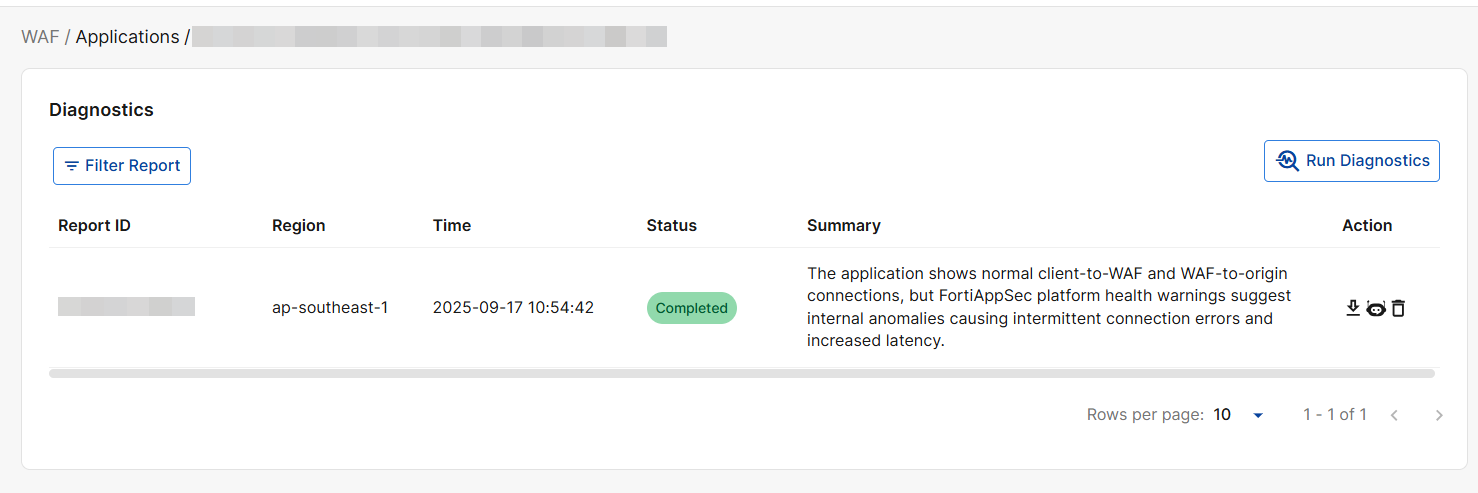
|
Report ID |
Auto-generated value to identify this report. |
|
Region |
Region entered during report creation. |
|
Time |
Time of report creation. |
|
Status |
Indicates the current state of the diagnostic report:
|
|
Summary |
This section displays summary section from the generated report. |
|
Action |
Click an icon in this column to perform the following actions: |
 : Permanently delete the generated report.
 Create Diagnostics Report
When you create a Diagnostics Report, the system runs connectivity checks between clients and the FortiAppSec Cloud WAF, as well as between the FortiAppSec Cloud WAF and the origin servers, and compiles the results into a PDF.
-
Click Run Diagnostics.
-
Configure the following:
Setting
Description
Affected IP
If the issue only occurs for a subset of client IP addresses, you can specify the Affected IP when creating the report. The system will verify whether the selected IP has been blocked by the FortiAppSec Cloud WAF.
Otherwise, leave this field blank.
Affected Region
For customers using CDN, select the affected Region where the issue is observed. This helps narrow the diagnostic scope.
Otherwise, leave this field as default.Certificate Diagnostics
Enable when you need to check SSL/TLS certificate presence, validity, and chain. The system will also provide recommendations for any issues detected.
Note: This feature relies on shared global resources, so diagnostic capacity is limited. During peak demand, report requests with this setting enabled may be queued or rejected.
-
Click OK to save and apply changes.
View Application Diagnostics Report
The Application Diagnosis Report provides a comprehensive analysis of application connectivity and platform health, including findings, impact, and recommended solutions. To download an Application Diagnostics Report, locate the desired report in the table on the Diagnostics page, and click the  icon under Actions.
Summary & Recommendations
This section summarizes key issues identified at each stage, their potential impact, and recommended resolutions.
Key Findings
Detailed diagnostics results are provided across three stages:
-
Client → WAF Edge: Verifies client connectivity to the FortiAppSec Cloud WAF.
-
WAF Edge → Origin Servers: Tests connectivity between the WAF and origin servers.
-
FortiAppSec Platform Health: Validates the health status of FortiAppSec Cloud WAF services.
Failures & Warnings
This section lists common errors and warnings, along with their potential causes and recommended solutions.
-
Client → WAF Edge
-
DNS Resolution Failure: The domain could not be resolved, or DNS is not pointing to FortiAppSec Cloud WAF.
-
Certificate Issues: SSL/TLS certificate is invalid or expired.
-
IP Blocking: The client IP is blocked by FortiAppSec Cloud WAF.
-
-
WAF Edge → Origin Servers
-
Connection Timeout: The origin server’s firewall may be blocking FortiAppSec Cloud WAF IPs, or the origin server is unresponsive.
-
Certificate Issues: SSL/TLS certificate is invalid or expired.
-
Error Responses: The origin server responds with HTTP error codes (4xx or 5xx) even when the connection is established.
-
-
FortiAppSec Platform Health
-
Possible resource exhaustion or service-level anomalies within the FortiAppSec Cloud WAF platform.
-
Troubleshooting
-
Follow the recommendations in the report for initial troubleshooting.
-
If the issue persists, submit a support ticket, ensuring to attach the complete Application Diagnosis Report (PDF) to your ticket.
FortiAI Diagnostics Agent
The Diagnostics Agent helps identify abnormal connection statuses within their applications and provides insights for resolving connectivity issues. It evaluates multiple aspects of application health, including:
-
DNS Status: Analyzing issues related to Domain Name System resolution.
-
Pserver Status: Checking the status of the primary server connection.
-
Auto Cert Apply: Examining the automatic certificates if alrady applied.
To activate the agent, click the  icon under Actions.