

How to make an existing FQDN work with GSLB
Example: You have an existing domain ‘example.com’ running on a DNS server that does not support global app load balance. Your FQDN ‘www.example.com' pointed to a single host 10.123.4.5. When business grew, you brought in another server 10.234.5.6 also have this service.
Now you would like to have global app load balancing for the FQDN. However, you still want your other FQDNs running on your existing DNS server. To do this, change the A record for ‘www.example.com’ to a CNAME record, and point it to ‘www.sub.example.com’. Add ‘sub.example.com’ as a sub-domain. Then configure ‘www.sub.example.com’ global app load balance service on GSLB.
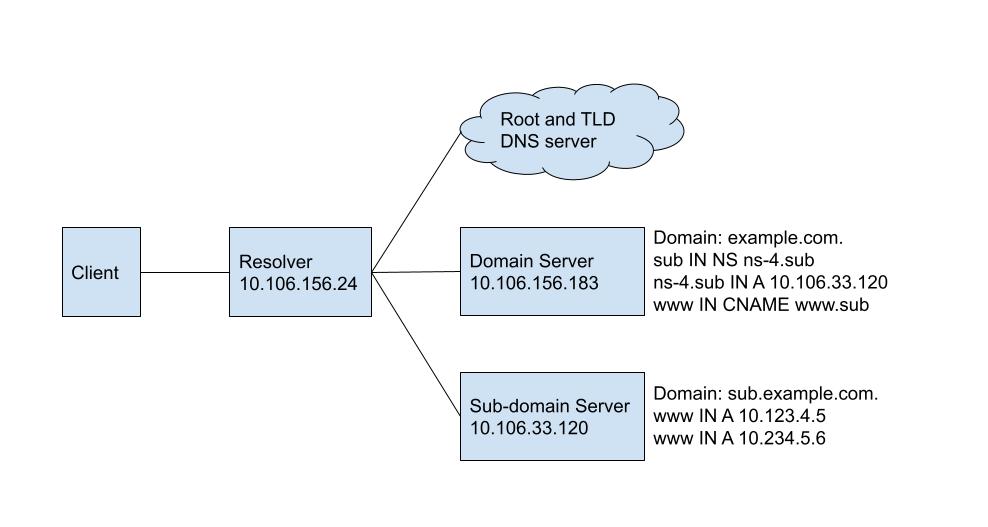
Steps
- Configure the GSLB for sub-domain 'sub.example.com'.
- Go to DNS Services and click Create DNS Services or Create New. Add a DNS service for the sub-domain and name the Primary Server Name as ns-4. The DNS server address in this example is 10.106.33.120.
- Add a FQDN service for 'www.sub.example.com'. For detailed instructions, see Setting up an FQDN with Generic-Host connector.
- Configure the ‘sub.example.com’ as a sub-domain of ‘example.com’ by adding a NS record in the domain configuration. You may need a NS record that points ‘sub.example.com’ to ‘ns-4.sub.example.com’, and another A record that points ‘ns-4.sub.example.com’ to 10.106.33.120.
The following is an example from FortiADC. The FortiADC will automatically create these two records according to the configuration settings. - Remove the old A record for 'www.example.com' and replace it with a CNAME record. Alias 'www.example.com.' to the Target Name 'www.sub.example.com.'.
CNAME Record example from FortiADC - Verify the configuration by querying the resolver 10.106.156.24 using any of the following methods. We recommend using
digfor Linux, andnslookuporResolve-DnsNamefor Windows.
The expected query output is as follows:
Linux -dig
Windows -nslookup
Windows -Resolve-DnsName
If you configure steps 1 – 3 correctly, your host should now be able to load balance between two data centers. You can test this by querying the pubic DNS resolver 8.8.8.8 multiple times and seeing the order of the two IP address change when the TTL counts down.
Debugging
If verification fails, the user will need to debug according to the steps below:
- Test the sub-domain A record by querying the sub-domain DNS server 10.106.33.120 directly.
Linux -dig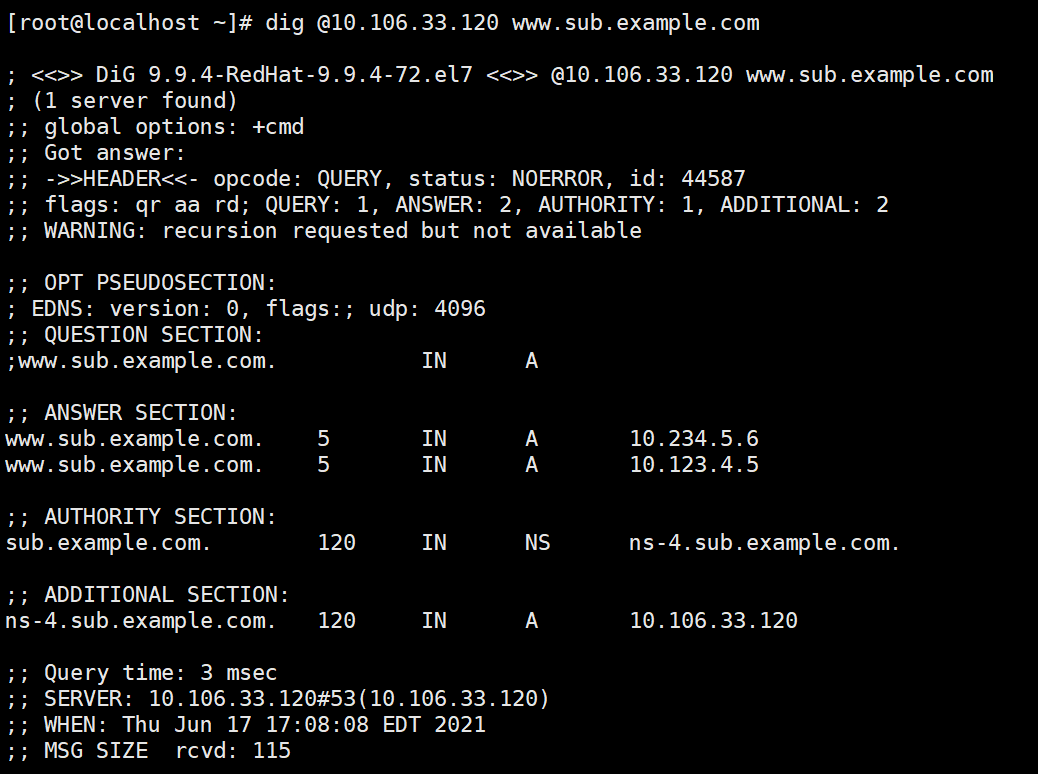
Windows -nslookup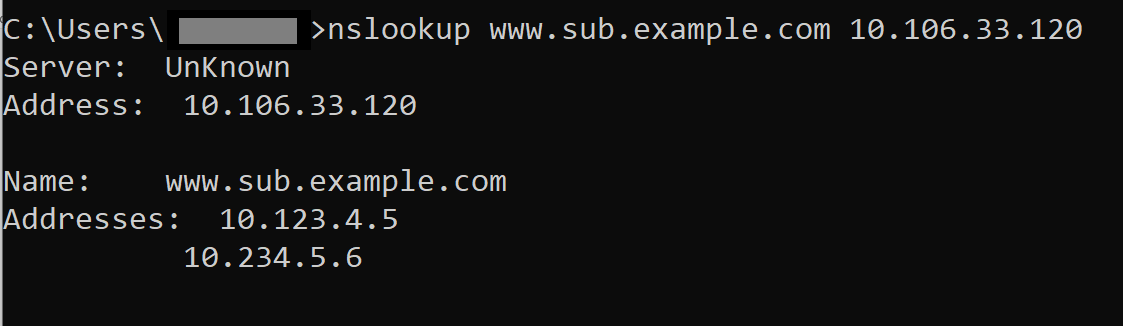
Windows -Resolve-DnsName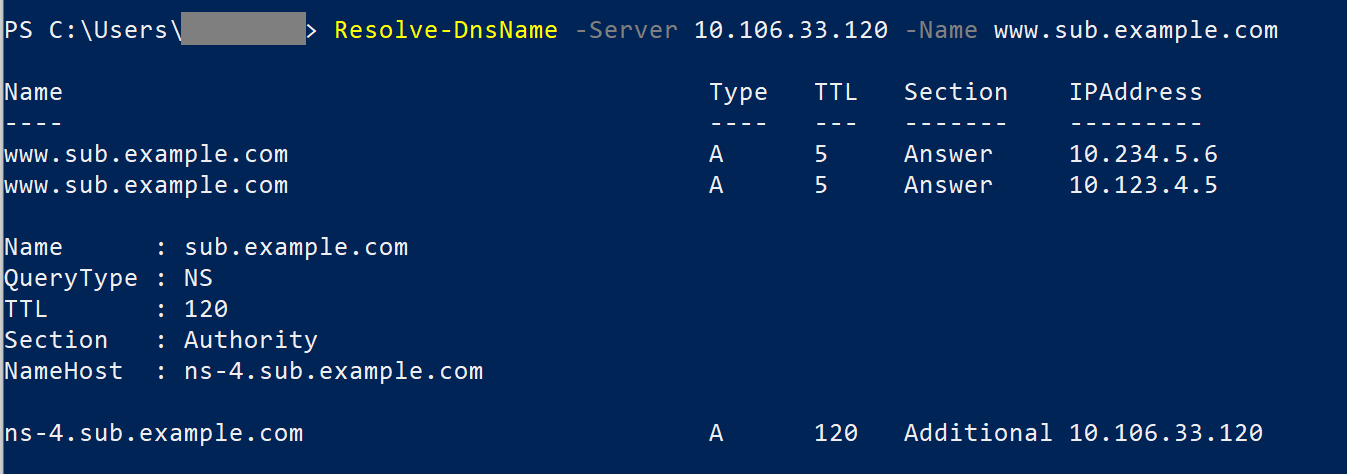
- If the test fails, remove all other records from Zone service and try again. The Zone service may take a minute to reload after the configuration changes.
- Test the NS record by querying the domain server 10.106.156.183.
Linux -dig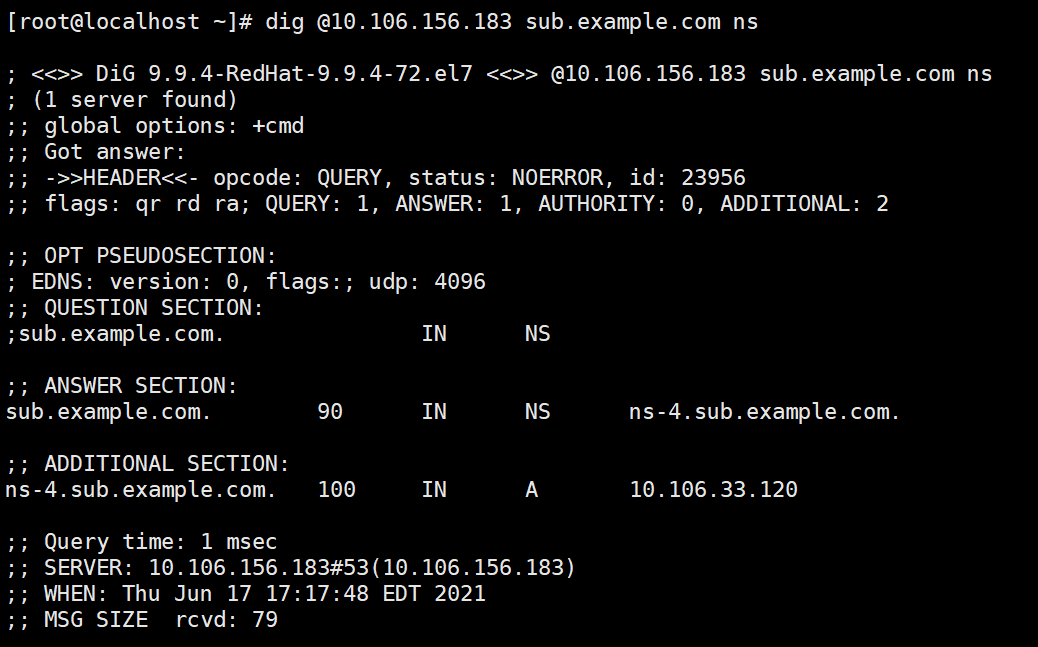
Windows -nslookup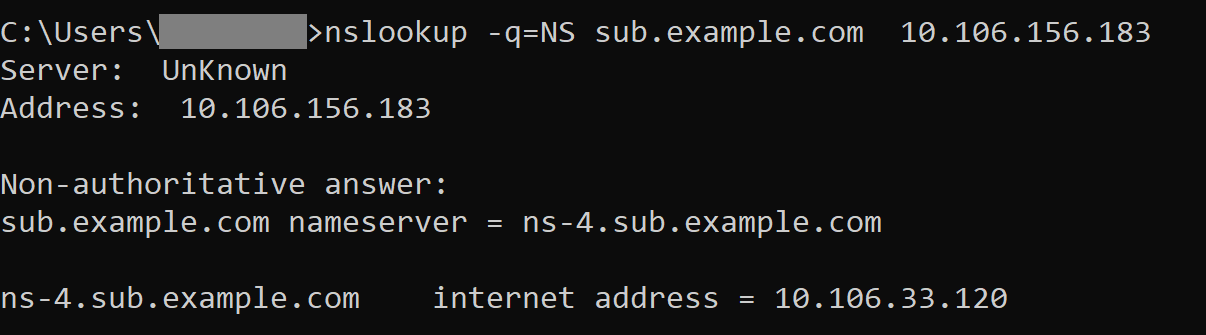
Windows -Resolve-DnsName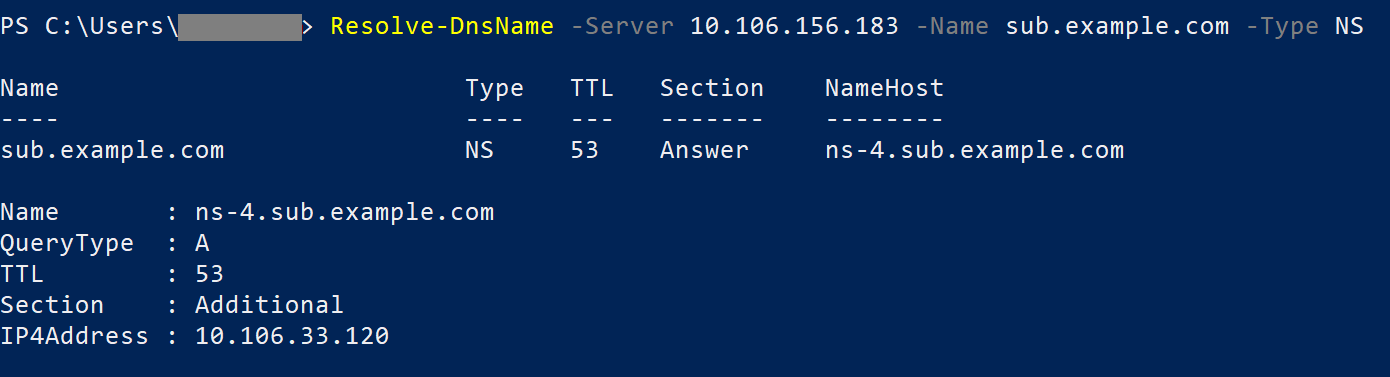
- If the test fails, check to see if the NS record conflicts with any other records in the Zone configuration.
- Test the CNAME record by query the Domain DNS server 10.106.156.183.
Linux -dig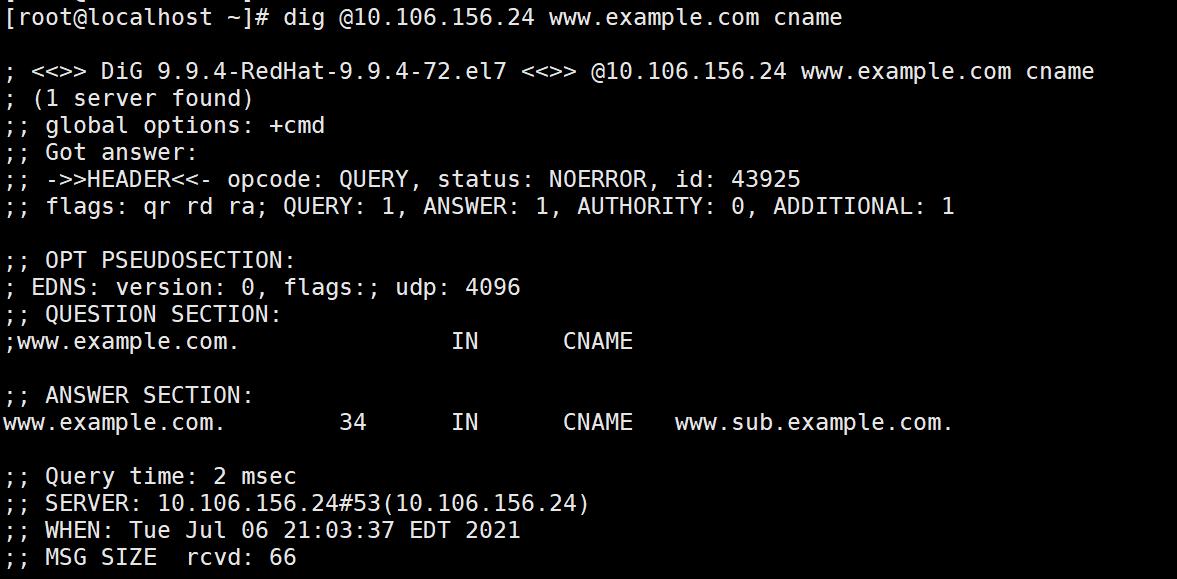
Windows -nslookup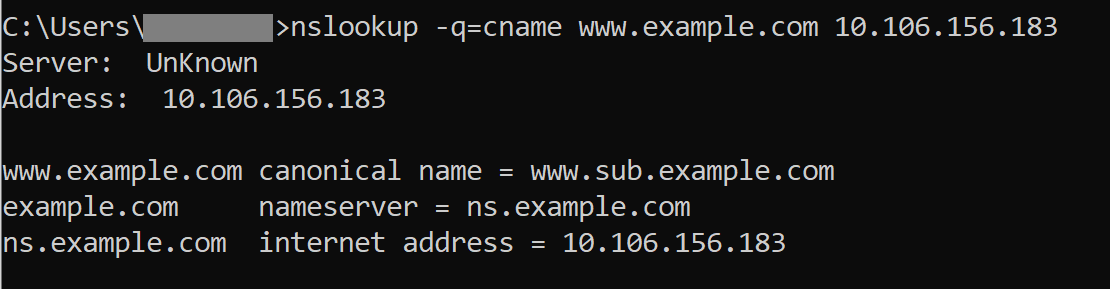
Windows -Resolve-DnsName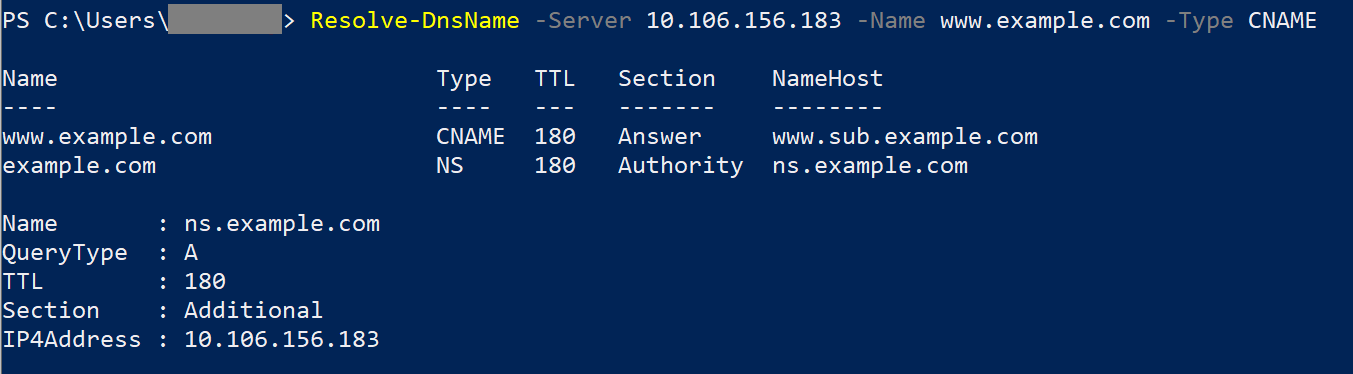
- If the test fails, check to see if the CNAME record conflicts with any other records in the Zone configuration.