

Waiting Room
To manage visitor traffic and avoid server overload delays, you can enable a virtual holding space and queuing system, allowing new users to enter a Waiting Room where they can view estimated wait times before accessing your application.
For information on configuring custom Waiting Room pages, please refer to Custom Pages.

|
Customizing the Waiting Room Page affects only the user-facing HTML. It does not change the queuing algorithm, capacity thresholds, or enforcement behavior. |
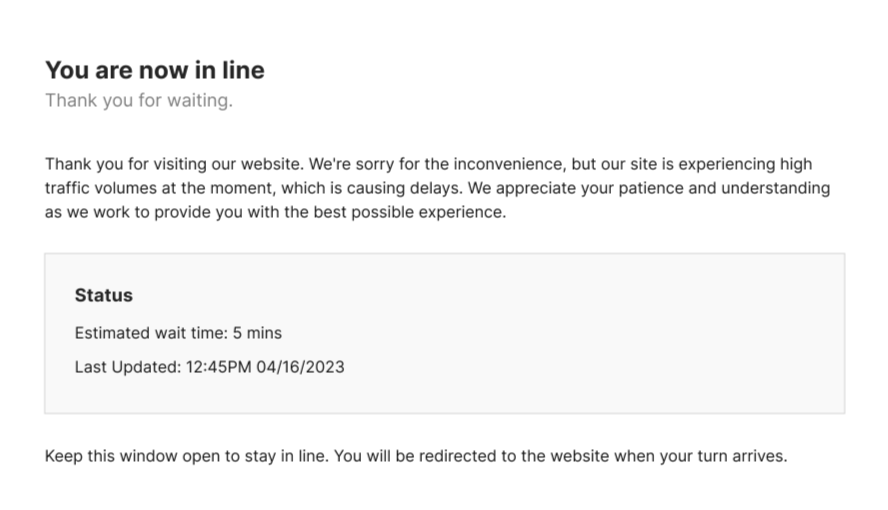
This feature may be configured for your entire website, or specific URL paths.
Before you configure Waiting Room, you must have already enabled this module in Add Modules. See How to add or remove a module.

|
The Waiting Room module supports only clients using web browsers. Non-browser traffic, such as traffic from mobile applications, cannot be processed by the Waiting Room module. |
Overview
Waiting room's Overview tab highlights key traffic insights for your application.
| Total Active Users | The total number of users accessing your application. |
| New Users | The number of users joining your application at one time. |
| Total Waiting Users | The number of users currently in the Waiting Room. |
| Estimated Waiting Time | The length of time a new user is expected to wait before accessing your application. |
You have the option to configure the time period for each graph of the above values, allowing you to select from the last hour, the last 24 hours, or the last 7 days.
Use the displayed information to make adjustments and optimize your configured settings for the Waiting Room feature.
Settings
To configure Waiting Room Settings:
-
Go to Application Delivery > Waiting Room > Settings and toggle the switch ON.
-
Configure these settings:
Please note, you are required to configure at least one of Total Active Users and New Users Per Minute. In addition, Path and Maximum Idle Time cannot be empty.
Total Active Users
Control the size of traffic accessing your application.
When enabled, if the number of active users reaches the configured value, additional users will enter the Waiting Room.
New Users per Minute
Prevent your application from being flooded by new users in a short time span.
When enabled, if the number of new users per minute reaches the configured value, additional users will enter the Waiting Room.
Path
The waiting room will only be enabled for the configured URL. Use /.* to match all.
Path can be an exact string, wildcard, or regular expression. It is also case sensitive.
This value cannot be empty.
Maximum Idle Time
Users who have remained idle for the configured time will be considered as a new user.
Users who have ended and restarted the session will also be considered as a new user.
This value cannot be empty.
Bypass Rules
Allow users with certain IP addresses to access your application directly, even if they trigger the above limiting conditions.
Click Create New and enter an IP address or range in the Value field to configure a new Bypass rule.
-
Click SAVE.