

Anycast Migration for global DNS service
On September 8, 2023, the legacy FortiGSLB service transitioned to an Anycast DNS server to enable DNS service deployment across multiple regions. This Anycast DNS server remains in use in the updated FortiAppSec Cloud GSLB. If you have not yet updated your DNS server IP addresses, please add the current Anycast IP addresses promptly to ensure uninterrupted functionality.
Anycast is an IP network addressing method where requests from several physical destination servers can be combined under a single IP address. When a user makes a request, Anycast routers determine the optimal server in the network to handle the request based on factors like the user's location, the number of hops, shortest distance, lowest transit cost, and minimum latency. This optimization process prevents the need for the origin server to extend capacity and avoids service interruptions for clients seeking information from the origin server.
Once you set the Anycast IP address as the DNS server IP address, it automatically routes your DNS query results to the nearest FortiAppSec Cloud endpoint. This dynamic load-balancing reduces latency and improves response times for global queries.
Changing the DNS IP (anycast) is not expected to cause service downtime. If you require any assistance, please see Contacting customer service.
How to migrate domains to Anycast
-
Log into the FortiAppSec Cloud portal.
-
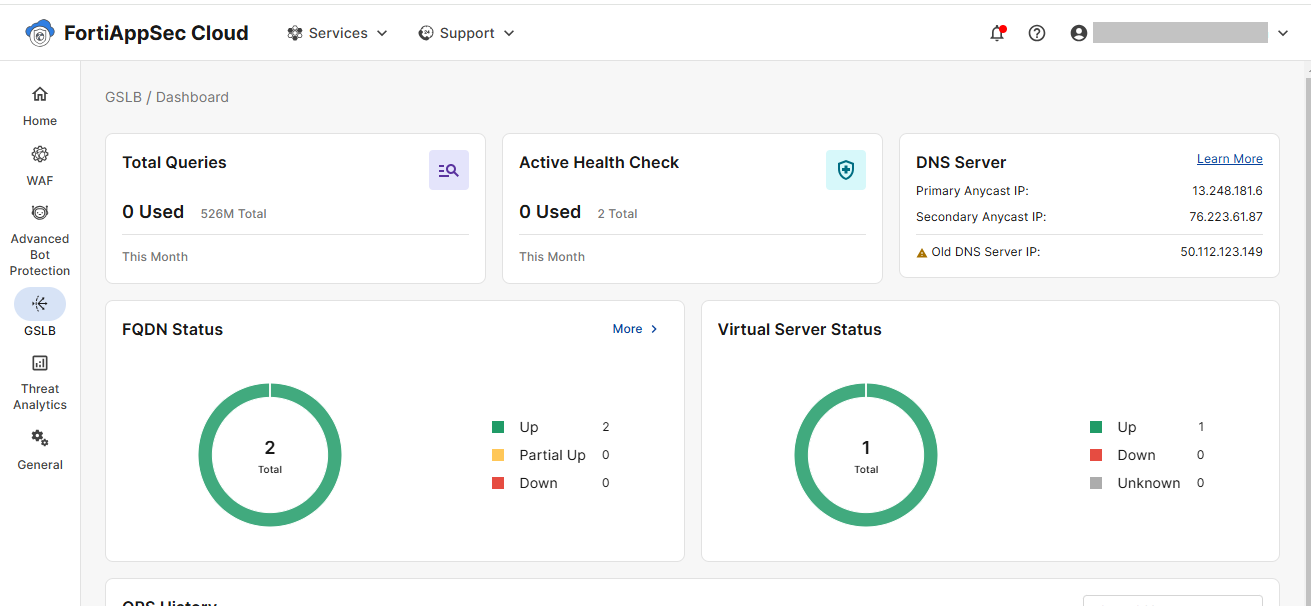
Obtain the assigned Anycast IP address by navigating to GSLB > Dashboard. A yellow warning label will appear until you have successfully switched all of your domains to the new IP address(es).
In the example below, the Anycast IP addresses are 13.248.181.6 and 76.223.61.87.
Two Anycast IP addresses are provided as some domain management tools require each NS record to have two different IP addresses. The Primary Anycast IP refers to the IP address returned for the One Click GSLB Server. However, in all other aspects, the Primary and Secondary IP addresses are equivalent and either one can be used for domain management tools that only require one address.
-
Verify your domain works with the Anycast IP address by sending the DNS query traffic to Anycast DNS server directly. Here, your DNS query traffic still goes through the old DNS server.
In our example, the test domain is app.devdemo.GSLB-cloud.com. You could use
digornslookupto verify it.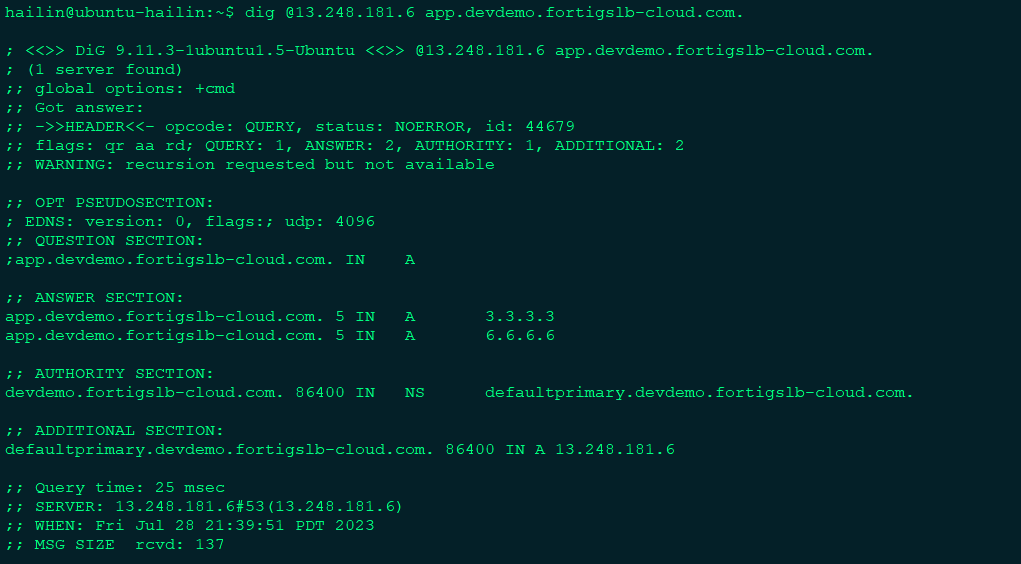
-
Confirm your current configuration management tools are connected correctly. This is important as the Anycast DNS server will connect to your existing domain management tool.
In this example, we used
dig @8.8.8.8+traceto verify the status.
-
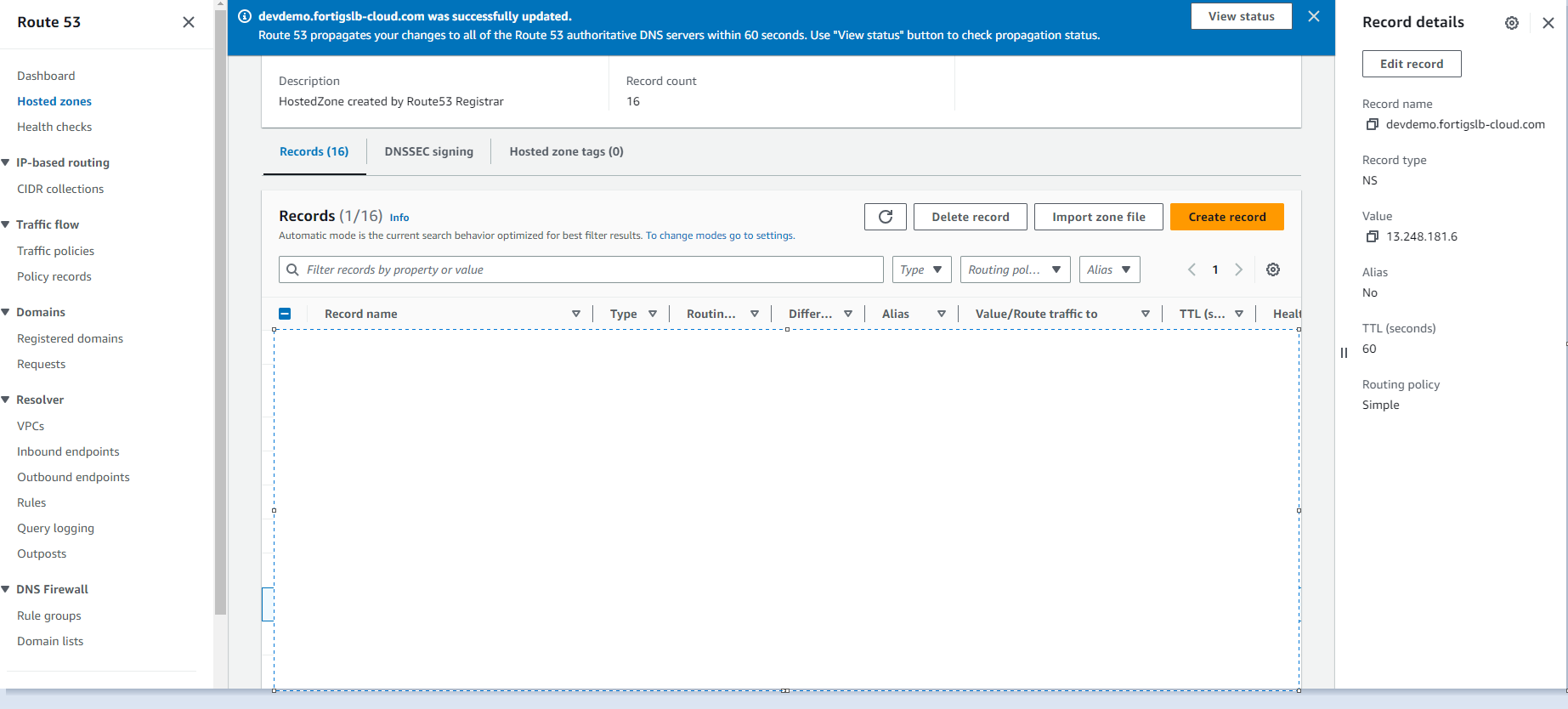
If you use a NS (Name Server) record to point your domain to GSLB, update the Anycast IP address to the NS record on your domain management tool.
In this example, the NS record is configured on Route 53 and the NS record value is updated to “13.248.181.6”.
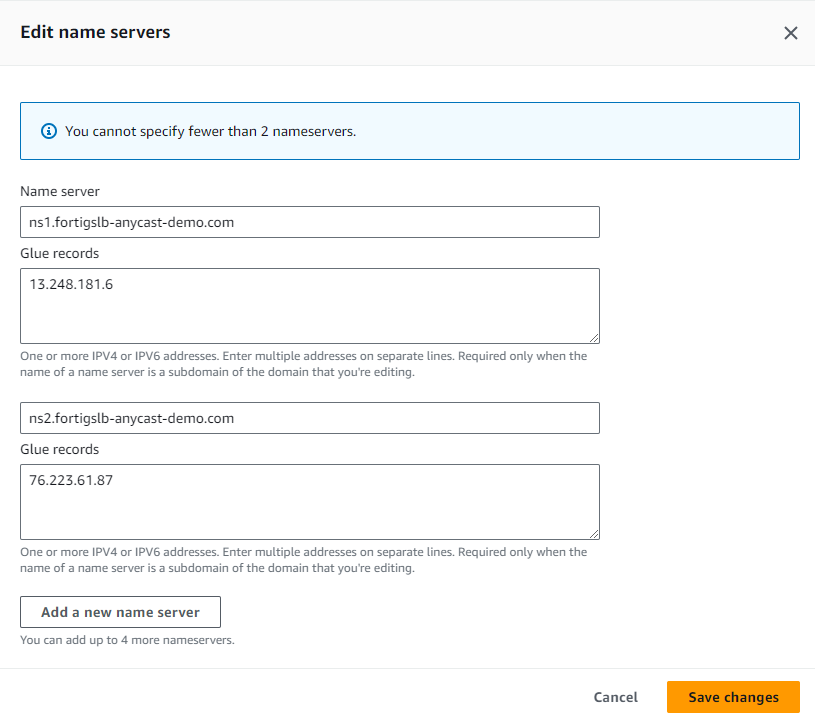
If you use a glue record to point your domain to GSLB, update the Anycast IP address to the glue record on your domain management tool.
Pictured below is an example where the domain “GSLB-anycast-demo.com” is registered on AWS. Here, the domain will be configured under “Registered domains” in Route53 and the “Primary Anycast IP” and “Secondary Anycast IP” are updated to "Glue records".
In this case, the DNS request is delegated to GSLB.
Please note, DNS changes can take several minutes to 48 hours to fully propagate throughout the internet. Please consult your domain management tool for more information.
-
To confirm the change is in effect, use dig or nslookup to verify the status of the newly configured IP address.

The GUI will also reflect that all domains have been successfully changed to the Anycast server.