
Fortinet white logo
Fortinet white logo

User Guide

Bot Monitor

Bot Monitor

Track monthly bot activity or define special events to create reports on your application's activity during specific time frames.
Configure custom bot monitoring events:

  1. Click Event.

  2. Fill out the following fields:

    Field Description
    Event Name Name the event you would like to monitor (eg., product release day, New Year's Eve).
    Start Time Set the start time of the event
    End Time Optional; event is ongoing when empty.
    URL Optional; the URL(s) you would like to monitor. When empty, all of the URLs on your application's domain are monitored.
    Description Optional; enter a description that will help you keep track of the different events.

Bot Monitor

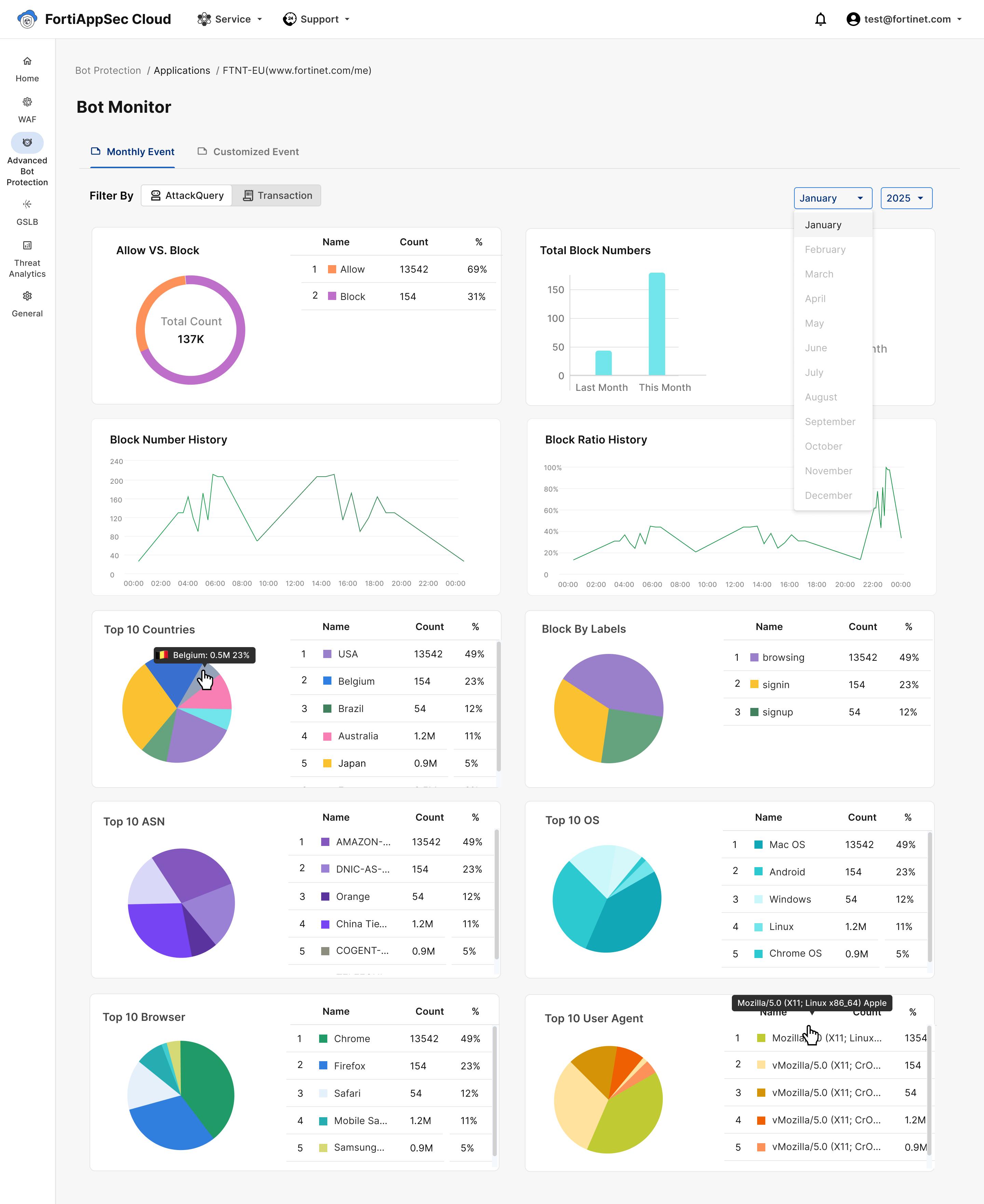
The Bot Monitor charts illustrate the following:

Static Component

Description

Allow VS Block

Displays the proportion of suggested action = Allow versus suggested action = block, within all AttackQueries or Transactions. Choose whether you want to see this display for attack queries or transactions.

Use this pie chart to gain insight on the proportion of malicious bot traffic to benign human or bot traffic.

Total Block Numbers

Displays the block count for selected month and compares it to the previous month, highlighting the change.

Block Number History

Line charts show the number of blocks over 24 hours, allowing trend analysis throughout the day.

Block Ratio History

Line charts show the block ratio over 24 hours, allowing trend analysis throughout the day.

Category pie charts

Pie charts display the distribution of bot traffic across key categories:

  • Country: Geographic location of bot activity.

  • Labels: Describes activity types associated with blocked traffic.

  • ASN (Autonomous System Number): Identifies the network from which bot traffic originates.

  • OS (Operating System): The operating system used by the client, such as Windows, macOS, or Linux.

  • Browser: The browser type associated with the bot request

  • User Agent: A string in HTTP requests identifying the client software (browser, bot, or API client) to help classify traffic.

Hover your cursor over the charts to view the count associated with each bar or pie slice.

Bot Monitor

Bot Monitor

Track monthly bot activity or define special events to create reports on your application's activity during specific time frames.

Configure custom bot monitoring events:

  1. Click Event.

  2. Fill out the following fields:

    Field Description
    Event Name Name the event you would like to monitor (eg., product release day, New Year's Eve).
    Start Time Set the start time of the event
    End Time Optional; event is ongoing when empty.
    URL Optional; the URL(s) you would like to monitor. When empty, all of the URLs on your application's domain are monitored.
    Description Optional; enter a description that will help you keep track of the different events.

Bot Monitor

The Bot Monitor charts illustrate the following:

Static Component

Description

Allow VS Block

Displays the proportion of suggested action = Allow versus suggested action = block, within all AttackQueries or Transactions. Choose whether you want to see this display for attack queries or transactions.

Use this pie chart to gain insight on the proportion of malicious bot traffic to benign human or bot traffic.

Total Block Numbers

Displays the block count for selected month and compares it to the previous month, highlighting the change.

Block Number History

Line charts show the number of blocks over 24 hours, allowing trend analysis throughout the day.

Block Ratio History

Line charts show the block ratio over 24 hours, allowing trend analysis throughout the day.

Category pie charts

Pie charts display the distribution of bot traffic across key categories:

  • Country: Geographic location of bot activity.

  • Labels: Describes activity types associated with blocked traffic.

  • ASN (Autonomous System Number): Identifies the network from which bot traffic originates.

  • OS (Operating System): The operating system used by the client, such as Windows, macOS, or Linux.

  • Browser: The browser type associated with the bot request

  • User Agent: A string in HTTP requests identifying the client software (browser, bot, or API client) to help classify traffic.

Hover your cursor over the charts to view the count associated with each bar or pie slice.