ABP Workflow and Dashboard Overview
This section provides an introduction to the primary web portal pages for configuring settings and monitoring application activity in FortiAppSec Cloud's ABP Service.
Application
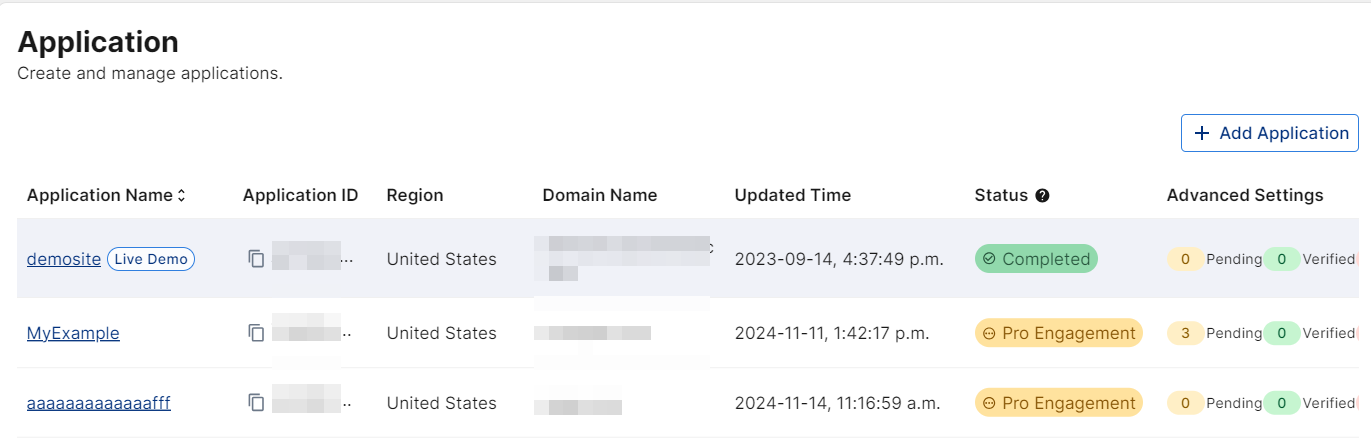
The Application page contains the management settings for the applications you want to protect through FortiAppSec Cloud. Here, you can add new applications and access the details on existing applications, most notably the Application ID and Status information. When you initially add an application, the status will be pending until it has been fully analyzed and Pre-Provisioning is complete. Once the application status is ready, you can connect ABP to your connector device using the Application ID.
Traffic Insights
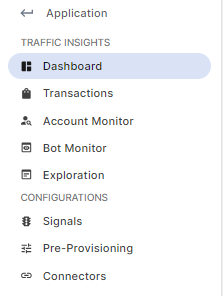
The Traffic Insights menu includes dashboards and monitors to view real-time reporting and analytics of your traffic, bot activity, and security incidents to provide insights to help you make informed decisions to enhance your bot protection strategy.
To access the Traffic Insights and Configurations pages, click the name of one of the applications on the Application page.
Dashboard
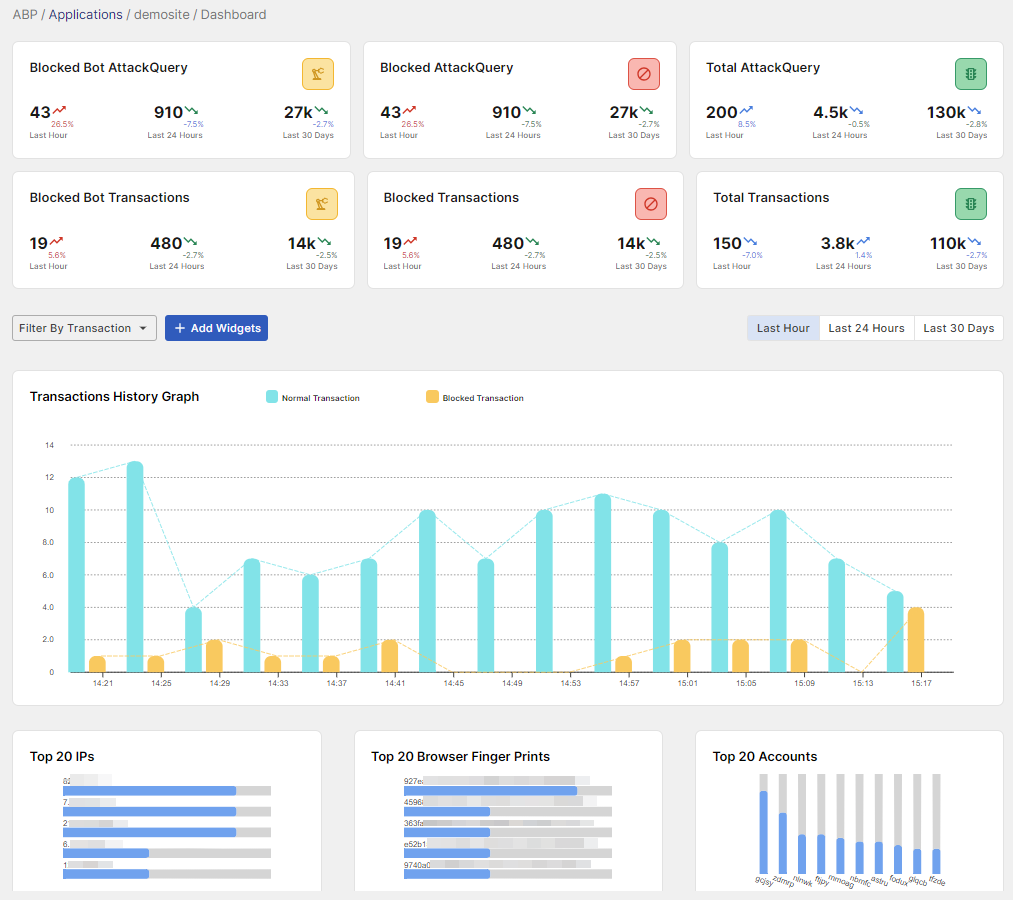
The Dashboard page contains widgets and graphs that provide data visualizations of the various data points collected and monitored in FortiAppSec Cloud.
Transactions
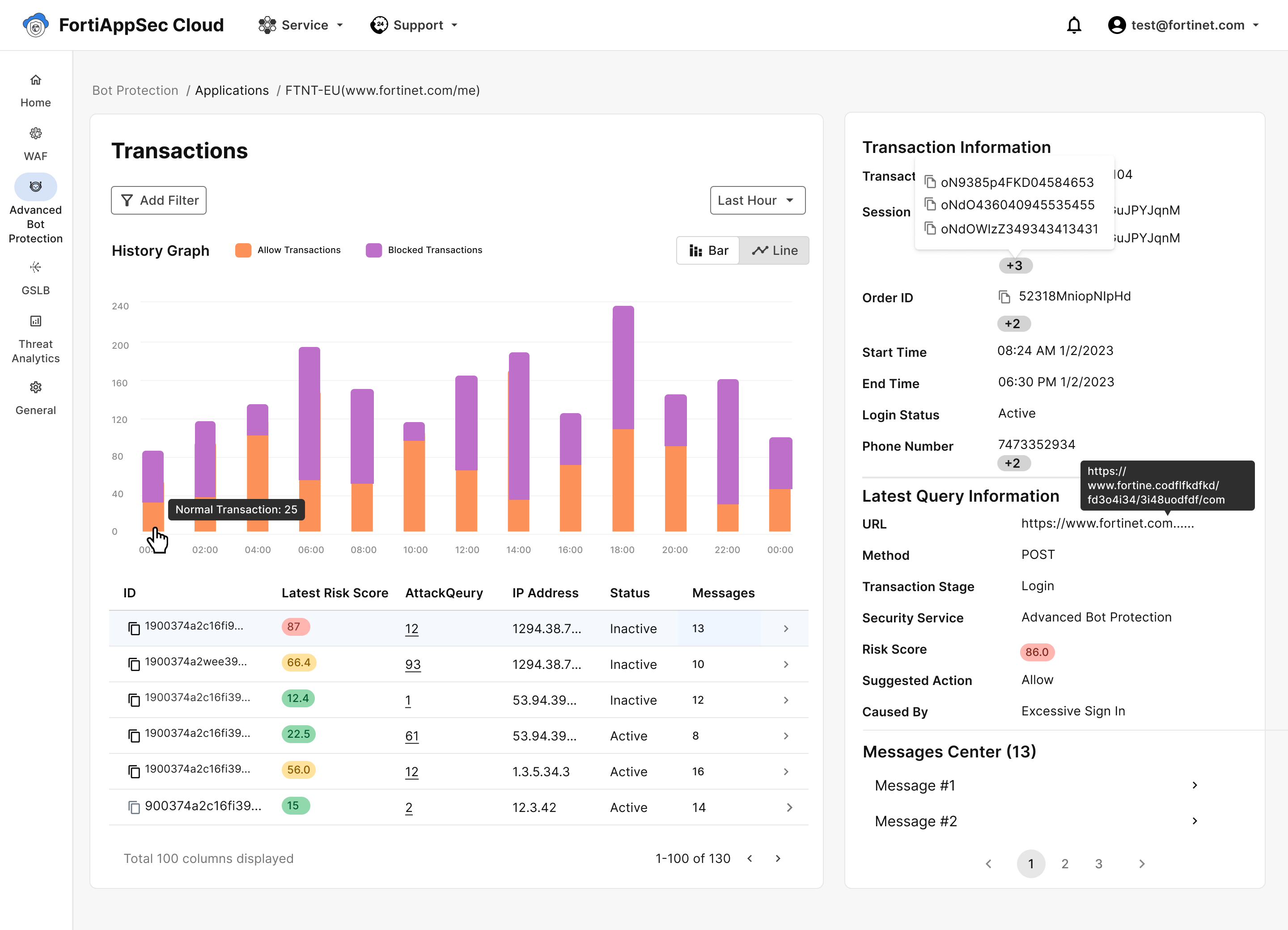
The Transactions page contains the records of all user activities within your application, including login attempts, payment outcomes, idle periods exceeding a specified duration, and browser closure. You have the option to view records from the last hour, last 24 hours, or last 30 days.
Account Monitor
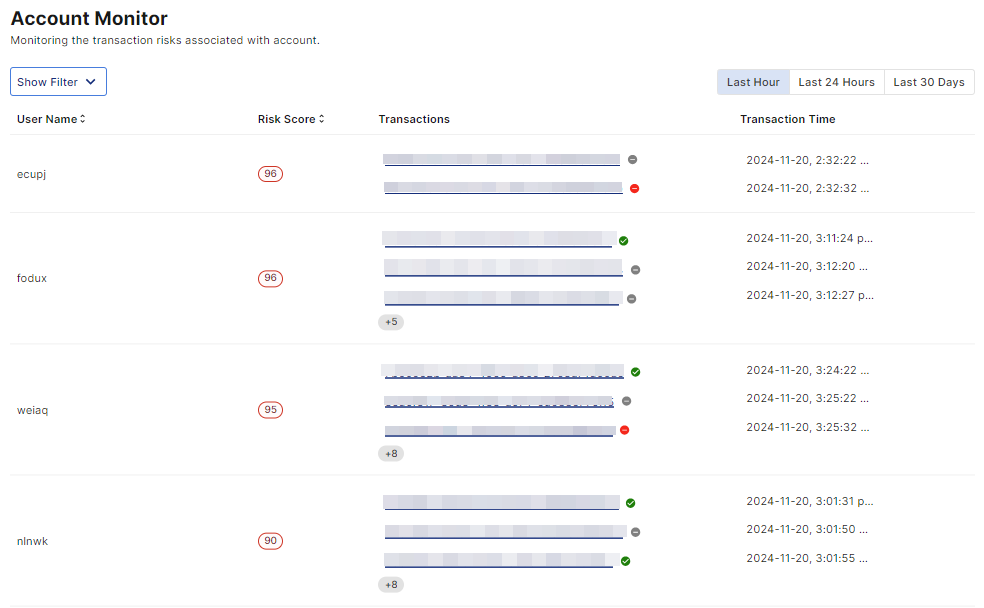
From the Account Monitor page, you can monitor the transaction records based on the user to track the risk associated with each account over time.
Bot Monitor
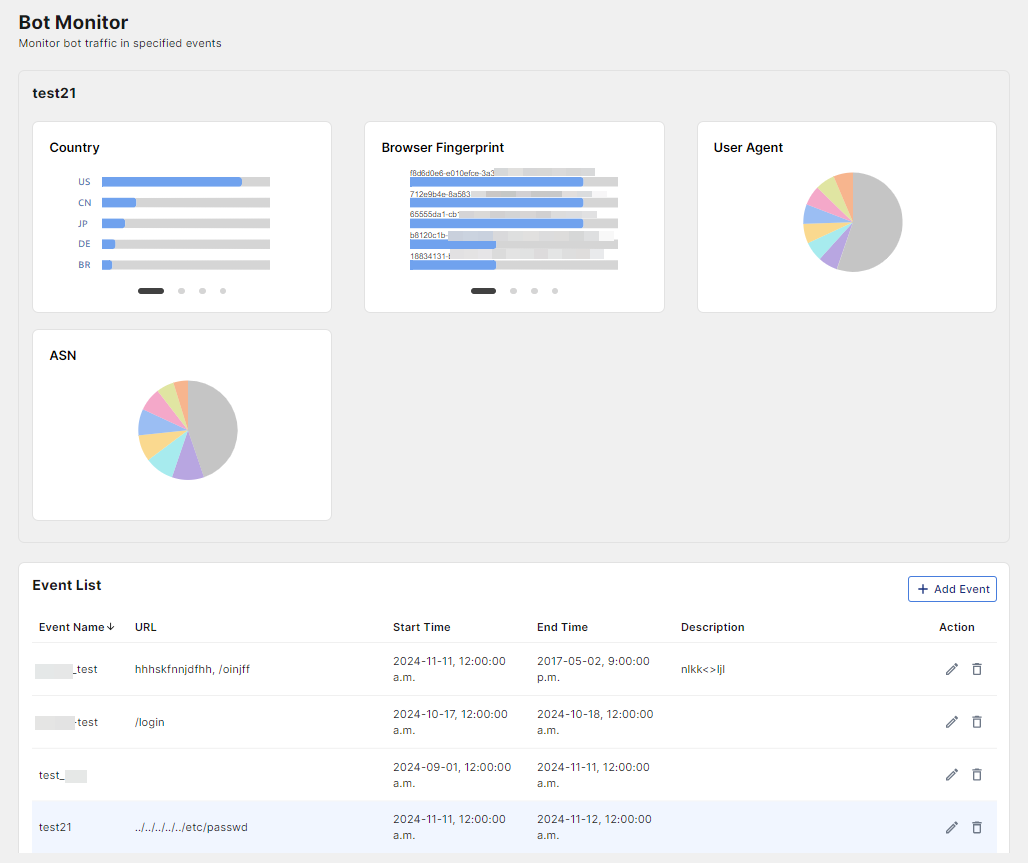
The Bot Monitor page allows you to define specified periods as bot monitoring events. This allows you to take snippets of bot traffic and analyze various data points such as the attack origin country, browser fingerprint, the cause of the bot attack, and more.
Exploration
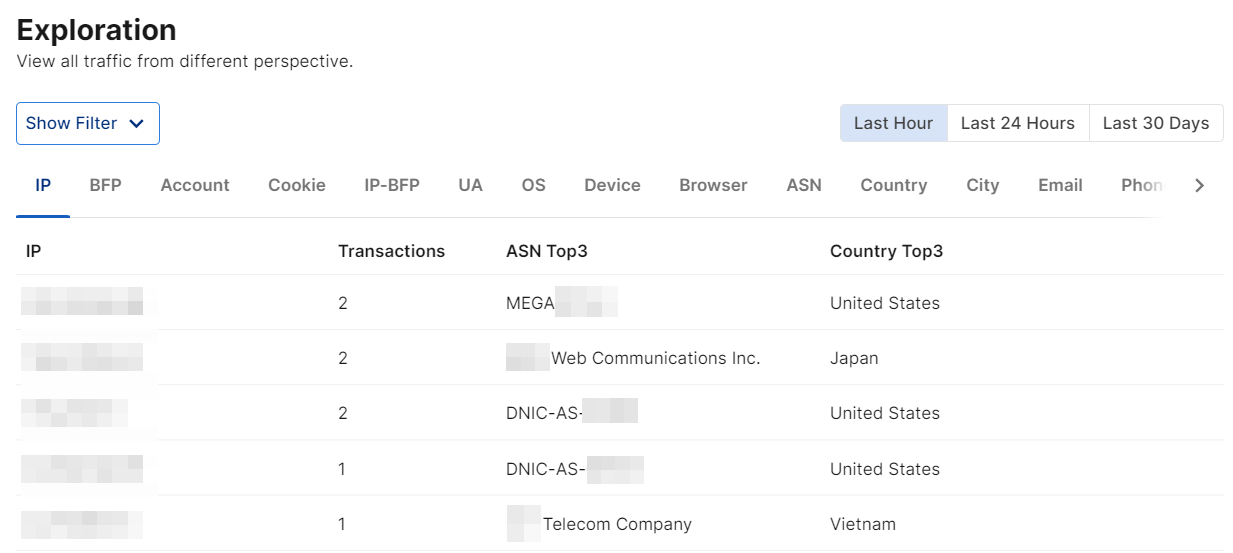
The Exploration page allows you to view all traffic information filtered through different data points to provide varied perspective and insight.
Configurations
The Configurations menu contains the elements for setting up and customizing the Advanced Bot protection system.
To access the Traffic Insights and Configurations pages, click the name of one of the applications on the Application page.
Signals
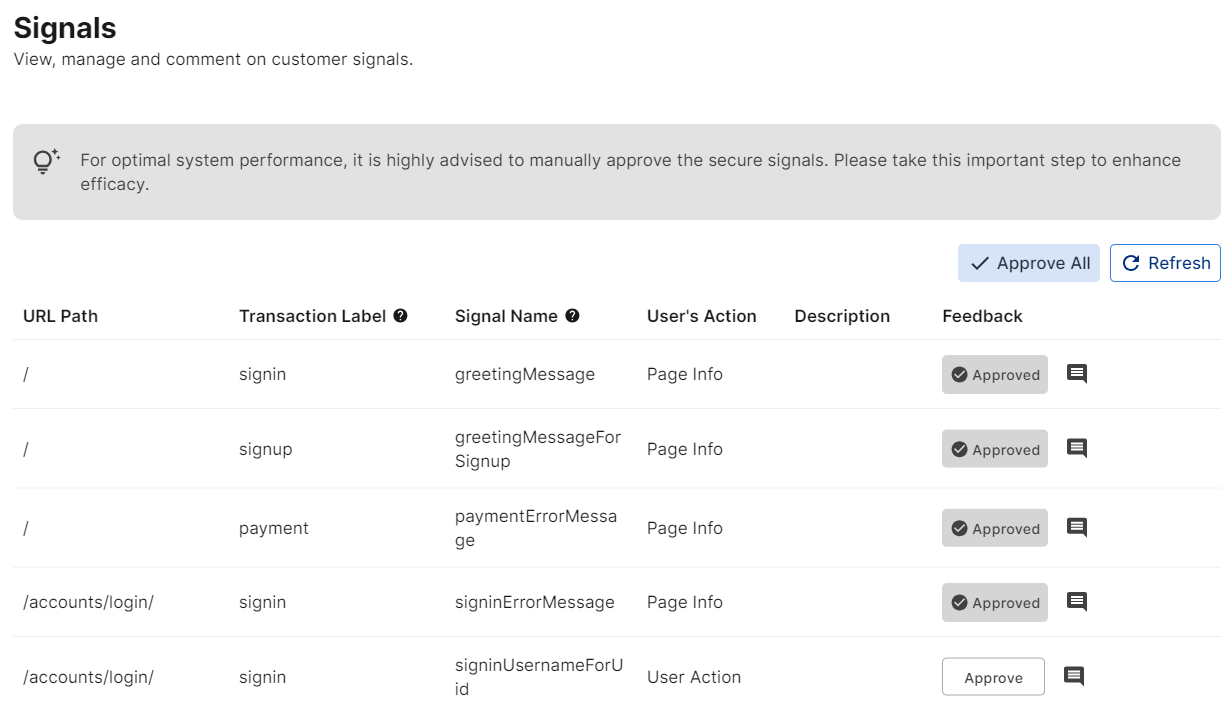
The Signals page contain "Signal" entries, transactions which involve sensitive data that are identified as potential bot signifiers to incorporate into the ABP machine learning model. User approval is required to track the sensitive data contained in these Signals, otherwise ABP will exclude these data points in its AI model training to identify similar suspicious activity.
Pre-Provisioning
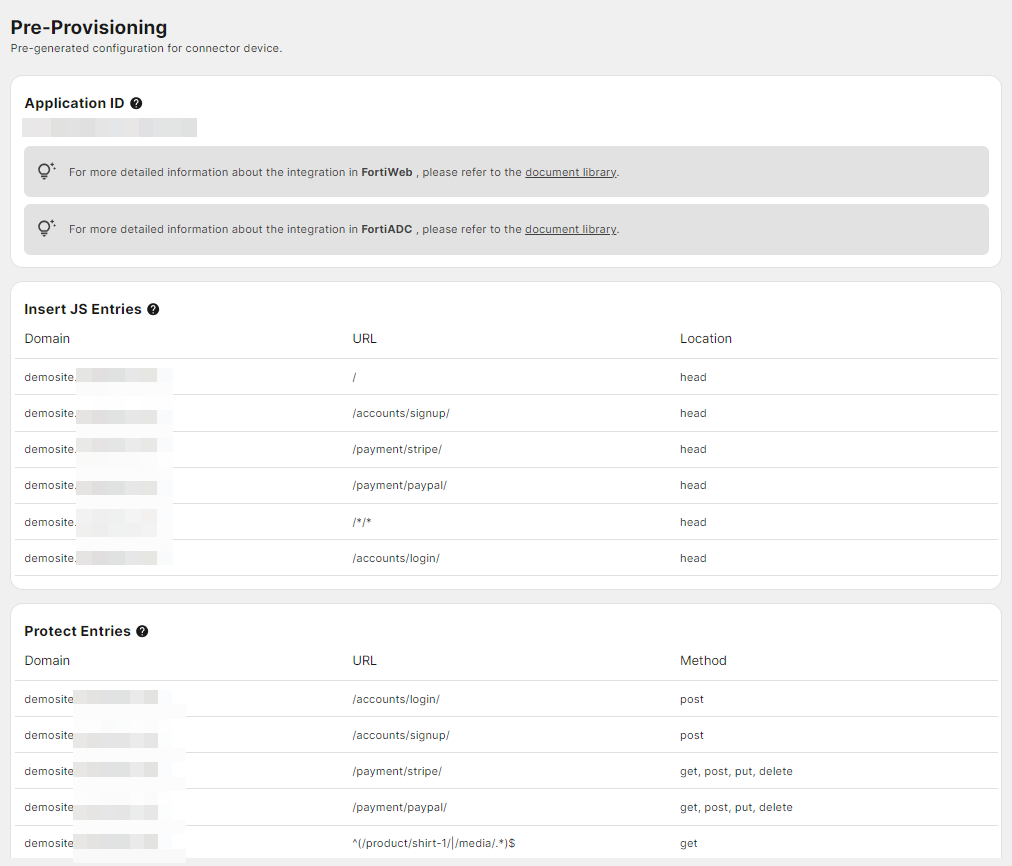
The Pre-Provisioning page contains the analyzed resources required to protect your application, which includes the protected URL entries and the locations where JavaScript is inserted through your connector devices to collect client information for bot detection.
The Pre-Provisioning process begins once you have added an Application. This triggers a request to the Professional Engagement Team (PET) to analyze your application details and to identify URLs to protect and insert the required JavaScript to enable the Advanced Bot Protection functionality. This process is currently conducted internally by the PET and requires 2 to 3 days to complete. If you wish to modify or add entries, please submit a request with Fortinet Support.
Connectors
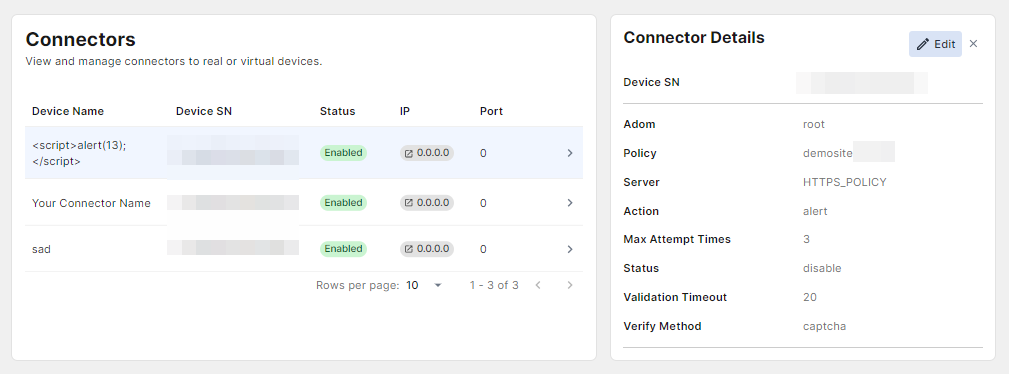
From the Connectors page, you can view the Fabric devices connected to ABP. This page contains details of each connector device, including their device serial number, IP address, port number, and more.
In rare troubleshooting scenarios when ABP does not successfully fetch the device IP or Port, you may edit these fields.