
Fortinet white logo
Fortinet white logo

User Guide

Topology

Topology

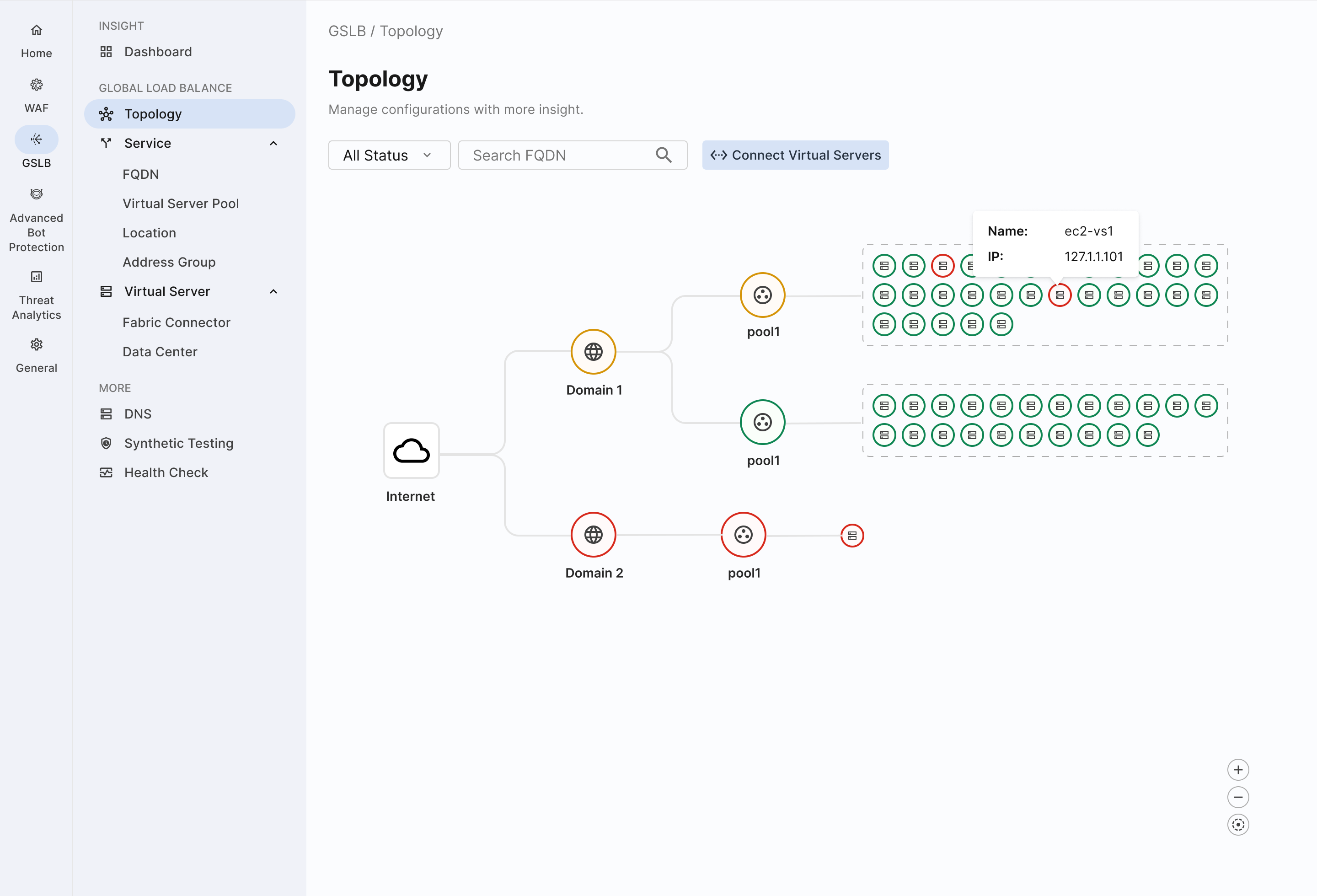
The Topology page provides a clear view of your configuration flow by displaying the relationships between your GSLB objects, helping you gain a deeper understanding of their connections. You can either create objects and their relationships on this page, or individually create each component by following the instructions on Onboarding GSLB Applications.
Configure Topology

  1. Add Fabric connectors and Virtual Servers

    If you have a physical Fortinet device (e.g., FortiGate) and want to start with server management, begin with this step. If you prefer to focus on network identity and are familiar with DNS, proceed to the next step to set up your FQDN.

    1. Click Connect Virtual Servers to configure fabric connectors and virtual servers.

      Connectors in GSLB are linked to a physical device at the data center which houses virtual servers, from which the cloud can fetch all the virtual servers running information.

      For more information on the configuration options on this page, please refer to Fabric connector.

  2. Add FQDN

    An FQDN object maps a fully qualified domain name (FQDN) to a set of virtual servers (pool). For additional details on FQDNs, please refer to FQDN .

    1. Return to the Topology page, and right-click Assigned DNS Server.

    2. Click Add FQDN.

      For more information on the configuration options for this object, please refer to FQDN .

    3. Click Save to return to the Topology page.

  3. Add Virtual Server Pool

    1. On the Topology page, right-click the FQDN you added in the previous step.

    2. Click New Virtual Server Pool.

      For more information on the configuration options for this object, please refer to Virtual Server Pool.

      Click Save to return to the Topology page.

  4. Add Virtual Server to Virtual Server Pool

    1. On the Topology page, click Connect Virtual Servers.

    2. Add the desired Virtual Servers you configured in step 1 to the Virtual Server Pool(s) you created in step 3.

      We recommend placing virtual servers with similar functions or locations into the same pool.

Edit Topology

To edit the relationship between objects in your Topology, click and edit an object to remove or add a child object in Topology tree.

To edit settings on individual objects:

  1. Right-click the object you would like to edit.

  2. Click Edit to open a modal window with configuration options for the selected object.

  3. Make the desired changes.

  4. Click Save.

Run Diagnostics

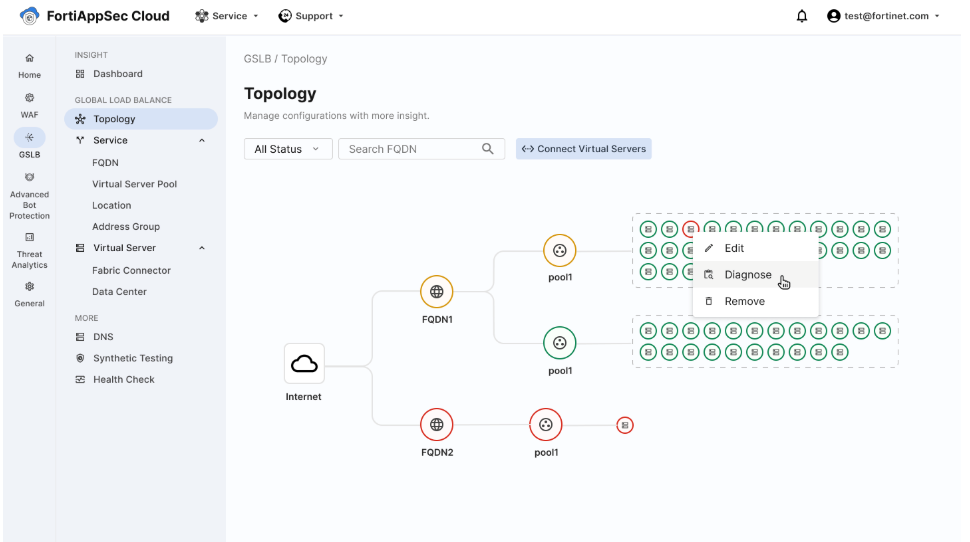
Run diagnostics on Virtual Servers, Fabric Connectors, and Health Checks directly from the GSLB Topology view by right-clicking the item and selecting Diagnose.

This displays further details on its status such as associated health check, region, and error message if applicable.
Topology

Topology

The Topology page provides a clear view of your configuration flow by displaying the relationships between your GSLB objects, helping you gain a deeper understanding of their connections. You can either create objects and their relationships on this page, or individually create each component by following the instructions on Onboarding GSLB Applications.

Configure Topology

  1. Add Fabric connectors and Virtual Servers

    If you have a physical Fortinet device (e.g., FortiGate) and want to start with server management, begin with this step. If you prefer to focus on network identity and are familiar with DNS, proceed to the next step to set up your FQDN.

    1. Click Connect Virtual Servers to configure fabric connectors and virtual servers.

      Connectors in GSLB are linked to a physical device at the data center which houses virtual servers, from which the cloud can fetch all the virtual servers running information.

      For more information on the configuration options on this page, please refer to Fabric connector.

  2. Add FQDN

    An FQDN object maps a fully qualified domain name (FQDN) to a set of virtual servers (pool). For additional details on FQDNs, please refer to FQDN .

    1. Return to the Topology page, and right-click Assigned DNS Server.

    2. Click Add FQDN.

      For more information on the configuration options for this object, please refer to FQDN .

    3. Click Save to return to the Topology page.

  3. Add Virtual Server Pool

    1. On the Topology page, right-click the FQDN you added in the previous step.

    2. Click New Virtual Server Pool.

      For more information on the configuration options for this object, please refer to Virtual Server Pool.

      Click Save to return to the Topology page.

  4. Add Virtual Server to Virtual Server Pool

    1. On the Topology page, click Connect Virtual Servers.

    2. Add the desired Virtual Servers you configured in step 1 to the Virtual Server Pool(s) you created in step 3.

      We recommend placing virtual servers with similar functions or locations into the same pool.

Edit Topology

To edit the relationship between objects in your Topology, click and edit an object to remove or add a child object in Topology tree.

To edit settings on individual objects:

  1. Right-click the object you would like to edit.

  2. Click Edit to open a modal window with configuration options for the selected object.

  3. Make the desired changes.

  4. Click Save.

Run Diagnostics

Run diagnostics on Virtual Servers, Fabric Connectors, and Health Checks directly from the GSLB Topology view by right-clicking the item and selecting Diagnose.

This displays further details on its status such as associated health check, region, and error message if applicable.